> This is part 1 of 3 of the full documentation (pages 1–100 of 264).
> The content is paginated: fetch every part to see all of it.
> Next part: https://help.tacinsight.com/fast-weigh-knowledge-base/llms-full.txt/1
> Page index: https://help.tacinsight.com/fast-weigh-knowledge-base/llms.txt

# Fastweigh Knowledge Base

Get an overview of Fastweigh's features, integrations, and how to use them.

<table data-card-size="large" data-view="cards" data-full-width="true"><thead><tr><th data-type="content-ref"></th><th data-hidden></th><th data-hidden></th><th data-hidden></th><th data-hidden data-card-cover data-type="files"></th></tr></thead><tbody><tr><td><a href="/fast-weigh-knowledge-base/tutorials/tutorials-overview">Tutorials</a></td><td>TUTORIALS</td><td></td><td></td><td><a href="https://490131596-files.gitbook.io/~/files/v0/b/gitbook-x-prod.appspot.com/o/spaces%2F0LJDMCSYOqplCEgCo73X%2Fuploads%2Fh5mFLplHZDtQsvpWopbX%2FTutorials.png?alt=media&amp;token=04d1d221-3473-4262-b83b-9e4d8dffef64">Tutorials.png</a></td></tr><tr><td><a href="/fast-weigh-knowledge-base/how-to-guides/how-to-guides-overview">How To Guides</a></td><td>HOW TO GUIDES</td><td></td><td></td><td><a href="https://490131596-files.gitbook.io/~/files/v0/b/gitbook-x-prod.appspot.com/o/spaces%2F0LJDMCSYOqplCEgCo73X%2Fuploads%2FyYuemCUJzi7gTpNyAmC3%2FHow-To.png?alt=media&amp;token=66c22dda-bc8f-42d6-8461-510df106c56c">How-To.png</a></td></tr><tr><td><a href="/fast-weigh-knowledge-base/references/references-overview">References</a></td><td>REFRENCES</td><td></td><td></td><td><a href="https://490131596-files.gitbook.io/~/files/v0/b/gitbook-x-prod.appspot.com/o/spaces%2F0LJDMCSYOqplCEgCo73X%2Fuploads%2Fg0liwgT5cXsh8UiGjKWI%2FResources.png?alt=media&amp;token=c80522d5-2381-4b97-beda-4ebf2f126533">Resources.png</a></td></tr><tr><td><a href="/fast-weigh-knowledge-base/faqs-and-best-practices/frequently-asked-questions">FAQs and Best Practices</a></td><td>FREQUENTLY ASKED QUESTIONS</td><td></td><td></td><td><a href="https://490131596-files.gitbook.io/~/files/v0/b/gitbook-x-prod.appspot.com/o/spaces%2F0LJDMCSYOqplCEgCo73X%2Fuploads%2FinmdS5KXFGiOuSmNWVTB%2FFAQ.png?alt=media&amp;token=a33b373a-0ae9-4a3b-bf72-0009f387af2e">FAQ.png</a></td></tr></tbody></table>


# Tutorials Overview

This section of our Knowledge Base is dedicated to new users of our software. Our tutorials will show users the basics of how our software is used without overwhelming them with information.

## What is Fastweigh?

*Fastweigh is cloud-based ticketing software, built to make your aggregate operation faster, simpler, and more efficient than ever. Our goal is simple: less stress, and more time to focus on your business. That means no expensive IT infrastructure, total access to your production data, and a modern, user-friendly system that will change the way you think about material sales.*

***

## Platform Overview:

### Centralized Web Portal

With our cloud-based system, your ticketing data will never be stuck in the scale house again. View, edit, and analyze ticket data from all locations. Enjoy total operations management from anywhere, on any device.

#### Key Features:

* Ticket Management
* Order & Customer Management
* Products & Pricing Matrix
* Multi-Tier Location Support
* Unlimited Users
* In-Depth Reporting

### Desktop Ticketing App

Our Windows 10/11 ticketing application was designed from the ground up to streamline daily scale house operations and communicate directly with our web portal. All data is immediately backed up to the cloud, ensuring no ticket ever goes unaccounted for.

#### Key Features:

* Backed by the Cloud
* Offline-Capable
* Hardware Accessories
* Multi-Scale Support
* Highly Customizable

## Add on Modules

* Billing & Invoicing
* Inventory
* Analytics
* Hauler Pay
* Quotes
* Dispatching
* Load-Out
* Mobile Applications

## Vocabulary&#x20;

{% hint style="info" %}
Fast-Weigh may refer to records differently than your previous system. This list may help you become familiar with our terminology.
{% endhint %}

Customer: Purchaser of your Products

Region: The highest Level of the Location Hierarchy. Regions contain Locations. Regions can be used to segregate by proximity or by billing entity.&#x20;

Location: Middle Level of the Location Hierarchy. Typically refers to a Quarry/Pit. Locations contain Yards. Locations are also the level at which global products can be assigned.

Yard: Lowest Level of the Location hierarchy. Yards can be used to segregate activity at a location. A yard is created automatically when you create a location but more can be added if needed.

Product: Material being sold

Hauler: Carrier/Owner of Trucks

Truck: Vehicle belonging to a Hauler

Order: Combines Customer and Product to create a Job that can be ticketed. Orders are region specific but can contain products from multiple locations as long as they are in the same region

Ticket: Receipt of Sale/BOL/Weigh Slip/Tag

Batch: Group of Invoices. You may hear the billing process be referred to as Batching. This is simply the process of searching for tickets and assigning them a Batch #.&#x20;

Report: Document generated by Fast-Weigh that displays data for easier interpretation. Our report building software is also used to create Ticket Templates, Invoices, Statements and E-Tickets.&#x20;


# Logging in for the First Time

Welcome to Fastweigh!

{% hint style="info" %}
New User Log-ins must be created by your Web Portal Administrator. Due to security concerns, Fastweigh Support will not create or modify user Log-Ins.
{% endhint %}

After your user account has been created you will receive an email from <noreply@fastweigh.com> with the subject "Fastweigh Password Setup" This email contains your User ID and a link that allows you to set your password:

<figure><img src="https://490131596-files.gitbook.io/~/files/v0/b/gitbook-x-prod.appspot.com/o/spaces%2F0LJDMCSYOqplCEgCo73X%2Fuploads%2FZrqM81ueTfaskdoNSB7i%2Fimage.png?alt=media&amp;token=e9021c09-b073-469d-b6c0-9c7a8469786e" alt=""><figcaption><p>Note your User ID and click the Link</p></figcaption></figure>

Click the link in the email to be taken to the "Set Password" page:

<figure><img src="https://490131596-files.gitbook.io/~/files/v0/b/gitbook-x-prod.appspot.com/o/spaces%2F0LJDMCSYOqplCEgCo73X%2Fuploads%2FtwQBhatFCU68fz0tmVev%2Fimage.png?alt=media&amp;token=02fcaa2a-15c6-4929-80fa-f19826f05e49" alt=""><figcaption><p>Create your password</p></figcaption></figure>

Enter your desired password twice and Click "Set Password"

{% hint style="info" %}
Default Password Requirements require a minimum of 6 Characters. However, your Web Portal Admin may have increased these requirements. Please reference the blue text underneath the "Set Password" button for any additional requirements.
{% endhint %}

Click on the link in the success message to be redirected to the Fastweigh Web Portal

<figure><img src="https://490131596-files.gitbook.io/~/files/v0/b/gitbook-x-prod.appspot.com/o/spaces%2F0LJDMCSYOqplCEgCo73X%2Fuploads%2FcVPkwRwDhb9BTms1eT3a%2Fimage.png?alt=media&amp;token=e59b38f1-85e2-4dd8-ae70-ffc0ad3c4fe1" alt=""><figcaption><p>Click the Link to Log in for the first time</p></figcaption></figure>

Enter the User ID from the account creation email and the password you set and Click "Log in"

<figure><img src="https://490131596-files.gitbook.io/~/files/v0/b/gitbook-x-prod.appspot.com/o/spaces%2F0LJDMCSYOqplCEgCo73X%2Fuploads%2FNJQISXDY4reIUGAQLRdC%2Fimage.png?alt=media&amp;token=1e767a13-9631-4bae-b39d-04d1b27bf7cf" alt=""><figcaption></figcaption></figure>

*Check out the next Tutorial to learn about Navigating the Web Portal*


# Navigating the Web Portal

How to navigate to different modules, vocabulary for using our software

## Navigation

When you first log into the Web Portal, you will see the Home Screen Dashboard:

<figure><img src="https://490131596-files.gitbook.io/~/files/v0/b/gitbook-x-prod.appspot.com/o/spaces%2F0LJDMCSYOqplCEgCo73X%2Fuploads%2F6zULTSZxB5ECYzHhYs6L%2Fimage.png?alt=media&amp;token=3f125bb1-c195-409e-9842-609e22310fa4" alt=""><figcaption><p>View this screen at any time by clicking the Home Tab</p></figcaption></figure>

*Depending on your User Role, Restrictions, and currently subscribed modules, the Tabs visible at the top of your screen may vary.*&#x20;

<figure><img src="https://490131596-files.gitbook.io/~/files/v0/b/gitbook-x-prod.appspot.com/o/spaces%2F0LJDMCSYOqplCEgCo73X%2Fuploads%2FXnCWTwBt98cbavU0qz1R%2Fimage.png?alt=media&amp;token=e1da792a-d145-4e80-8f8e-2c69376b5713" alt=""><figcaption><p>Navigation Bar</p></figcaption></figure>

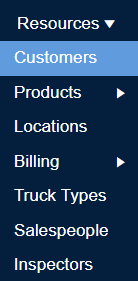
Any Tab with the Triangle Symbol indicates that it is a menu. Hovering over it will display more options to choose from.

<figure><img src="https://490131596-files.gitbook.io/~/files/v0/b/gitbook-x-prod.appspot.com/o/spaces%2F0LJDMCSYOqplCEgCo73X%2Fuploads%2FmZ24VG3L5b3tRyoPSNM0%2Fimage.png?alt=media&amp;token=ed6ec305-0fdc-43f9-b045-7a69588b67db" alt=""><figcaption><p>Hover over the Tab to view the menu</p></figcaption></figure>

The Person Icon in the Top Right allows you to access User Account settings

<figure><img src="https://490131596-files.gitbook.io/~/files/v0/b/gitbook-x-prod.appspot.com/o/spaces%2F0LJDMCSYOqplCEgCo73X%2Fuploads%2FflgwjP29A4ENhfi3NERi%2Fimage.png?alt=media&amp;token=cc5b01e0-a939-4b74-b44d-8d94e11fabce" alt=""><figcaption><p>User Account Settings</p></figcaption></figure>

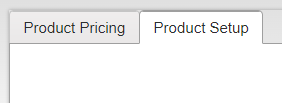
Some pages (such as the Product Pricing Page) have multiple views, shown as file tabs:

<figure><img src="https://490131596-files.gitbook.io/~/files/v0/b/gitbook-x-prod.appspot.com/o/spaces%2F0LJDMCSYOqplCEgCo73X%2Fuploads%2FZLrfo8P7Z55WOY5Hg1PY%2Fimage.png?alt=media&amp;token=45cc9983-0509-42a4-93e1-f3e873e04efd" alt=""><figcaption><p>Product Pricing View</p></figcaption></figure>

<figure><img src="https://490131596-files.gitbook.io/~/files/v0/b/gitbook-x-prod.appspot.com/o/spaces%2F0LJDMCSYOqplCEgCo73X%2Fuploads%2FixM2TfD17RUN2tgqC13L%2Fimage.png?alt=media&amp;token=478b4efc-e58b-4dc3-b3e9-6dfb0798f69e" alt=""><figcaption><p>Click to toggle views</p></figcaption></figure>

<figure><img src="https://490131596-files.gitbook.io/~/files/v0/b/gitbook-x-prod.appspot.com/o/spaces%2F0LJDMCSYOqplCEgCo73X%2Fuploads%2FQWzBZ6mRcCqHtxNIOPzp%2Fimage.png?alt=media&amp;token=3d9fd90e-692d-4657-97f3-92277f28261c" alt=""><figcaption><p>Product Setup View</p></figcaption></figure>

##


# Using the Ticket Query

Finding and Editing Tickets in Fastweigh

The Ticket Query is essentially a search engine for looking up tickets. To view the ticket query navigate to Tickets > Ticket Query.

<figure><img src="https://490131596-files.gitbook.io/~/files/v0/b/gitbook-x-prod.appspot.com/o/spaces%2F0LJDMCSYOqplCEgCo73X%2Fuploads%2FXwUBDRXTKhnaflFild8I%2Fimage.png?alt=media&amp;token=48f4492d-cffc-4073-9020-8c3e641f0c0a" alt=""><figcaption><p>Tickets > Ticket Query</p></figcaption></figure>

The Parameters found at the top of the screen allow you to filter down ticket data

<figure><img src="https://490131596-files.gitbook.io/~/files/v0/b/gitbook-x-prod.appspot.com/o/spaces%2F0LJDMCSYOqplCEgCo73X%2Fuploads%2Fc7eCVFidunpPlr4W5oBI%2Fimage.png?alt=media&amp;token=15d7d736-1032-4813-8d65-c98c4e118918" alt=""><figcaption></figcaption></figure>

By default, the Ticket Query will load with today's date entered in the Date Fields.&#x20;

<figure><img src="https://490131596-files.gitbook.io/~/files/v0/b/gitbook-x-prod.appspot.com/o/spaces%2F0LJDMCSYOqplCEgCo73X%2Fuploads%2Ffm1HV2aWGj8juD8nBP43%2Fimage.png?alt=media&amp;token=8c692957-eabc-4eac-b84a-df56d4160cfe" alt=""><figcaption><p>Set the Date Range</p></figcaption></figure>

Click the Query button to search for tickets:

<figure><img src="https://490131596-files.gitbook.io/~/files/v0/b/gitbook-x-prod.appspot.com/o/spaces%2F0LJDMCSYOqplCEgCo73X%2Fuploads%2F6bTcRvthqqcrYBnavqhK%2Fimage.png?alt=media&amp;token=260fae2a-a311-40f3-adf1-52ea8348558f" alt=""><figcaption><p>Query Button</p></figcaption></figure>

The Grid View on the lower half of the screen will list the tickets found in the query:

<figure><img src="https://490131596-files.gitbook.io/~/files/v0/b/gitbook-x-prod.appspot.com/o/spaces%2F0LJDMCSYOqplCEgCo73X%2Fuploads%2FDJnDnznSeU88ls4Xgxl5%2Fimage.png?alt=media&amp;token=54f4261f-c367-41c6-8687-60df3adf464f" alt=""><figcaption></figcaption></figure>

Clicking the Edit button allows you to modify the ticket:

<figure><img src="https://490131596-files.gitbook.io/~/files/v0/b/gitbook-x-prod.appspot.com/o/spaces%2F0LJDMCSYOqplCEgCo73X%2Fuploads%2Fg5N1A6N2UIlN4eu6hK9b%2Fimage.png?alt=media&amp;token=8162bf1a-7419-4ce1-b994-6de258bc99fd" alt=""><figcaption></figcaption></figure>

<figure><img src="https://490131596-files.gitbook.io/~/files/v0/b/gitbook-x-prod.appspot.com/o/spaces%2F0LJDMCSYOqplCEgCo73X%2Fuploads%2FWeJDhUTGk8LnzhYrEUy5%2Fimage.png?alt=media&amp;token=1e52da55-6076-4f5b-8acb-f6e249267769" alt=""><figcaption></figcaption></figure>

If you make an edit, the system will require you to leave a revision note.&#x20;

Tickets that have been invoiced cannot be edited. You will need to remove them from the invoice before making any changes.

If a ticket is voided you will not see it in your query unless the Voids Check Box has been checked:

<figure><img src="https://490131596-files.gitbook.io/~/files/v0/b/gitbook-x-prod.appspot.com/o/spaces%2F0LJDMCSYOqplCEgCo73X%2Fuploads%2FD6QW2RtWpGCpHjuQemiC%2Fimage.png?alt=media&amp;token=8bd68ff2-f09d-4a06-a509-cb84491017c7" alt=""><figcaption></figcaption></figure>

You can export Archived PDFs or the current query to Excel by using the respective buttons:

<figure><img src="https://490131596-files.gitbook.io/~/files/v0/b/gitbook-x-prod.appspot.com/o/spaces%2F0LJDMCSYOqplCEgCo73X%2Fuploads%2FdlvpM01HXHzONdB70Nks%2Fimage.png?alt=media&amp;token=651e8beb-6e3a-4fe0-a2a7-8cef15a12613" alt=""><figcaption></figcaption></figure>


# Generating Reports

Getting the most out of Fastweigh with the Reporting Module

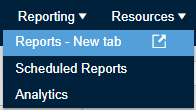
Navigate to Reporting > Reports - New Tab

<figure><img src="https://490131596-files.gitbook.io/~/files/v0/b/gitbook-x-prod.appspot.com/o/spaces%2F0LJDMCSYOqplCEgCo73X%2Fuploads%2FRbQmSSRkBOq03Vl7rRxA%2Fimage.png?alt=media&amp;token=c43e976b-f190-4c5c-987d-1960499c75be" alt=""><figcaption></figcaption></figure>

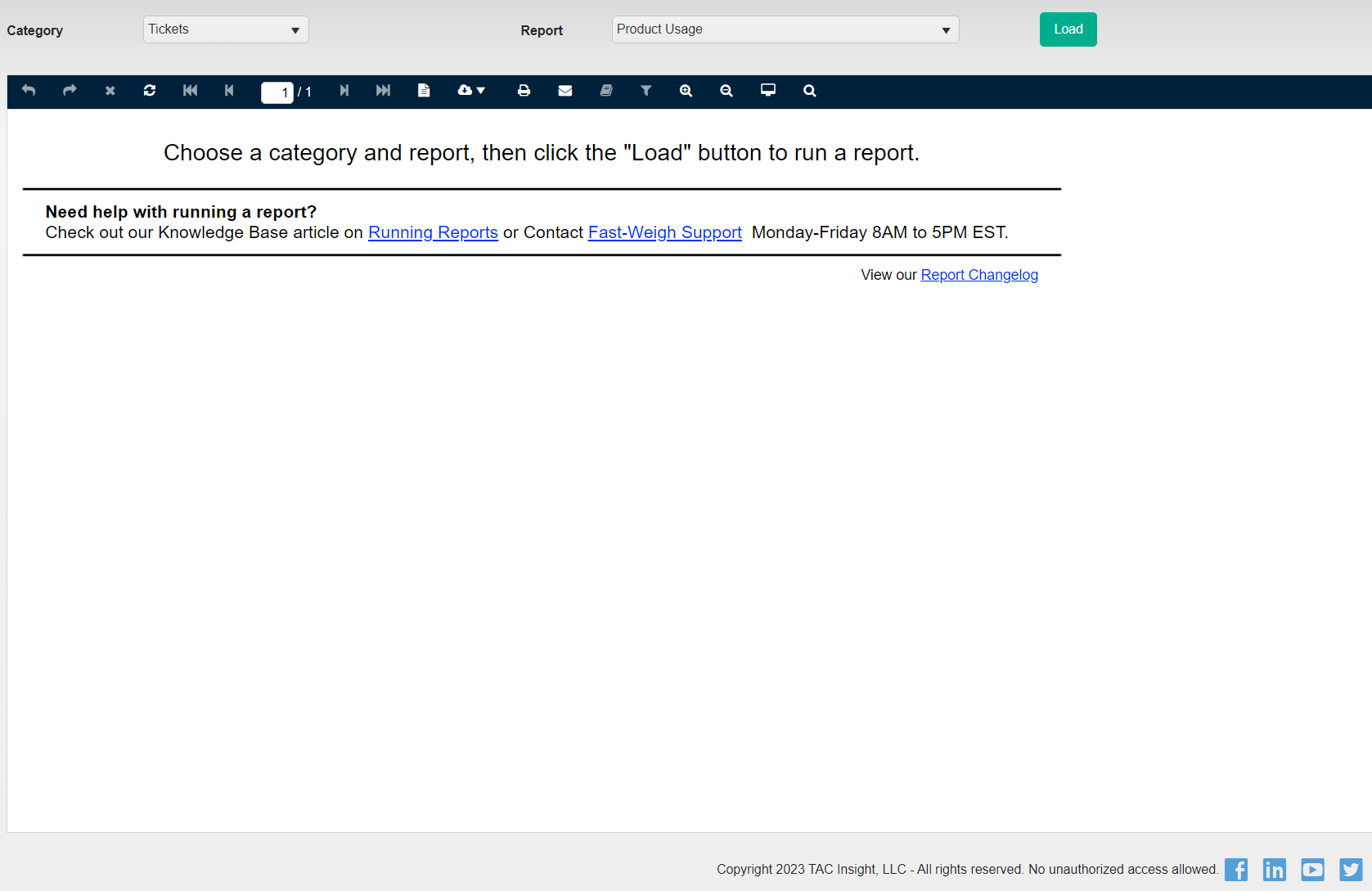
<figure><img src="https://490131596-files.gitbook.io/~/files/v0/b/gitbook-x-prod.appspot.com/o/spaces%2F0LJDMCSYOqplCEgCo73X%2Fuploads%2F70N6wnyLexFOgnf60tju%2Fimage.png?alt=media&amp;token=e63221ef-f4ea-415a-b085-f9a5ce4ac6be" alt=""><figcaption></figcaption></figure>

**Category:** Our reports are grouped into several categories such as Tickets, Billing, and Audit

**Report:** Selecting a category changes the reports shown in this list

After Selecting a Report Click the "Load" Button:

<figure><img src="https://490131596-files.gitbook.io/~/files/v0/b/gitbook-x-prod.appspot.com/o/spaces%2F0LJDMCSYOqplCEgCo73X%2Fuploads%2FYk3RgsWYi7vP7APUXQLv%2Fimage.png?alt=media&amp;token=0e3d23ec-0ea7-478a-bafc-ccef73041293" alt=""><figcaption></figcaption></figure>

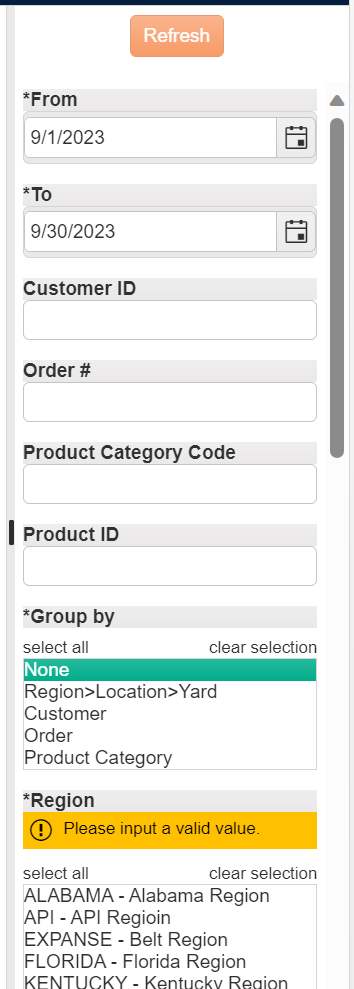
The Parameter Panel will appear on the right side of your screen:

<figure><img src="https://490131596-files.gitbook.io/~/files/v0/b/gitbook-x-prod.appspot.com/o/spaces%2F0LJDMCSYOqplCEgCo73X%2Fuploads%2Fs22ullypyE4HnOMVfcRm%2Fimage.png?alt=media&amp;token=98f0408f-be5c-409d-9b87-83b40cffb8c5" alt=""><figcaption></figcaption></figure>

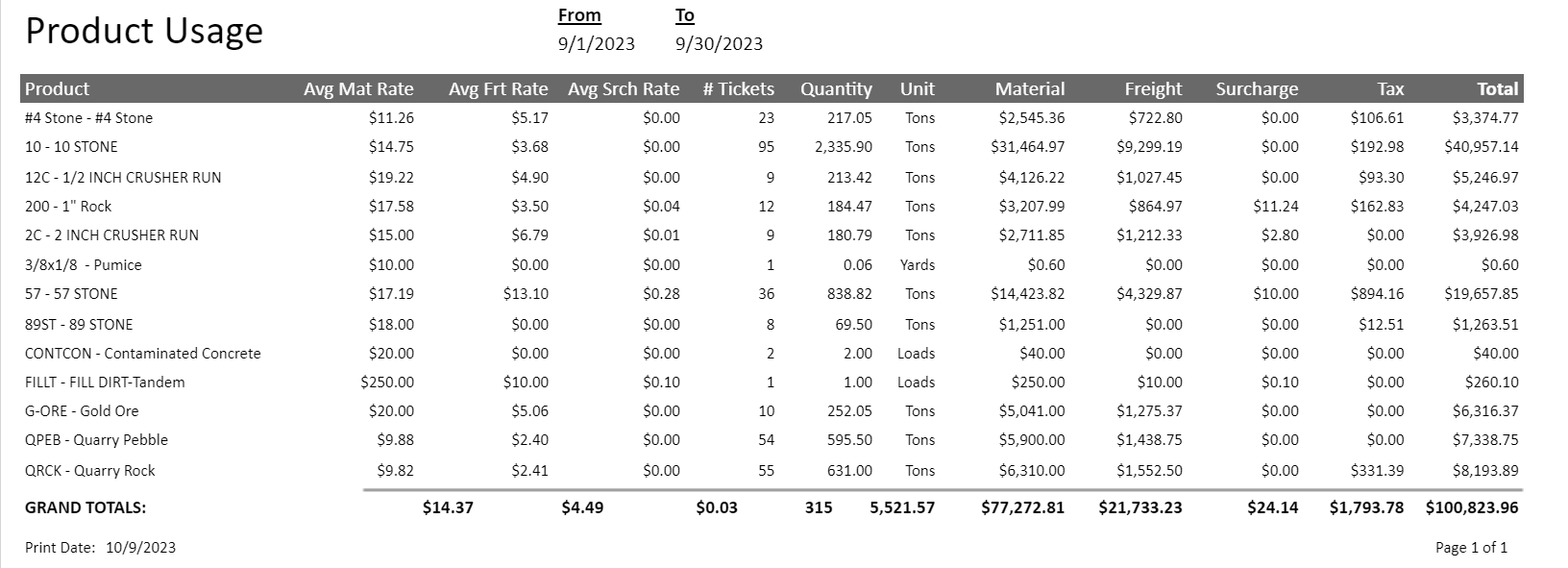
In this example, we are looking at the "Product Usage" Report in the "Tickets" category, the parameters shown will vary by report. We have set the Date range for September but we have not selected our locations so we will see this error if we run the report:

<figure><img src="https://490131596-files.gitbook.io/~/files/v0/b/gitbook-x-prod.appspot.com/o/spaces%2F0LJDMCSYOqplCEgCo73X%2Fuploads%2F5Nj3WX6rvLBP4l6ZPG22%2Fimage.png?alt=media&amp;token=8dcad0aa-895d-4e4f-bfbb-3e597e7ce1d8" alt=""><figcaption></figcaption></figure>

{% hint style="info" %}
Any Parameter that starts with "\*" is a required field so do not leave it blank.
{% endhint %}

You can select individual, Regions Locations and Yards or just click the select all button for the parameter:

<figure><img src="https://490131596-files.gitbook.io/~/files/v0/b/gitbook-x-prod.appspot.com/o/spaces%2F0LJDMCSYOqplCEgCo73X%2Fuploads%2F5HCiEZDDFQZF263pbLD8%2Fimage.png?alt=media&amp;token=5f42b284-632a-4f8b-89e4-fee699b19994" alt=""><figcaption></figcaption></figure>

Click Refresh at the top of the Report Parameters to view the report:

<figure><img src="https://490131596-files.gitbook.io/~/files/v0/b/gitbook-x-prod.appspot.com/o/spaces%2F0LJDMCSYOqplCEgCo73X%2Fuploads%2FFBKGLuv9bShPj7X3gBXL%2Fimage.png?alt=media&amp;token=5dae7a44-3c20-49ed-ad4c-bb90f37a8f80" alt=""><figcaption></figcaption></figure>

<figure><img src="https://490131596-files.gitbook.io/~/files/v0/b/gitbook-x-prod.appspot.com/o/spaces%2F0LJDMCSYOqplCEgCo73X%2Fuploads%2Fg1P3jtpKo9DxXKnO6GVg%2Fimage.png?alt=media&amp;token=fed0ee0b-4d42-4313-a464-f7ca0113a445" alt=""><figcaption></figcaption></figure>

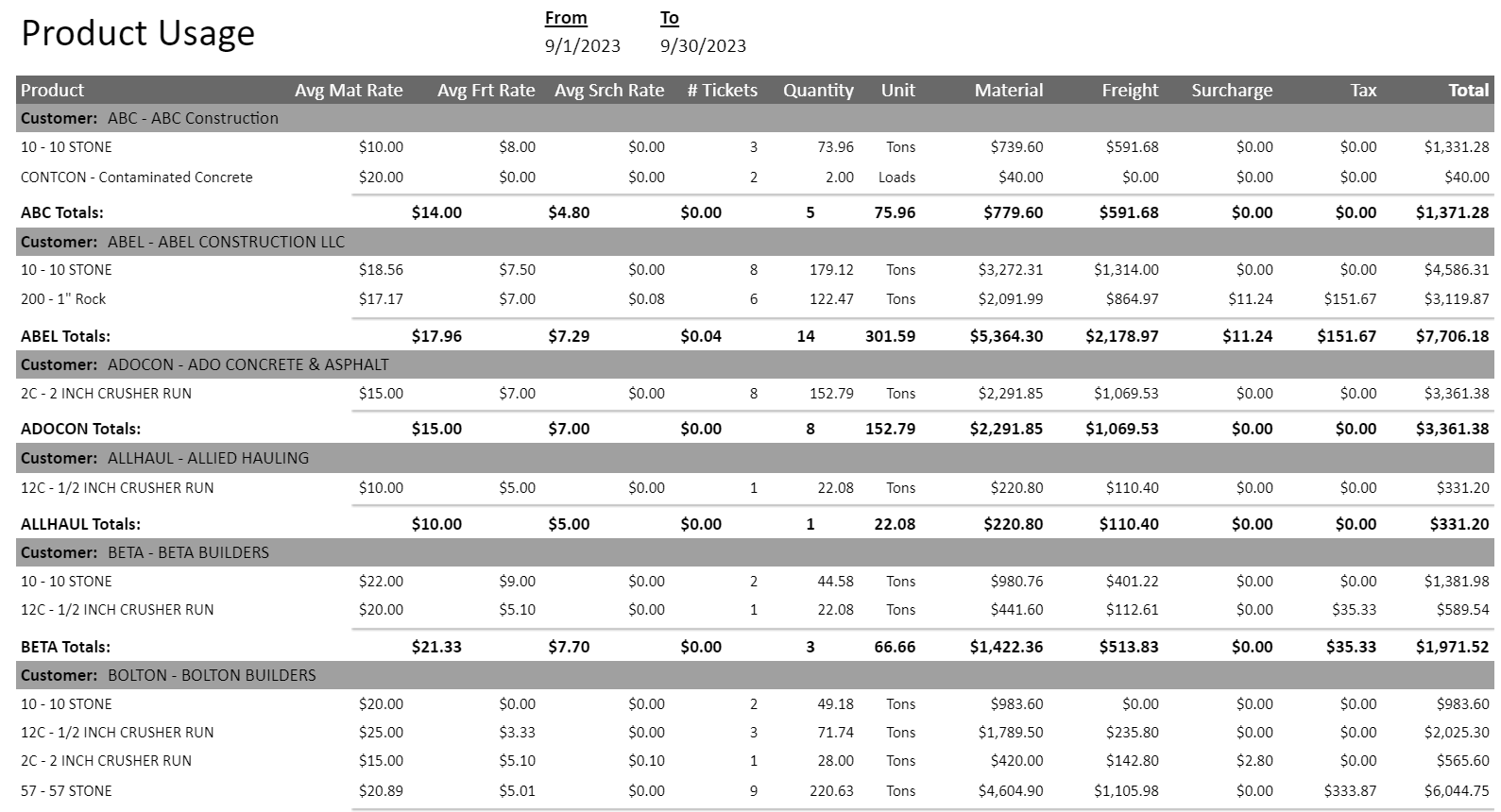
We can add a grouping to this report in the Report Parameters:

<figure><img src="https://490131596-files.gitbook.io/~/files/v0/b/gitbook-x-prod.appspot.com/o/spaces%2F0LJDMCSYOqplCEgCo73X%2Fuploads%2FmFvRGTtY7MqV8mXmVkn4%2Fimage.png?alt=media&amp;token=4023c44a-50a9-47c0-8b89-8d40a0c4b487" alt=""><figcaption></figcaption></figure>

Select Customer and Click Refresh to run the report again to see the data grouped by Customer record:

<figure><img src="https://490131596-files.gitbook.io/~/files/v0/b/gitbook-x-prod.appspot.com/o/spaces%2F0LJDMCSYOqplCEgCo73X%2Fuploads%2FaPD5BXlM9qPSlnI5CDSW%2Fimage.png?alt=media&amp;token=d54cadca-ff69-434a-af26-da9ae248de17" alt=""><figcaption></figcaption></figure>

The Navigation Bar above the report offers some time-saving features:

<figure><img src="https://490131596-files.gitbook.io/~/files/v0/b/gitbook-x-prod.appspot.com/o/spaces%2F0LJDMCSYOqplCEgCo73X%2Fuploads%2FYd68DNIghGo8j5Ktjyq8%2Fimage.png?alt=media&amp;token=b08658ed-0ee5-4a27-80a2-dfdd63dac000" alt=""><figcaption></figcaption></figure>

The Page Number buttons allow you to jump to the Next/Previous or Last/First pages

<figure><img src="https://490131596-files.gitbook.io/~/files/v0/b/gitbook-x-prod.appspot.com/o/spaces%2F0LJDMCSYOqplCEgCo73X%2Fuploads%2FtBhtLITcnDJQ6dN8sNWe%2Fimage.png?alt=media&amp;token=3314172f-f80f-4523-af35-30ee7febeae8" alt=""><figcaption></figcaption></figure>

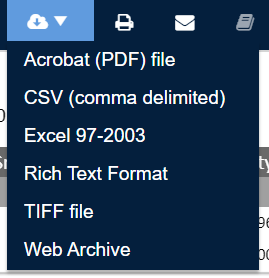
The Cloud Icon allows you to export the Report in a variety of different file formats such as PDF, CSV, and XLS.

<figure><img src="https://490131596-files.gitbook.io/~/files/v0/b/gitbook-x-prod.appspot.com/o/spaces%2F0LJDMCSYOqplCEgCo73X%2Fuploads%2FtXe4hA4yjbIV9sBk1ye8%2Fimage.png?alt=media&amp;token=0edea7a6-3704-4cc6-9d75-2c3a2cd1682e" alt=""><figcaption></figcaption></figure>

You can also print the report or email it directly from the reports module:

<figure><img src="https://490131596-files.gitbook.io/~/files/v0/b/gitbook-x-prod.appspot.com/o/spaces%2F0LJDMCSYOqplCEgCo73X%2Fuploads%2FqfeN3REBpiRs4pDgYI80%2Fimage.png?alt=media&amp;token=62c8ce98-fcfb-4e9c-8fc2-5e4469febb9d" alt=""><figcaption></figcaption></figure>


# Using the Ticketing App

Creating Tickets in Fastweigh is streamlined by the Fastweigh Ticketing App. This is a brief overview of both the New and Legacy Ticketing Apps. For more details see the reference pages linked below

{% tabs %}
{% tab title="Ticketing App ( Legacy )" %}
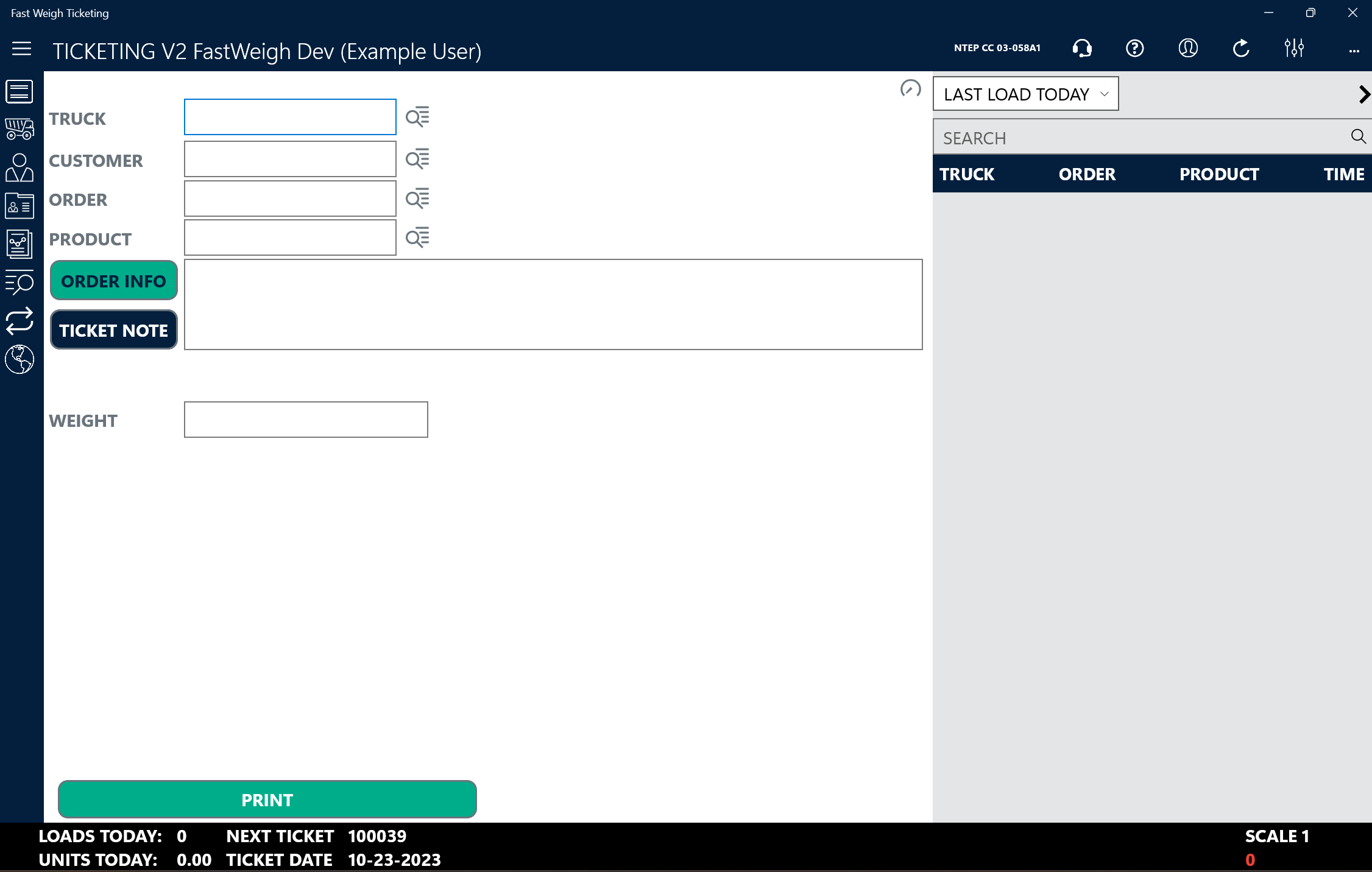
When the app is launched you will be greeted by the Ticketing Screen. This is effectively the "Home" Screen.

<figure><img src="https://490131596-files.gitbook.io/~/files/v0/b/gitbook-x-prod.appspot.com/o/spaces%2F0LJDMCSYOqplCEgCo73X%2Fuploads%2FOm4eFIujMPZHTznGce6F%2Fimage.png?alt=media&amp;token=d15eb839-60a0-4c24-a21a-6cc0114a4995" alt=""><figcaption></figcaption></figure>

## Navigating the App

Clicking the 3 lines in the top left corner of the app will show the Icon Labels:

<figure><img src="https://490131596-files.gitbook.io/~/files/v0/b/gitbook-x-prod.appspot.com/o/spaces%2F0LJDMCSYOqplCEgCo73X%2Fuploads%2FLknH5bJlVs5k6r0cyfLG%2Fimage.png?alt=media&amp;token=6366b0eb-9c7c-42e5-b7d0-00c14393b567" alt=""><figcaption></figcaption></figure>

The same is true for the 3 Dots in the top right corner:

<figure><img src="https://490131596-files.gitbook.io/~/files/v0/b/gitbook-x-prod.appspot.com/o/spaces%2F0LJDMCSYOqplCEgCo73X%2Fuploads%2FF4SXsv1cdyGf6ktpImBy%2Fimage.png?alt=media&amp;token=e4f76a44-4e49-420f-92ff-8a9496bb5b8e" alt=""><figcaption></figcaption></figure>

Anytime you see a List Icon next to a Field it will open the associated list

<figure><img src="https://490131596-files.gitbook.io/~/files/v0/b/gitbook-x-prod.appspot.com/o/spaces%2F0LJDMCSYOqplCEgCo73X%2Fuploads%2FXER1MQVZoPloDm7440gV%2Fimage.png?alt=media&amp;token=db39eff0-f716-4cf7-be16-043f6609eb46" alt=""><figcaption></figcaption></figure>

For Example, Click the List Icon next to the Truck Field on the Ticketing Screen to view the Truck List:

<figure><img src="https://490131596-files.gitbook.io/~/files/v0/b/gitbook-x-prod.appspot.com/o/spaces%2F0LJDMCSYOqplCEgCo73X%2Fuploads%2FyCMvfAqzmawOtifdWlsg%2Fimage.png?alt=media&amp;token=b40e89a7-f325-493f-9b52-4c6cc1345ec0" alt=""><figcaption></figcaption></figure>

Use the search box at the top of the List to filter down results:

<figure><img src="https://490131596-files.gitbook.io/~/files/v0/b/gitbook-x-prod.appspot.com/o/spaces%2F0LJDMCSYOqplCEgCo73X%2Fuploads%2FRXtoqthQbNckBAfL4IxL%2Fimage.png?alt=media&amp;token=216c5f59-964a-45f9-878b-13e1a63bf134" alt=""><figcaption></figcaption></figure>

*The Truck List Search Box can match the following fields: Truck IDs, Hauler Names, License, AutoID, and Driver.*

## Creating Tickets

By default, there are only 5 required fields for creating a ticket: Truck, Customer, Order, Product, Weight.

<figure><img src="https://490131596-files.gitbook.io/~/files/v0/b/gitbook-x-prod.appspot.com/o/spaces%2F0LJDMCSYOqplCEgCo73X%2Fuploads%2FzA0c2Jzqi0KJhZzpArLU%2Fimage.png?alt=media&amp;token=b3455b03-a31d-45dd-a92a-cc60a1c86f7e" alt=""><figcaption></figcaption></figure>

Select the appropriate records by either typing the ID into the field or clicking the List Icon to search the associated list.

*Optionally, a Ticket Note can be added by clicking the Ticket Note Button and typing into the text box:*
<figure><img src="https://490131596-files.gitbook.io/~/files/v0/b/gitbook-x-prod.appspot.com/o/spaces%2F0LJDMCSYOqplCEgCo73X%2Fuploads%2FKyqYrF3yomg0q0RuB7Ma%2Fimage.png?alt=media&amp;token=d26f6b91-a6b0-40b3-be9a-5c43b3debe19" alt=""><figcaption></figcaption></figure>

Once you have selected the correct records, capture the weight for the ticket. This can be done a number of ways:

1. If you do not have a scale connected to Fast-Weigh, type the weight into the Weight Field
2. If you have a scale connected, click the weight field and then hit "Enter" on your keyboard or Click the Weight displayed in the bottom left:

<figure><img src="https://490131596-files.gitbook.io/~/files/v0/b/gitbook-x-prod.appspot.com/o/spaces%2F0LJDMCSYOqplCEgCo73X%2Fuploads%2Ff1DQNf6i67Zrv9rLyLNI%2Fimage.png?alt=media&amp;token=7bfb029c-4472-4848-81b2-03d2b92476cf" alt=""><figcaption></figcaption></figure>

The Ticketing App will show you a breakdown of Gross, Tare, and Net in Pounds and Tons (or Kilograms and Tonnes depending on settings) once you have captured a weight. Click Print if you want to create the ticket with this information.

<figure><img src="https://490131596-files.gitbook.io/~/files/v0/b/gitbook-x-prod.appspot.com/o/spaces%2F0LJDMCSYOqplCEgCo73X%2Fuploads%2FXLFhAFGVSkzVU3zaZSDH%2Fimage.png?alt=media&amp;token=51e6f8e3-01c5-45cd-8498-beca4a67409f" alt=""><figcaption></figcaption></figure>

Congratulations! You just created a ticket in the Fast-Weigh Ticketing App. The ticket will automatically sync to the web portal.
{% endtab %}

{% tab title="Ticketing App ( New )" %}

## Video Guide

{% embed url="<https://www.youtube.com/watch?v=HvVbadfgYyE>" %}

## Landing Page

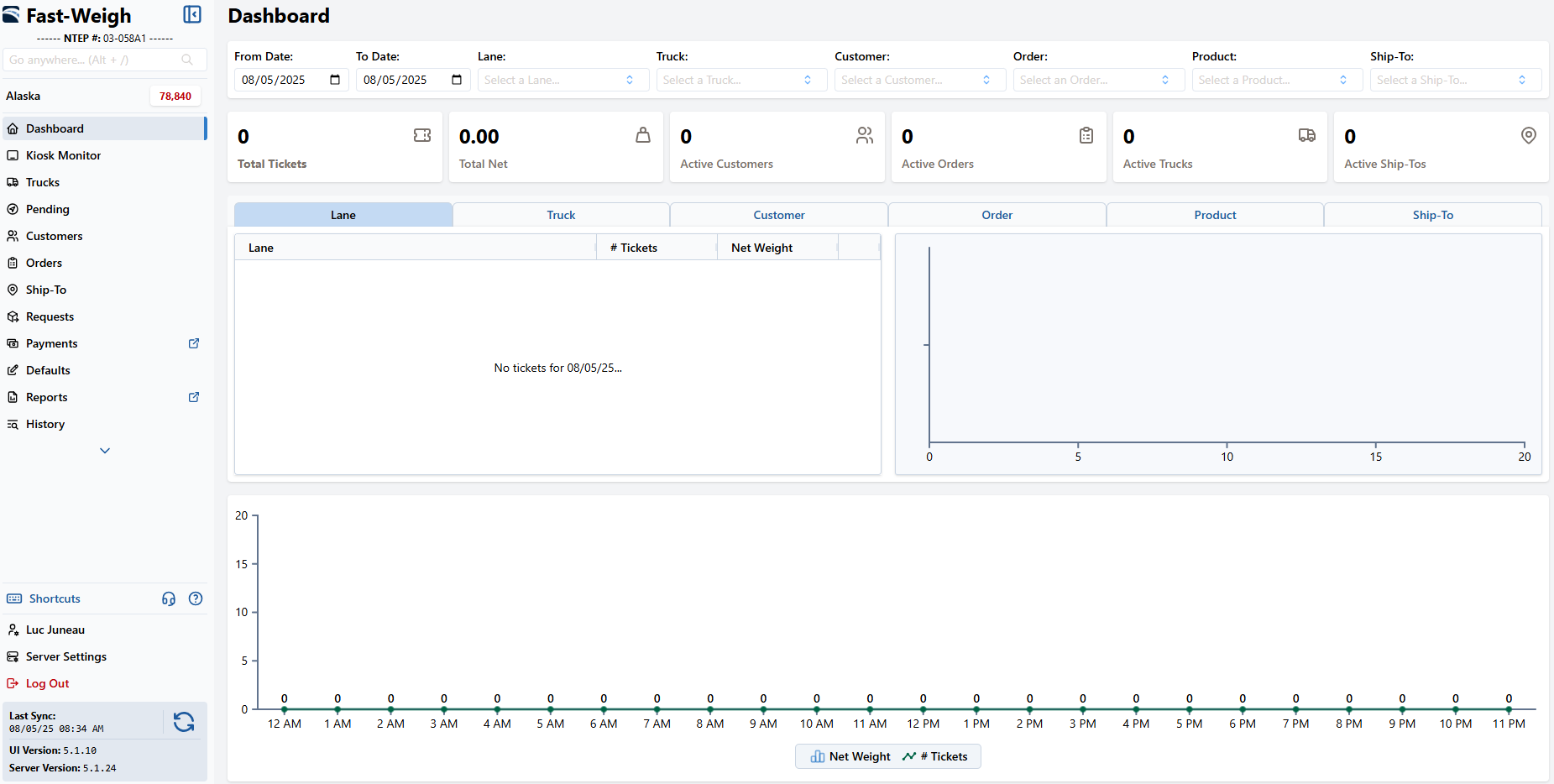
When the app is launched you will be greeted by the Dashboard. This is effectively the "Home" Screen.

<figure><img src="https://490131596-files.gitbook.io/~/files/v0/b/gitbook-x-prod.appspot.com/o/spaces%2F0LJDMCSYOqplCEgCo73X%2Fuploads%2FgZ4NVdW1QuoUaXzhGUyW%2Fimage.png?alt=media&amp;token=b562f5f5-e1d0-466a-bfd5-a2cb039c4f5f" alt=""><figcaption></figcaption></figure>

## Navigating the App

All of the Ticketing's App navigation can be found in the left hand sidebar. To open or close the sidebar, you can select this arrow button in the top-left.

<figure><img src="https://490131596-files.gitbook.io/~/files/v0/b/gitbook-x-prod.appspot.com/o/spaces%2F0LJDMCSYOqplCEgCo73X%2Fuploads%2F10h5ccfHiOpg4AcTzqRo%2Fimage.png?alt=media&amp;token=d7ed11a2-a986-48c9-bae1-0130f878ca1a" alt=""><figcaption></figcaption></figure>

You can navigate to the different pages of the app by selecting it in the sidebar. Above those navigation options is the list of Lanes that have been created for the Sync Config. Selecting a lane will bring you to the lane's Ticketing Screen.

<figure><img src="https://490131596-files.gitbook.io/~/files/v0/b/gitbook-x-prod.appspot.com/o/spaces%2F0LJDMCSYOqplCEgCo73X%2Fuploads%2FaXg277A858Rh6jdbaznZ%2Fimage.png?alt=media&amp;token=c1d17975-cd2d-46a2-af05-341e3a0c8358" alt=""><figcaption></figcaption></figure>

## Input Fields

### Selections

Most input fields in the Ticketing App are made up of these Select fields.

<figure><img src="https://490131596-files.gitbook.io/~/files/v0/b/gitbook-x-prod.appspot.com/o/spaces%2F0LJDMCSYOqplCEgCo73X%2Fuploads%2F34DXXzh5FZQI5ksg9KkH%2Fimage.png?alt=media&amp;token=5f2eab8a-2a5d-4238-b27b-8d54735699af" alt=""><figcaption></figcaption></figure>

Clicking them will bring up a window to search and filter for the data you are looking for. Then you can simply select the entry in the list to set the field to it.

<figure><img src="https://490131596-files.gitbook.io/~/files/v0/b/gitbook-x-prod.appspot.com/o/spaces%2F0LJDMCSYOqplCEgCo73X%2Fuploads%2Fstq3d82U4l4qVTwi3Xjq%2Fimage.png?alt=media&amp;token=984f41eb-987b-4ba7-aae1-adb2ed3629c1" alt=""><figcaption></figcaption></figure>

### Text Field

Text fields are usually found in User Defined Fields (UDFs) or in device configuration. These fields can be set by selecting the input box and typing the value. Some text fields use all characters, known as "alpha-numeric" and some others only use numbers, which are known as "numeric".

<figure><img src="https://490131596-files.gitbook.io/~/files/v0/b/gitbook-x-prod.appspot.com/o/spaces%2F0LJDMCSYOqplCEgCo73X%2Fuploads%2FqwXhZ1k2WnOfbWufdpGk%2Fimage.png?alt=media&amp;token=cc5a1b5e-abea-4a47-b356-c15d660a566d" alt=""><figcaption></figcaption></figure>

### Switch

Switches normally toggle optional features or settings, and can be set to on or off.

<figure><img src="https://490131596-files.gitbook.io/~/files/v0/b/gitbook-x-prod.appspot.com/o/spaces%2F0LJDMCSYOqplCEgCo73X%2Fuploads%2FPEepBvNtYZV4e8TgUQzS%2Fimage.png?alt=media&amp;token=0b9f4453-d687-4f75-8296-0d37a6ca26fa" alt=""><figcaption></figcaption></figure>

### Dropdown

Dropdowns are like selections except they only contain a few key options and usually toggle different modes or outputs.

<figure><img src="https://490131596-files.gitbook.io/~/files/v0/b/gitbook-x-prod.appspot.com/o/spaces%2F0LJDMCSYOqplCEgCo73X%2Fuploads%2F4USJTnETxknfHwygzrWf%2Fimage.png?alt=media&amp;token=815c5cff-d511-4e5e-b855-a2dd441d60e6" alt=""><figcaption></figcaption></figure>

***

## Creating Tickets

When creating tickets in a lane, there are 6 required fields to set before you can create the ticket. **Truck**, **Customer**, **Order**, **Product**, and **UoM**, in this example that is in **Lbs**.

<figure><img src="https://490131596-files.gitbook.io/~/files/v0/b/gitbook-x-prod.appspot.com/o/spaces%2F0LJDMCSYOqplCEgCo73X%2Fuploads%2FoHhdRQINKJd4bLjYDObo%2Fimage.png?alt=media&amp;token=f6b4ad43-955b-4854-a92a-63743d3c087f" alt=""><figcaption></figcaption></figure>

<figure><img src="https://490131596-files.gitbook.io/~/files/v0/b/gitbook-x-prod.appspot.com/o/spaces%2F0LJDMCSYOqplCEgCo73X%2Fuploads%2FyxEuglvTx1syEucJHcY4%2Fimage.png?alt=media&amp;token=2917d60d-a6d0-4073-95a2-ed08a604f272" alt=""><figcaption></figcaption></figure>

### Accepting Weight

Before creating a ticket you must accept the weight by clicking **\[ Accept ]**. This example lane is connecting to an IP scale, but if no scale is connected you will instead be prompted to input an amount manually.

<figure><img src="https://490131596-files.gitbook.io/~/files/v0/b/gitbook-x-prod.appspot.com/o/spaces%2F0LJDMCSYOqplCEgCo73X%2Fuploads%2FaTlgubpyeZQFR6XCRyCi%2Fimage.png?alt=media&amp;token=6d3ce8c5-3a34-4734-a186-437796e47fe2" alt=""><figcaption></figcaption></figure>

### Sale Amount

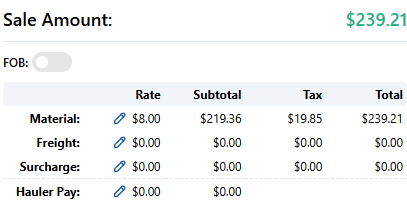
After accepting a weight, and if all the other fields are properly selected, a preview of the ticket amount will appear in the **Sale Amount** window.

<figure><img src="https://490131596-files.gitbook.io/~/files/v0/b/gitbook-x-prod.appspot.com/o/spaces%2F0LJDMCSYOqplCEgCo73X%2Fuploads%2FUIq5M1lnkDvzzjFWo8mn%2Fimage.png?alt=media&amp;token=f35ac0fa-bf9a-4b2a-81f1-a769c3b58572" alt=""><figcaption></figcaption></figure>

{% hint style="info" %}
If the ticket's **Pay Type** is **Charge Hide** this window will appear blank
{% endhint %}
{% endtab %}
{% endtabs %}

***

## References

{% content-ref url="/pages/N04RnI6ddbMqredRG92w" %}
[Ticketing](/fast-weigh-knowledge-base/references/legacy-ticketing-app/application/ticketing)
{% endcontent-ref %}

{% content-ref url="/pages/ICgF4aRWFXshaI2Wdy7k" %}
[Legacy Ticketing App](/fast-weigh-knowledge-base/references/legacy-ticketing-app)
{% endcontent-ref %}

{% content-ref url="/pages/lfMolxsjd9qe66EiGas1" %}
[Ticketing App](/fast-weigh-knowledge-base/references/ticketing-app)
{% endcontent-ref %}


# How to Create and Pay ticket from New Ticketing App

## How To Create and Pay Ticket from Fastweigh

{% stepper %}
{% step %}

### Click \[ Create and Pay Ticket ]

{% hint style="warning" %}
This button will only appear if the ticket **Pay Type** is **Cash, Check,** or **Credit Card**
{% endhint %}

<figure><img src="https://490131596-files.gitbook.io/~/files/v0/b/gitbook-x-prod.appspot.com/o/spaces%2F0LJDMCSYOqplCEgCo73X%2Fuploads%2FkEcZAkrQkoNWG6Yaa6ZY%2Fimage_2025-07-24_151010357.png?alt=media&amp;token=0b7e15c5-32b1-46db-bb2d-b0a7227a2283" alt=""><figcaption></figcaption></figure>
{% endstep %}

{% step %}

### Redirect to Portal

After clicking the **\[ Create and Pay Ticket ]** button, a new tab should open up in your browser to the **Fast Weigh Portal**, with the ticket created in the scale app already invoiced and selected

<figure><img src="https://490131596-files.gitbook.io/~/files/v0/b/gitbook-x-prod.appspot.com/o/spaces%2F0LJDMCSYOqplCEgCo73X%2Fuploads%2F4EJVAhrRTvtxONXQm3Bc%2Fimage.png?alt=media&amp;token=53a7aa38-18aa-475a-988b-0355da3b5c84" alt=""><figcaption></figcaption></figure>

{% hint style="info" %}
If this new tab doesn't open, make sure popups are enabled on your browser
{% endhint %}
{% endstep %}

{% step %}

### Select a Payment Method

Select the appropriate **Payment Method** from the dropdown

<figure><img src="https://490131596-files.gitbook.io/~/files/v0/b/gitbook-x-prod.appspot.com/o/spaces%2F0LJDMCSYOqplCEgCo73X%2Fuploads%2Fycnf7e4xRcyUpg8Lw5Qw%2Fimage.png?alt=media&amp;token=cf645c60-914d-4a80-a573-be460dc09154" alt=""><figcaption></figcaption></figure>

<table><thead><tr><th width="168">Payment Method</th><th>Description</th></tr></thead><tbody><tr><td><strong>Cash</strong></td><td>The Customer is paying in Cash, no extra action is needed in the Web Portal</td></tr><tr><td><strong>Check</strong></td><td>The Customer is paying via Check, no extra action is needed in the Web Portal</td></tr><tr><td><strong>Card</strong></td><td>The Customer is paying via Credit Card. When you click Create Payment you will be prompted to enter their Credit Card information to process the payment</td></tr><tr><td><strong>ACH</strong></td><td>The Customer is paying via ACH. When you click Create Payment you will be prompted to enter their ACH information to process the payment</td></tr><tr><td><strong>Terminal</strong></td><td>The Customer is paying via a connected Card Reader or other POS Terminal</td></tr></tbody></table>
{% endstep %}

{% step %}

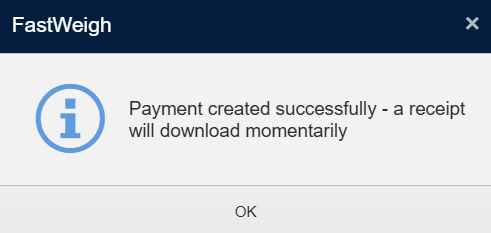
### Click \[ Create Payment ] & \[ OK ]

<figure><img src="https://490131596-files.gitbook.io/~/files/v0/b/gitbook-x-prod.appspot.com/o/spaces%2F0LJDMCSYOqplCEgCo73X%2Fuploads%2FJo4sLFEuIlwcWPmvucqh%2Fimage.png?alt=media&amp;token=0694bf3d-8782-4cc0-b836-e5088fef9e7b" alt=""><figcaption></figcaption></figure>

<figure><img src="https://490131596-files.gitbook.io/~/files/v0/b/gitbook-x-prod.appspot.com/o/spaces%2F0LJDMCSYOqplCEgCo73X%2Fuploads%2F60QwzIsuLpwZ4GFOvHl3%2Fimage.png?alt=media&amp;token=a08c5b82-8dd0-47c5-a61c-9614d8371f5b" alt=""><figcaption></figcaption></figure>
{% endstep %}

{% step %}

### Finish

A Receipt PDF should now be downloaded

<figure><img src="https://490131596-files.gitbook.io/~/files/v0/b/gitbook-x-prod.appspot.com/o/spaces%2F0LJDMCSYOqplCEgCo73X%2Fuploads%2FFSbWrWTkLDvaakFws5hs%2Fimage.png?alt=media&amp;token=c6257aab-69ca-4449-961a-f0518179195a" alt=""><figcaption></figcaption></figure>
{% endstep %}
{% endstepper %}

***

## Related Guides

{% content-ref url="/pages/SoMmsWurgrk6xU9jdNHu" %}
[Creating Payments](/fast-weigh-knowledge-base/how-to-guides/how-to-create-new-records/creating-payments)
{% endcontent-ref %}

***

## References

{% content-ref url="/pages/760amP7NtLUXUgyZkyy3" %}
[New Payment](/fast-weigh-knowledge-base/references/web-portal/billing-ar/new-payment)
{% endcontent-ref %}

{% content-ref url="/pages/eKaNlkLlAKopPY6o7CtY" %}
[Lanes & Ticketing](/fast-weigh-knowledge-base/references/ticketing-app/application/lanes-and-ticketing)
{% endcontent-ref %}


# "How To" Guides Overview

Step by Step Guides to achieve a specific goal

How To Guides are intended to quickly give the user step-by-step instructions for accomplishing a basic task. Be sure to check or References section if you need further clarification.

{% content-ref url="/pages/KeA8MkVnZlYwUS7P3gyz" %}
[How to Create New Records](/fast-weigh-knowledge-base/how-to-guides/how-to-create-new-records)
{% endcontent-ref %}

{% content-ref url="/pages/ozwF2RmoXlIBHQHXhBew" %}
[How to Update Pricing](/fast-weigh-knowledge-base/how-to-guides/how-to-update-pricing)
{% endcontent-ref %}

{% content-ref url="/pages/LNV6mmleRpOvr971QKIk" %}
[How to Import Tickets](/fast-weigh-knowledge-base/how-to-guides/how-to-import-records/how-to-import-tickets)
{% endcontent-ref %}

{% content-ref url="/pages/mFL8PKwjEpnKw1zW1tpO" %}
[How to Edit Tickets](/fast-weigh-knowledge-base/how-to-guides/how-to-edit-records/how-to-edit-tickets)
{% endcontent-ref %}

{% content-ref url="/pages/YcMWbGHlu6LEn1PmWBLO" %}
[How to - Invoices](/fast-weigh-knowledge-base/how-to-guides/how-to-invoices)
{% endcontent-ref %}

{% content-ref url="/pages/Jf0DXl7jqfYEP9DTvu6q" %}
[How to Track Inventory](/fast-weigh-knowledge-base/how-to-guides/how-to-track-inventory)
{% endcontent-ref %}


# How to Create New Records


# Creating New Web Portal Users

You can create multiple logins to your Web Portal so that different parts of your organization can access the data they need.

{% hint style="warning" %}
**Admin Role** is required for this task
{% endhint %}

## How to Create Users

{% stepper %}
{% step %}

### Navigate to \[ Settings > User Accounts ]

<figure><img src="https://490131596-files.gitbook.io/~/files/v0/b/gitbook-x-prod.appspot.com/o/spaces%2F0LJDMCSYOqplCEgCo73X%2Fuploads%2FYRnYhTr5Y3upfEP6dGF0%2Fimage.png?alt=media&amp;token=a53a9a58-b607-4c59-8797-eb6f67601964" alt=""><figcaption></figcaption></figure>
{% endstep %}

{% step %}

### Click \[ + New User ]

<figure><img src="https://490131596-files.gitbook.io/~/files/v0/b/gitbook-x-prod.appspot.com/o/spaces%2F0LJDMCSYOqplCEgCo73X%2Fuploads%2FVwFgqADwl6xkQrGlgtsc%2Fimage.png?alt=media&amp;token=49d872cc-f610-4687-b6a6-77f328bf5664" alt=""><figcaption></figcaption></figure>
{% endstep %}

{% step %}

### User ID and Email

Create a **User ID** and add the user's email&#x20;

<figure><img src="https://490131596-files.gitbook.io/~/files/v0/b/gitbook-x-prod.appspot.com/o/spaces%2F0LJDMCSYOqplCEgCo73X%2Fuploads%2FwDcqzuo8X9Zzcw4Bv7Kz%2Fimage_2025-07-16_163037140.png?alt=media&amp;token=d39493b3-b8aa-438c-8bac-b79d8f72dba5" alt=""><figcaption></figcaption></figure>

{% hint style="info" %}
We generally recommend using your email as your **User ID**
{% endhint %}
{% endstep %}

{% step %}

### Password

Enter a **Password** or leave the **Password** field blank to automatically send the new user a "set password" email
{% endstep %}

{% step %}

### Role

Choose a **Role** for the user

{% hint style="info" %}
For a full list of user roles and how they work, see [**Roles and Responsibilities**](/fast-weigh-knowledge-base/references/web-portal/roles-and-responsibilities)
{% endhint %}
{% endstep %}

{% step %}

### Update & Finish

<figure><img src="https://490131596-files.gitbook.io/~/files/v0/b/gitbook-x-prod.appspot.com/o/spaces%2F0LJDMCSYOqplCEgCo73X%2Fuploads%2FyCwUa0fhrP1EU52o5Bnl%2Fimage.png?alt=media&amp;token=2018ddeb-0613-447a-8e1c-9f8f2dd32eb1" alt=""><figcaption></figcaption></figure>
{% endstep %}
{% endstepper %}

***

## Related Guides

{% content-ref url="/pages/WV55INe7vMUPP8jYOGgC" %}
[How do I reset my password?](/fast-weigh-knowledge-base/faqs-and-best-practices/frequently-asked-questions/how-do-i-reset-my-password)
{% endcontent-ref %}

## References

{% content-ref url="/pages/8Ktykok23ee15GHVPUjE" %}
[Roles And Responsibilities](/fast-weigh-knowledge-base/references/web-portal/roles-and-responsibilities)
{% endcontent-ref %}

{% content-ref url="/pages/rS2uIMs5zvvo4tI72kpe" %}
[User Accounts](/fast-weigh-knowledge-base/references/web-portal/account-and-administration/user-accounts)
{% endcontent-ref %}


# Creating Tax Codes

Define all tax codes used within your company’s various locations. Tax codes should correspond with those set up in your third-party accounting system.

## How to Create Tax Codes

{% stepper %}
{% step %}

### Navigate to \[ Resources > Billing > Tax Codes ]

<figure><img src="https://490131596-files.gitbook.io/~/files/v0/b/gitbook-x-prod.appspot.com/o/spaces%2F0LJDMCSYOqplCEgCo73X%2Fuploads%2FVDssMT4xJUaPxqsQBeMR%2Fimage.png?alt=media&amp;token=28610863-2142-4968-8d5d-8c0ccddbe490" alt=""><figcaption></figcaption></figure>

{% endstep %}

{% step %}

### Click \[ + New Tax Code ]

<figure><img src="https://490131596-files.gitbook.io/~/files/v0/b/gitbook-x-prod.appspot.com/o/spaces%2F0LJDMCSYOqplCEgCo73X%2Fuploads%2F0ZxIglwfIx921OPfBp4H%2Fimage.png?alt=media&amp;token=a29a1108-6260-4a70-a205-de1d2ebe1df5" alt=""><figcaption></figcaption></figure>
{% endstep %}

{% step %}

### Fill Required Fields

Add a **Code** and a **Description**

<figure><img src="https://490131596-files.gitbook.io/~/files/v0/b/gitbook-x-prod.appspot.com/o/spaces%2F0LJDMCSYOqplCEgCo73X%2Fuploads%2FO1hcSZmT6QB8Nr1yLG9o%2Fimage.png?alt=media&amp;token=ea86257b-5595-4f35-966f-343d5f079fc2" alt=""><figcaption></figcaption></figure>
{% endstep %}

{% step %}

### Enter Tax Percent %

Enter the tax percent in the appropriate field

{% hint style="warning" %}
Tax percentage must be entered as a **decimal**. For example: A tax percentage of *8.25%* would be entered as *0.0825*.
{% endhint %}
{% endstep %}

{% step %}

### GL Account

If your accounting software utilizes GL, you can add a **GL Account** as well.

Otherwise you can skip this step
{% endstep %}

{% step %}

### Update & Finish

<figure><img src="https://490131596-files.gitbook.io/~/files/v0/b/gitbook-x-prod.appspot.com/o/spaces%2F0LJDMCSYOqplCEgCo73X%2Fuploads%2FyCwUa0fhrP1EU52o5Bnl%2Fimage.png?alt=media&amp;token=2018ddeb-0613-447a-8e1c-9f8f2dd32eb1" alt=""><figcaption></figcaption></figure>
{% endstep %}
{% endstepper %}

***

## Related Guides

{% content-ref url="/pages/ozwF2RmoXlIBHQHXhBew" %}
[How to Update Pricing](/fast-weigh-knowledge-base/how-to-guides/how-to-update-pricing)
{% endcontent-ref %}

{% content-ref url="/pages/M0qVgb32j2xclMPymSOE" %}
[Creating Billing Terms and Modes](/fast-weigh-knowledge-base/how-to-guides/how-to-create-new-records/creating-billing-terms-and-modes)
{% endcontent-ref %}

{% content-ref url="/pages/soiOMZoK1A6pVWktzJ7q" %}
[Charge & Cash Pay Types](/fast-weigh-knowledge-base/how-to-guides/how-to-invoices/charge-and-cash-pay-types)
{% endcontent-ref %}

## References

{% content-ref url="/pages/o9juIFFgKkZUj3X7jEPs" %}
[Tax Codes](/fast-weigh-knowledge-base/references/web-portal/resources/billing/tax-codes)
{% endcontent-ref %}


# Creating Billing Terms and Modes

Set up your payment terms and billing modes. These terms and codes should be set up in conjunction with your Accounts Receivable Terms Codes.

## How to Create Payment Terms

{% stepper %}
{% step %}

### Navigate to \[ Resources > Billing > Pay Terms ]&#x20;

<figure><img src="https://490131596-files.gitbook.io/~/files/v0/b/gitbook-x-prod.appspot.com/o/spaces%2F0LJDMCSYOqplCEgCo73X%2Fuploads%2Frn91JxxLFRFtEg2VeICd%2Fimage.png?alt=media&amp;token=6d67ff1e-90be-4347-a0ce-8d8ab6296566" alt=""><figcaption></figcaption></figure>

{% endstep %}

{% step %}

### Click \[ + New Terms ]

<figure><img src="https://490131596-files.gitbook.io/~/files/v0/b/gitbook-x-prod.appspot.com/o/spaces%2F0LJDMCSYOqplCEgCo73X%2Fuploads%2FgmZqzyNNyBmRPwxkhkSq%2Fimage.png?alt=media&amp;token=7cbda744-6ced-4f9d-8bc3-09bfb7bd7df7" alt=""><figcaption></figcaption></figure>
{% endstep %}

{% step %}

### Fill out Fields

Add a one-character **Code**, a **Description** and the number of days for the term
{% endstep %}

{% step %}

<figure><img src="https://490131596-files.gitbook.io/~/files/v0/b/gitbook-x-prod.appspot.com/o/spaces%2F0LJDMCSYOqplCEgCo73X%2Fuploads%2FC24Uh3KMoakGHpV4AtTT%2Fimage_2025-07-21_100511670.png?alt=media&amp;token=446b7bf9-6289-4e86-8110-ad3b0b244edd" alt=""><figcaption></figcaption></figure>
{% endstep %}

{% step %}

### Click \[ **✓** Update ]

<figure><img src="https://490131596-files.gitbook.io/~/files/v0/b/gitbook-x-prod.appspot.com/o/spaces%2F0LJDMCSYOqplCEgCo73X%2Fuploads%2FyCwUa0fhrP1EU52o5Bnl%2Fimage.png?alt=media&amp;token=2018ddeb-0613-447a-8e1c-9f8f2dd32eb1" alt=""><figcaption></figcaption></figure>
{% endstep %}
{% endstepper %}

## How to Create Billing Modes

{% stepper %}
{% step %}

### Navigate to \[ Resources > Billing > Pay Terms ]

<figure><img src="https://490131596-files.gitbook.io/~/files/v0/b/gitbook-x-prod.appspot.com/o/spaces%2F0LJDMCSYOqplCEgCo73X%2Fuploads%2FlFQDLS93FPmoyBEyA8fk%2Fimage.png?alt=media&amp;token=008b3d79-b352-46f4-af91-633222697ae9" alt=""><figcaption></figcaption></figure>

{% endstep %}

{% step %}

### Click \[ + New Billing Mode ]

<figure><img src="https://490131596-files.gitbook.io/~/files/v0/b/gitbook-x-prod.appspot.com/o/spaces%2F0LJDMCSYOqplCEgCo73X%2Fuploads%2FrGE5RmRQzEeLuMpnjAZc%2Fimage.png?alt=media&amp;token=4fe4067f-5a19-4e2e-892c-431ddc4b257b" alt=""><figcaption></figcaption></figure>
{% endstep %}

{% step %}

### Fill out Fields

Add one-character **Code** and a **Description**

<figure><img src="https://490131596-files.gitbook.io/~/files/v0/b/gitbook-x-prod.appspot.com/o/spaces%2F0LJDMCSYOqplCEgCo73X%2Fuploads%2FTxNkMwkkyiBIXIvCOgSm%2Fimage_2025-07-21_100701550.png?alt=media&amp;token=6ca13ac7-0314-4746-89bb-14b400c7fc54" alt=""><figcaption></figcaption></figure>
{% endstep %}

{% step %}

### Click \[ **✓** Update ]

<figure><img src="https://490131596-files.gitbook.io/~/files/v0/b/gitbook-x-prod.appspot.com/o/spaces%2F0LJDMCSYOqplCEgCo73X%2Fuploads%2FyCwUa0fhrP1EU52o5Bnl%2Fimage.png?alt=media&amp;token=2018ddeb-0613-447a-8e1c-9f8f2dd32eb1" alt=""><figcaption></figcaption></figure>
{% endstep %}
{% endstepper %}

## Assigning Terms and Modes to Customers

{% stepper %}
{% step %}

### Navigate to \[ Resources > Customers ]

<figure><img src="https://490131596-files.gitbook.io/~/files/v0/b/gitbook-x-prod.appspot.com/o/spaces%2F0LJDMCSYOqplCEgCo73X%2Fuploads%2FATwAUwNeIWJDt0Zt1E3c%2Fimage.png?alt=media&amp;token=43432921-59c7-42fc-9a48-4f902ee94c51" alt=""><figcaption></figcaption></figure>
{% endstep %}

{% step %}

### Edit Customer

Find the customer you wish to assign the Pay Term or Billing Mode to and click the **\[ Edit ]** button.

To assign the Terms or Fields, update the following fields: **\[ Terms ]** & **\[ Billing Mode ]**

<figure><img src="https://490131596-files.gitbook.io/~/files/v0/b/gitbook-x-prod.appspot.com/o/spaces%2F0LJDMCSYOqplCEgCo73X%2Fuploads%2FjY9IzCHaOMfG1OKMV65K%2Fimage.png?alt=media&amp;token=46b94b79-6a19-44bd-b213-92d261eb8c86" alt=""><figcaption></figcaption></figure>
{% endstep %}

{% step %}

### Click \[ **✓** Update ]

<figure><img src="https://490131596-files.gitbook.io/~/files/v0/b/gitbook-x-prod.appspot.com/o/spaces%2F0LJDMCSYOqplCEgCo73X%2Fuploads%2FyCwUa0fhrP1EU52o5Bnl%2Fimage.png?alt=media&amp;token=2018ddeb-0613-447a-8e1c-9f8f2dd32eb1" alt=""><figcaption></figcaption></figure>
{% endstep %}
{% endstepper %}

{% hint style="info" %}
Adding a particular billing mode to a customer profile allows you to select tickets for billing based on the customer’s assigned method.
{% endhint %}

***

## Related Guides

{% content-ref url="/pages/Cx3yVvt12dWbgbqe23yJ" %}
[Creating a New Customer](/fast-weigh-knowledge-base/how-to-guides/how-to-create-new-records/creating-a-new-customer)
{% endcontent-ref %}

{% content-ref url="/pages/WhrKiNuraiXxfdzfUa8h" %}
[Creating Tax Codes](/fast-weigh-knowledge-base/how-to-guides/how-to-create-new-records/creating-tax-codes)
{% endcontent-ref %}

***

## References

{% content-ref url="/pages/xRegvm0Jzu5Bk1ZkRkYi" %}
[Pay Terms](/fast-weigh-knowledge-base/references/web-portal/resources/billing/pay-terms)
{% endcontent-ref %}

{% content-ref url="/pages/knRumj0gwP4mXKNtYCVh" %}
[Customer](/fast-weigh-knowledge-base/references/web-portal/resources/customer)
{% endcontent-ref %}


# Creating a New Region

Fastweigh has a 3-tier operating location structure:  Regions, Locations, and Yards. This allows flexibility for companies of all sizes to manage their production.

## How to Create a New Region

{% stepper %}
{% step %}

### Navigate to \[ Resources > Locations ]

<figure><img src="https://490131596-files.gitbook.io/~/files/v0/b/gitbook-x-prod.appspot.com/o/spaces%2F0LJDMCSYOqplCEgCo73X%2Fuploads%2FPmzDzAZc0LrtS6oBk9GT%2Fimage.png?alt=media&amp;token=cf4d8f92-8c03-428e-96b9-65c141e13db9" alt=""><figcaption></figcaption></figure>
{% endstep %}

{% step %}

### Click \[ + New Region ]

<figure><img src="https://490131596-files.gitbook.io/~/files/v0/b/gitbook-x-prod.appspot.com/o/spaces%2F0LJDMCSYOqplCEgCo73X%2Fuploads%2FMx33VI95B6Hyw5qIGjkv%2Fimage.png?alt=media&amp;token=68a9b86a-4171-407f-a262-a5b2d10e47f3" alt=""><figcaption></figcaption></figure>
{% endstep %}

{% step %}

### Fill out Required Fields

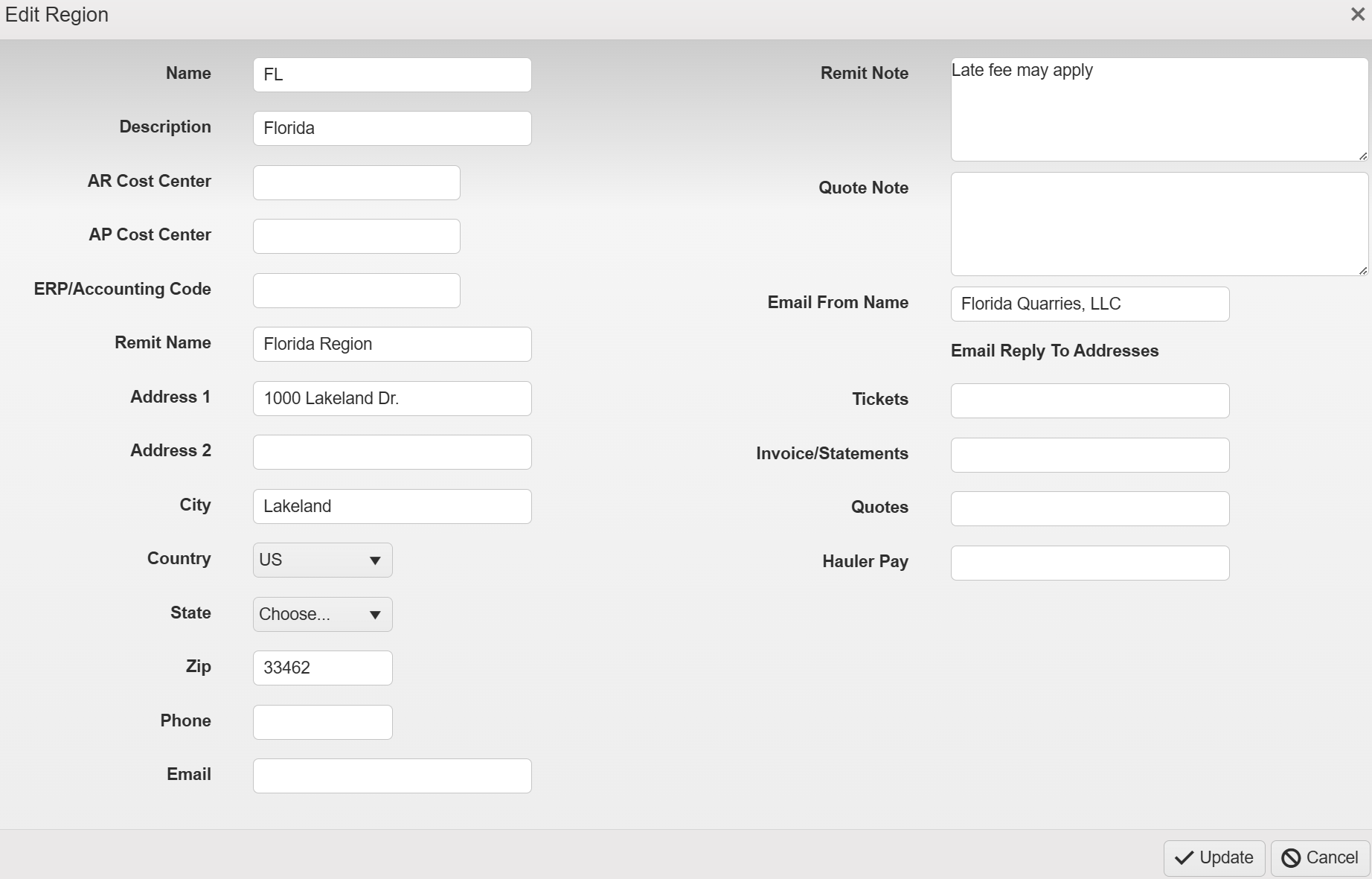
The minimum required fields to add a new region are **Name** and **Description**

<figure><img src="https://490131596-files.gitbook.io/~/files/v0/b/gitbook-x-prod.appspot.com/o/spaces%2F0LJDMCSYOqplCEgCo73X%2Fuploads%2FgqWWWPYqUCCBEuiJmYMm%2Fimage.png?alt=media&amp;token=ac158345-7efd-478b-acd3-cca3a26488fd" alt=""><figcaption></figcaption></figure>
{% endstep %}

{% step %}

### Click **\[ ✓ Update ]**&#x20;

<figure><img src="https://490131596-files.gitbook.io/~/files/v0/b/gitbook-x-prod.appspot.com/o/spaces%2F0LJDMCSYOqplCEgCo73X%2Fuploads%2FyCwUa0fhrP1EU52o5Bnl%2Fimage.png?alt=media&amp;token=2018ddeb-0613-447a-8e1c-9f8f2dd32eb1" alt=""><figcaption></figcaption></figure>
{% endstep %}
{% endstepper %}

***

## Related Guides

{% content-ref url="/pages/KEzzo4ob9hJ9ZpRrAIvk" %}
[Creating a New Location](/fast-weigh-knowledge-base/how-to-guides/how-to-create-new-records/creating-a-new-location)
{% endcontent-ref %}

{% content-ref url="/pages/vNYPaU6vGW3gnRtA6o79" %}
[Creating a New Yard](/fast-weigh-knowledge-base/how-to-guides/how-to-create-new-records/creating-a-new-yard)
{% endcontent-ref %}

***

## References

{% content-ref url="/pages/6dHjHaYCIUAh3ShC9IFZ" %}
[Locations](/fast-weigh-knowledge-base/references/web-portal/resources/locations)
{% endcontent-ref %}


# Creating a New Location

Fastweigh has a 3-tier operating location structure:  Regions, Locations, and Yards. This allows flexibility for companies of all sizes to manage their production.

## How to Create a New Location

{% stepper %}
{% step %}

### Navigate to \[ Resources > Locations ]

<figure><img src="https://490131596-files.gitbook.io/~/files/v0/b/gitbook-x-prod.appspot.com/o/spaces%2F0LJDMCSYOqplCEgCo73X%2Fuploads%2FRukNddhY7S8qMQu6JiMg%2Fimage.png?alt=media&amp;token=7600b1d9-8ddd-49d3-a43f-6c50e8a31606" alt=""><figcaption></figcaption></figure>
{% endstep %}

{% step %}

### Click \[ + New Location ]

<figure><img src="https://490131596-files.gitbook.io/~/files/v0/b/gitbook-x-prod.appspot.com/o/spaces%2F0LJDMCSYOqplCEgCo73X%2Fuploads%2F5lvfKCXwD0hrtHkumW9Y%2Fimage.png?alt=media&amp;token=f60337ad-ed59-4fe5-a1b9-bad7a0a98bbb" alt=""><figcaption></figcaption></figure>
{% endstep %}

{% step %}

### Fill out Required Fields

<figure><img src="https://490131596-files.gitbook.io/~/files/v0/b/gitbook-x-prod.appspot.com/o/spaces%2F0LJDMCSYOqplCEgCo73X%2Fuploads%2FCGVYYXEJzX2VG4we2sHW%2Fimage.png?alt=media&amp;token=be48507a-58f8-4e8d-a8ee-70603c180779" alt=""><figcaption></figcaption></figure>

{% endstep %}

{% step %}

### Click \[ **✓ Update** ]

<figure><img src="https://490131596-files.gitbook.io/~/files/v0/b/gitbook-x-prod.appspot.com/o/spaces%2F0LJDMCSYOqplCEgCo73X%2Fuploads%2FyCwUa0fhrP1EU52o5Bnl%2Fimage.png?alt=media&amp;token=2018ddeb-0613-447a-8e1c-9f8f2dd32eb1" alt=""><figcaption></figcaption></figure>
{% endstep %}
{% endstepper %}

***

## Related Guides

{% content-ref url="/pages/y3kwtzrISJDo4pny2C6q" %}
[Creating a New Region](/fast-weigh-knowledge-base/how-to-guides/how-to-create-new-records/creating-a-new-region)
{% endcontent-ref %}

{% content-ref url="/pages/vNYPaU6vGW3gnRtA6o79" %}
[Creating a New Yard](/fast-weigh-knowledge-base/how-to-guides/how-to-create-new-records/creating-a-new-yard)
{% endcontent-ref %}

***

## References

{% content-ref url="/pages/6dHjHaYCIUAh3ShC9IFZ" %}
[Locations](/fast-weigh-knowledge-base/references/web-portal/resources/locations)
{% endcontent-ref %}


# Creating a New Yard

Fastweigh has a 3-tier operating location structure:  Regions, Locations, and Yards. This allows flexibility for companies of all sizes to manage their production.

{% stepper %}
{% step %}

### Navigate to \[ Resources > Locations ]

<figure><img src="https://490131596-files.gitbook.io/~/files/v0/b/gitbook-x-prod.appspot.com/o/spaces%2F0LJDMCSYOqplCEgCo73X%2Fuploads%2F5xMs2gfLz1Qyd15zcz6K%2Fimage.png?alt=media&amp;token=fcb10c5a-01a5-4fb3-af3c-2a914615c953" alt=""><figcaption></figcaption></figure>
{% endstep %}

{% step %}

### Click \[ + New Yard ]

<figure><img src="https://490131596-files.gitbook.io/~/files/v0/b/gitbook-x-prod.appspot.com/o/spaces%2F0LJDMCSYOqplCEgCo73X%2Fuploads%2FEyDYMZxVagnX7VNV5A6W%2Fimage.png?alt=media&amp;token=486e27f5-0092-479b-b4b9-1798106cb183" alt=""><figcaption></figcaption></figure>
{% endstep %}

{% step %}

### Fill out Required Fields

The minimum required fields to add a new yard are **Name** and **Description**

<figure><img src="https://490131596-files.gitbook.io/~/files/v0/b/gitbook-x-prod.appspot.com/o/spaces%2F0LJDMCSYOqplCEgCo73X%2Fuploads%2FTx389DVvmueZBGdVwXNk%2Fimage.png?alt=media&amp;token=778d82ab-02e1-41ec-92a8-b1f5a2cef910" alt=""><figcaption></figcaption></figure>
{% endstep %}

{% step %}

### Click **\[ ✓ Update ]**&#x20;

<figure><img src="https://490131596-files.gitbook.io/~/files/v0/b/gitbook-x-prod.appspot.com/o/spaces%2F0LJDMCSYOqplCEgCo73X%2Fuploads%2FyCwUa0fhrP1EU52o5Bnl%2Fimage.png?alt=media&amp;token=2018ddeb-0613-447a-8e1c-9f8f2dd32eb1" alt=""><figcaption></figcaption></figure>
{% endstep %}
{% endstepper %}

***

## Related Guides

{% content-ref url="/pages/KEzzo4ob9hJ9ZpRrAIvk" %}
[Creating a New Location](/fast-weigh-knowledge-base/how-to-guides/how-to-create-new-records/creating-a-new-location)
{% endcontent-ref %}

{% content-ref url="/pages/y3kwtzrISJDo4pny2C6q" %}
[Creating a New Region](/fast-weigh-knowledge-base/how-to-guides/how-to-create-new-records/creating-a-new-region)
{% endcontent-ref %}

***

## References

{% content-ref url="/pages/6dHjHaYCIUAh3ShC9IFZ" %}
[Locations](/fast-weigh-knowledge-base/references/web-portal/resources/locations)
{% endcontent-ref %}


# Creating a New Customer

You can manage your entire customer list from the Customers section of the Web Portal. This includes full contact information, payment terms, pricing level, and credit status.

## How to Create Customers

{% stepper %}
{% step %}

### Navigate to \[ Resources > Customers ]

<figure><img src="https://490131596-files.gitbook.io/~/files/v0/b/gitbook-x-prod.appspot.com/o/spaces%2F0LJDMCSYOqplCEgCo73X%2Fuploads%2FyKacoJlqxXHVd5bvlqHP%2Fimage.png?alt=media&amp;token=6d9d08c0-e453-41f4-8282-7d915bcb1d5e" alt=""><figcaption></figcaption></figure>
{% endstep %}

{% step %}

### Click \[ + Customer ]

<figure><img src="https://490131596-files.gitbook.io/~/files/v0/b/gitbook-x-prod.appspot.com/o/spaces%2F0LJDMCSYOqplCEgCo73X%2Fuploads%2FW45iYxCfcJxN4neU4dxi%2Fimage.png?alt=media&amp;token=1120572e-e3a1-4770-ac66-1b71876a6218" alt=""><figcaption></figcaption></figure>
{% endstep %}

{% step %}

### Fill Required Fields

The minimum required fields to add a Customer are **Customer ID** and **Customer Name**

<figure><img src="https://490131596-files.gitbook.io/~/files/v0/b/gitbook-x-prod.appspot.com/o/spaces%2F0LJDMCSYOqplCEgCo73X%2Fuploads%2FUFJBUCszxdc5mkX4UiX0%2Fimage.png?alt=media&amp;token=859133d9-5727-4cfb-99fc-df2cbc1f44d9" alt=""><figcaption></figcaption></figure>
{% endstep %}

{% step %}

### Update & Finish

Click the **\[ Update ]** button

<figure><img src="https://490131596-files.gitbook.io/~/files/v0/b/gitbook-x-prod.appspot.com/o/spaces%2F0LJDMCSYOqplCEgCo73X%2Fuploads%2FyCwUa0fhrP1EU52o5Bnl%2Fimage.png?alt=media&amp;token=2018ddeb-0613-447a-8e1c-9f8f2dd32eb1" alt=""><figcaption></figcaption></figure>

You have successfully made a customer in Fast-Weigh!
{% endstep %}
{% endstepper %}

***

## Related Guides

{% content-ref url="/pages/xqQV6x8mjOLYC4aIDSmc" %}
[How to Import Customers](/fast-weigh-knowledge-base/how-to-guides/how-to-import-records/how-to-import-customers)
{% endcontent-ref %}

## References

{% content-ref url="/pages/knRumj0gwP4mXKNtYCVh" %}
[Customer](/fast-weigh-knowledge-base/references/web-portal/resources/customer)
{% endcontent-ref %}


# Creating a New Pricing Template

Pricing Templates are what drive your default pricing when adding products to an Order. You can create as many of these as needed.

## Creating a Pricing Template

{% stepper %}
{% step %}

### Navigate to \[ Resources > Products & Pricing ]

<figure><img src="https://490131596-files.gitbook.io/~/files/v0/b/gitbook-x-prod.appspot.com/o/spaces%2F0LJDMCSYOqplCEgCo73X%2Fuploads%2FxyoL7a3ILNeqVukAofOL%2Fimage.png?alt=media&amp;token=8796d6ff-6986-4755-a8e3-69d0cf2ae3e2" alt=""><figcaption></figcaption></figure>
{% endstep %}

{% step %}

### Click \[ + Add Template ]

<figure><img src="https://490131596-files.gitbook.io/~/files/v0/b/gitbook-x-prod.appspot.com/o/spaces%2F0LJDMCSYOqplCEgCo73X%2Fuploads%2FVJSbtaX1cejkl2zzWtc1%2Fimage.png?alt=media&amp;token=31c32929-00b3-46e2-b889-73d4c5e4e4cd" alt=""><figcaption></figcaption></figure>
{% endstep %}

{% step %}

### Add Name

Clicking **\[ + Add Template ]** will add a new line to the Pricing Template table where you can enter in the Template Name

<figure><img src="https://490131596-files.gitbook.io/~/files/v0/b/gitbook-x-prod.appspot.com/o/spaces%2F0LJDMCSYOqplCEgCo73X%2Fuploads%2FMc4iXavvi1HQrtjO3VDM%2Fimage.png?alt=media&amp;token=ecbdd7c2-e7e6-4e39-8f7b-f99de0605b2c" alt=""><figcaption></figcaption></figure>
{% endstep %}

{% step %}

### Click \[ **✓** ]

After adding a name, click the **\[✓]** button to save the new Template
{% endstep %}
{% endstepper %}

***

## How to set a Pricing Template as Default

{% stepper %}
{% step %}

### Select the Template

Select the Template Name from the table (it will be highlighted in teal with white text)

<figure><img src="https://490131596-files.gitbook.io/~/files/v0/b/gitbook-x-prod.appspot.com/o/spaces%2F0LJDMCSYOqplCEgCo73X%2Fuploads%2F1RMlmh3KAiB7S72UGEJh%2Fimage.png?alt=media&amp;token=423b20e7-2c50-41d7-a3f0-4b0057ee0ae3" alt=""><figcaption></figcaption></figure>

{% endstep %}

{% step %}

### Click **\[ ✓ Set Default ]**

<figure><img src="https://490131596-files.gitbook.io/~/files/v0/b/gitbook-x-prod.appspot.com/o/spaces%2F0LJDMCSYOqplCEgCo73X%2Fuploads%2FBxSetjeiqm7Bp1zR3alS%2Fimage.png?alt=media&amp;token=ca4be7c3-b2b2-47f4-8915-8dcf3146f1db" alt=""><figcaption></figcaption></figure>

{% hint style="success" %}
The Default Template will always be highlighted in green

![](https://490131596-files.gitbook.io/~/files/v0/b/gitbook-x-prod.appspot.com/o/spaces%2F0LJDMCSYOqplCEgCo73X%2Fuploads%2FXLNvNLI3jFH7qfZFHriN%2Fimage.png?alt=media\&token=1bcfbd6b-f12b-4f11-b81c-da451b383494)
{% endhint %}
{% endstep %}
{% endstepper %}

***

## Related Guides

{% content-ref url="/pages/IjQ3Q6DQpNmSnIqi2V8h" %}
[Creating a New Product](/fast-weigh-knowledge-base/how-to-guides/how-to-create-new-records/creating-a-new-product)
{% endcontent-ref %}

## References

{% content-ref url="/pages/QliAX38vHdxW4nWyQH6b" %}
[Products & Pricing](/fast-weigh-knowledge-base/references/web-portal/resources/products/products-and-pricing)
{% endcontent-ref %}


# Creating a New Product

Your Products will be the material selected when ticketing. You can create an unlimited number of Products and assign them to your Locations and Orders, as needed.

## How to Create Products

1. Navigate to "**Resources**" > "**Products**" > "**Products & Pricing**"<br>

   <figure><img src="https://490131596-files.gitbook.io/~/files/v0/b/gitbook-x-prod.appspot.com/o/spaces%2F0LJDMCSYOqplCEgCo73X%2Fuploads%2FJbaquCReUY11GO4AjU8p%2Fimage.png?alt=media&amp;token=7e318ab7-1700-4a47-876a-4f582347d7d8" alt=""><figcaption></figcaption></figure>
2. Navigate to the **Product Setup**\ <br>

   <figure><img src="https://490131596-files.gitbook.io/~/files/v0/b/gitbook-x-prod.appspot.com/o/spaces%2F0LJDMCSYOqplCEgCo73X%2Fuploads%2FepytKvQIZnClHIHI5Tm8%2Fimage.png?alt=media&amp;token=62bd02cf-951d-4974-a667-e6623cdfe2e0" alt=""><figcaption></figcaption></figure>
3. Click the **\[+New Product]** button<br>

   <figure><img src="https://490131596-files.gitbook.io/~/files/v0/b/gitbook-x-prod.appspot.com/o/spaces%2F0LJDMCSYOqplCEgCo73X%2Fuploads%2FWzzc0kkyXLKu7MbhvGbb%2Fimage.png?alt=media&amp;token=9a536d40-ad23-4956-a409-543bd6c4f510" alt=""><figcaption></figcaption></figure>
4. The minimum required fields to add a new product are **Product ID**, **Description** and **Unit**

<figure><img src="https://490131596-files.gitbook.io/~/files/v0/b/gitbook-x-prod.appspot.com/o/spaces%2F0LJDMCSYOqplCEgCo73X%2Fuploads%2FfsUKLR8aTcFMYKs05Rgg%2Fimage.png?alt=media&amp;token=c15bb913-40a8-4b32-9cff-bbfa8ac82a5e" alt=""><figcaption></figcaption></figure>

5. Click **\[✓Update]**&#x20;

## Assigning Products to a Location

After a product has been created, it will need to be assigned to a location. This will be where you will be ticketing the Products.

1. Select the product you just created and click the  **\[+Add Location]** button in the middle tab<br>

   <figure><img src="https://490131596-files.gitbook.io/~/files/v0/b/gitbook-x-prod.appspot.com/o/spaces%2F0LJDMCSYOqplCEgCo73X%2Fuploads%2F1FNOMI7BJz25WslUaxyM%2Fimage.png?alt=media&amp;token=6e9215e1-5968-4471-8315-2da69b474a81" alt=""><figcaption></figcaption></figure>
2. The minimum required fields are **Region**, **Location**, and **Yard**<br>

   <figure><img src="https://490131596-files.gitbook.io/~/files/v0/b/gitbook-x-prod.appspot.com/o/spaces%2F0LJDMCSYOqplCEgCo73X%2Fuploads%2F3VhuYEhMlkqN7NS38duN%2Fimage.png?alt=media&amp;token=79e0487b-cec7-4968-a36c-79e947c9af41" alt=""><figcaption></figcaption></figure>

{% hint style="warning" %}
The product must be added to the location it is being ticketed out of. Mutiple locations can be added to the same product and vice versa
{% endhint %}

3. Click **\[✓Update]**

Once the Product Location is set up, make sure to set up default pricing for the product


# Creating a New Truck

Before new Trucks can be added to your Fastweigh system, you must have one or more Haulers. In most cases, the Hauler is a carrier, trucking company, or customer who owns the truck.

## How to Create Trucks

1. Navigate to "**Trucks**" > "**Trucks**"

<figure><img src="https://490131596-files.gitbook.io/~/files/v0/b/gitbook-x-prod.appspot.com/o/spaces%2F0LJDMCSYOqplCEgCo73X%2Fuploads%2F7MsWjiZRRdYnOQe5Iuec%2Fimage.png?alt=media&amp;token=922b748f-cedb-4da3-9da7-07518006b641" alt=""><figcaption></figcaption></figure>

2. Click the **\[+New Truck]** button

<figure><img src="https://490131596-files.gitbook.io/~/files/v0/b/gitbook-x-prod.appspot.com/o/spaces%2F0LJDMCSYOqplCEgCo73X%2Fuploads%2FtKslTZTSfqaHu0SQccrP%2Fimage.png?alt=media&amp;token=c505157f-a79b-4108-a1cc-4e7e4a27f1e7" alt=""><figcaption></figcaption></figure>

3. The minimum required fields to add a new truck are **Hauler** and **Truck ID**

<figure><img src="https://490131596-files.gitbook.io/~/files/v0/b/gitbook-x-prod.appspot.com/o/spaces%2F0LJDMCSYOqplCEgCo73X%2Fuploads%2FYoUVoYToT3Y431kc2JzL%2Fimage.png?alt=media&amp;token=d497b308-3ee3-4025-aeb4-0eb88c5b4f9c" alt=""><figcaption></figcaption></figure>

4. Click **\[✓Update]**&#x20;


# Creating a New Hauler

## How to Create Haulers

1. Navigate to "**Trucks**" > "**Haulers**"

<figure><img src="https://490131596-files.gitbook.io/~/files/v0/b/gitbook-x-prod.appspot.com/o/spaces%2F0LJDMCSYOqplCEgCo73X%2Fuploads%2FiLicS7ITuaffUhdy6p6K%2Fimage.png?alt=media&amp;token=31510cd6-0b9f-4ae9-9501-9f6218e6de55" alt=""><figcaption></figcaption></figure>

2. Click the **\[+New Hauler]** button

<figure><img src="https://490131596-files.gitbook.io/~/files/v0/b/gitbook-x-prod.appspot.com/o/spaces%2F0LJDMCSYOqplCEgCo73X%2Fuploads%2FzUufoIUcNolC0t3DICWy%2Fimage.png?alt=media&amp;token=60b1a81f-486b-4ae7-bcb7-440a6d7965f5" alt=""><figcaption></figcaption></figure>

3. The minimum required fields to add a new hauler are **Hauler ID** and **Name**

<figure><img src="https://490131596-files.gitbook.io/~/files/v0/b/gitbook-x-prod.appspot.com/o/spaces%2F0LJDMCSYOqplCEgCo73X%2Fuploads%2FdERYsifys2hJnwV8MAtH%2Fimage.png?alt=media&amp;token=93b070d9-d5d2-45c2-9f89-d0f49d116cac" alt=""><figcaption></figcaption></figure>

4. Click **\[✓Update]**&#x20;


# Creating a New Driver

{% stepper %}
{% step %}

### Navigate to \[ Trucks > Drivers ]

<figure><img src="https://490131596-files.gitbook.io/~/files/v0/b/gitbook-x-prod.appspot.com/o/spaces%2F0LJDMCSYOqplCEgCo73X%2Fuploads%2FItnM2ME2BUdq0CuFYuZs%2Fimage.png?alt=media&amp;token=819868f5-0a84-4a2f-9304-0412ec91e119" alt=""><figcaption></figcaption></figure>
{% endstep %}

{% step %}

### Click \[ + New Driver ]

<figure><img src="https://490131596-files.gitbook.io/~/files/v0/b/gitbook-x-prod.appspot.com/o/spaces%2F0LJDMCSYOqplCEgCo73X%2Fuploads%2FtxaaYNXovBTm0bJnG5v0%2Fimage.png?alt=media&amp;token=a479f158-ff23-4459-b614-5ca5f0bb89cd" alt=""><figcaption></figcaption></figure>

{% endstep %}

{% step %}

### Fill out Required Fields

The fields which are required are **\[ Name ]** and **\[ Driver ID ]**

<figure><img src="https://490131596-files.gitbook.io/~/files/v0/b/gitbook-x-prod.appspot.com/o/spaces%2F0LJDMCSYOqplCEgCo73X%2Fuploads%2FgCcfRgOn5KGcbjvsTodr%2Fimage.png?alt=media&amp;token=2d7a80aa-a859-4183-8bea-09a5597eda73" alt=""><figcaption></figcaption></figure>

{% hint style="info" %}
If you would like a full explanation on every field, please see the [Driver Fields table](/fast-weigh-knowledge-base/references/web-portal/trucks/drivers#driver-fields)
{% endhint %}
{% endstep %}

{% step %}

### Click \[ ✓ Update ]

<figure><img src="https://490131596-files.gitbook.io/~/files/v0/b/gitbook-x-prod.appspot.com/o/spaces%2F0LJDMCSYOqplCEgCo73X%2Fuploads%2FyCwUa0fhrP1EU52o5Bnl%2Fimage.png?alt=media&amp;token=2018ddeb-0613-447a-8e1c-9f8f2dd32eb1" alt=""><figcaption></figcaption></figure>
{% endstep %}
{% endstepper %}

***

## Related Guides

{% content-ref url="/pages/0gV6LL0dNAPLjVMdA2bM" %}
[Creating a New Truck](/fast-weigh-knowledge-base/how-to-guides/how-to-create-new-records/creating-a-new-truck)
{% endcontent-ref %}

{% content-ref url="/pages/4HeHOdimdxESEqZmdIh7" %}
[Creating a New Hauler](/fast-weigh-knowledge-base/how-to-guides/how-to-create-new-records/creating-a-new-hauler)
{% endcontent-ref %}

***

## References

{% content-ref url="/pages/u8iaXuT3bTHwX05lL9vy" %}
[Drivers](/fast-weigh-knowledge-base/references/web-portal/trucks/drivers)
{% endcontent-ref %}


# Creating New Orders

While the latest versions of Fastweigh allow for orderless ticketing, Orders are still an essential part of the fast-weigh workflow.

## How to Create Orders

{% stepper %}
{% step %}

### Navigate to \[ Orders > Orders ]

<figure><img src="https://490131596-files.gitbook.io/~/files/v0/b/gitbook-x-prod.appspot.com/o/spaces%2F0LJDMCSYOqplCEgCo73X%2Fuploads%2FZ5yA5TftuYS2SDO1mU9S%2Fimage.png?alt=media&amp;token=3bf7c1d5-4950-4500-9f2d-e187f805d1ca" alt=""><figcaption></figcaption></figure>

{% endstep %}

{% step %}

### Click \[ + New Order ]

<figure><img src="https://490131596-files.gitbook.io/~/files/v0/b/gitbook-x-prod.appspot.com/o/spaces%2F0LJDMCSYOqplCEgCo73X%2Fuploads%2FaiojhdLrbnvPT0gSre0n%2Fimage.png?alt=media&amp;token=eddd03c9-ccb2-4985-b7d6-0da87d61999b" alt=""><figcaption></figcaption></figure>
{% endstep %}

{% step %}

### Fill out required Fields

The minimum required fields to add a new order are **Region**, **Description** and **Customer**

<figure><img src="https://490131596-files.gitbook.io/~/files/v0/b/gitbook-x-prod.appspot.com/o/spaces%2F0LJDMCSYOqplCEgCo73X%2Fuploads%2F9f0tTUjnFvUkNqb9MhnZ%2Fimage.png?alt=media&amp;token=7eca4126-72b2-4992-838e-2055c9ea0e9a" alt=""><figcaption></figcaption></figure>
{% endstep %}

{% step %}

### Click \[ Save ]

<figure><img src="https://490131596-files.gitbook.io/~/files/v0/b/gitbook-x-prod.appspot.com/o/spaces%2F0LJDMCSYOqplCEgCo73X%2Fuploads%2FEVEKq5pVHfzk5q0L8qWM%2Fimage.png?alt=media&amp;token=453a182d-4ace-4e3f-932b-f04dd57bca3b" alt=""><figcaption></figcaption></figure>

{% hint style="warning" %}
A **Product** must be added to an **Order** before it can be ticketed on. The **Order** can also be set to Open by checking the **Open Order** box if you would like to be able add products in the fast-weigh scale app
{% endhint %}
{% endstep %}
{% endstepper %}

## Adding a Single Product to an Order

{% stepper %}
{% step %}

### Click \[ + Add Single Product ]

While on the create/edit **Order** screen, select the **\[ + Add Single Product ]** button on the bottom table. If the button is not there you may need to select **\[ Save ]** for it to appear.

<figure><img src="https://490131596-files.gitbook.io/~/files/v0/b/gitbook-x-prod.appspot.com/o/spaces%2F0LJDMCSYOqplCEgCo73X%2Fuploads%2FAKFFE5Yluo2AFhAvNsZG%2Fimage.png?alt=media&amp;token=6465ef75-20c0-4614-abee-5fe7672c832f" alt=""><figcaption></figcaption></figure>
{% endstep %}

{% step %}

### Fill out Required Fields

The minimum required fields to add a new product are **Location**, **Yard**, **Product** and **Unit Price**

<figure><img src="https://490131596-files.gitbook.io/~/files/v0/b/gitbook-x-prod.appspot.com/o/spaces%2F0LJDMCSYOqplCEgCo73X%2Fuploads%2FFm2x89F3hyGEeT67aPkc%2Fimage.png?alt=media&amp;token=f1fc1994-844e-4154-a01d-fefe6a16d8fd" alt=""><figcaption></figcaption></figure>
{% endstep %}

{% step %}

### Click **\[ ✓ Update ]**&#x20;

<figure><img src="https://490131596-files.gitbook.io/~/files/v0/b/gitbook-x-prod.appspot.com/o/spaces%2F0LJDMCSYOqplCEgCo73X%2Fuploads%2FyCwUa0fhrP1EU52o5Bnl%2Fimage.png?alt=media&amp;token=2018ddeb-0613-447a-8e1c-9f8f2dd32eb1" alt=""><figcaption></figcaption></figure>
{% endstep %}
{% endstepper %}

### **Adding Multiple Products at once to an Order**

{% stepper %}
{% step %}

### Click \[ + Add Multiple Products ]

While on the create/edit **Order** screen, select the **\[ + Add Multiple Products ]** button on the bottom table. If the button is not there you may need to select **\[ Save ]** for it to appear.

<figure><img src="https://490131596-files.gitbook.io/~/files/v0/b/gitbook-x-prod.appspot.com/o/spaces%2F0LJDMCSYOqplCEgCo73X%2Fuploads%2FOr8o6aaCurqnjAQmEOv2%2Fimage.png?alt=media&amp;token=8f76908c-d5d2-4576-9cc6-ce12431fbf86" alt=""><figcaption></figcaption></figure>
{% endstep %}

{% step %}

### Select Products

Select any of the provided parameters to filter results and click the **\[Refresh]** button

<figure><img src="https://490131596-files.gitbook.io/~/files/v0/b/gitbook-x-prod.appspot.com/o/spaces%2F0LJDMCSYOqplCEgCo73X%2Fuploads%2FPKY7aCglTpLCaBWqf4m7%2Fimage.png?alt=media&amp;token=bbcfe2ae-e078-49bb-841f-d4e99482fcea" alt=""><figcaption></figcaption></figure>

Select the products using the checkboxes next to them

<figure><img src="https://490131596-files.gitbook.io/~/files/v0/b/gitbook-x-prod.appspot.com/o/spaces%2F0LJDMCSYOqplCEgCo73X%2Fuploads%2FLS6cIkKr7CPHHwCY9Snv%2Fimage.png?alt=media&amp;token=338ed55d-9d5c-4545-82d6-7758843f4e7d" alt=""><figcaption></figcaption></figure>

The **Use Template Pricing** checkbox will apply template pricing to all selected products

<figure><img src="https://490131596-files.gitbook.io/~/files/v0/b/gitbook-x-prod.appspot.com/o/spaces%2F0LJDMCSYOqplCEgCo73X%2Fuploads%2FFlsopRoQ4E5bdRpSHxUc%2Fimage.png?alt=media&amp;token=51b53b24-631e-4226-b08c-a6869fe28c79" alt=""><figcaption></figcaption></figure>
{% endstep %}

{% step %}

### Click \[ Save ]

<figure><img src="https://490131596-files.gitbook.io/~/files/v0/b/gitbook-x-prod.appspot.com/o/spaces%2F0LJDMCSYOqplCEgCo73X%2Fuploads%2Ffm3a1j10FIJZGzH4kBVz%2Fimage.png?alt=media&amp;token=b252916c-9ebd-4fed-80c9-e346ae864d8d" alt=""><figcaption></figcaption></figure>
{% endstep %}
{% endstepper %}

***

## Related Guides

{% content-ref url="/pages/IjQ3Q6DQpNmSnIqi2V8h" %}
[Creating a New Product](/fast-weigh-knowledge-base/how-to-guides/how-to-create-new-records/creating-a-new-product)
{% endcontent-ref %}

***

## References

{% content-ref url="/pages/1iuGFgZfzPcwE5jusawb" %}
[Orders](/fast-weigh-knowledge-base/references/web-portal/orders)
{% endcontent-ref %}

{% content-ref url="/pages/R1EnBdScYcTNgRWHiXrL" %}
[Products](/fast-weigh-knowledge-base/references/web-portal/resources/products)
{% endcontent-ref %}


# Creating Invoices

Fast-Weigh features a flexible billing system that integrates with third-party accounting systems. This section allows you to organize groups of tickets into batches for invoicing a customer.

## How to Create Invoices

1. Navigate to "**Billing**" > "**Billing**"

<figure><img src="https://490131596-files.gitbook.io/~/files/v0/b/gitbook-x-prod.appspot.com/o/spaces%2F0LJDMCSYOqplCEgCo73X%2Fuploads%2FB1sMkX24XApfXLHBIXl7%2Fimage.png?alt=media&amp;token=01ccd35e-8525-4c26-b285-7148f8a11b6c" alt=""><figcaption></figcaption></figure>

2. Select all the parameters that contain the tickets that need to be billed and click **\[Query]**

&#x20;

<figure><img src="https://490131596-files.gitbook.io/~/files/v0/b/gitbook-x-prod.appspot.com/o/spaces%2F0LJDMCSYOqplCEgCo73X%2Fuploads%2Ffc521zGaskX0qXNweoCg%2Fimage.png?alt=media&amp;token=d915d4cc-ff7d-4fc5-b09b-ec531e978873" alt=""><figcaption></figcaption></figure>

3. Review tickets that are selected to ensure that they are ready to be billed

<figure><img src="https://490131596-files.gitbook.io/~/files/v0/b/gitbook-x-prod.appspot.com/o/spaces%2F0LJDMCSYOqplCEgCo73X%2Fuploads%2FKm627JCiDDIoKfOwatZC%2Fimage.png?alt=media&amp;token=c53f0a9b-95dd-4dc0-9a95-c347aa2bd142" alt=""><figcaption></figcaption></figure>

4. Type in a **Batch #** and select the appropriate **Invoice Date** and **GL Date** (if applicable)

<figure><img src="https://490131596-files.gitbook.io/~/files/v0/b/gitbook-x-prod.appspot.com/o/spaces%2F0LJDMCSYOqplCEgCo73X%2Fuploads%2FN6YlCqnTqnbS7l3B1RRx%2Fimage.png?alt=media&amp;token=49124f55-077e-40f9-a9e9-f4010a05819f" alt=""><figcaption></figcaption></figure>

5. Click **\[✓Assign]**

{% hint style="info" %}
Fastweigh automatically breaks out invoices within a batch based off your "**Invoice Break**" configuration. This can be edited under **Billing Settings** from the **Portal Settings**
{% endhint %}


# Creating Payments

With the Fastweigh AR & Payments module, you can handle invoice payments directly through the Fast-Weigh Web Portal via Cash, Credit, or ACH.

## How to Create Invoices within New Payments

{% hint style="danger" %}
Tickets must be on an invoice in order to collect a payment. This article covers adding tickets to an invoice from the **New Payment** screen first. If your tickets are already on an invoice, skip to step to the next section ([How to Create a New Payment](#how-to-create-a-new-payment))
{% endhint %}

1. Navigate to "**Billing**" > "**New Payment**"

<figure><img src="https://490131596-files.gitbook.io/~/files/v0/b/gitbook-x-prod.appspot.com/o/spaces%2F0LJDMCSYOqplCEgCo73X%2Fuploads%2FYMp81Crttr54wKgd0xIH%2Fimage.png?alt=media&amp;token=9b309e89-9ab6-49ce-9dc2-12c9bec2fc55" alt=""><figcaption></figcaption></figure>

2. Navigate to the **Tickets** tab

<figure><img src="https://490131596-files.gitbook.io/~/files/v0/b/gitbook-x-prod.appspot.com/o/spaces%2F0LJDMCSYOqplCEgCo73X%2Fuploads%2F9YrFYfNv12oQLwmCZBhm%2Fimage.png?alt=media&amp;token=322dbbb7-c5df-4d0b-9752-37a18fa4bf8e" alt=""><figcaption></figcaption></figure>

3. Select the **Region** and **Customer**, then click **\[Refresh]**

<figure><img src="https://490131596-files.gitbook.io/~/files/v0/b/gitbook-x-prod.appspot.com/o/spaces%2F0LJDMCSYOqplCEgCo73X%2Fuploads%2FAWrAWGgpdHc9pGC0ctAa%2Fimage.png?alt=media&amp;token=cd782540-91b6-4d70-aa39-181b593ce65a" alt=""><figcaption><p>This will provide a list of all tickets that have not been invoiced for this customer.</p></figcaption></figure>

4. Select the tickets you want to invoice. Ensure the invoice distribution and invoice date are correct, then click **\[Create Invoice]**

<figure><img src="https://490131596-files.gitbook.io/~/files/v0/b/gitbook-x-prod.appspot.com/o/spaces%2F0LJDMCSYOqplCEgCo73X%2Fuploads%2FJID8NNTsx5BArpYQwLB3%2Fimage.png?alt=media&amp;token=eb256e27-b8c7-40bb-ac8f-4570d9a74df8" alt=""><figcaption></figcaption></figure>

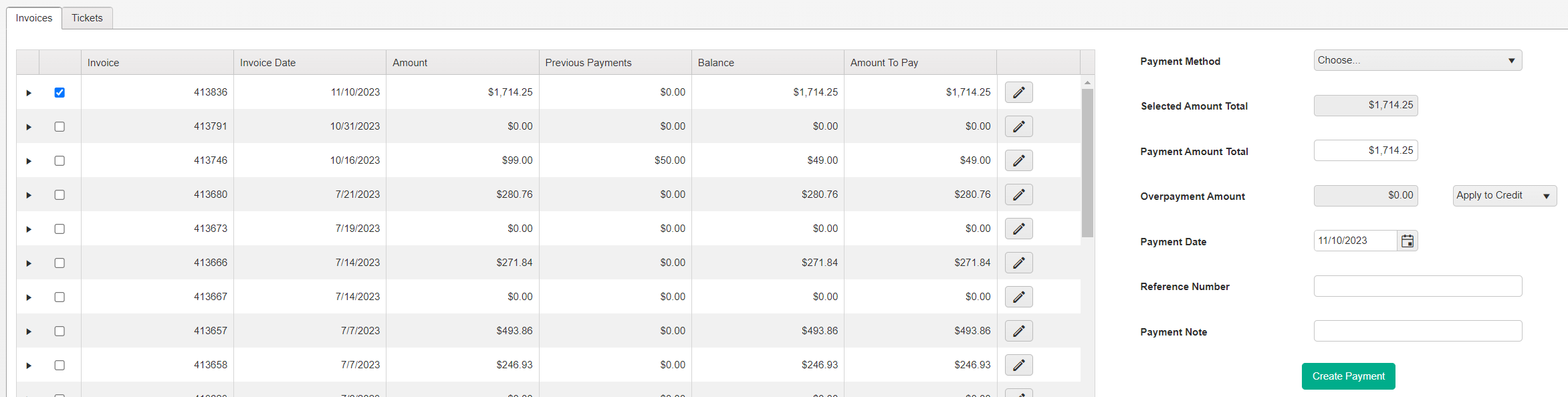
5. This will automatically navigate to the **Invoices** tab and select the invoice(s) generated

<figure><img src="https://490131596-files.gitbook.io/~/files/v0/b/gitbook-x-prod.appspot.com/o/spaces%2F0LJDMCSYOqplCEgCo73X%2Fuploads%2FIvSJGRXozVDHO6du5hov%2Fimage.png?alt=media&amp;token=f93140ae-ac81-4416-8583-896897154f6c" alt=""><figcaption></figcaption></figure>

## How to Create a New Payment

1. If you don't already have the invoice(s) selected. Select the **Region** and **Customer**, then click **\[Refresh]** and select the invoice(s)

<figure><img src="https://490131596-files.gitbook.io/~/files/v0/b/gitbook-x-prod.appspot.com/o/spaces%2F0LJDMCSYOqplCEgCo73X%2Fuploads%2FbRwOhTNwq6UmBduMTwX6%2Fimage.png?alt=media&amp;token=93c062a7-9f56-42ca-a5b9-a4230d5c58f6" alt=""><figcaption></figcaption></figure>

2. Select the **Payment Method** being used, ensure that the amount is correct and click the **\[Create Payment]** button


# Creating Statements

## Generating a Customer Statement

1. Navigate to "**Billing**" > "**Balance Dashboard**"

<figure><img src="https://490131596-files.gitbook.io/~/files/v0/b/gitbook-x-prod.appspot.com/o/spaces%2F0LJDMCSYOqplCEgCo73X%2Fuploads%2F9gHHmP9yJuS9K7d3Pl6v%2Fimage.png?alt=media&amp;token=b7a17608-d434-49e5-b499-d5c48632a5fd" alt=""><figcaption></figcaption></figure>

2. Select the **Region** and **Customer**, then click **\[Refresh]**

<figure><img src="https://490131596-files.gitbook.io/~/files/v0/b/gitbook-x-prod.appspot.com/o/spaces%2F0LJDMCSYOqplCEgCo73X%2Fuploads%2FOaGMS6c8SEqEbi5OavtP%2Fimage.png?alt=media&amp;token=65569e5d-9fac-400b-83cf-a4b67aa7dcd3" alt=""><figcaption></figcaption></figure>

3. Click the **\[Statement]** button to generate a statement with the customer's current balance

<figure><img src="https://490131596-files.gitbook.io/~/files/v0/b/gitbook-x-prod.appspot.com/o/spaces%2F0LJDMCSYOqplCEgCo73X%2Fuploads%2FSFXeOHU1eykysrvF37ZK%2Fimage.png?alt=media&amp;token=02fdb056-323f-4b6b-b288-c2f46ed7ae4c" alt=""><figcaption></figcaption></figure>


# Creating Hauler Pay Statement

The Hauler Pay module allows you to organize groups of tickets into batches for invoicing a Hauler, much like the Billing module, based on Hauler Pay rates set for orders.

Hauler Pay Statements are generated from invoices.

{% hint style="info" %}
See: [Creating Invoices](/fast-weigh-knowledge-base/how-to-guides/how-to-create-new-records/creating-invoices)
{% endhint %}

## Generate a Hauler Pay Statement

1. Navigate to "**Hauler Pay**" > "**Statements**"

<figure><img src="https://490131596-files.gitbook.io/~/files/v0/b/gitbook-x-prod.appspot.com/o/spaces%2F0LJDMCSYOqplCEgCo73X%2Fuploads%2F7OWL0uBXxRf3X1H7qd6S%2Fimage.png?alt=media&amp;token=23eb98ae-6809-4789-bd42-7f413cebdc19" alt=""><figcaption></figcaption></figure>

2. Select all the parameters that contain the tickets that need to be billed and click **\[Query]**

<figure><img src="https://490131596-files.gitbook.io/~/files/v0/b/gitbook-x-prod.appspot.com/o/spaces%2F0LJDMCSYOqplCEgCo73X%2Fuploads%2FUaMPrDb6tnpk6JEib3c2%2Fimage.png?alt=media&amp;token=ae18066b-301c-4c12-8163-e62ddeb87d92" alt=""><figcaption></figcaption></figure>

3. Type in a **Batch #** and select the appropriate **Payment Date** and **GL Date** (if applicable)

<figure><img src="https://490131596-files.gitbook.io/~/files/v0/b/gitbook-x-prod.appspot.com/o/spaces%2F0LJDMCSYOqplCEgCo73X%2Fuploads%2FugQaI1cUfYf1dK88SVqN%2Fimage.png?alt=media&amp;token=fa8d1237-5f1d-4905-8dbd-a5d839d3aa4c" alt=""><figcaption></figcaption></figure>

4. The tickets will be removed from the **New Payment** tab and placed inside a batch in the **Payment History** section


# How to Edit Records


# How to Edit Tickets

You can make changes to tickets if you notice an error.

{% hint style="warning" %}
If you are changing the weights ensure you change the Net Units as this field is not automatically calculated if making an edit.
{% endhint %}

{% hint style="danger" %}
If you need to make an edit to a ticket on a **Cash** order you will need to perform a **Credit/Rebill** before any changes take effect. If you do not perform a **Credit/Rebill** the information will change, but the dollar amounts will not change unless the **Credit/Rebill** is performed first.

This applies to an order with a pay type set to **Cash, Credit Card, and Check**.
{% endhint %}

There are 2 primary ways to Edit a ticket. It can be done one at a time via the "Ticket Query" or edits can be made in Bulk via the Ticket Bulk Edit.

***

{% content-ref url="/pages/RnUK7CYBZbWzbVD2PF2w" %}
[Edit via Ticket Query](/fast-weigh-knowledge-base/how-to-guides/how-to-edit-records/how-to-edit-tickets/edit-via-ticket-query)
{% endcontent-ref %}

{% content-ref url="/pages/RGqgbs0N5qct8UpWPcGk" %}
[Edit via Ticket Bulk Edit](/fast-weigh-knowledge-base/how-to-guides/how-to-edit-records/how-to-edit-tickets/edit-via-ticket-bulk-edit)
{% endcontent-ref %}


# Edit via Ticket Query

{% stepper %}
{% step %}

### Navigate to \[ Tickets > Ticket Query ]

<figure><img src="https://490131596-files.gitbook.io/~/files/v0/b/gitbook-x-prod.appspot.com/o/spaces%2F0LJDMCSYOqplCEgCo73X%2Fuploads%2FxZOKQMK41N6JfnUWHP7Q%2Fimage.png?alt=media&amp;token=51112b17-b70e-48f9-849d-0ca18491749b" alt=""><figcaption></figcaption></figure>
{% endstep %}

{% step %}

### Search for ticket via drop-down menus or ticket number

<figure><img src="https://490131596-files.gitbook.io/~/files/v0/b/gitbook-x-prod.appspot.com/o/spaces%2F0LJDMCSYOqplCEgCo73X%2Fuploads%2F85Lu2RDROHM24Rt8UIcv%2Fimage.png?alt=media&amp;token=dfa12167-0376-4d72-8331-7c8a5220ae53" alt=""><figcaption></figcaption></figure>
{% endstep %}

{% step %}

### Click \[ ✎ ] icon in the Edit column

Make any necessary changes to the ticket and leave a **Revision Note**

<figure><img src="https://490131596-files.gitbook.io/~/files/v0/b/gitbook-x-prod.appspot.com/o/spaces%2F0LJDMCSYOqplCEgCo73X%2Fuploads%2FCeBMFCQq11wyExmXmWQK%2Fimage.png?alt=media&amp;token=dcb624fb-0568-4752-944e-ce7f6881550d" alt="" width="324"><figcaption></figcaption></figure>
{% endstep %}

{% step %}

### Click \[ Save ]

<figure><img src="https://490131596-files.gitbook.io/~/files/v0/b/gitbook-x-prod.appspot.com/o/spaces%2F0LJDMCSYOqplCEgCo73X%2Fuploads%2FswN3CYEmlEzf2MWAW7kM%2Fimage.png?alt=media&amp;token=d4718c43-ca4e-469e-b195-5d82fd731323" alt=""><figcaption></figcaption></figure>
{% endstep %}
{% endstepper %}

***

## References

{% content-ref url="/pages/mtOV4ORCSb8o9w3VEO4s" %}
[Ticket Query](/fast-weigh-knowledge-base/references/web-portal/tickets/ticket-query)
{% endcontent-ref %}


# Edit via Ticket Bulk Edit

{% stepper %}
{% step %}

### Navigate to \[ Tickets > Ticket Bulk Edit ]

<figure><img src="https://490131596-files.gitbook.io/~/files/v0/b/gitbook-x-prod.appspot.com/o/spaces%2F0LJDMCSYOqplCEgCo73X%2Fuploads%2FvpcaWYQM9XcLwTovu7P8%2Fimage.png?alt=media&amp;token=fc73e345-9a24-423a-bdf0-0e6901cbe065" alt=""><figcaption></figcaption></figure>
{% endstep %}

{% step %}

### Search for Tickets

Search for tickets utilizing the filter drop-down menus and click **\[ Query ]**

<figure><img src="https://490131596-files.gitbook.io/~/files/v0/b/gitbook-x-prod.appspot.com/o/spaces%2F0LJDMCSYOqplCEgCo73X%2Fuploads%2F6ndj0RbMpz5iegI5RB7T%2Fimage.png?alt=media&amp;token=4449575e-5540-469c-8bd2-3f210bbb109b" alt=""><figcaption></figcaption></figure>
{% endstep %}

{% step %}

### Select Tickets

Identify the tickets that need to be edited and select them by either clicking \[**Select All**] if all the tickets in the table need to be edited, or simply check the box next to each ticket that needs the edit.
{% endstep %}

{% step %}

### Make Changes

Next you can make changes to the required fields **Region, Order, Product, Location, Tax Code,** and **Ticket Date**. Optional fields you may edit are **PO Number, Job, Phase,** and **Cost Type**.

<figure><img src="https://490131596-files.gitbook.io/~/files/v0/b/gitbook-x-prod.appspot.com/o/spaces%2F0LJDMCSYOqplCEgCo73X%2Fuploads%2Fvqn25E9zoeDOEJutj28z%2Fimage.png?alt=media&amp;token=c7d48d9e-64df-414b-bf91-0c987f60004f" alt=""><figcaption></figcaption></figure>
{% endstep %}

{% step %}

### Click \[ Save ]

<figure><img src="https://490131596-files.gitbook.io/~/files/v0/b/gitbook-x-prod.appspot.com/o/spaces%2F0LJDMCSYOqplCEgCo73X%2Fuploads%2FsQ16lgcOjQdOoI1DGHUI%2Fimage.png?alt=media&amp;token=a9d1fddd-a20a-4ac0-a4dc-c8c9e9acc2eb" alt=""><figcaption></figcaption></figure>
{% endstep %}
{% endstepper %}


# Editing a Region

{% stepper %}
{% step %}

### Navigate to \[ Resources > Location ]

<figure><img src="https://490131596-files.gitbook.io/~/files/v0/b/gitbook-x-prod.appspot.com/o/spaces%2F0LJDMCSYOqplCEgCo73X%2Fuploads%2FTJ23ED6uJ6dMrZhku47M%2Fimage.png?alt=media&amp;token=5deeac96-0c5b-42e2-a609-666aabc18390" alt=""><figcaption></figcaption></figure>
{% endstep %}

{% step %}

### Click \[ ✏️]

<figure><img src="https://490131596-files.gitbook.io/~/files/v0/b/gitbook-x-prod.appspot.com/o/spaces%2F0LJDMCSYOqplCEgCo73X%2Fuploads%2FhV75xKkA9W4N2cJJk5VJ%2Fimage.png?alt=media&amp;token=a6fcb5b0-007d-435c-9f2f-1af81333fbf6" alt=""><figcaption></figcaption></figure>
{% endstep %}

{% step %}

### Make Changes

After clicking the Pencil Icon, you can then update any fields you want to change.

<figure><img src="https://490131596-files.gitbook.io/~/files/v0/b/gitbook-x-prod.appspot.com/o/spaces%2F0LJDMCSYOqplCEgCo73X%2Fuploads%2F2bJowi4bUkU49guEw3Em%2Fimage.png?alt=media&amp;token=78470496-43b7-4050-8847-ed9a1e465f80" alt=""><figcaption></figcaption></figure>
{% endstep %}

{% step %}

### Click \[ Update ]

After making your changes, click \[ Update ] to apply the changes.

<figure><img src="https://490131596-files.gitbook.io/~/files/v0/b/gitbook-x-prod.appspot.com/o/spaces%2F0LJDMCSYOqplCEgCo73X%2Fuploads%2FCSG4wtzLFNN2bms2buN3%2Fimage.png?alt=media&amp;token=44220286-65ec-453c-adde-a3515bfa5522" alt=""><figcaption></figcaption></figure>
{% endstep %}
{% endstepper %}


# How to Import Records


# How to Import Tickets

The Ticket Import screen allows you to build an interface with files from a ticketing system used previously, or with an outside company’s ticketing data that needs to be recorded.

***

## Setting up your Import <a href="#setting_up_your_import" id="setting_up_your_import"></a>

{% hint style="warning" %}
You must be logged into an **Admin** account the access the Import Format page
{% endhint %}

{% stepper %}
{% step %}

### Navigate to \[ Settings > Import Format ]

<figure><img src="https://490131596-files.gitbook.io/~/files/v0/b/gitbook-x-prod.appspot.com/o/spaces%2F0LJDMCSYOqplCEgCo73X%2Fuploads%2FNP1d88ALcvUJ400Wbb0E%2Fimage.png?alt=media&amp;token=e6569ad4-be4e-46de-8c9f-6ca97f72a501" alt=""><figcaption></figcaption></figure>

{% endstep %}

{% step %}

### Click on \[ + New Format ]

<figure><img src="https://490131596-files.gitbook.io/~/files/v0/b/gitbook-x-prod.appspot.com/o/spaces%2F0LJDMCSYOqplCEgCo73X%2Fuploads%2FKN5PZM02jeHhrbYB91UQ%2Fimage.png?alt=media&amp;token=5c4c3b08-4a6e-44c1-a1cd-4e1b1ae78590" alt=""><figcaption></figcaption></figure>
{% endstep %}

{% step %}

### Fill the Required Fields

The minimum required fields are the **\[** **Format Name ]** and all fields with a **\[ 0 ]**

<figure><img src="https://490131596-files.gitbook.io/~/files/v0/b/gitbook-x-prod.appspot.com/o/spaces%2F0LJDMCSYOqplCEgCo73X%2Fuploads%2FtWc0ku2snopMXrUtKBMR%2Fimage_2025-07-09_124605145.png?alt=media&amp;token=d16cb9b5-2696-4340-9fe9-fc277dc9461c" alt=""><figcaption><p>If you are importing Orderless Tickets, fields with a * are also required</p></figcaption></figure>

Match your fields to the corresponding number of the column in your export with the column containing that information on your CSV

{% hint style="info" %}
Numbers will replace the letter of the column in your export:\
**A** = **1**, **B** = **2**, **C** = **3**, **D** = **4**, etc.
{% endhint %}

<figure><img src="https://490131596-files.gitbook.io/~/files/v0/b/gitbook-x-prod.appspot.com/o/spaces%2F0LJDMCSYOqplCEgCo73X%2Fuploads%2FpCliw4lUvKU6qlcMcne6%2Fimage.png?alt=media&amp;token=acc37752-7c95-466c-ae07-b6f766d942e3" alt=""><figcaption></figcaption></figure>

<figure><img src="https://490131596-files.gitbook.io/~/files/v0/b/gitbook-x-prod.appspot.com/o/spaces%2F0LJDMCSYOqplCEgCo73X%2Fuploads%2FwGhPyT8T6sLszrgvu9Qr%2Fimage_2025-07-09_125543044.png?alt=media&amp;token=8d298570-34d0-4e9b-a292-0230198429ef" alt=""><figcaption></figcaption></figure>

{% hint style="info" %}
"**Header Row**" is checked because the CSV in the above example does have a header row, this can be left unchecked if your columns do not have headers.
{% endhint %}
{% endstep %}

{% step %}

### Click \[ **✓** Update ]

The Import Format should now be created! Follow the **Importing Ticket Data** steps below to see how to use it.
{% endstep %}
{% endstepper %}

***

## Importing Ticket Data

{% stepper %}
{% step %}

### Navigate to \[ Tickets > Ticket Import ]

<figure><img src="https://490131596-files.gitbook.io/~/files/v0/b/gitbook-x-prod.appspot.com/o/spaces%2F0LJDMCSYOqplCEgCo73X%2Fuploads%2Fo1cjIhyR5UMCtXja2ySt%2Fimage.png?alt=media&amp;token=6cfbc6b1-931f-4596-8d4c-9771a75be951" alt=""><figcaption></figcaption></figure>
{% endstep %}

{% step %}

### Fill the required fields

Select the ticket import **Format**, **Import File** (CSV), **Region**, **Location** and **Yard**

<figure><img src="https://490131596-files.gitbook.io/~/files/v0/b/gitbook-x-prod.appspot.com/o/spaces%2F0LJDMCSYOqplCEgCo73X%2Fuploads%2FSg49Ws4XOauS4yLLVPSd%2Fimage.png?alt=media&amp;token=7db810a5-98ad-4681-9e20-18039aa5da16" alt=""><figcaption></figcaption></figure>

{% hint style="info" %}
*Overwrite Date*: Will overwrite all dates on tickets being imported\
*Overwrite Hauler*: Will overwrite all haulers on tickets being imported\
*Add New Trucks*: Will add trucks on tickets being imported, if they are not in Fast-Weigh
{% endhint %}

{% endstep %}

{% step %}

### Click \[ Upload ]

<figure><img src="https://490131596-files.gitbook.io/~/files/v0/b/gitbook-x-prod.appspot.com/o/spaces%2F0LJDMCSYOqplCEgCo73X%2Fuploads%2FJrU9jqFScOIELp6CJcpd%2Fimage_2025-07-09_132739862.png?alt=media&amp;token=9eca2d94-1498-4722-aecb-2c78ae1893d3" alt=""><figcaption></figcaption></figure>

• Go over the import and the CSV to correct any errors if present

{% hint style="info" %}
Errors are shown in the right most column. This error is stating that the order being applied is not valid
{% endhint %}

<figure><img src="https://490131596-files.gitbook.io/~/files/v0/b/gitbook-x-prod.appspot.com/o/spaces%2F0LJDMCSYOqplCEgCo73X%2Fuploads%2Fit7QDNWjOO13qyuodyLQ%2Fimage.png?alt=media&amp;token=888d3e36-bd8c-4427-b6ac-03869c469871" alt=""><figcaption></figcaption></figure>

• Once all errors are cleared, the tickets will have green check marks next to them

<figure><img src="https://490131596-files.gitbook.io/~/files/v0/b/gitbook-x-prod.appspot.com/o/spaces%2F0LJDMCSYOqplCEgCo73X%2Fuploads%2FTTHs7b5xJVl59V3i8J07%2Fimage.png?alt=media&amp;token=84e6e81b-d8d1-430f-87df-e8dab12d0fcd" alt=""><figcaption></figcaption></figure>
{% endstep %}

{% step %}

### Click the \[ Save ] Button

<figure><img src="https://490131596-files.gitbook.io/~/files/v0/b/gitbook-x-prod.appspot.com/o/spaces%2F0LJDMCSYOqplCEgCo73X%2Fuploads%2F7Vrw9YPG1eALqTyQG2qS%2Fimage.png?alt=media&amp;token=40631cff-682d-4023-9fec-6db0900b59a5" alt=""><figcaption></figcaption></figure>

The tickets should now be imported and viewable from the **Ticket Query**

<figure><img src="https://490131596-files.gitbook.io/~/files/v0/b/gitbook-x-prod.appspot.com/o/spaces%2F0LJDMCSYOqplCEgCo73X%2Fuploads%2FHi0PvyWQH9lHxWITFgCZ%2Fimage.png?alt=media&amp;token=635b0c08-13e7-40de-a7bc-61fdeb1beb45" alt=""><figcaption></figcaption></figure>
{% endstep %}
{% endstepper %}

***

## References

{% content-ref url="/pages/AFskNfymo4DE97mNAijM" %}
[Ticket Import](/fast-weigh-knowledge-base/references/web-portal/tickets/ticket-import)
{% endcontent-ref %}


# How to Import Customers

{% stepper %}
{% step %}

### Navigate to \[ Resources > Customers ]

<figure><img src="https://490131596-files.gitbook.io/~/files/v0/b/gitbook-x-prod.appspot.com/o/spaces%2F0LJDMCSYOqplCEgCo73X%2Fuploads%2FATwAUwNeIWJDt0Zt1E3c%2Fimage.png?alt=media&amp;token=43432921-59c7-42fc-9a48-4f902ee94c51" alt=""><figcaption></figcaption></figure>
{% endstep %}

{% step %}

### Click \[ + External Customers ]

<figure><img src="https://490131596-files.gitbook.io/~/files/v0/b/gitbook-x-prod.appspot.com/o/spaces%2F0LJDMCSYOqplCEgCo73X%2Fuploads%2FHhtWLDMSeHqN7o7wkB31%2Fimage.png?alt=media&amp;token=2a8f37f8-5615-4597-a442-61a4b445dbd3" alt=""><figcaption></figcaption></figure>
{% endstep %}

{% step %}

### Create and Upload Customer Import File

{% hint style="info" %}
Here is a [Sample Customer Import File](https://uploads-ssl.webflow.com/5c1000dd4a45852cc0a84c82/5ede758158c141792e3b2514_CustomerImportTemplate060220.xlsx). You can use this as a reference when creating your own import file with your customer information.&#x20;
{% endhint %}

Once created, upload it by clicking the **\[ Choose File ]** and **\[ Upload ]** buttons

<figure><img src="https://490131596-files.gitbook.io/~/files/v0/b/gitbook-x-prod.appspot.com/o/spaces%2F0LJDMCSYOqplCEgCo73X%2Fuploads%2FWjFNo3kzVdCUePRMR0U5%2Fimage.png?alt=media&amp;token=bf572fab-68d2-4555-be57-506ac19929da" alt=""><figcaption></figcaption></figure>
{% endstep %}

{% step %}

### Make Final Configurations in the Footer Panel

<figure><img src="https://490131596-files.gitbook.io/~/files/v0/b/gitbook-x-prod.appspot.com/o/spaces%2F0LJDMCSYOqplCEgCo73X%2Fuploads%2FYufHkHWjhcUpE0UIH0eS%2Fimage.png?alt=media&amp;token=f7928411-e56e-44ba-bee4-3d7c794b5cd9" alt=""><figcaption></figcaption></figure>
{% endstep %}

{% step %}

### Save & Finish

Click  ![](https://490131596-files.gitbook.io/~/files/v0/b/gitbook-x-prod.appspot.com/o/spaces%2F0LJDMCSYOqplCEgCo73X%2Fuploads%2Ffm3a1j10FIJZGzH4kBVz%2Fimage.png?alt=media\&token=b252916c-9ebd-4fed-80c9-e346ae864d8d) to add the customers to the portal
{% endstep %}
{% endstepper %}

***

## References

{% content-ref url="/pages/knRumj0gwP4mXKNtYCVh" %}
[Customer](/fast-weigh-knowledge-base/references/web-portal/resources/customer)
{% endcontent-ref %}


# How to Update Pricing

Before you can add products to an order, they must have default pricing set up for the locations where those orders will be ticketed.

## Managing Product Pricing

{% embed url="<https://www.youtube.com/watch?v=F-KT4WBFaqs>" %}
[Click here for more Fast-Weigh training videos.](https://www.youtube.com/playlist?list=PLCYQ_96AXngfj89jBmVFyZz1754Qvg5aO)
{% endembed %}

***

## Adding and Editing Product Pricing

The first step for setting up your Products & Pricing is to create the Products, Product Locations, and Pricing Templates. Please go to the Adding & Managing Products article if you have not done this yet.&#x20;

<figure><img src="https://490131596-files.gitbook.io/~/files/v0/b/gitbook-x-prod.appspot.com/o/spaces%2F0LJDMCSYOqplCEgCo73X%2Fuploads%2Fd0DMoeqeJGq0wU5EKB12%2Fimage.png?alt=media&amp;token=979fa226-dc19-4a1d-84b9-d29ed5b5c64f" alt="" width="243"><figcaption><p>Once your Products and Templates are set up, the next step is to set the Default Product Pricing.</p></figcaption></figure>

{% hint style="info" %}
*Remember: the default pricing set up on the Products screen is not completely inflexible. The final place where product pricing can be edited is at the Order level. Any pricing changes you make on the Order will override the default pricing you set up under Resources > Products.*
{% endhint %}

* Go to **Resources > Products > Products & Pricing**.
* On the \[**Product Pricing]** tab, enter in the filters for the Product Pricing you wish to set and click **\[Refresh]**.
  * This will load all of the Products that are available to add default pricing to for the set parameters.

<figure><img src="https://490131596-files.gitbook.io/~/files/v0/b/gitbook-x-prod.appspot.com/o/spaces%2F0LJDMCSYOqplCEgCo73X%2Fuploads%2F54AqZz5LbPd6dCgtipUd%2Fimage.png?alt=media&amp;token=a311f34e-b177-4b7a-b945-0f12c21208b9" alt=""><figcaption><p>Click the image to expand.</p></figcaption></figure>

* To add or edit a default price, find the specific Product, Location, and Price Template in the list and then click on the ![](https://490131596-files.gitbook.io/~/files/v0/b/gitbook-x-prod.appspot.com/o/spaces%2F0LJDMCSYOqplCEgCo73X%2Fuploads%2Ffkof5NQTTOUkR9alYy1v%2Fimage.png?alt=media\&token=34392db5-512e-4675-9ed2-7c6fe89ff76e) pencil icon to edit it.
* This will bring up a text box inside of the table where you can enter in the Current Price and a Proposed Price. After the desired price has been entered, click the ![](https://490131596-files.gitbook.io/~/files/v0/b/gitbook-x-prod.appspot.com/o/spaces%2F0LJDMCSYOqplCEgCo73X%2Fuploads%2Fow9bR1rjtAt76m6mOGxY%2Fimage.png?alt=media\&token=988719df-968a-4807-bcc9-db5b8c754289)check mark to save or the ![](https://490131596-files.gitbook.io/~/files/v0/b/gitbook-x-prod.appspot.com/o/spaces%2F0LJDMCSYOqplCEgCo73X%2Fuploads%2FaYeVzfxC6mKeKvhjE9JZ%2Fimage.png?alt=media\&token=8efdb826-d354-4d96-a7b1-3af120587166) prohibit symbol to delete.
  * *Note: The Proposed Price is an optional tool to "stage" a price change. You can enter in a new price before enacting a price update that can be applied to the Current Price in bulk later on.*

<figure><img src="https://490131596-files.gitbook.io/~/files/v0/b/gitbook-x-prod.appspot.com/o/spaces%2F0LJDMCSYOqplCEgCo73X%2Fuploads%2FkKkHE1ipeLE6b0FVaTEP%2Fimage.png?alt=media&amp;token=0ae4b507-75c8-4a83-90bc-2b78a0a85c50" alt=""><figcaption><p>Enter any costs as a whole number or decimal value.</p></figcaption></figure>

Once a Price is set, you will then see the ![](https://490131596-files.gitbook.io/~/files/v0/b/gitbook-x-prod.appspot.com/o/spaces%2F0LJDMCSYOqplCEgCo73X%2Fuploads%2FRx4QrByVlqNOzqFGZjgP%2Fimage.png?alt=media\&token=1ad7f2e0-8a96-492d-b623-8a73dfdfa000) **\[🖋️More]** button where you can add in additional default pricing.

<figure><img src="https://490131596-files.gitbook.io/~/files/v0/b/gitbook-x-prod.appspot.com/o/spaces%2F0LJDMCSYOqplCEgCo73X%2Fuploads%2FGdNUsUpliVPHFmpEMf45%2Fimage.png?alt=media&amp;token=2318f1a8-aae8-4a4d-9834-9931315b65da" alt=""><figcaption><p>The Extra Pricing menu is displayed when the <strong>[🖋️More]</strong> icon is clicked. </p></figcaption></figure>

* Add in an optional [Order-Product Pricing Description Default](/fast-weigh-knowledge-base/how-to-guides/how-to-create-new-records/creating-new-orders).
* Add in a Default Surcharge and set the Surcharge Type.
* If you use Price Adjustments, you can set default Adjustments for the Template.
* Click the **\[Save]** button to save the extra defaults.
* Repeat this process for each product and Template that will be used for Ticketing.

***

{% content-ref url="/pages/Pomsu2aLbX6B4mL2hO78" %}
[Changing Order Product Pricing](/fast-weigh-knowledge-base/how-to-guides/how-to-update-pricing/changing-order-product-pricing)
{% endcontent-ref %}

{% content-ref url="/pages/YhGadJZ2ryZs29Zzx7PP" %}
[Bulk Updating Open Order Pricing](/fast-weigh-knowledge-base/how-to-guides/how-to-update-pricing/bulk-updating-open-order-pricing)
{% endcontent-ref %}


# Changing Order Product Pricing

Order Products refer to the product that are on an Order.

1. Navigate to "**Orders**" > "**Orders**"

<figure><img src="https://490131596-files.gitbook.io/~/files/v0/b/gitbook-x-prod.appspot.com/o/spaces%2F0LJDMCSYOqplCEgCo73X%2Fuploads%2FQmLmzQBQlEPFbPtWEa6l%2Fimage.png?alt=media&amp;token=a361a4e9-5f9f-4c9f-ad0f-23f95b6a02fa" alt=""><figcaption></figcaption></figure>

2. Select the order that has the product that will be changed

<figure><img src="https://490131596-files.gitbook.io/~/files/v0/b/gitbook-x-prod.appspot.com/o/spaces%2F0LJDMCSYOqplCEgCo73X%2Fuploads%2FBZghjGFjSsu4UKfS57BV%2Fimage.png?alt=media&amp;token=480d4340-f38d-49c3-a63b-8a9f7ea29269" alt=""><figcaption></figcaption></figure>

{% hint style="info" %}
See: [Creating New Orders](/fast-weigh-knowledge-base/how-to-guides/how-to-create-new-records/creating-new-orders)
{% endhint %}

3. Click the **\[✎]** button next to the product that needs to be changed

<figure><img src="https://490131596-files.gitbook.io/~/files/v0/b/gitbook-x-prod.appspot.com/o/spaces%2F0LJDMCSYOqplCEgCo73X%2Fuploads%2FRfoVtA1ExtCXzUorYhD1%2Fimage.png?alt=media&amp;token=5b772fce-d730-4302-83b8-bfe5a6f219fe" alt=""><figcaption></figcaption></figure>

4. Change the prices that need to be altered

<figure><img src="https://490131596-files.gitbook.io/~/files/v0/b/gitbook-x-prod.appspot.com/o/spaces%2F0LJDMCSYOqplCEgCo73X%2Fuploads%2FUVS1wq0aSiE0ibUzZ9sT%2Fimage.png?alt=media&amp;token=dbfca252-e1c1-4692-817d-1c80c8566196" alt=""><figcaption></figcaption></figure>

5. After making your changes, click **\[✓Update]**

{% hint style="info" %}
**Note:** This will only affect the product that is ran off of **this order** and will not affect your [Products & Pricing](/fast-weigh-knowledge-base/faqs-and-best-practices/best-practices/product-pricing)
{% endhint %}


# Bulk Updating Open Order Pricing

Once your current pricing templates have been updated with the new pricing, you can use the powerful Open Order Price Update tool to do a price update on all open orders across the board.

{% hint style="warning" %}
*Due to the extensive changes applied by this tool and the potential for error if used without caution, this tool is reserved for **Admin user accounts only**. This tool is used to enact mass, system-wide updates. This cannot be undone! Use with care! We highly recommend using the "**Price Update Review**" report under the **Orders** category to review the pricing and orders that will be affected by a mass price update.*&#x20;
{% endhint %}

## Before Updating

1. Navigate to "**Reports**" > "**Reports - New Tab**"

<figure><img src="https://490131596-files.gitbook.io/~/files/v0/b/gitbook-x-prod.appspot.com/o/spaces%2F0LJDMCSYOqplCEgCo73X%2Fuploads%2FkaPCXHWF4yg4LGAsbA3V%2Fimage.png?alt=media&amp;token=fd765091-ef4d-456d-8172-e02f5e7a5b52" alt=""><figcaption></figcaption></figure>

2. Review your new **Pricing Template Defaults** using the **Price Update Review** report under the Orders category of the Reporting page to make sure everything is correct.

<figure><img src="https://490131596-files.gitbook.io/~/files/v0/b/gitbook-x-prod.appspot.com/o/spaces%2F0LJDMCSYOqplCEgCo73X%2Fuploads%2FrnBJ3DKMQnM4s2wJH3vc%2Fimage.png?alt=media&amp;token=31855961-b3b7-4ecb-9fc7-c5460f478f66" alt=""><figcaption></figcaption></figure>

***

## Using the Open Order Price Update

After reviewing your existing prices with the **Price Update Review** report, you can navigate to the **Resources** > **Products & Pricing** menu.

<figure><img src="https://490131596-files.gitbook.io/~/files/v0/b/gitbook-x-prod.appspot.com/o/spaces%2F0LJDMCSYOqplCEgCo73X%2Fuploads%2FQvXqWAejyrz30dAoli2O%2Fimage.png?alt=media&amp;token=989a54e7-c408-41e6-9270-bb656aa97593" alt="" width="237"><figcaption></figcaption></figure>

You will use the top section to input parameters similar to the **Ticket Query** menu, with the results displaying in the lower section of the table. You can also leave these parameters set to ***ALL***, to have all of the available products displayed.

Each line will display a single product, the Location where the product is available, and then the price template and its associated pricing. This template pricing is applied as the default price when adding products to new orders. [Click here review Products, Pricing, and how Price Templates are applied in this article](https://help.tacinsight.com/fast-weigh-knowledge-base/how-to-guides/how-to-update-pricing).

<figure><img src="https://490131596-files.gitbook.io/~/files/v0/b/gitbook-x-prod.appspot.com/o/spaces%2F0LJDMCSYOqplCEgCo73X%2Fuploads%2FHFHpq2Wk5f8ARs7qZBKt%2Fimage.png?alt=media&amp;token=ca7f43d2-6dc0-402d-a81a-74860eabfc66" alt=""><figcaption></figcaption></figure>

<figure><img src="https://490131596-files.gitbook.io/~/files/v0/b/gitbook-x-prod.appspot.com/o/spaces%2F0LJDMCSYOqplCEgCo73X%2Fuploads%2FXBT0Oz2654vBUtLKQGGp%2Fimage.png?alt=media&amp;token=6ba70b9c-4bfb-47cd-a439-1592cd7efd42" alt=""><figcaption><p>When adding our "Default" product to an order, it will be priced at $18/Unit, but $13/Unit with our "Loyalty Discount" template.</p></figcaption></figure>

* After making the desired inputs and adjusting the rates as needed, click the Open Order Price Update button on the top-right of the Product Pricing table.

<figure><img src="https://490131596-files.gitbook.io/~/files/v0/b/gitbook-x-prod.appspot.com/o/spaces%2F0LJDMCSYOqplCEgCo73X%2Fuploads%2FaV0AylTnGOEej3xHE0hG%2Fimage.png?alt=media&amp;token=5cf5a9d1-38a2-44ff-94aa-d2fc656e2256" alt=""><figcaption></figcaption></figure>

<figure><img src="https://490131596-files.gitbook.io/~/files/v0/b/gitbook-x-prod.appspot.com/o/spaces%2F0LJDMCSYOqplCEgCo73X%2Fuploads%2FKhCI5kGUgEe480Uaqo5k%2Fimage.png?alt=media&amp;token=1467c879-430d-4b22-9594-1edfbb2d19b9" alt=""><figcaption></figcaption></figure>

* (Optional) Set the **Region,** **Location,** and **Customer** that will be affected by this price update.

{% hint style="danger" %}
If the Region, Location, and Customer selections are left as **ALL**, this price update will affect all Open Orders. Making a selection in these drop-down menus will apply the price update to the all Open Orders for that selection. Example: Specifying a Region will affect all Open Orders within that Region, but selecting a Customer will affect their orders only.
{% endhint %}

* Check the boxes for the information you want to update from the template pricing menu to the Order-Products on Open Orders.
  * *Update Pricing*: Updates the Material Rate on the Order-Products from the Pricing column.
  * *Update Freight Charge Rate:* Updates the Freight Charge Rate on Order-Products within the "More" menu.
  * *Update Surcharges*: Updates the Surcharge Rate and type on the Order-Products within the "More" menu.
  * *Update Adjustments*: Updates the Adjustments on the Order-Products within the "More" menu.
  * *Update Minimums:* Updates the Minimums on the Order-Products within the "More" menu.
  * Click **\[✓Update]** to run the Open Order Price Update tool for **all Active and Inactive Orders marked as Open** that match your set criteria.

Once your selections have been made and the **\[Update]** button is clicked, your Open Orders will be updated to use the new pricing applied to the Pricing Template.

{% hint style="info" %}
If you have updated pricing using the Open Order Price Update tool and have tickets that have not yet been billed at the previous rates, you will want to de-select the **\[Reprice ✅]** when batching these tickets to avoid any unintended rate changes. This reprice option will adjust the rates on the tickets to match the current rates available on the order.
{% endhint %}


# How to - Invoices


# Charge & Cash Pay Types

Charge Types are considered Charge Show and Charge Hide. Cash Types are considered Cash, Check, and Card. Follow the steps outlined below to make an edit to these invoices.

{% hint style="success" %}
As of our [New Pricing](/fast-weigh-knowledge-base/references/new-pricing-tools) update, we have condensed editing invoices for Charge and Cash types, as the process is similar. Cash has an additional step and will be at the bottom of this page.
{% endhint %}

1. Navigate to **Billing/AR > Billing** or **Billing** if you do not use our AR module:

<figure><img src="https://490131596-files.gitbook.io/~/files/v0/b/gitbook-x-prod.appspot.com/o/spaces%2F0LJDMCSYOqplCEgCo73X%2Fuploads%2Fb0hIBAuOMaodl1AkLp99%2Fimage.png?alt=media&amp;token=7e35b448-4a95-41db-bc28-393af01922dc" alt=""><figcaption></figcaption></figure>

2. Navigate to **Billing History**:

<figure><img src="https://490131596-files.gitbook.io/~/files/v0/b/gitbook-x-prod.appspot.com/o/spaces%2F0LJDMCSYOqplCEgCo73X%2Fuploads%2FecQvj9JEQH3dpVN9T2h8%2Fimage.png?alt=media&amp;token=0178f734-d6a2-4f94-b057-a554957eddeb" alt=""><figcaption></figcaption></figure>

3. Search for the invoice using the **Invoice #** search box:

<figure><img src="https://490131596-files.gitbook.io/~/files/v0/b/gitbook-x-prod.appspot.com/o/spaces%2F0LJDMCSYOqplCEgCo73X%2Fuploads%2FpMnVo69Wqi1PbDu49Hxz%2Fimage.png?alt=media&amp;token=2930cc96-df9e-427c-bddb-b1dddf070b09" alt=""><figcaption></figcaption></figure>

4. Expand the batch by clicking the arrow to the left of the Region:

<figure><img src="https://490131596-files.gitbook.io/~/files/v0/b/gitbook-x-prod.appspot.com/o/spaces%2F0LJDMCSYOqplCEgCo73X%2Fuploads%2FAF5ZD9PTNOOUqERELUn9%2Fimage.png?alt=media&amp;token=38bb1067-adb1-44f6-b001-7cca713d2650" alt=""><figcaption></figcaption></figure>

5. Click the \[**Actions]** button on the invoice row to bring up the following:

<figure><img src="https://490131596-files.gitbook.io/~/files/v0/b/gitbook-x-prod.appspot.com/o/spaces%2F0LJDMCSYOqplCEgCo73X%2Fuploads%2F6btgH8jNiCZyH1BEXJzk%2Fimage.png?alt=media&amp;token=dd929fd1-2ddc-4f47-ab9a-b3a0ca3cc740" alt=""><figcaption></figcaption></figure>

6. Click **\[X Clear]** to bring up the following:

<figure><img src="https://490131596-files.gitbook.io/~/files/v0/b/gitbook-x-prod.appspot.com/o/spaces%2F0LJDMCSYOqplCEgCo73X%2Fuploads%2FSThfBREIqnEpdZeB7mor%2Fimage.png?alt=media&amp;token=cfb2ba38-18b0-486c-a1b0-8f1db4643ad4" alt=""><figcaption></figcaption></figure>

7. Check the box and click **OK** and you're done!

<figure><img src="https://490131596-files.gitbook.io/~/files/v0/b/gitbook-x-prod.appspot.com/o/spaces%2F0LJDMCSYOqplCEgCo73X%2Fuploads%2FhWp89Tr3rkkCLPN7ns1E%2Fimage.png?alt=media&amp;token=87b9669e-e960-4700-a173-87971c33882e" alt=""><figcaption></figcaption></figure>

## Cash Type Additional Steps

{% hint style="warning" %}
These steps ***only*** apply to Cash Type invoices. For Charge Type you may disregard these steps.
{% endhint %}

If the price of the tickets from a cash type invoice will need to change after you make an edit you must:

1. Find Price column with **\[$]** symbol. This can be found in the Ticket Query or New Billing screens.

<figure><img src="https://490131596-files.gitbook.io/~/files/v0/b/gitbook-x-prod.appspot.com/o/spaces%2F0LJDMCSYOqplCEgCo73X%2Fuploads%2FCYiM4wa5BrQ8NDZt5jXT%2Fimage.png?alt=media&amp;token=b8bafff8-b237-4d2f-a667-950fa9becf7d" alt=""><figcaption><p>Ticket Query Table</p></figcaption></figure>

<figure><img src="https://490131596-files.gitbook.io/~/files/v0/b/gitbook-x-prod.appspot.com/o/spaces%2F0LJDMCSYOqplCEgCo73X%2Fuploads%2FugyXkhZbTuxuD8y4qzJH%2Fimage.png?alt=media&amp;token=42696f8e-a1e7-40ec-a5bd-0849e9fa872e" alt=""><figcaption><p>New Billing Table</p></figcaption></figure>

2. Click the **\[$]** icon to open the Pricing Edit window.

<figure><img src="https://490131596-files.gitbook.io/~/files/v0/b/gitbook-x-prod.appspot.com/o/spaces%2F0LJDMCSYOqplCEgCo73X%2Fuploads%2FPLBMmHRwSukJwpfeNDda%2Fimage.png?alt=media&amp;token=18be23ed-3402-4897-b761-29cd7bd580b8" alt=""><figcaption></figcaption></figure>

3. Uncheck the Lock Rate checkbox and save.

<figure><img src="https://490131596-files.gitbook.io/~/files/v0/b/gitbook-x-prod.appspot.com/o/spaces%2F0LJDMCSYOqplCEgCo73X%2Fuploads%2Fu6aHyRqWyPbQaM0pVaa1%2Fimage.png?alt=media&amp;token=bc23dc30-72c2-45cd-bb38-ed9af04f7a58" alt=""><figcaption></figcaption></figure>

<figure><img src="https://490131596-files.gitbook.io/~/files/v0/b/gitbook-x-prod.appspot.com/o/spaces%2F0LJDMCSYOqplCEgCo73X%2Fuploads%2FR9p2jUM5gmjRv3rpvXOB%2Fimage.png?alt=media&amp;token=d8f6ecd2-a4eb-45d8-a9f0-0fd19632dcdb" alt=""><figcaption></figcaption></figure>

4. In the New Billing screen, ensure all edited tickets are checked.

<figure><img src="https://490131596-files.gitbook.io/~/files/v0/b/gitbook-x-prod.appspot.com/o/spaces%2F0LJDMCSYOqplCEgCo73X%2Fuploads%2FMAGU9rFRyuZnDGj7TgC4%2Fimage.png?alt=media&amp;token=f23b4114-5c50-4c7f-ab55-81df5b6d086b" alt=""><figcaption></figcaption></figure>

5. Click **\[$Reprice Selected Tickets]**&#x20;

<figure><img src="https://490131596-files.gitbook.io/~/files/v0/b/gitbook-x-prod.appspot.com/o/spaces%2F0LJDMCSYOqplCEgCo73X%2Fuploads%2FQdI2F3guWjZrn8cWl2VX%2Fimage.png?alt=media&amp;token=20a18dd6-bfdd-4e79-ba96-4f74a72068ee" alt=""><figcaption></figcaption></figure>

6. Click the **Ok,** and you are done! Now your tickets will have the correct pricing, and you may re-batch.

<figure><img src="https://490131596-files.gitbook.io/~/files/v0/b/gitbook-x-prod.appspot.com/o/spaces%2F0LJDMCSYOqplCEgCo73X%2Fuploads%2FW8uyh8cCMOJV8cfbyaTB%2Fimage.png?alt=media&amp;token=973f045a-ad49-446c-8819-9111cff7f7cb" alt=""><figcaption></figcaption></figure>

{% hint style="success" %}
For more information regarding the way pricing is handled in Fast-Weigh please refer to our [New Pricing Tools ](/fast-weigh-knowledge-base/references/new-pricing-tools)article.&#x20;
{% endhint %}


# How to Send Invoice Emails

{% stepper %}
{% step %}

### Navigate to \[ Billing/AR > Billing ]

<figure><img src="https://490131596-files.gitbook.io/~/files/v0/b/gitbook-x-prod.appspot.com/o/spaces%2F0LJDMCSYOqplCEgCo73X%2Fuploads%2Fukr6zjWMV1OaaOhMbEx5%2Fimage.png?alt=media&amp;token=903b2059-82c5-4345-96ca-ae275bb05b7a" alt=""><figcaption></figcaption></figure>
{% endstep %}

{% step %}

### Navigate to \[ Billing History ]&#x20;

<figure><img src="https://490131596-files.gitbook.io/~/files/v0/b/gitbook-x-prod.appspot.com/o/spaces%2F0LJDMCSYOqplCEgCo73X%2Fuploads%2F9OVpOE651IATQhFfqKOm%2Fimage.png?alt=media&amp;token=a35be420-1796-4944-bb86-ab5fe90263f7" alt=""><figcaption></figcaption></figure>
{% endstep %}

{% step %}

### Click \[ Email ]

Find the appropriate Invoice and click the **\[ Email ]** button

<figure><img src="https://490131596-files.gitbook.io/~/files/v0/b/gitbook-x-prod.appspot.com/o/spaces%2F0LJDMCSYOqplCEgCo73X%2Fuploads%2FdH0NQYo2EJ3DWoDIFGY9%2Fimage.png?alt=media&amp;token=9a4e3f06-e9bf-410c-80d9-91e96a0423ef" alt=""><figcaption></figcaption></figure>
{% endstep %}

{% step %}

### Select a Report then Click \[ Select ]

<figure><img src="https://490131596-files.gitbook.io/~/files/v0/b/gitbook-x-prod.appspot.com/o/spaces%2F0LJDMCSYOqplCEgCo73X%2Fuploads%2Fe92L86RbMVz5he0BYN9A%2Fimage.png?alt=media&amp;token=eebc189f-c520-41b6-9267-76bbfad302d6" alt=""><figcaption></figcaption></figure>
{% endstep %}

{% step %}

### Click \[ Ok ]

After clicking \[ Select ] from the previous step, the email should have sent, or is at least now queued to be sent shortly ( usually under 10min ). Click \[ Ok ] to finish.

<figure><img src="https://490131596-files.gitbook.io/~/files/v0/b/gitbook-x-prod.appspot.com/o/spaces%2F0LJDMCSYOqplCEgCo73X%2Fuploads%2F3TS0MT011mWBo8bg8Ady%2Fimage.png?alt=media&amp;token=a65a4642-9b6b-4ef3-9c03-396f08c1c0e7" alt=""><figcaption></figcaption></figure>
{% endstep %}
{% endstepper %}


# How to Track Inventory

## Enable Inventory Tracking on Products

1. Navigate to "**Resources**" > "**Products**" > "**Products & Pricing**"

<figure><img src="https://490131596-files.gitbook.io/~/files/v0/b/gitbook-x-prod.appspot.com/o/spaces%2F0LJDMCSYOqplCEgCo73X%2Fuploads%2FYhQbCX9eHJbbhBIP4c1V%2Fimage.png?alt=media&amp;token=b91fa6f8-5b1d-46ad-ac64-583728d4f395" alt=""><figcaption></figcaption></figure>

2. Select the product in the **Product Listing** table, then click the **\[✎]** button on the **Location** in the **Product Locations** table

<figure><img src="https://490131596-files.gitbook.io/~/files/v0/b/gitbook-x-prod.appspot.com/o/spaces%2F0LJDMCSYOqplCEgCo73X%2Fuploads%2FO5POsSglBd5D1EO2smwR%2Fimage.png?alt=media&amp;token=81121e6e-4ee4-4073-a743-f8821588f85d" alt=""><figcaption></figcaption></figure>

3. Check the **Track Inventory** box

<figure><img src="https://490131596-files.gitbook.io/~/files/v0/b/gitbook-x-prod.appspot.com/o/spaces%2F0LJDMCSYOqplCEgCo73X%2Fuploads%2FOKLmNRYDWQbNlaBLZe54%2Fimage.png?alt=media&amp;token=f63a0b14-18ee-44bd-98a4-7b928fa8181e" alt=""><figcaption></figcaption></figure>

## Setting Initial Inventory Quantity

1. Navigate to "**Inventory**" > "**Inventory**"

<figure><img src="https://490131596-files.gitbook.io/~/files/v0/b/gitbook-x-prod.appspot.com/o/spaces%2F0LJDMCSYOqplCEgCo73X%2Fuploads%2FhMsfpY7nz3PMHd6iFnL6%2Fimage.png?alt=media&amp;token=7f69c6ee-a7ed-4a48-895b-e847957d341c" alt=""><figcaption></figcaption></figure>

2. Select the **Region** and **Location** that your product is in and hit **\[Refresh]**

<figure><img src="https://490131596-files.gitbook.io/~/files/v0/b/gitbook-x-prod.appspot.com/o/spaces%2F0LJDMCSYOqplCEgCo73X%2Fuploads%2FzIVSdRgPZniTEHeVKKg7%2Fimage.png?alt=media&amp;token=96817cc0-9ef0-4a91-8cd9-c542d143c39c" alt=""><figcaption></figcaption></figure>

2. Select the product and click the **\[+New]** button

<figure><img src="https://490131596-files.gitbook.io/~/files/v0/b/gitbook-x-prod.appspot.com/o/spaces%2F0LJDMCSYOqplCEgCo73X%2Fuploads%2FdMKtjPdwmXHJgCVitnqF%2Fimage.png?alt=media&amp;token=cdb63ed5-d19a-464b-9a3d-83d9739a9729" alt=""><figcaption></figcaption></figure>

3. Set the **Entry Type** as "Set Inventory", enter a **Date** and **Quantity**

<figure><img src="https://490131596-files.gitbook.io/~/files/v0/b/gitbook-x-prod.appspot.com/o/spaces%2F0LJDMCSYOqplCEgCo73X%2Fuploads%2FDmYeMYcRclsp38O6gJIh%2Fimage.png?alt=media&amp;token=6a4a552a-ee3c-4a65-8283-3a45db6f0412" alt=""><figcaption></figcaption></figure>

4. Click **\[✔Update]**&#x20;

***

### Tracking Inventory

Fast-Weigh will automatically track any ***ticketed*** Inbound and Outbound orders for these products.

<figure><img src="https://490131596-files.gitbook.io/~/files/v0/b/gitbook-x-prod.appspot.com/o/spaces%2F0LJDMCSYOqplCEgCo73X%2Fuploads%2F6DsepaU2hzGK9MknqLIf%2Fimage.png?alt=media&amp;token=4e1bee49-6f04-4ff7-a706-1ec80c10a6ed" alt=""><figcaption><p>After setting the inventory, we ticketed an Outbound order for 6.50 units, bringing our Current Inventory to 993.50.</p></figcaption></figure>

The lower table will show the Outgoing and Incoming amounts as well as the number of tickets.

<figure><img src="https://490131596-files.gitbook.io/~/files/v0/b/gitbook-x-prod.appspot.com/o/spaces%2F0LJDMCSYOqplCEgCo73X%2Fuploads%2FsimdKJXTX83N683ncYBp%2Fimage.png?alt=media&amp;token=3b096ef7-6399-41d2-b507-113969a0c33f" alt=""><figcaption></figcaption></figure>

### Manual Adjustments - Receiving Inventory

Products that are supplied to your locations by other vendors, freight, or rail and are not ticketed via Fast-Weigh will need to be applied by a Manual Adjustment called ***Receiving***. This can be done the same as setting the initial quantity. If you are you are adjusting the Current Inventory ***without*** an incoming amount, skip to the next section.

1. Search or Select the product from the main table, and then click the **\[+New]** button in the lower table.
2. In the ***New Adjustment*** window, select the ***Receiving*** option in the *Entry Type* drop down, enter the quantity and adjust the date as necessary.
3. (Optional)Enter any necessary information helpful to identify the incoming amount, such as an external ticket or where the product was sourced.

<figure><img src="https://490131596-files.gitbook.io/~/files/v0/b/gitbook-x-prod.appspot.com/o/spaces%2F0LJDMCSYOqplCEgCo73X%2Fuploads%2Fiq8koEKC3Cav8tXkV7iU%2Fimage.png?alt=media&amp;token=4e8a1d5d-3d14-41f8-9b6b-77da7b54753e" alt="" width="443"><figcaption></figcaption></figure>

The ***Receiving/Incoming*** column will reflect this adjustment, as well as the ***Current Inventory*** column.

<figure><img src="https://490131596-files.gitbook.io/~/files/v0/b/gitbook-x-prod.appspot.com/o/spaces%2F0LJDMCSYOqplCEgCo73X%2Fuploads%2FuQkMzhTpo9QFenxQkUVi%2Fimage.png?alt=media&amp;token=53e9976b-7649-4bdd-9c57-6269aaad17b1" alt=""><figcaption><p>Click the image to expand.</p></figcaption></figure>

### Manual Adjustments - Adjustments

Adjustments should be used when the quantity is changed or verified to be different than the tracked amount. Perhaps a truck was filled with the wrong product, dumped, and then filled with the correct product before leaving the Yard, but no Inbound ticket is created to "return" the material.

1. Search or select the product from the upper table.
2. Click the \[+New] button in the lower table.
3. In the ***New Adjustment*** table, select **Adjustment** from the *Entry Type* drop down.
4. Enter the Quantity and adjust the date as needed, and include *Notes* or *Reference* information if necessary.

   <figure><img src="https://490131596-files.gitbook.io/~/files/v0/b/gitbook-x-prod.appspot.com/o/spaces%2F0LJDMCSYOqplCEgCo73X%2Fuploads%2F35EYCV7prmlPxCDSZt4f%2Fimage.png?alt=media&amp;token=a7ab5fe5-66c1-45fe-ae6f-f5d4a9c3f9e9" alt="" width="445"><figcaption></figcaption></figure>

   This adjustment is now reflected in the table in the ***Adjustments*** and ***Current Inventory*** columns.

   <figure><img src="https://490131596-files.gitbook.io/~/files/v0/b/gitbook-x-prod.appspot.com/o/spaces%2F0LJDMCSYOqplCEgCo73X%2Fuploads%2FMYMbaLgbLEPCmKLrH9yI%2Fimage.png?alt=media&amp;token=beb52b87-4e93-4d90-a793-fe50abc9fefc" alt=""><figcaption><p>While the original <em><strong>Outgoing</strong></em> amount is still listed at 6.50, our <em><strong>Current Inventory</strong></em> shows an even 2000 units from our Set Inventory and Receiving amounts.</p></figcaption></figure>

***

If a Set Quantity, Adjustment, or Receiving action is made in error, selecting the **\[✖ Delete]** button on the far right of the table will allow you to remove the record. You will be prompted to confirm as a caution.

<figure><img src="https://490131596-files.gitbook.io/~/files/v0/b/gitbook-x-prod.appspot.com/o/spaces%2F0LJDMCSYOqplCEgCo73X%2Fuploads%2FcH6VRi1QkLYqd8fCJRGB%2Fimage.png?alt=media&amp;token=f34acfa8-7a78-4b60-afb6-70efcdf90e68" alt="" width="297"><figcaption></figcaption></figure>

<figure><img src="https://490131596-files.gitbook.io/~/files/v0/b/gitbook-x-prod.appspot.com/o/spaces%2F0LJDMCSYOqplCEgCo73X%2Fuploads%2FrcsMdUEhIGUdTKsfM33g%2Fimage.png?alt=media&amp;token=1a044ed1-ef1a-428f-9a5d-d0034eb3bc44" alt=""><figcaption><p>After deleting the 6.50 <strong>Adjustment</strong> we applied, the <strong>Current Inventory</strong> and <strong>Adjustment</strong> columns revert to their previous values.</p></figcaption></figure>

The previous action will be removed from the lower table.

<figure><img src="https://490131596-files.gitbook.io/~/files/v0/b/gitbook-x-prod.appspot.com/o/spaces%2F0LJDMCSYOqplCEgCo73X%2Fuploads%2FqFVcCgEUgRMadgQm4Knf%2Fimage.png?alt=media&amp;token=197d205a-5cd1-4f3d-9555-1fdd6655ba21" alt=""><figcaption></figcaption></figure>

***

## Tracking Inventory

Fast-Weigh will automatically track any ***ticketed*** Inbound and Outbound orders for these products.

<figure><img src="https://490131596-files.gitbook.io/~/files/v0/b/gitbook-x-prod.appspot.com/o/spaces%2F0LJDMCSYOqplCEgCo73X%2Fuploads%2FgTsy5nRyFCcv3WZGyaqL%2Fimage.png?alt=media&amp;token=d5ac5821-89be-4abb-a51e-2016533e664f" alt=""><figcaption></figcaption></figure>


# How to Clear Unsynced Records

<figure><img src="https://490131596-files.gitbook.io/~/files/v0/b/gitbook-x-prod.appspot.com/o/spaces%2F0LJDMCSYOqplCEgCo73X%2Fuploads%2F1wOlKA3WiEjNW7ttx2Z3%2Fimage.png?alt=media&amp;token=5886f912-67de-4b91-9390-20945fe91fea" alt=""><figcaption></figcaption></figure>

Unsynced records in Fast-Weigh can be created from varying factors. It is important that these records are addressed to prevent billing errors. The explanation and steps in this article can help your users resolve some of these errors.\
\
Unsyced records are most commonly caused by a mismatch of information between the Web Portal and the Ticketing App or an internet outage. To resolve these errors in the ticketing app, click on the red text displaying the unsynced record message.

{% hint style="info" %}
If the *Error Code* listed on the Unsynced Record displays anything other than *Unknown Error* or *Washington*, please call our support line at 865-219-2980 so we can assist in resolving these errors.
{% endhint %}

<figure><img src="https://490131596-files.gitbook.io/~/files/v0/b/gitbook-x-prod.appspot.com/o/spaces%2F0LJDMCSYOqplCEgCo73X%2Fuploads%2Fb7bPfQrchl2oVJzX7XXt%2Fimage.png?alt=media&amp;token=2f828583-6ff9-4c3f-a450-d12231634eba" alt=""><figcaption></figcaption></figure>

The Unsynced Records page will show you records that may have errors along with Pending tickets that are not yet complete. The ***Type*** column will display the type of record affected. In the image above, this *Pending* ticket has an *Unknown Error* listed. On the far right of the screen are the *Clear Error* and *Sync* columns, which can be clicked for each individual record.'

***

## Clearing Unsynced Records

<figure><img src="https://490131596-files.gitbook.io/~/files/v0/b/gitbook-x-prod.appspot.com/o/spaces%2F0LJDMCSYOqplCEgCo73X%2Fuploads%2FhOUxsgxHqK72oJR91ykF%2Fimage.png?alt=media&amp;token=d62cadfc-516d-4333-b28e-59013a8d081b" alt=""><figcaption></figcaption></figure>

Clearing these Unsynced records can be done two ways: Clicking the larger *Clear All Errors* button, or per record by clicking the eraser icon from the *Clear Error* column. Some of these unsynced records can also be cleared by others being resolved, so in some cases, a *Washington* error that persists may be resolved from another *Unknown* record.

Once the error is resolved, you will see a brief pop-up in the top-middle of the ticketing app. This message will display that the error could not be cleared, or that the error has been cleared. Following this, you can click the ***Full Sync*** button to sync your app, which will attempt to sync the tickets with the Web Portal.

<figure><img src="https://490131596-files.gitbook.io/~/files/v0/b/gitbook-x-prod.appspot.com/o/spaces%2F0LJDMCSYOqplCEgCo73X%2Fuploads%2FfNdoqm1wJmC8QHbDzIEO%2Fimage.png?alt=media&amp;token=e376eefd-08d0-43a3-891d-c2b7e4ea7a94" alt=""><figcaption></figcaption></figure>

<figure><img src="https://490131596-files.gitbook.io/~/files/v0/b/gitbook-x-prod.appspot.com/o/spaces%2F0LJDMCSYOqplCEgCo73X%2Fuploads%2FjahiKg70KfXoT2hNLePA%2Fimage.png?alt=media&amp;token=60d2edb0-0b83-4ea7-b8fa-e9c881b78676" alt=""><figcaption></figcaption></figure>

Unknown Errors are the most common codes that will appear in the Unsyced record page.  These codes are generally caused by a lost internet connection and can be resolved by clicking to clear the error, then syncing the ticket. In some cases, these may return.Should the records fail to sync or return after being cleared and the Full Sync completing, please give our support line a call at 865-219-2980 whenever is most convenient.


# How to Set Up SSO Login

This page will walk you through how to set up your SSO login for Fast-Weigh

1. Navigate to portal.fast-weigh.com
2. Click on the SSO Login button

<figure><img src="https://490131596-files.gitbook.io/~/files/v0/b/gitbook-x-prod.appspot.com/o/spaces%2F0LJDMCSYOqplCEgCo73X%2Fuploads%2FkscdUFu0GtHkUqXWvfrG%2Fimage.png?alt=media&amp;token=461d8db5-83ea-445f-9663-1d4bc1fe9e6c" alt="" width="563"><figcaption></figcaption></figure>

3. Enter your SSO name, which is your TenantID in Fastweigh, and your admin can provide you with this ID

<figure><img src="https://490131596-files.gitbook.io/~/files/v0/b/gitbook-x-prod.appspot.com/o/spaces%2F0LJDMCSYOqplCEgCo73X%2Fuploads%2FqY3aArSHBcTue75TMFyO%2Fimage.png?alt=media&amp;token=c1692b03-54ab-4a1a-84d3-61ffc35c719a" alt="" width="562"><figcaption></figcaption></figure>

4. Contact your admin to complete the SSO login process

<figure><img src="https://490131596-files.gitbook.io/~/files/v0/b/gitbook-x-prod.appspot.com/o/spaces%2F0LJDMCSYOqplCEgCo73X%2Fuploads%2F2elNSLBfjwcvFfFUR10f%2Fimage.png?alt=media&amp;token=a4435ef9-d002-4c75-ad5b-52662c06c9bd" alt=""><figcaption></figcaption></figure>


# Customers

Welcome to Fastweigh! Fastweigh is the cloud-based ticketing application that your merchants use to generate tickets, orders, quotes, and invoices. To help in our explanations on this page, we will refer to your merchant as the "Tenant" of your account, and your role as the "Customer." As a Customer, you are granted access to your company's specific Fastweigh related data. In this article, we will provide an overview of how you can use the Web Portal to review that information. All aspects of the Customer portal will be available for reference, though our Tenants have the ability to apply select restrictions based on their preferences. If you do not have access to a section of Fast-Weigh, these restrictions may be applied at their preference and discretion.

***

## Home / Dashboard

After receiving your login and welcome email, you will have access to review your company's information within Fastweigh. The image below is the Home screen, also referred to as the "Dashboard," that will provide a snapshot of that information. We will review this page in a moment, but first, we'll take a look at what pages we have available.

<figure><img src="https://490131596-files.gitbook.io/~/files/v0/b/gitbook-x-prod.appspot.com/o/spaces%2F0LJDMCSYOqplCEgCo73X%2Fuploads%2FGJpEUBw48HYUf0AHHHWp%2Fimage.png?alt=media&amp;token=8b73fa75-6384-43c3-b172-c3f5d55cc147" alt=""><figcaption></figcaption></figure>

Clicking on the links along the dark blue navigation bar across the top of the Web Portal will redirect you to that section. Below is a quick reference you can use for navigating the Web Portal, or click on each section below to be redirected to the associated article for that page.

{% hint style="info" %}
Items marked with an asterisk\* can be restricted at your Tenant's discretion. These pages may not be available to you based on their preferences or their current system needs. If you have any questions about your visibility, please reach out to your Tenant so we may communicate or troubleshoot with them directly.
{% endhint %}

* ***Home:*** This page displays an overview of your company's production information.
* ***Tickets:*** This section contains the **Ticket Query** and **Delivery Query,** where you can review your ticket data.
  * ***Ticket Query:*** This page allows you to run a search using granular parameters to display your ticket information. You can review how to use the  Ticket Query by navigating to the Ticket Query for Customers article.
  * ***Delivery Query\*:*** This page allows you to run a search and review, similar to the Ticket Query, using associated parameters, for any tracked delivery from your Orders and Requests.
* ***Request\*:*** This page allows you to review your existing Requests or create a New Request from an existing order.
* ***Invoices\*:*** This page allows you to review your created and available invoices, either by searching across a selected date range, or using a specific invoice number.
* ***Payments\*:*** This section contains the following pages surrounding making payments directly in Fast-Weigh.&#x20;
  * ***Balance Dashboard:*** This page is similar to the *Invoices* page, but provides a larger amount of data available related to your current balance with your Tenant, such as any overdue amounts.
  * ***Query:*** This page provides a closer look at your invoices, the tickets associated with each invoice, and payments made toward those invoices.&#x20;
  * ***New Payment:*** This page allows you to directly make payments toward your invoices within Fast-Weigh.
  * ***Customer Payment Info:*** This page allows you to create and enter any saved\*\* payment information you would like for future payments in Fast-Weigh.&#x20;
* ***Reporting:*** This page will open in a new window and allow you to run a set of default reports that can provide more visually digestible information regarding your company's orders, tickets, etc.

{% hint style="warning" %}
Payment information entered into the Fast-Weigh Web Portal is not stored in our system. The contact information that is entered with the payment method are only saved as a reference, with the actual payment method information being stored by our payment partner, Basys.
{% endhint %}

#### Note

***

Fastweigh Support is available to our Tenants. We are unable to provide direct support to our Tenants Customers. The articles included in this section of our Knowledge Base should act as supplementary references to use the Customer Portal.\
\
Any questions related to your tickets, orders, or billing should be referred directly to your Tenant to review.


# Home / Dashboard

<figure><img src="https://490131596-files.gitbook.io/~/files/v0/b/gitbook-x-prod.appspot.com/o/spaces%2F0LJDMCSYOqplCEgCo73X%2Fuploads%2FDSo6vHmF2OZyiVD1S9wr%2Fimage.png?alt=media&amp;token=5f03f941-72a2-48ab-9fb4-e59f894105b2" alt=""><figcaption></figcaption></figure>

The Home page of Fastweigh's Web Portal, also referred to as the Dashboard by some of our users, provides an overview of your company's tickets and orders primarily, but also provides a review of the products and their quantities, where they came from, and who hauled them. You will notice that there is a "1" in the box showing the *Active Customers.* This is set by default, and includes ***only*** your company's information within your Tenant's instance of the Web Portal.

{% hint style="info" %}
Some of our Tenants have shared customers, and the Customer Portal is specific to each Tenant. If you were invited to access your company's portal by more than one Tenant, please make sure you are logging in with the correct or associated login for that specific Tenant. If you are unsure what this login information may be, you will need to reach out to your contact, or known Admin, with that merchant to have that information provided or reset.
{% endhint %}

***

<figure><img src="https://490131596-files.gitbook.io/~/files/v0/b/gitbook-x-prod.appspot.com/o/spaces%2F0LJDMCSYOqplCEgCo73X%2Fuploads%2Fe0uunaQIHE1iwNlLVV84%2Fimage.png?alt=media&amp;token=3efe6156-a8d5-4b64-98a2-ce9bae907775" alt=""><figcaption></figcaption></figure>

The upper section has a few options available to manipulate the displayed data. In some cases, there may be multiple selections available based on the Tenant's *Regions* and *Locations,* or where they operate and produce or sell product. Selecting an *ALL* option will display *all* records within the selected date range. After making these selections, you will need to click the **\[Refresh]** button, found on the upper right of the page. The Totals cards below these options provide a quick digest of the reported information.&#x20;

***

<figure><img src="https://490131596-files.gitbook.io/~/files/v0/b/gitbook-x-prod.appspot.com/o/spaces%2F0LJDMCSYOqplCEgCo73X%2Fuploads%2FRX58OpHer0NyExkJBI26%2Fimage.png?alt=media&amp;token=da3a936d-f758-4abb-8bda-32a02e2dc8d1" alt=""><figcaption></figcaption></figure>

The middle and lower section of the **Home** page provides a visual breakdown of the information displayed in the Total cards above, including overall product quantities and the *Units by Time.* The middle section can be tabbed through to display more specific information, such as the Units and Loads of products, the number of active orders, and *Locations* where your products were purchased or produced. You can click through the tabs in the table below to see how each tab behaves when toggled to view. \
\
Each line listed within these tabs also has a **\[🔍]** icon on the right side. Clicking this icon will instantly redirect you to the Ticket Query and display the tickets that contain this information within the selected searched parameters, without needing to input the parameters individually as you would normally when using the Ticket Query.

{% tabs %}
{% tab title="Products" %}

<figure><img src="https://490131596-files.gitbook.io/~/files/v0/b/gitbook-x-prod.appspot.com/o/spaces%2F0LJDMCSYOqplCEgCo73X%2Fuploads%2FNCUxZZltXxPMd6VDBMgc%2Fimage.png?alt=media&amp;token=b577ae8d-fb10-4b47-b41a-af7bf316eba3" alt=""><figcaption></figcaption></figure>

The products and their quantities displayed are specific to your orders.
{% endtab %}

{% tab title="Customers" %}

<figure><img src="https://490131596-files.gitbook.io/~/files/v0/b/gitbook-x-prod.appspot.com/o/spaces%2F0LJDMCSYOqplCEgCo73X%2Fuploads%2FVe6DgbWHgaTzJbsCv7DJ%2Fimage.png?alt=media&amp;token=60d77c03-054e-4479-bbff-1b0f9fefcebc" alt=""><figcaption></figcaption></figure>

The Customer tab will only display your company's information.
{% endtab %}

{% tab title="Orders" %}

<figure><img src="https://490131596-files.gitbook.io/~/files/v0/b/gitbook-x-prod.appspot.com/o/spaces%2F0LJDMCSYOqplCEgCo73X%2Fuploads%2FvIkpdJng0zTaItcEZZxK%2Fimage.png?alt=media&amp;token=0dcb42a4-4195-4755-92c0-dc53b5ba70d4" alt=""><figcaption></figcaption></figure>

The ***Orders*** tab will display the totals ticketed *per product*. Each line will show a separate product, if your orders have multiple products that have been ticketed.
{% endtab %}

{% tab title="Trucks" %}

<figure><img src="https://490131596-files.gitbook.io/~/files/v0/b/gitbook-x-prod.appspot.com/o/spaces%2F0LJDMCSYOqplCEgCo73X%2Fuploads%2F8GsXEET3PsfYkZ90p1ZN%2Fimage.png?alt=media&amp;token=92b4e0a0-fafc-43d6-9ef9-ab1428267f4f" alt=""><figcaption></figcaption></figure>

The ***Trucks*** tab will show you what trucks your Tenant has selected during ticketing. This list may contain trucks they own, trucks you own, or a third-party *Hauler*.&#x20;
{% endtab %}

{% tab title="Locations" %}

<figure><img src="https://490131596-files.gitbook.io/~/files/v0/b/gitbook-x-prod.appspot.com/o/spaces%2F0LJDMCSYOqplCEgCo73X%2Fuploads%2FFmOwBgmXUIZkHjLx8ZxB%2Fimage.png?alt=media&amp;token=d67b90c9-4c03-4a3e-b680-0e025647d008" alt=""><figcaption></figcaption></figure>

The ***Locations*** tab will display the locations where your purchased products were provided or sold, as well as the total amounts from these locations.
{% endtab %}
{% endtabs %}

If for any reason when using the ***Home /*** ***Dashboard*** page you notice information that is not relevant to your company, please reach out to the contact or known Admin for your Tenant, and we can work with them to correct any errors or unexpected behavior.

{% hint style="info" %}
Please note that Fast-Weigh uses the US Standard language available in your browser and will not automatically detect and correct incorrect or international date formats. If you encounter any issues when using the Fast-Weigh portal, you may be using a different language pack in your browser. You can adjust this in most browsers **Settings -> Language** menus.
{% endhint %}


# Tickets

<figure><img src="https://490131596-files.gitbook.io/~/files/v0/b/gitbook-x-prod.appspot.com/o/spaces%2F0LJDMCSYOqplCEgCo73X%2Fuploads%2F2us6OqpDnQr7ZTEeueFL%2Fimage.png?alt=media&amp;token=f5ae7c50-071c-474d-be14-4b4fa6a2d420" alt=""><figcaption></figcaption></figure>

The ***Tickets*** menu contains both the ***Ticket Query*** and ***Delivery Query.*** The ***Ticket Query*** is the primary source to your your ticket information, outside of the *Reporting* tool. The ***Delivery Query*** may not be available based on your Tenant's preferences or may not be enabled.

***

## Ticket Query

<figure><img src="https://490131596-files.gitbook.io/~/files/v0/b/gitbook-x-prod.appspot.com/o/spaces%2F0LJDMCSYOqplCEgCo73X%2Fuploads%2FdBDc2zwxd0VEQseG9sXK%2Fimage.png?alt=media&amp;token=58e79e9f-6ca6-4716-bede-e395906cbd44" alt=""><figcaption></figcaption></figure>

The ***Ticket Query*** uses a series of drop down menus, referred to as "parameters," as selections to display your ticket information in the lower section of the page. When using the query, you can set as many or as little as you would like by clicking each menu, then selecting the desired item from the available list. Below is a brief of each parameter and the information they will provide.

{% hint style="danger" %}
It is heavily recommended that you do not run an "open" query, meaning, each parameter selection set to ALL with no date range applied. You will likely receive a time out error as the amount of data that is being referenced has no start or end date, nor specific parameters to silo the search, and need to refresh the page.

By default, the date selections are set to the current date, so you may need to expand your date range to include the information being referenced by typing the date or selecting it from the Calendar icon.
{% endhint %}

***

#### Drop-Down Parameters and Free Text Fields

* ***Region, Location, & Yard:*** These selections will allow you to narrow your results to a specific location or yard that your merchant operates. The volume and variety of orders your company has with your Tenant will influence what can be selected from these lists.
  * Example: You may have 10 Orders available from Location A, but none in Location B. By default, you will not have Location B listed in your *Location* drop down.
* ***Customer:*** This selection should only display either ALL or your company. If you notice multiple customer selections in this menu, please reach your contact or known Admin with the Tenant.
* ***Order:*** This selection will allow you to choose a single order to reference for your query. When a **Region** is selected, the magnifying glass icon will appear next to the Orders field, allowing you to select the desired order.
* ***Product:*** Similar to the Order field, you can use this parameter to define a specific product from your orders. If an Order is also selected, you will only have products listed that are available from that order.
* ***Hauler & Truck***: These selections will narrow the results further by displaying the selected Hauler or Truck. While these can be set independently, the *Truck* field is influenced by the *Hauler* field. If a *Hauler* is selected, only trucks associated with that *Hauler* will be displayed in *Truck* field.
* ***Ship To:*** This drop-down selection menu will display different delivery addresses that may be saved for your company or jobs that have been entered by your merchant.
* ***Type:*** The last selection menu available will allow you to view different versions of your tickets. During the billing process, your merchant may need to make edits, adjustments, or credits against your tickets and invoices.
  * *Current: This displays the most current version of your ticket.*
  * *Original: This displays the original version of your ticket.*
  * *Credit: This displays a credited version of your ticket.*
  * *Rebill: This displays the rebilled version of your ticket.*
  * *All: This displays all versions of your ticket*
    * A further view on this *Type* selection can be reviewed below.

The following fields are free text fields, and therefore, can result in no tickets being displayed if the information entered is incorrect or mistyped.

* ***Ticket # & MP Ticket #:*** Individual ticket numbers can be input into these fields if there is a specific ticket you are attempting to review. *Multiproduct* (MP) tickets are differentiated using a decimal point and include a trailing number 1-9.&#x20;
  * Example: A multiproduct ticket with three different products will appear as 100.1, 100.2, and 100.3.
* ***Operator:*** This field references the location operator, or weighmaster, for your merchant. This information may or may not be available to you on your tickets, but can be queried if needed.
* ***Batch # & Invoice #*****:** If you are looking to review specific tickets associated with a single invoice, or a larger set of invoices, you can input either the full *Batch Name/Number* or *Invoice Number* to display only these tickets.
* ***PO #:*** This field can either refer to PO number associated with your order, or the PO number listed on the ticket. You may need to refer to your merchant for this value if one is not listed on your tickets or invoices.

The last two items in the parameter selection are found just below the **Query** button. These two icons will allow you to export your ticket data. The *Export Excel* button will provide an excel sheet of the information currently displayed of the the resulting query, and the *Export PDF* button will provide a .zip file containing the original PDF version of the ticket printed at the scale.

***

### Ticket Query Results Table

<figure><img src="https://490131596-files.gitbook.io/~/files/v0/b/gitbook-x-prod.appspot.com/o/spaces%2F0LJDMCSYOqplCEgCo73X%2Fuploads%2FQa5XQ0tptBooYmecituE%2Fimage.png?alt=media&amp;token=f8e0f58b-de36-43e1-b0cc-329f97549c62" alt=""><figcaption></figcaption></figure>

After inputting your parameters above and clicking the **\[Query]** button, your ticket results will display in the large white space in the lower half of the page. The information in this table reads from left to right, and can reviewed using the horizontal scroll (outlined) found at the bottom of the table. The most relevant information will be listed first and will remain visible while you scroll the information as needed (red divider). This includes:

* Ticket Date & Time
* Ticket Number
* Version
  * This is related to the *Type* field above. When a ticket goes through a rebill process, the version of the ticket is displayed in this column. The original ticket will always be shown as Ver 1, though the current ticket may display a different version number.
* Order Number
* Truck ID

#### Clickable Icons in the Query

There are a few icons that can be clicked within the resulted query. Here is a brief for these icons:

* ***ETicket:*** Provides the most up-to-date version of your ticket. If any edits are made to the ticket, these will be reflected on the ETicket only.
* ***Archived:*** This is the original ticket that is created at the time of ticketing. This is the digital version of the ticket that is physically printed at the scale location.
  * Your merchant may not print or provide physical tickets. These two options will allow you to print your own tickets as needed.
* ***Revisions:*** When edits to tickets are made, we require a *Revision Note* to be included. You can review these notes along with a timestamp of when these edits are made.
* ***Image:*** If your merchant uses image capture, you can view the image captured at the time of the ticket creation. This image is dependent on your merchants preferences, and may contain several angles of the truck on the scale, or a single image showing the Truck/Hauler logo with the driver visible.
* ***Note:*** While creating a ticket, we allow the weighmaster/location operator the include a note with the ticket. This note may include delivery instructions, a description of the vehicle, or contact information.&#x20;

***

## Delivery Query

<figure><img src="https://490131596-files.gitbook.io/~/files/v0/b/gitbook-x-prod.appspot.com/o/spaces%2F0LJDMCSYOqplCEgCo73X%2Fuploads%2Fo9UWmmIVzItD2oQRwSap%2Fimage.png?alt=media&amp;token=437307ac-42bb-449f-bfe2-a6a9278272a5" alt=""><figcaption></figcaption></figure>

The *Delivery Query* can be used to track your requested and expected products, and you can use the parameter and filter options to narrow your results just as you can in the *Ticket Query*. The *Delivery Query* also provides both an ETicket and the Archived version of your ticket as well, and includes an image that may have been captured at the ticket of ticketing, or at the time of delivery, depending on your merchants preference or requirements for delivery orders.

<figure><img src="https://490131596-files.gitbook.io/~/files/v0/b/gitbook-x-prod.appspot.com/o/spaces%2F0LJDMCSYOqplCEgCo73X%2Fuploads%2FfUzaCUMqPKZSxOmPEBsJ%2Fimage.png?alt=media&amp;token=946619a6-34b8-4963-9a8a-e11d22aeccd0" alt=""><figcaption></figcaption></figure>

Unique to the *Delivery Query* are the *Map Results* and *Map* icons. These icons will either allow you to view all of the resulting tickets, or individually when clicking the **\[**&#xD83C;�] icon, overlaid on a third-party provided interactive map.<br>

<figure><img src="https://490131596-files.gitbook.io/~/files/v0/b/gitbook-x-prod.appspot.com/o/spaces%2F0LJDMCSYOqplCEgCo73X%2Fuploads%2FBNv5hmjruVpYLXMugELd%2Fimage.png?alt=media&amp;token=a4143fbe-3faf-468d-b876-1d8ab952878e" alt=""><figcaption></figcaption></figure>

When clicking the **\[Map Results]** icon to display all of your tracked deliveries, you may initially only have a few tickets visible. Zooming in will display your tickets in closer view based on their proximity. In the image above, we can only see one ticket. When zooming in, as the image below shows, we can see two tickets delivered a the same location.

<figure><img src="https://490131596-files.gitbook.io/~/files/v0/b/gitbook-x-prod.appspot.com/o/spaces%2F0LJDMCSYOqplCEgCo73X%2Fuploads%2FDfm8kO7jmzI44SIH0G0U%2Fimage.png?alt=media&amp;token=6b02078d-443c-4426-bc71-bd8350f6db25" alt=""><figcaption></figcaption></figure>

The *Delivery Query* will also provide additional information about your delivery, such as the time in transit, who received the order, or who signed for the delivery.

{% hint style="info" %}
Please note that Fast-Weigh uses the US Standard language and will not automatically detect and correct incorrect or international date formats. If you encounter any issues when using the Fast-Weigh portal, you may be using a different language pack in your browser. You can adjust this in most browsers **Settings -> Language** menus.
{% endhint %}


# Requests

## Using the Request Page

The ***Requests*** menu allows you to review your existing request progress or input a new request to your merchant. By default, this menu will display only your Active requests, but can be adjusted by selecting from the *Status* menu to view more. As with all areas of Fast-Weigh, you will need to input a range of dates to include any information that you may need to review or reference.\
\
Included are a few quick one-click selections to review the most recent Requests. Clicking the **\[Today]**, **\[Tomorrow]**, or **\[7-Day]** options will automatically refresh the page to display these specific filtered Requests. You can also use the date selection and manually refresh the page with the **\[Refresh]** button to view older requests.\
\
In the example image below, we have two requests: One active request shown as *Open*, and one that has not yet been approved by the merchant, shown as *Pending*.

<figure><img src="https://490131596-files.gitbook.io/~/files/v0/b/gitbook-x-prod.appspot.com/o/spaces%2F0LJDMCSYOqplCEgCo73X%2Fuploads%2Fe0KraFrhr77GR6vwnvfH%2Fimage.png?alt=media&amp;token=27dacbe5-47d0-4848-b55f-dd7986648a57" alt=""><figcaption></figcaption></figure>

***

## Creating a New Request

<figure><img src="https://490131596-files.gitbook.io/~/files/v0/b/gitbook-x-prod.appspot.com/o/spaces%2F0LJDMCSYOqplCEgCo73X%2Fuploads%2F8FxUjElkV5plgmDsHax4%2Fimage.png?alt=media&amp;token=d9596b4c-8e0b-4bc2-9587-0cf1428b7583" alt=""><figcaption></figcaption></figure>

To begin creating a new request, you will need to click the **\[+New Request]** button in the upper right of the table.

<figure><img src="https://490131596-files.gitbook.io/~/files/v0/b/gitbook-x-prod.appspot.com/o/spaces%2F0LJDMCSYOqplCEgCo73X%2Fuploads%2FaejkASbZ46D4TYKon2hh%2Fimage.png?alt=media&amp;token=ad76fba8-1b20-4cdd-8f4b-1d5693b9c24c" alt=""><figcaption></figcaption></figure>

When inputting your requests, you will only be able to select from orders and products available for your company. \
\
See below for an example of a new request and a brief for these fields:

<figure><img src="https://490131596-files.gitbook.io/~/files/v0/b/gitbook-x-prod.appspot.com/o/spaces%2F0LJDMCSYOqplCEgCo73X%2Fuploads%2FqA3U9RTCWZIcVIHJYkLy%2Fimage.png?alt=media&amp;token=d73f5cf5-0863-4e78-b77d-5265d8166223" alt=""><figcaption></figcaption></figure>

* *Description:* A brief description of your Request.
* *Region*: Where your Order and Products will be available.
* *Order:* The Order from your merchant that provide your products
* *Product:* The single product selected from the available Order.
  * Multiple products cannot be selected on a Request. If multiple products are needed, you will need to create an additional request for these products.
* *Delivery Info*: This section is automatically populated by the selected Order.
  * Your merchant may have preset information in this field, but you may updated it as needed to include new or specific delivery information for each request.
* *Lat / Long:* The Latitude and Longitude for the delivery. This is not required, but it can help to track your requests and help when reviewing the *Delivery Query.*
* *Reference:* This number may be an internal number used to reference the Request, and is not required.
* *Duration, Request Date, To Date, and Time:* These selections determine the time and date that your request is available.
  * *Duration:* All Day - Only applies for the selected *Request Date*.
  * *Duration*: Multi-Day - Applies to the selected *Request Date* through the *To Date*
  * *Time:* The time that your request will be active.
* *Quantity:* The volume of product available for the request. This can be set to either *Units* or *Loads*.
  * You will need to confirm the Unit of Measure with your merchant if you are unsure how this value needs to be input.

<figure><img src="https://490131596-files.gitbook.io/~/files/v0/b/gitbook-x-prod.appspot.com/o/spaces%2F0LJDMCSYOqplCEgCo73X%2Fuploads%2FLQJ8ZBk0j20Pm3S3aS6U%2Fimage.png?alt=media&amp;token=7e808842-19bd-4ca9-a9cd-2c1b9536b010" alt=""><figcaption><p>Ensure that all of the Required fields are entered Required fields will be noted as above until they are selected. If no selection is available in a required field, you will need to reach out to the contact at your merchant for assistance.</p></figcaption></figure>

Once all of the required fields are input, you can click the **\[Save]** button to submit your request. This will display in the main Request table as a *Pending* request, and will require your merchant to review and accept. When the request is accepted, you will see this status as *Open.*

<figure><img src="https://490131596-files.gitbook.io/~/files/v0/b/gitbook-x-prod.appspot.com/o/spaces%2F0LJDMCSYOqplCEgCo73X%2Fuploads%2FXF7Mh06gxGTk1yo3aCvk%2Fimage.png?alt=media&amp;token=c131eacd-52fa-4f2d-9a21-92c94576b8f8" alt=""><figcaption><p><em>Pending</em> requests can be edited until they are accepted by your merchant. Any other changes after the request has been accepted, such as editing the <em>Delivery Info</em> or requested <em>Quantity,</em> will need to be managed by your merchant. </p></figcaption></figure>


# Invoices

<figure><img src="https://490131596-files.gitbook.io/~/files/v0/b/gitbook-x-prod.appspot.com/o/spaces%2F0LJDMCSYOqplCEgCo73X%2Fuploads%2Fd7ebrSCtDNIeyM5au1RY%2Fimage.png?alt=media&amp;token=bc7b1f89-4e62-47e9-8343-d54c12144fb5" alt=""><figcaption></figcaption></figure>

The Invoices page allows you to review your companies invoices within Fast-Weigh. If this page is not available to you, it may be that your merchant has opted not to display this page.

To search for your invoices, you will need to input the correct date range for the ***Tickets*** that are included on the invoice. Alternatively, you may enter a specific **Invoice #** to review a single invoice.

<figure><img src="https://490131596-files.gitbook.io/~/files/v0/b/gitbook-x-prod.appspot.com/o/spaces%2F0LJDMCSYOqplCEgCo73X%2Fuploads%2FmtwPtF1w7SEcWpCIfnNJ%2Fimage.png?alt=media&amp;token=3103e1dd-8561-412f-9bc5-898d238a672b" alt=""><figcaption></figcaption></figure>

In the above image, there are two invoices available between the selected ticket dates. By clicking on the black arrow on the left side of each line, you can expand each invoice to review the associated ticket information. This contains most of the information that can be found within the ***Ticket Query***.

Your merchant may already provide a physical or digital copy of your invoices, but you can also print a copy from this menu as well by clicking on the **\[Print]** icon available with each invoice.

{% hint style="warning" %}
Questions or errors related to your billing should be referred directly to your merchant. Fastweigh Support is unable to assist with questions regarding how your merchant handles their billing process.
{% endhint %}


# Payments

<figure><img src="https://490131596-files.gitbook.io/~/files/v0/b/gitbook-x-prod.appspot.com/o/spaces%2F0LJDMCSYOqplCEgCo73X%2Fuploads%2FWTq6wITVw4X4QEiyGRQl%2Fimage.png?alt=media&amp;token=3992c2b9-1a35-4128-be73-9edc4f39dd14" alt=""><figcaption></figcaption></figure>

The ***Payments*** page will allow you to make new payments, and review any previous payment made toward your invoices as well as your statements.

***

## Balance Dashboard

<figure><img src="https://490131596-files.gitbook.io/~/files/v0/b/gitbook-x-prod.appspot.com/o/spaces%2F0LJDMCSYOqplCEgCo73X%2Fuploads%2FsIhMjOxMeviSguMa7dKb%2Fimage.png?alt=media&amp;token=b6882e01-236f-46a8-9aea-9be42a28aae5" alt=""><figcaption></figcaption></figure>

The **Balance Dashboard** will display you current balance with your merchant across a series of date ranges. The tiles across the top of the page provide a quick view of these ranges. By default, the table below these tiles will display all of your current invoices with a more detailed view for where this information is being referenced showing the following:

* ***Invoice:*** The invoice number. This number is automatically generated by Fast-Weigh.
* ***Region:*** The Region associated with the invoice/billing from the merchant.
  * This information is determined by the merchant at the time of their billing process and is not the exact location of the ticket(s) origin.
* ***Invoice Type:***
  * Batch: This invoice is associated with a larger billing batch from your merchant. These are generally created for accounts that are expected to be paid later.
  * Cash:  This invoice is associated with a single invoice that is created at the expected time of payment at the scale location.
    * In some cases, your merchant may choose to batch these at a later time.
* ***Batch #***: The number or name of the larger billing batch that your merchant may have associated with your invoices.
* ***Invoice Date:*** The date assigned to your invoices at the time of billing.
* ***Due Date:*** Determined by your merchants billing terms.&#x20;
* ***Days Overdue:*** How many days the listed invoice is overdue based on the billing terms.
* ***Invoice Balance:*** The remaining balance on this specific invoice. If any payments are made toward an individual invoice, any remaining balance will be reflected.

<figure><img src="https://490131596-files.gitbook.io/~/files/v0/b/gitbook-x-prod.appspot.com/o/spaces%2F0LJDMCSYOqplCEgCo73X%2Fuploads%2FfsmBOmolKKWFJ6mBnT0X%2Fimage.png?alt=media&amp;token=0410ff49-689e-4d1b-ad3a-7fa4fa1d03d4" alt=""><figcaption></figcaption></figure>

<figure><img src="https://490131596-files.gitbook.io/~/files/v0/b/gitbook-x-prod.appspot.com/o/spaces%2F0LJDMCSYOqplCEgCo73X%2Fuploads%2FOOanDsbimcQ445NMwyZS%2Fimage.png?alt=media&amp;token=0e629bee-3521-4c82-9506-0f164447e330" alt=""><figcaption></figcaption></figure>

You can also use the Search field if you would like to review any specific information available on the Balance Dashboard without scrolling through the table by typing in the information related. This can be the Due Date, Invoice Number, or any value listed in the full table.

The last to options available on this page are the **Statement** and **Payments** buttons. Clicking the **\[📄Statement]** button will provide a .PDF file of the Balance Dashboard, which includes any payments made.

Clicking the **\[$ Payments]** button will redirect you to the next section.

***

## Payments

The Payments menu allows you to make payments toward your invoices, either batched by your merchant during their billing process or any cash invoices that may not have been paid at the scale location. Similar to the **Invoices** page, the black arrow found on the left side of the page will allow you to expand the invoice to review the tickets included with each invoice and includes the following columns related to these unpaid invoices:

<figure><img src="https://490131596-files.gitbook.io/~/files/v0/b/gitbook-x-prod.appspot.com/o/spaces%2F0LJDMCSYOqplCEgCo73X%2Fuploads%2FSmcCDgzCfJB2cJGm4WJY%2Fimage.png?alt=media&amp;token=9b0d241d-87a7-4a32-a9df-b98958b74d6a" alt=""><figcaption></figcaption></figure>

* ***Invoice:*** The invoice number.
* ***Invoice Date:*** The invoice date.
* ***Amount:*** The total amount for the single invoice.
  * This may include several tickets if your merchant consolidates your tickets to a single invoice.
* ***Previous Payments:*** Any payment made toward the invoice will be listed here.
* ***Balance:*** The remaining balance on the invoice.
* ***Amount to Pay:*** The amount being paid toward the single invoice.
  * This amount will be adjusted if a previous payment has been made toward the invoice.

The selection boxes listed down the left side of the screen will allow you to select as many, or as few, invoices as desired to make payments toward. By selecting multiple invoices, the *Selected Amount Total* will automatically be adjusted based on the&#x20;

<figure><img src="https://490131596-files.gitbook.io/~/files/v0/b/gitbook-x-prod.appspot.com/o/spaces%2F0LJDMCSYOqplCEgCo73X%2Fuploads%2FbITq0lzzuZzifJlbQlwi%2Fimage.png?alt=media&amp;token=291fe6e3-e194-43c0-9c1d-8513938588a8" alt=""><figcaption></figcaption></figure>

Before creating the payment, you will need to select an available **Payment Method.** Depending on your merchant, you may have a few options available, which are covered further below.

After selecting your **Payment Method**, you can select a **Payment Date,** enter a **Reference Number,** or a **Payment Note.** The Reference and Note fields are not required, but may requested by your merchant. After these selections have been made or populated, you can click the **\[Create Payment]** button.

<figure><img src="https://490131596-files.gitbook.io/~/files/v0/b/gitbook-x-prod.appspot.com/o/spaces%2F0LJDMCSYOqplCEgCo73X%2Fuploads%2FHRWYh9l1KeVEOTcWTsCj%2Fimage.png?alt=media&amp;token=a1443bb3-8de7-4378-b3a8-cf225be441a5" alt="" width="354"><figcaption></figcaption></figure>

When selecting the **Card** or ACH option, you will have the option of manually entering in a new Credit Card or ACH, or select from a saved payment method. If you would like to input and save this information for future payments, you can review this process in the next section.

<figure><img src="https://490131596-files.gitbook.io/~/files/v0/b/gitbook-x-prod.appspot.com/o/spaces%2F0LJDMCSYOqplCEgCo73X%2Fuploads%2FiE5WRxCPCcSGyV2O8MnF%2Fimage.png?alt=media&amp;token=b925ec74-31d9-442e-867d-f194af19b85b" alt="" width="563"><figcaption></figcaption></figure>

<figure><img src="https://490131596-files.gitbook.io/~/files/v0/b/gitbook-x-prod.appspot.com/o/spaces%2F0LJDMCSYOqplCEgCo73X%2Fuploads%2FdUvJIqg93kLtYYWYGTH5%2Fimage.png?alt=media&amp;token=3ed72798-2ef6-4ad0-8e61-0671580f1a6d" alt="" width="563"><figcaption></figcaption></figure>

***

## Customer Payment Info

{% hint style="info" %}
The Credit Card and ACH values entered, such as the name and address are only referenced when communicating with the payment processor associated with your merchant. The credit card numbers and banking information are not stored within the Fastweigh system.
{% endhint %}

As mentioned above, your merchant may have a few selections available to accept payments - either saved **Credit Cards** or **ACH** information. If additional cards or bank information are needed to make payments, this information can be input into Fast-Weigh within the **Customer Payment Info** menu.


# Reporting

<figure><img src="https://490131596-files.gitbook.io/~/files/v0/b/gitbook-x-prod.appspot.com/o/spaces%2F0LJDMCSYOqplCEgCo73X%2Fuploads%2FunhjWm1WHGPf8VY5Bfz9%2Fimage.png?alt=media&amp;token=e8b42028-5716-473c-9a02-b709f558295a" alt=""><figcaption></figcaption></figure>

Reports are available through our Reporting Portal. This can be accessed by hovering over the ***Reporting*** tab, and then selecting the *Reports - New tab* menu. Since the Reporting Portal is separate from the primary Web Portal, this will open in a new browser tab at the top of your screen.

This article will cover the types of reports available to provide key information related to your company. For a more detailed review of how to use the Reporting Portal, please [click here](https://help.tacinsight.com/fast-weigh-knowledge-base/references/web-portal/reporting/web-portal-reports) to be redirected to our Web Portal Reporting article.

{% hint style="info" %}
The reports available for Customers has been tailored to provide the most relevant information to your company. If additional information is needed that is not available on the provided reports, please reach out to the contact at your merchant. If you need additional support when using the Reporting Portal, please reach out to the contact at your merchant. The Fastweigh Support team is unable to provide direct support to our Tenant's Customers.
{% endhint %}

## Reports

The following are the available reports and some examples of when you may need them:<br>

* ***Inventory Inbound-Outbound:*** Your companies totally affect on your merchants product inventory per location.
  * Orders in Fast-Weigh are set with a "Direction" to indicate incoming material and outgoing material. If your company both *provides materials to* and *acquires materials from* your merchant, this report will will display that difference in totals.
* ***Invoice Summary:*** A summary report for your invoiced tickets.
  * This report can be selected to display invoices in different statuses, or provide a summary based on the ticketed products. For a more detailed review of your invoices, please use the [Invoices](https://help.tacinsight.com/fast-weigh-knowledge-base/external-users/customers/invoices) menu.
* ***Order Listing:*** A list of your companies orders available from your merchant, including the date the order was created, and the last time it was selected during ticketing.
  * You may need to adjust your parameters and *Hauled Since* date to include all of your orders, or refer to the *Status* column on the report if you have selected *Active, Inactive,* and *Closed* in your parameters.
* ***Order Quantity Progress:*** Displays the fulfillment quantities and progress of your orders.
  * Your merchant may have set a desired order quantity or estimated load volume, for example, either based on a requested amount or to control their available inventory. This report will provide the remaining and delivered quantities per order and product, if applied.
* ***Product Usage:*** Provides a summary of the total quantities ticketed during the defined date range and selected parameters.
  * This report may be helpful in determining the total product volume your company has ticketed from your merchant.
* ***Ticket Detail:*** A brief review of your tickets during the selected date range and parameters.
  * This report provides a quick view of the most relevant information for each ticket. For a full detailed review of your tickets, it is best to use the [Ticket Query](https://help.tacinsight.com/fast-weigh-knowledge-base/external-users/customers/tickets#ticket-query).
* ***Ticket Reprint:*** Allows you to reprint copies of your tickets.
  * Your merchant may be using a custom ticket format. The ticket formats available in this report are our a few of our default ticket formats, and will not include any custom requested or coded information found on your merchants tickets.
* ***Ticket Summary:*** A summery report on your tickets based on the Ticket Date or Order
  * In some cases, your merchant may have a *standing* order as well as "one-off" orders, such as orders with set order quantities. This summary report can be helpful to identify the amount of tickets created during a period of time, or frequency of a certain order.&#x20;

***

### Exporting, Printing, and Emailing Reports

<figure><img src="https://490131596-files.gitbook.io/~/files/v0/b/gitbook-x-prod.appspot.com/o/spaces%2F0LJDMCSYOqplCEgCo73X%2Fuploads%2FXZZJ0z9GIlU3TdXEoeRa%2Fimage.png?alt=media&amp;token=0a89c367-9ad5-4f3a-b65b-1aaae125eb42" alt=""><figcaption></figcaption></figure>

When you have completed your report, you can select these options across the header bar to export, print, or email your reports.

**Exporting** your reports is available in a variety of formats that can be saved, printed, or sent as an attachment from an external mailing service.

<figure><img src="https://490131596-files.gitbook.io/~/files/v0/b/gitbook-x-prod.appspot.com/o/spaces%2F0LJDMCSYOqplCEgCo73X%2Fuploads%2F4RYh2kdsofDSii7qIhJC%2Fimage.png?alt=media&amp;token=4858c606-7888-4730-b5b9-87a220d042b6" alt=""><figcaption></figcaption></figure>

**Emailing** will also provide the same file type selector, and allows you to draft an email with the report included directly from the Reporting Portal. This email will reach your recipients from a @donotreply Fast-Weigh address.

<figure><img src="https://490131596-files.gitbook.io/~/files/v0/b/gitbook-x-prod.appspot.com/o/spaces%2F0LJDMCSYOqplCEgCo73X%2Fuploads%2FarCoT6gnwCaOfnleszYx%2Fimage.png?alt=media&amp;token=06dc6d9e-396e-40b1-bfa1-0d8416b1d503" alt=""><figcaption></figcaption></figure>


# Trucks

Truck users can use the Fastweigh Web Portal to review tickets associated with their assigned truck.\
The image below displays the **Fastweigh Home** page, also referred to as the **Dashboard.** This screen can provide a quick review of key information related to those tickets, with options to review them in greater detail in the ***Ticket Query*** menu.

<figure><img src="https://490131596-files.gitbook.io/~/files/v0/b/gitbook-x-prod.appspot.com/o/spaces%2F0LJDMCSYOqplCEgCo73X%2Fuploads%2FOmwZwBRzJLM3SHIE3eEX%2Fimage.png?alt=media&amp;token=8ad098f5-c3ff-41c4-91d6-7d0235340c0b" alt=""><figcaption></figcaption></figure>

Across the top of the page are drop-down menus that will help to narrow down the information being displayed, which includes the *Region, Location,* and *Date* range. Make adjustments to these options then clicking the **\[Refresh]** button will update the information displayed in the tiles, selection table, and graphs.

The table below the tiles can be tabbed through that will adjust the displayed graphs to that specific information. As an example, the image above has the ***Orders*** tab selected, so the graphs are displaying the volume of use for each order, as well as the units from these orders over time.

Clicking on the magnifying glass next to each line within the table will redirect you to the ***Ticket Query*** and display that selections related tickets, allowing you to review each individual ticket.

***

## Tickets

The **Tickets** menu includes both the **Ticket Query** and **Delivery Query**, which allows you to search across all of the tickets related to your assigned truck. You can reference the [Using the Ticket Query](https://help.tacinsight.com/fast-weigh-knowledge-base/tutorials/using-the-ticket-query) for a brief on how to use the query to review your tickets.

### Ticket Query

<figure><img src="https://490131596-files.gitbook.io/~/files/v0/b/gitbook-x-prod.appspot.com/o/spaces%2F0LJDMCSYOqplCEgCo73X%2Fuploads%2FXPntmIjSX2dc2NKniQr1%2Fimage.png?alt=media&amp;token=7abb8da1-48ac-4dea-b598-92c07ed906fe" alt=""><figcaption></figcaption></figure>

The *Ticket Query* contains a list of your tickets, which can be defined by either be clicking the magnifier available on the ***Dashboard***, or by using the parameter sections mentioned in the article above. After making the parameter selections, the ticket information will be displayed in the larger table below, seen below.

<figure><img src="https://490131596-files.gitbook.io/~/files/v0/b/gitbook-x-prod.appspot.com/o/spaces%2F0LJDMCSYOqplCEgCo73X%2Fuploads%2FJC8RwPciT0q9ZKVlhUU7%2Fimage.png?alt=media&amp;token=6b895b61-e0ed-482c-938b-495ef343c124" alt=""><figcaption></figcaption></figure>

With the results available, you can use the vertical and horizontal scrolls on the bottom and right side of the screen to navigate the table.

Included are the **ETicket** and **Archived** ticket options. This will allow you to reprint the Original (**Archived**) ticket provided at the time of ticketing, or the most current version of the ticket (**ETicket**) if an updated ticket is needed. Additionally, if an image of your truck is captured at the time of ticketing, this can be viewed by clicking on the icon available in the **Image** column, which will download the image to your device. By default, Material Rates are not included in the **Ticket Query**.

<figure><img src="https://490131596-files.gitbook.io/~/files/v0/b/gitbook-x-prod.appspot.com/o/spaces%2F0LJDMCSYOqplCEgCo73X%2Fuploads%2FgcR84hO5x0ZU2qDFefjr%2Fimage.png?alt=media&amp;token=547dbd93-8afe-459f-b9ae-c2e6a93f07b8" alt=""><figcaption></figcaption></figure>

<figure><img src="https://490131596-files.gitbook.io/~/files/v0/b/gitbook-x-prod.appspot.com/o/spaces%2F0LJDMCSYOqplCEgCo73X%2Fuploads%2FwyXPy5LJ0XGcMQjNWrvp%2Fimage.png?alt=media&amp;token=7184ae1c-cb52-4510-a9fe-9a99fb218ed6" alt=""><figcaption></figcaption></figure>

***

### Delivery Query

<figure><img src="https://490131596-files.gitbook.io/~/files/v0/b/gitbook-x-prod.appspot.com/o/spaces%2F0LJDMCSYOqplCEgCo73X%2Fuploads%2FH55PZQufcIHDlJ4MBh8k%2Fimage.png?alt=media&amp;token=b9a9c20b-5d7b-448b-8204-73281772f22d" alt=""><figcaption></figcaption></figure>

The **Delivery Query** allows you to review *tracked* loads that you may be dispatched to deliver. This page functions similar to the **Ticket Query**, providing a list of completed tickets for review, and includes the option to view these tickets plotted on a map. After make the needed parameter selections, you can click on the **\[Map Results]** button and use the third-party provided map to review these deliveries. Some deliveries may have multiple delivers, so you will need to interact with the map to zoom in on specific areas to view all of the available tickets.

<figure><img src="https://490131596-files.gitbook.io/~/files/v0/b/gitbook-x-prod.appspot.com/o/spaces%2F0LJDMCSYOqplCEgCo73X%2Fuploads%2Fhigb4ZR6fTDEigc6DcE7%2Fimage.png?alt=media&amp;token=6f207882-b644-4dbd-94c6-5e17f02639b3" alt=""><figcaption></figcaption></figure>

<figure><img src="https://490131596-files.gitbook.io/~/files/v0/b/gitbook-x-prod.appspot.com/o/spaces%2F0LJDMCSYOqplCEgCo73X%2Fuploads%2FGEawwmbLLhPGKFMrmemt%2Fimage.png?alt=media&amp;token=915347de-4eb5-470f-b91c-110de2a4c448" alt=""><figcaption></figcaption></figure>

You may also view individual tickets delivery locations by clicking on the **\[🌎]** icon available under the *Map* column.

<figure><img src="https://490131596-files.gitbook.io/~/files/v0/b/gitbook-x-prod.appspot.com/o/spaces%2F0LJDMCSYOqplCEgCo73X%2Fuploads%2Fn1gSc24gRwHnakG2BSLg%2Fimage.png?alt=media&amp;token=b002aac8-4837-4761-8f27-fb01b41fe719" alt=""><figcaption></figcaption></figure>

If required to provide the tickets from these deliveries, or if the ticket information is needed for review, you can use the **\[Export PDFs]** or **\[Export to Excel]** buttons available on the top right of the query table to export this information.

<figure><img src="https://490131596-files.gitbook.io/~/files/v0/b/gitbook-x-prod.appspot.com/o/spaces%2F0LJDMCSYOqplCEgCo73X%2Fuploads%2FSauPWfWD4HR2Pshq5R67%2Fimage.png?alt=media&amp;token=f5ec9152-e8e8-4466-b056-cfdeb59032d1" alt=""><figcaption></figcaption></figure>


# Haulers

This article showcases what a Hauler User Account can view in the Fast-Weigh Web Portal

<figure><img src="https://490131596-files.gitbook.io/~/files/v0/b/gitbook-x-prod.appspot.com/o/spaces%2F0LJDMCSYOqplCEgCo73X%2Fuploads%2FWWMzoexQOKqhZqC4z7ck%2Fimage.png?alt=media&amp;token=4dc4bc91-23a7-4a02-b4f5-f7cd14476ea8" alt=""><figcaption><p>Hauler Home Screen</p></figcaption></figure>

#### Home Screen

* *Region:* If the hauler is set to **All Regions**, then the user will be able to filter by a particular region to see relevant data. Otherwise, the user will see only data relevant to the Region the hauler is assigned.
* *Location:* Similar to Region, if the hauler is set to **All Regions,** they will be able to filter by particular locations within regions. Otherwise, the user will see information relevant to the region and locations the Hauler is set to.
* *Date:* The user can set a date range to view data over a certain timeframe.
* *Total Loads:* The total amount of loads within the selected parameters.
* *Total Units:* The total amount of units ticketed on within the selected parameters.
* *Active Customers/Orders/Trucks:* The number of customers, orders, and trucks that have been ticketed on for the selected parameters.

<figure><img src="https://490131596-files.gitbook.io/~/files/v0/b/gitbook-x-prod.appspot.com/o/spaces%2F0LJDMCSYOqplCEgCo73X%2Fuploads%2Fnr4ZZ97j3nKeERyTyk2T%2Fimage.png?alt=media&amp;token=71da59e1-efb2-4106-a85f-8655d670883b" alt=""><figcaption><p>Table and Graph on Home screen</p></figcaption></figure>

The above table, found on the Home Screen provides detailed information on specific products, customers, orders, trucks, and locations that have been ticketed on. Each tab may be clicked to view the relevant information. Clicking the magnifying glass in the table will redirect to the Ticket Query, described below, and show the tickets relevant to the corresponding record.

The bar graph to the right of the table will change depending on which tab you have selected on the table.

<figure><img src="https://490131596-files.gitbook.io/~/files/v0/b/gitbook-x-prod.appspot.com/o/spaces%2F0LJDMCSYOqplCEgCo73X%2Fuploads%2F4Z40alKHEePAex6y5eL5%2Fimage.png?alt=media&amp;token=370455f3-931f-4d57-90a6-52e429dd686c" alt=""><figcaption><p>Units/Loads by Time Graphs</p></figcaption></figure>

The above graph, found on the Home Screen, provides data on how many loads/units were ticketed over time within the set date range.

#### Tickets

<figure><img src="https://490131596-files.gitbook.io/~/files/v0/b/gitbook-x-prod.appspot.com/o/spaces%2F0LJDMCSYOqplCEgCo73X%2Fuploads%2FYjLvY9iKKnNhTzDianzl%2Fimage.png?alt=media&amp;token=de5ae089-6bb3-4b5f-98b0-1a8771c5c7c0" alt=""><figcaption></figcaption></figure>

**Ticket Query:**

<figure><img src="https://490131596-files.gitbook.io/~/files/v0/b/gitbook-x-prod.appspot.com/o/spaces%2F0LJDMCSYOqplCEgCo73X%2Fuploads%2FcFgqWqtEJce3FvMhv88N%2Fimage.png?alt=media&amp;token=c6268e17-2bd0-4ab7-971b-2351c3e644ce" alt=""><figcaption></figcaption></figure>

The Ticket Query is where you can see all of your tickets. You can use any of the filters at the top of the ticket query table to narrow down the tickets you would like to see.&#x20;

Similar to the Home Screen, if you are set to **All Regions,** you have the ability to select a particular region you would like to see tickets for. If you are region-bound, you can not adjust the Region, Location, or Yard filter.

You are able to download any or all of the tickets in the table by clicking the ![](https://490131596-files.gitbook.io/~/files/v0/b/gitbook-x-prod.appspot.com/o/spaces%2F0LJDMCSYOqplCEgCo73X%2Fuploads%2FlPD6ugy9yL1S0HHs7mH1%2Fimage.png?alt=media\&token=44487386-3a3b-471f-9d92-2bc725bb8dd0) button in the Archived column to print an individual ticket, or the ![](https://490131596-files.gitbook.io/~/files/v0/b/gitbook-x-prod.appspot.com/o/spaces%2F0LJDMCSYOqplCEgCo73X%2Fuploads%2FR4jYTir2JFFv7WEffiQW%2Fimage.png?alt=media\&token=e39aafa5-61dc-4d7a-925f-d075cde1495c) button in the top right of the table to download all tickets in the table. The ETicket column is typically used in case any edits to the tickets needed to be made after the ticket was originally ran, as the ETicket will show the edited information. To download the ETicket click the ![](https://490131596-files.gitbook.io/~/files/v0/b/gitbook-x-prod.appspot.com/o/spaces%2F0LJDMCSYOqplCEgCo73X%2Fuploads%2FdJi2K7jsnCnY9ZRabBHw%2Fimage.png?alt=media\&token=798466c2-75c6-4d32-baa4-294d7dcc44d2) button in the ETicket column. Archived tickets will always show the original ticket information.

You may also drag any column header to the top of the table to group by that column header. See below example where the tickets are being grouped by Ticket Date:

<figure><img src="https://490131596-files.gitbook.io/~/files/v0/b/gitbook-x-prod.appspot.com/o/spaces%2F0LJDMCSYOqplCEgCo73X%2Fuploads%2FyV8pSkkvxLEYkabH5hg2%2Fimage.png?alt=media&amp;token=bb841d86-6e78-4464-a754-f3c12423283d" alt=""><figcaption><p>Tickets grouped by Ticket Date in the Ticket Query</p></figcaption></figure>

Lastly, you can download an excel file of all the of the ticket information in the table by clicking the ![](https://490131596-files.gitbook.io/~/files/v0/b/gitbook-x-prod.appspot.com/o/spaces%2F0LJDMCSYOqplCEgCo73X%2Fuploads%2F4vaQuPnBBOIiCH4xkTw6%2Fimage.png?alt=media\&token=52843bff-fb7f-4edc-8840-b8f1395e5df4) button in the top right of the table. This will include the column headers, and will allow you to sort each header.

#### Delivery Query

{% hint style="warning" %}
Delivery Query is part of our Proof of Delivery module and will only be available if the company you are hauling for has this module enabled. Otherwise, you can skip this portion.
{% endhint %}


# Inspectors


# References Overview

## Fastweigh Web Portal

The **Fastweigh Web Portal** is a browser based tool used for administration of your Fastweigh account.  The Web Portal allows users to invoice, generate quotes and reports, manage trucks and haulers, or track inventory. The Web Portal has a variety of applications standardized for most businesses, and a catalogue of additional modules that can be requested as needed.

{% content-ref url="/pages/qn2Zk2cg8Pkty7umTuBw" %}
[Web Portal](/fast-weigh-knowledge-base/references/web-portal)
{% endcontent-ref %}

## Fastweigh Scale Apps

The Fast-Weigh Scale Apps consists of the&#x20;

**• Fastweigh Desktop Application ( Legacy Ticketing App )**&#x20;

**• Fastweigh Web Application (Ticketing App )**

The Scale Apps are primarily used for ticketing at a scale house. You can use the tabs below to follow the Reference Pages for the edition of Fastweigh you use.

{% tabs %}
{% tab title="Ticketing App" %}
In the Reference menu, you will find a complete breakdown of each section and menu option within the Ticketing App.

{% content-ref url="/pages/ICgF4aRWFXshaI2Wdy7k" %}
[Legacy Ticketing App](/fast-weigh-knowledge-base/references/legacy-ticketing-app)
{% endcontent-ref %}
{% endtab %}

{% tab title="New Ticketing App" %}
In the Reference menu, you will find a complete breakdown of each section and menu option within the New Ticketing App.

{% content-ref url="/pages/lfMolxsjd9qe66EiGas1" %}
[Ticketing App](/fast-weigh-knowledge-base/references/ticketing-app)
{% endcontent-ref %}
{% endtab %}
{% endtabs %}

***

## Mobile App

The Fastweigh Mobile App is a versatile Mobile version of Fast-Weigh that can be used in three distinct modes to best suit your needs. See the table below for a full breakdown.

<table><thead><tr><th width="124">Mode</th><th>Description</th></tr></thead><tbody><tr><td>Ticket Mode</td><td>For general scale house ticketing on the go</td></tr><tr><td>POD Mode</td><td>Allows you to capture a record of material deliveries via mobile phone</td></tr><tr><td>Haul Mode</td><td>For managing dispatches and Order Requests</td></tr></tbody></table>

{% content-ref url="/pages/33UoHuEM48e2hEoT7Ov8" %}
[Mobile App](/fast-weigh-knowledge-base/references/mobile-app)
{% endcontent-ref %}

{% tabs %}
{% tab title="Ticket Mode" %}
{% content-ref url="/pages/2E6Sb9sSgSLhUDUSCEfH" %}
[Ticketing Mode](/fast-weigh-knowledge-base/references/mobile-app/ticketing-mode)
{% endcontent-ref %}
{% endtab %}

{% tab title="POD Mode" %}
{% content-ref url="/pages/3Mi7YnMNAH2JS1OO20C5" %}
[POD Mode](/fast-weigh-knowledge-base/references/mobile-app/pod-mode)
{% endcontent-ref %}
{% endtab %}

{% tab title="Haul Mode" %}
{% content-ref url="/pages/r55Ani6pFD70u0f2S5bH" %}
[Haul Mode](/fast-weigh-knowledge-base/references/mobile-app/haul-mode)
{% endcontent-ref %}
{% endtab %}
{% endtabs %}

***

## Management App

With the Mobile Management app, you can have all your latest ticketing data at your fingertips at all times. Stay up to date on daily load and unit counts, truck activity, and more

{% content-ref url="/pages/n1e1s17z2Erv7dBg5cwe" %}
[Management App](/fast-weigh-knowledge-base/references/management-app)
{% endcontent-ref %}

***

## Hardware

There is a lot of external Hardware that can be used to enhance the Fast-Weigh experience. Follow the References below to see our recommended Hardware.

{% content-ref url="/pages/bwWEtlJOjFBVQnC0QVyz" %}
[Hardware](/fast-weigh-knowledge-base/references/hardware)
{% endcontent-ref %}

***

## Accounting Interfaces

Fast-Weigh integrates directly with many Accounting Interfaces, namely Quickbooks. But you can find all of the different Integrations following the link below.

{% content-ref url="/pages/TKzT9w3SVD4bF650LJp2" %}
[Accounting Interfaces](/fast-weigh-knowledge-base/references/accounting-interfaces)
{% endcontent-ref %}

***

## Integrations

{% content-ref url="/pages/goe0d2kggFHvWudyWkla" %}
[Integrations](/fast-weigh-knowledge-base/references/integrations)
{% endcontent-ref %}

***

## Loader App

{% content-ref url="/pages/iGS6bMgkbefgw1WB28lx" %}
[Loader App](/fast-weigh-knowledge-base/references/loader-app)
{% endcontent-ref %}

***

{% hint style="info" %}
*For assistance within the Web Portal, Desktop Application or Web Application, please contact Fastweigh Support by emailing <support@tacinsight.com> or by phone at 865-219-2980.*
{% endhint %}


# New Pricing Tools

This article will outline the use case and nuance of our new pricing tools.

As of Sept. 1st 2024 we updated our web portal to include new pricing and repricing options for tickets. This article will lay out where these tools can be found and how to utilize them.

## Where the tools are located and how they work:

### Ticket Query

There is now a "Pricing" column in the ticket query:

<figure><img src="https://490131596-files.gitbook.io/~/files/v0/b/gitbook-x-prod.appspot.com/o/spaces%2F0LJDMCSYOqplCEgCo73X%2Fuploads%2FLtOhl35wgyNJiO4XIW0J%2Fimage.png?alt=media&amp;token=dc455de0-91e3-45e0-a8c8-3a58018bfb07" alt=""><figcaption><p>Ticket Query with Pricing column</p></figcaption></figure>

You will see the <img src="https://490131596-files.gitbook.io/~/files/v0/b/gitbook-x-prod.appspot.com/o/spaces%2F0LJDMCSYOqplCEgCo73X%2Fuploads%2FT0pBq9BbonTAkQjWJOY5%2Fimage.png?alt=media&amp;token=13f7a6ac-91dc-43c8-8926-1fa09afc7ba5" alt="" data-size="line"> button in the pricing column until you batch your tickets. Once you have batched your tickets you will see the following in the pricing column:

<figure><img src="https://490131596-files.gitbook.io/~/files/v0/b/gitbook-x-prod.appspot.com/o/spaces%2F0LJDMCSYOqplCEgCo73X%2Fuploads%2FyTCVmKgYGfvSaFuzMFM9%2Fimage.png?alt=media&amp;token=32fc7e45-bb6c-4ef0-9fef-a2737a3720c1" alt=""><figcaption><p>Pricing column after tickets have been batched</p></figcaption></figure>

Clicking the <img src="https://490131596-files.gitbook.io/~/files/v0/b/gitbook-x-prod.appspot.com/o/spaces%2F0LJDMCSYOqplCEgCo73X%2Fuploads%2FDkNnabRqRkTxJhmNnADx%2Fimage.png?alt=media&amp;token=c4deba41-6a27-45df-93ed-ab491555bf61" alt="" data-size="line"> button in the ticket query will pull up Edit Ticket Pricing window:

<figure><img src="https://490131596-files.gitbook.io/~/files/v0/b/gitbook-x-prod.appspot.com/o/spaces%2F0LJDMCSYOqplCEgCo73X%2Fuploads%2FSlpdxoybd0zzOsO6PcAb%2Fimage.png?alt=media&amp;token=b224acb2-a31e-4716-bde9-0519808f88af" alt=""><figcaption><p>Edit Ticket Pricing pop-up for ticket ran on Charge Show order</p></figcaption></figure>

#### Edit Ticket Pricing pop-up

First lets look at rates and the Lock Rate option:

<figure><img src="https://490131596-files.gitbook.io/~/files/v0/b/gitbook-x-prod.appspot.com/o/spaces%2F0LJDMCSYOqplCEgCo73X%2Fuploads%2FFGfYi6zbAkkGEkbVdTec%2Fimage.png?alt=media&amp;token=980737e8-32ac-4108-9d7c-3a59c7acf326" alt=""><figcaption><p>Ticket rates and lock rate checkboxes on Edit Ticket Pricing</p></figcaption></figure>

Changing the rate in this pop-up will change the rates for the particular ticket when it comes time to batch your tickets. You may check the "Lock Rate" box to lock any or all of the rates on a particular ticket to ensure the rates do not get updated when batching via the Reprice Checkbox on the New Billing screen, more on this later.

Next lets look at Tax Code, Update Tickets, and the Update Order Product checkboxes:

<figure><img src="https://490131596-files.gitbook.io/~/files/v0/b/gitbook-x-prod.appspot.com/o/spaces%2F0LJDMCSYOqplCEgCo73X%2Fuploads%2F5oNRxiZzBGpvQKHc757d%2Fimage.png?alt=media&amp;token=d73f8a96-f2f3-4e44-890f-d834df33d4a2" alt=""><figcaption><p>Tax Code, Update Tickets and Update Order Product checkboxes on Edit Ticket Pricing</p></figcaption></figure>

You may use the Tax Code drop down to change the Tax Code on the particular ticket. If you need to change the tax code on all of the *unbilled* tickets on an order for a particular products you can check the Update Tickets checkbox to accomplish this. Checking the Update Tickets checkbox will update the tax code on all *unbilled* tickets that share the same order product.

The Update Order Product checkbox will take any changes you made to the ticket and apply them to the order product for any future tickets ran on the order. This will also allow you to make an edit to a single ticket and reprice in bulk while in the new billing screen via use of "Reprice Selected Tickets" or the Reprice Checkbox. See New Billing Reprice for more on this.

#### Edit Ticket Pricing for different Pay Types

{% tabs %}
{% tab title="Cash Pay Type" %}

<figure><img src="https://490131596-files.gitbook.io/~/files/v0/b/gitbook-x-prod.appspot.com/o/spaces%2F0LJDMCSYOqplCEgCo73X%2Fuploads%2Fsz2iAfj6KzUNMZ9JMroq%2FETPCash.png?alt=media&amp;token=9eb0339e-35f5-4681-9495-708aacf15ab0" alt=""><figcaption><p>Cash Pay Type Edit Ticket Pricing Defaults</p></figcaption></figure>

Lock Rates are checked by default on tickets that are ran on an order with a Cash pay type set. Cash pay types include Cash, Check, and Credit Card.&#x20;
{% endtab %}

{% tab title="Charge Pay Type" %}

<figure><img src="https://490131596-files.gitbook.io/~/files/v0/b/gitbook-x-prod.appspot.com/o/spaces%2F0LJDMCSYOqplCEgCo73X%2Fuploads%2FC9Zi1371I9H0dNagpZVa%2FETPCharge.png?alt=media&amp;token=f2ccf0c2-1524-46bb-ae28-10aa834faa6e" alt=""><figcaption><p>Charge Pay Type Edit Ticket Pricing Defaults</p></figcaption></figure>

Lock Rates are unchecked by default on tickets ran on an order with a Charge pay type. Charge pay types include Charge Show and Charge Hide.
{% endtab %}
{% endtabs %}

{% hint style="info" %}
Pay Types are set at the order level. Be sure to check the order to confirm what pay type the ticket was ran as. See[ Orders](/fast-weigh-knowledge-base/references/web-portal/orders/orders) for more information on pay types.
{% endhint %}

### Orders

There are two places within an order that include repricing tickets, the first is in the Update Products window:

<figure><img src="https://490131596-files.gitbook.io/~/files/v0/b/gitbook-x-prod.appspot.com/o/spaces%2F0LJDMCSYOqplCEgCo73X%2Fuploads%2F5Zj28XgTXRW1t6aSoEZg%2Fimage.png?alt=media&amp;token=5e65dbf5-a1df-4690-81ac-2820272886ec" alt=""><figcaption></figcaption></figure>

Click <img src="https://490131596-files.gitbook.io/~/files/v0/b/gitbook-x-prod.appspot.com/o/spaces%2F0LJDMCSYOqplCEgCo73X%2Fuploads%2Fy28bq2JSpmhaSSOifHEe%2Fimage.png?alt=media&amp;token=4b1bead5-be14-4ad8-b46d-9a75a69f9851" alt="" data-size="line"> to open the Update Products window:

<figure><img src="https://490131596-files.gitbook.io/~/files/v0/b/gitbook-x-prod.appspot.com/o/spaces%2F0LJDMCSYOqplCEgCo73X%2Fuploads%2FwppBXDFdMU6Wfm8S8zHB%2Fimage.png?alt=media&amp;token=9da3aeba-5a34-4e60-b44e-d04b23729a05" alt="" width="377"><figcaption><p>Update Products window in an order</p></figcaption></figure>

This window allows you to easily update *all* products on an order. Take care to notice the Reprice Unbilled Tickets checkbox here, as if you leave this checked once you click "Save" all of the *unbilled* tickets for that order will reflect the new rates that were set. See [Orders](/fast-weigh-knowledge-base/references/web-portal/orders/orders#updating-products) if you would like more information on the fields in this window.

The second place to reprice tickets is in the order product edit screen:

<figure><img src="https://490131596-files.gitbook.io/~/files/v0/b/gitbook-x-prod.appspot.com/o/spaces%2F0LJDMCSYOqplCEgCo73X%2Fuploads%2FFFnfOgjuksV5hAXNasqW%2Fimage.png?alt=media&amp;token=f35c3af2-8de4-427f-b160-eede08319b91" alt=""><figcaption><p>Order product edit screen in an order</p></figcaption></figure>

You can now use the order product edit screen to reprice all unbilled tickets for a particular product on an order. You may also uncheck this box if you need your current unbilled tickets to maintain the previous pricing.

### Billing - New Billing

There are three places in the New Billing tab of the Billing screen that allow you to change ticket pricing, and the first is another Pricing column similar to the Ticket Query:

<figure><img src="https://490131596-files.gitbook.io/~/files/v0/b/gitbook-x-prod.appspot.com/o/spaces%2F0LJDMCSYOqplCEgCo73X%2Fuploads%2FWnX7oRNo1WfaacOBmnHf%2Fimage.png?alt=media&amp;token=d4bba0bc-b426-411a-b6c8-fee981425cc6" alt=""><figcaption><p>Pricing column in New Billing tab of Billing screen</p></figcaption></figure>

When you first click the <img src="https://490131596-files.gitbook.io/~/files/v0/b/gitbook-x-prod.appspot.com/o/spaces%2F0LJDMCSYOqplCEgCo73X%2Fuploads%2FDkNnabRqRkTxJhmNnADx%2Fimage.png?alt=media&amp;token=c4deba41-6a27-45df-93ed-ab491555bf61" alt="" data-size="line"> button you will see the following pop-up:

<figure><img src="https://490131596-files.gitbook.io/~/files/v0/b/gitbook-x-prod.appspot.com/o/spaces%2F0LJDMCSYOqplCEgCo73X%2Fuploads%2FjfJC8N2pSvowbFVlj43L%2Fimage.png?alt=media&amp;token=cfb59db8-c120-420a-a971-4badf0787a9c" alt=""><figcaption><p>Pricing button pop-up in New Billing</p></figcaption></figure>

This pop-up is to alert you that the tickets that are checked as selected will be reset. In this case, if you were to only have one ticket selected and click "Ok" on this pop-up it will reset to all tickets being checked. Once you click "Ok" you will be met with the same Edit Ticket Pricing pop-up from the Ticket Query.

<figure><img src="https://490131596-files.gitbook.io/~/files/v0/b/gitbook-x-prod.appspot.com/o/spaces%2F0LJDMCSYOqplCEgCo73X%2Fuploads%2FC9Zi1371I9H0dNagpZVa%2FETPCharge.png?alt=media&amp;token=f2ccf0c2-1524-46bb-ae28-10aa834faa6e" alt=""><figcaption><p>Edit Ticket Pricing in New Billing screen</p></figcaption></figure>

The options here function the same as the [Edit Ticket Pricing from the Ticket Query](#edit-ticket-pricing-pop-up).&#x20;

The next two places in the New Billing screen that you will find repricing tools are the <img src="https://490131596-files.gitbook.io/~/files/v0/b/gitbook-x-prod.appspot.com/o/spaces%2F0LJDMCSYOqplCEgCo73X%2Fuploads%2FMYPIZcVQDFhpRQ4srKf7%2Fimage.png?alt=media&amp;token=ed0a4565-d06f-4a78-bcc1-bdb5a556c2f1" alt="" data-size="line"> button and the Reprice Checkbox(<img src="https://490131596-files.gitbook.io/~/files/v0/b/gitbook-x-prod.appspot.com/o/spaces%2F0LJDMCSYOqplCEgCo73X%2Fuploads%2F2cevm6AQkjjskHLBtTC1%2Fimage.png?alt=media&amp;token=16b07ac2-6c6c-45f3-afca-b721c71f5c85" alt="" data-size="line">):

<figure><img src="https://490131596-files.gitbook.io/~/files/v0/b/gitbook-x-prod.appspot.com/o/spaces%2F0LJDMCSYOqplCEgCo73X%2Fuploads%2FMWUJEQTy3OlUlXfFWcPE%2Fimage.png?alt=media&amp;token=6b3c309d-6a56-4ad8-a1ca-0d092e0eba7b" alt=""><figcaption><p>Reprice Selected Tickets button and Reprice Checkbox in New Billing screen</p></figcaption></figure>

#### Reprice Selected Tickets Button

The Reprice Selected Tickets button will reprice all tickets selected in the billing screen to match the pricing that is set on the order product. This action is completed immediately after clicking the button, so ensure you are certain you would like to change pricing before clicking the button.&#x20;

If you typically run Pre-Billing Pricing Verification reports before batching tickets and your ticket pricing seems off on the report we recommend Repricing Selected Tickets and double checking the report. This typically sets the pricing to what is expected.

#### Reprice Checkbox

The Reprice Checkbox functionally does the same thing as the Reprice Selected Tickets button, however the action is completed at the time of creating a batch. If the Reprice Checkbox is checked, then when you click the <img src="https://490131596-files.gitbook.io/~/files/v0/b/gitbook-x-prod.appspot.com/o/spaces%2F0LJDMCSYOqplCEgCo73X%2Fuploads%2FZwnWvDGCjFjVViEDK3tw%2Fimage.png?alt=media&amp;token=54bb2aa7-e93a-40c1-bfac-9d7a503ae537" alt="" data-size="line"> button the tickets being batched will be repriced to match what is set on the order product.


# Web Portal

Breakdown of the technical meaning of every field in Fast-Weigh. Broken out by menu tabs


# Home

The following will provide a basic outline for the information contained within the Home tab of your Fastweigh Web Portal.

<figure><img src="https://490131596-files.gitbook.io/~/files/v0/b/gitbook-x-prod.appspot.com/o/spaces%2F0LJDMCSYOqplCEgCo73X%2Fuploads%2FPyRHvc7cbVjcU5QDdRgj%2Fimage.png?alt=media&amp;token=585da902-fe08-4a94-80a7-ed1df3df48f0" alt=""><figcaption><p>Home Tab</p></figcaption></figure>

## Narrow The Search

<figure><img src="https://490131596-files.gitbook.io/~/files/v0/b/gitbook-x-prod.appspot.com/o/spaces%2F0LJDMCSYOqplCEgCo73X%2Fuploads%2FanVuPQmNKTA5E4bRfVCN%2Fimage.png?alt=media&amp;token=3fef5ce4-12f0-49d8-ba98-8bb1415325ac" alt=""><figcaption><p>Filter drop-down menus on Home Tab</p></figcaption></figure>

Utilizing **Region, Location, From, and To Dates** you can narrow down the information presented on the Home tab.&#x20;

Once you have set the desired filter parameters you can click the <img src="https://490131596-files.gitbook.io/~/files/v0/b/gitbook-x-prod.appspot.com/o/spaces%2F0LJDMCSYOqplCEgCo73X%2Fuploads%2Fe7jFHTkVrc1TUIug01l9%2Fimage.png?alt=media&amp;token=48b4acfa-77e3-459d-ac59-6e3079f05e9a" alt="" data-size="line"> button to display the filtered information.

## Info Tiles

<figure><img src="https://490131596-files.gitbook.io/~/files/v0/b/gitbook-x-prod.appspot.com/o/spaces%2F0LJDMCSYOqplCEgCo73X%2Fuploads%2FFmZQ9NZ3aNqSa1IrCo87%2Fimage.png?alt=media&amp;token=800da681-f8ec-4dce-ba11-f13f83669fbe" alt=""><figcaption><p>Info tiles on Home Tab</p></figcaption></figure>

There are five different info tiles that gives general information at a glance

* **Total Loads** - The total amount of loads for the given filter parameters
* **Total Units** - The total amount of units for the given filter parameters
* **Active Customers** - The number of active customers for the given filter parameters
* **Active Orders** - The number of active orders for the given filter parameters
* **Active Trucks** - The number of active trucks for the given filter parameters

## Tables and Graphs

<figure><img src="https://490131596-files.gitbook.io/~/files/v0/b/gitbook-x-prod.appspot.com/o/spaces%2F0LJDMCSYOqplCEgCo73X%2Fuploads%2FO87KHtZFdx6qep6Wg0Gx%2Fimage.png?alt=media&amp;token=8c23432b-1c7b-4370-a7b4-a2bfeb0d4902" alt=""><figcaption><p>Overview of Tables and Graphs on Home Tab</p></figcaption></figure>

There are five different tables and matching graphs you can switch between.

### Products Table and Graph

<figure><img src="https://490131596-files.gitbook.io/~/files/v0/b/gitbook-x-prod.appspot.com/o/spaces%2F0LJDMCSYOqplCEgCo73X%2Fuploads%2FIGC3oVN2MvbPd7l4RB6I%2Fimage.png?alt=media&amp;token=769b34a0-35cf-49b1-88bb-dfe0d0880b87" alt=""><figcaption><p>Products table and graph on Home Tab</p></figcaption></figure>

On the **Products** tab, the table will have the following information:

* **Product ID** - The ID you have set for your product(s) in *Product Setup*
* **Product** - The descriptive name for your product(s)
* **Loads** - The number of loads for the product in the given filter parameters
* **Units** - The number of units for the product in the given filter parameters

The graph will have a bar for each product and reflect the number of units of a product.

### Customers Table and Graph

<figure><img src="https://490131596-files.gitbook.io/~/files/v0/b/gitbook-x-prod.appspot.com/o/spaces%2F0LJDMCSYOqplCEgCo73X%2Fuploads%2Fbthif9e6eVU8UixCVAov%2Fimage.png?alt=media&amp;token=b9070d35-c436-43ab-91ef-5e2c7869b0bb" alt=""><figcaption><p>Customers table and graph on Home Tab</p></figcaption></figure>

On the **Customers** tab, the table will have the following information:

* **Customer ID** - The ID you have set for your customer(s) in *Customers*
* **Customer** - The descriptive name for your customer(s)
* **Loads** - The number of loads for the customer in the given filter parameters
* **Units** - The number of units for the customer in the given filter parameters

The graph will have a bar for each customer and reflect the number of units the customer received.

### Orders Table and Graph

<figure><img src="https://490131596-files.gitbook.io/~/files/v0/b/gitbook-x-prod.appspot.com/o/spaces%2F0LJDMCSYOqplCEgCo73X%2Fuploads%2FWEOsg755jJFxvspR9a3H%2Fimage.png?alt=media&amp;token=f4114f28-c8cd-470e-9f66-4f3b46bacca2" alt=""><figcaption><p>Ordres table and graph on Home Tab</p></figcaption></figure>

On the **Orders** tab, the table will have the following information:

* **Order** - The order number and description
* **Customer** - The customer associated with the order
* **Product** - The product associated with the customer and the order
* **Loads** - The number of loads on the order in the given filter parameters
* **Units** - The number of units on the order in the given filter parameters

The graph will have a bar for each order and reflect the number of units on that order.

### Trucks Table and Graph

<figure><img src="https://490131596-files.gitbook.io/~/files/v0/b/gitbook-x-prod.appspot.com/o/spaces%2F0LJDMCSYOqplCEgCo73X%2Fuploads%2FgLgtMOC4HdWDlcJswyLj%2Fimage.png?alt=media&amp;token=a2a544b4-3ab0-4370-a84e-8914ac877f2b" alt=""><figcaption><p>Trucks table and graph on Home Tab</p></figcaption></figure>

On the Trucks tab, the table will have the following information:

* **Truck ID** - The ID you have set for your truck(s) in *Trucks*
* **Hauler** - The hauler the truck(s) are associated with
* **Loads** - The number of loads on the truck in the given filter parameters
* **Units** - The number of units on the truck in the given filter parameters

The graph will have a bar for each truck and reflect the number of units on that truck.

### Locations Table and Graph

<figure><img src="https://490131596-files.gitbook.io/~/files/v0/b/gitbook-x-prod.appspot.com/o/spaces%2F0LJDMCSYOqplCEgCo73X%2Fuploads%2Fg9VXHOqON9gkuJD7GrJL%2Fimage.png?alt=media&amp;token=76e2f7ff-8947-4ab5-94a6-49e540ebb0fd" alt=""><figcaption><p>Locations table and graph on Home Tab</p></figcaption></figure>

On the Locations tab, the table will have the following information:

* **Location** - The location that has had tickets generated
* **Loads** - The number of loads in the location in the given filter parameters
* **Units** - The number of units in the location in the given filter parameters

The graph will have a bar for each location and reflect the number of units in that location.

## Wrap-up and Tips

If you click the <img src="https://490131596-files.gitbook.io/~/files/v0/b/gitbook-x-prod.appspot.com/o/spaces%2F0LJDMCSYOqplCEgCo73X%2Fuploads%2FxFQsbCidZN7UmGj5oTJ5%2Fimage.png?alt=media&amp;token=9388393e-9fdd-4c6c-9200-e74f7fcb02b5" alt="" data-size="line"> button to the right of any of the items in the table you will be taken to the *Ticket Query* to view all of the relevant tickets.&#x20;

Each table will have total loads and units at the bottom of each respective column.

<figure><img src="https://490131596-files.gitbook.io/~/files/v0/b/gitbook-x-prod.appspot.com/o/spaces%2F0LJDMCSYOqplCEgCo73X%2Fuploads%2FR4x759pm2qGWFNYN7YMT%2Fimage.png?alt=media&amp;token=d033c432-725a-42b0-bce6-531058ec6112" alt=""><figcaption><p>Units By Time graph in Home Tab</p></figcaption></figure>

Finally, you can see a Units by Time graph that shows the number of units that have gone out over the time frame set in the From and To dates.

{% hint style="info" %}
You can change the default date range the Home Tab populates with by navigating to the [*Portal Settings*](/fast-weigh-knowledge-base/references/web-portal/account-and-administration/portal-settings#other-settings) and setting the **Dashboard - Show Last** setting.&#x20;
{% endhint %}


# In-Yard

The following will provide a basic outline of the information provided by the Load-Out module in your Fastweigh Application.


# Dashboard

Detailed information on the Dashboard tab of the Load-Out module

{% hint style="info" %}
Load-Out is an additional feature. If you would like to add Load-Out to your Fastweigh subscription contact us at *865-219-2980* or <support@tacinsight.com>.

Load-Out must be configured on the *Ticketing Application* before use.
{% endhint %}

In the Load-Out Dashboard screen, you are presented with two graphs:

<figure><img src="https://490131596-files.gitbook.io/~/files/v0/b/gitbook-x-prod.appspot.com/o/spaces%2F0LJDMCSYOqplCEgCo73X%2Fuploads%2FakrXb1LS4G7VpZhlU9j0%2Fimage.png?alt=media&amp;token=e8f8d46a-5e15-4132-aee1-49a993182215" alt=""><figcaption><p>Load-Out Dashboard tab</p></figcaption></figure>

You are able to filter the information presented on the table by selecting a **Region** and a **Location**. Setting a filter will show any relevant trucks or loaders on their respective tables.

### Minutes In Yard Graph

<figure><img src="https://490131596-files.gitbook.io/~/files/v0/b/gitbook-x-prod.appspot.com/o/spaces%2F0LJDMCSYOqplCEgCo73X%2Fuploads%2F3LkYOZelGXksyAhn9H5L%2Fimage.png?alt=media&amp;token=d325d8e9-ed31-4f28-8251-7e8c41397f2f" alt=""><figcaption><p>Minutes In Yard Graph on Load-Out Dashboard tab</p></figcaption></figure>

This graph presents you with how many minutes your trucks have been actively in the yard. Trucks are set "In Yard" via the *Desktop Ticketing App*, and once they have been marked "in yard" they will populate in this graph. The minutes a truck is in the yard are represented along the y-axis, and the trucks are listed along the x-axis.

The trucks represented by blue bars are *not loaded* with material and are in the yard.&#x20;

The trucks represented by green bars are *loaded* with material and are in the yard.

{% hint style="info" %}
For trucks to be labeled as Loaded you must have a "Loader" marking the trucks as Loaded in the Loader app.
{% endhint %}

### Loads Per Loader Graph

<figure><img src="https://490131596-files.gitbook.io/~/files/v0/b/gitbook-x-prod.appspot.com/o/spaces%2F0LJDMCSYOqplCEgCo73X%2Fuploads%2Fxqn9kdiC0WEqFhLh6w54%2Fimage.png?alt=media&amp;token=12838751-ffcd-4188-8cae-207690774128" alt=""><figcaption><p>Loads Per Loader Graph on Load-Out Dashboard tab</p></figcaption></figure>

This graph represents how many loads a Loader has completed in a day. Along the y-axis are the amount of loads, and along the x-axis are the loaders.&#x20;

{% hint style="info" %}
You must have a *Loader App* set up for a loader to populate on this graph.

If you are interested in adding Load-Out and the Loader application to your Fastweigh subscription please contact us at *865-219-2980* or <support@tacinsight.com>.
{% endhint %}


# Current

Detailed information on the In-Yard tab of the Load-Out module.

Here you are able to see a table view with all of the trucks that are currently In-Yard. You will see the Truck ID, Hauler, Beacon ID (if applicable), when the truck entered the yard, when the truck was loaded, how many minutes in yard, order details if the truck is assigned to an order, and the Loader ID.

<figure><img src="https://490131596-files.gitbook.io/~/files/v0/b/gitbook-x-prod.appspot.com/o/spaces%2F0LJDMCSYOqplCEgCo73X%2Fuploads%2FZyoy8SC75BVaoKQqJa9D%2Fimage.png?alt=media&amp;token=3a56051d-8fe1-4c13-ab74-1535c640c50f" alt=""><figcaption><p>In-Yard table in Load-Out Module</p></figcaption></figure>

## Applying Filters

<figure><img src="https://490131596-files.gitbook.io/~/files/v0/b/gitbook-x-prod.appspot.com/o/spaces%2F0LJDMCSYOqplCEgCo73X%2Fuploads%2Fr77DIbKRyODHURj7t8au%2Fimage.png?alt=media&amp;token=b7473b2b-badb-43c4-ae1e-67f574b96402" alt=""><figcaption><p>Filter Drop-down menus</p></figcaption></figure>

* **Region** - Drop-down menu for Region selection
* **Location** - Drop-down menu for Location selection, a Region ***must*** be selected for this menu to populate

<figure><img src="https://490131596-files.gitbook.io/~/files/v0/b/gitbook-x-prod.appspot.com/o/spaces%2F0LJDMCSYOqplCEgCo73X%2Fuploads%2FwDyoW03ACHmD6p68v692%2Fimage.png?alt=media&amp;token=ce5c9d92-a301-449a-9a90-fd5d82d0682b" alt=""><figcaption><p>Filter Hauler on In-Yard table</p></figcaption></figure>

You can utilize the filter funnels at the top of the table to narrow down your search further.&#x20;

Below is an outline of each item on the table:

<table><thead><tr><th width="120">Field</th><th>Description</th></tr></thead><tbody><tr><td><strong>Truck ID</strong></td><td>The ID of the truck</td></tr><tr><td><strong>Hauler</strong> </td><td>The hauler the truck is associated with</td></tr><tr><td><strong>Beacon ID</strong></td><td>Beacon identification number associated with Beacon Hardware in/on truck</td></tr><tr><td><strong>Entered</strong></td><td>When the truck has entered the yard</td></tr><tr><td><strong>Loaded</strong></td><td>When the truck was loaded in the yard</td></tr><tr><td><strong>Minutes</strong></td><td>How many minutes that the truck has been in the yard</td></tr><tr><td><strong>Order #</strong></td><td>The order number assigned to the truck</td></tr><tr><td><strong>Order Description</strong></td><td>The description/title of the order assigned to the truck</td></tr><tr><td><strong>Customer</strong></td><td>The customer associated with the assigned order</td></tr><tr><td><strong>Product</strong></td><td>The product that has been assigned to the truck</td></tr><tr><td><strong>Loader ID</strong></td><td>The ID associated with the loader that loaded the truck</td></tr></tbody></table>

***

{% hint style="info" %}
You may also remove any trucks from In-Yard by clicking the <img src="https://490131596-files.gitbook.io/~/files/v0/b/gitbook-x-prod.appspot.com/o/spaces%2F0LJDMCSYOqplCEgCo73X%2Fuploads%2FyW8Yte4u4eoVSEvwpyjm%2Fimage.png?alt=media&amp;token=77569652-5399-4ff7-b572-e969e6f5a76d" alt="" data-size="line"> button.
{% endhint %}


# History

Detailed information on the History tab in the Load-Out module.

Here you are able to view when trucks entered the yard and were ticketed out.

<figure><img src="https://490131596-files.gitbook.io/~/files/v0/b/gitbook-x-prod.appspot.com/o/spaces%2F0LJDMCSYOqplCEgCo73X%2Fuploads%2FNxTlJBQu0oaTtAUU2d2x%2Fimage.png?alt=media&amp;token=8c1014b5-d4f3-4cfb-bd07-47d008b2e88b" alt=""><figcaption><p>History table in Load-Out module</p></figcaption></figure>

<table><thead><tr><th width="165">Field</th><th>Description</th></tr></thead><tbody><tr><td><strong>Truck ID</strong></td><td>The short hand identification for the truck</td></tr><tr><td><strong>Hauler</strong></td><td> The hauler the truck is associated with</td></tr><tr><td><strong>Beacon ID</strong></td><td> Beacon identification number associated with Beacon Hardware <strong>in/on truck</strong></td></tr><tr><td><strong>Entered</strong> </td><td>Date and time the truck entered the yard</td></tr><tr><td><strong>Loaded</strong></td><td> Date and time the truck was loaded by loader</td></tr><tr><td><strong>Loaded Min</strong></td><td>How many minutes the truck was loaded while still in yard</td></tr><tr><td><strong>Ticketed</strong></td><td>Date and time the truck received a material ticket</td></tr><tr><td><strong>Ticket Min</strong></td><td>The amount of time between when a truck was loaded and when it received a material ticket</td></tr><tr><td><strong>Ticket #</strong></td><td>The ticket number associated with the material ticket the truck received</td></tr><tr><td><strong>Order #</strong></td><td>The order number associated with the material ticket the truck received</td></tr><tr><td><strong>Order Description</strong> </td><td>The order description associated with the material ticket the truck received</td></tr><tr><td><strong>Customer</strong></td><td>The customer associated with the material ticket the truck received</td></tr><tr><td><strong>Product</strong></td><td>The product associated with the material ticket the truck received</td></tr><tr><td><strong>Loader ID</strong> </td><td> The identification for the loader that loaded the truck</td></tr></tbody></table>

You can query by Region, Location, Date, Truck ID, and Beacon ID. You may also use the filter funnels in the table headers to make your search more specific.

<figure><img src="https://490131596-files.gitbook.io/~/files/v0/b/gitbook-x-prod.appspot.com/o/spaces%2F0LJDMCSYOqplCEgCo73X%2Fuploads%2FAuXmby0PopUXBYcdH3ee%2Fimage.png?alt=media&amp;token=056c0f46-93f0-4323-bee1-1e47a90622c0" alt=""><figcaption><p>Enter, Loaded, Load Min, and Ticket on History table</p></figcaption></figure>

Above is an example that shows when the trucks were marked in yard, when they were loaded, the minimum amount of loads, and when the trucks were ticketed out.&#x20;

<figure><img src="https://490131596-files.gitbook.io/~/files/v0/b/gitbook-x-prod.appspot.com/o/spaces%2F0LJDMCSYOqplCEgCo73X%2Fuploads%2FZtGMBjPKzriIpAHZDZzP%2Fimage.png?alt=media&amp;token=b480040f-da95-4462-bb5d-1775c3e85e43" alt=""><figcaption><p>Ticket # and order details in History table</p></figcaption></figure>

You are also able to see the Ticket # and Order details associated with the tickets the trucks were ticketed out on.

If you are using the Loader app you will also be able to see the Loader ID of who loaded which truck.

Finally, you are also able to export to Excel by clicking the <img src="https://490131596-files.gitbook.io/~/files/v0/b/gitbook-x-prod.appspot.com/o/spaces%2F0LJDMCSYOqplCEgCo73X%2Fuploads%2FSrHvSkANEAp7H1HwB1f5%2Fimage.png?alt=media&amp;token=8e8d2424-7114-4ebf-9875-d0397e7cc55a" alt="" data-size="line"> button at the top of the table.


# Classic

The **\[ Classic ]** submenu allows users who prefer the older format of the Dashboard, In-Yard, and History pages to access them.

<figure><img src="https://490131596-files.gitbook.io/~/files/v0/b/gitbook-x-prod.appspot.com/o/spaces%2F0LJDMCSYOqplCEgCo73X%2Fuploads%2FK93lhZ95hd6F7Ygf7ikO%2Fimage.png?alt=media&amp;token=c92b13d3-0b74-4a5b-a481-544d207e5fa0" alt=""><figcaption></figcaption></figure>


# Tickets

The following will provide a basic outline of the information found within the Tickets tab in your Fastweigh Application.


# Ticket Query

Detailed information on the Ticket Query tab of the Tickets module.

### Filters and Grouping

The Ticket Query is going to house all of the tickets that are synced from your *Ticketing Application.* Here you are able to filter your search utilizing the filter parameters at the top of the Ticket Query screen.

<figure><img src="https://490131596-files.gitbook.io/~/files/v0/b/gitbook-x-prod.appspot.com/o/spaces%2F0LJDMCSYOqplCEgCo73X%2Fuploads%2FcQY2CnBO5d7aoWWYzHdJ%2Fimage.png?alt=media&amp;token=2e94167c-b0bc-42a7-9c4c-46082440b7db" alt=""><figcaption><p>Ticket Query Screen</p></figcaption></figure>

Each of the filter parameters are as described in the following:

* **Region** - Specify region associated with the ticket - ***This must be set in order to filter by Order***
* **Location** - Specify location associated with the ticket
* **Yard** - Specify yard associated with the ticket
* **Customer** - Specify customer associated with ticket
* **Order** - Specify the order that was ticketed on
* **Product** - Specify the product that was ticket on
* **Hauler** - Specify the hauler that was ticketed on
* **Truck** - Specify the truck that was ticketed on
* **Ticket #** - Enter a specific ticket number to find a single ticket
* **MP Tkt #** - Enter a specific ticket number associated with a Multi-Product Ticket to return all the ticket *Ex. Entering MP Tkt #: 1001 will return tickets 1001.1, 1001.2, 1001.3, if you utilize a multi-product ticket*
* **Operator** - Specify an operator to narrow down to one Ticketing App user
* **Batch #** - Specify a batch number the ticket(s) have been assigned to
* **Invoice #** - Specify an invoice number the ticket(s) have been assigned to
* **Date** - Set the To and From to specify a date range of interest
* **PO Num** - Specify a PO number the ticket(s) have been assigned
* **Type** - Set the type of ticket you are trying to view
  * **Current** - This filter will include all your most current tickets: Original tickets(Version 1) and the Rebilled tickets(Version 3)
  * **Original** - This filter includes all Version 1 of your tickets, even if they have been Credit/Rebilled
  * **Credit** - This filter will show any tickets you have Credit/Rebilled and will show Version 2, which is the Credit ticket
  * **Rebilled** - This filter will show any tickets you have Credit/Rebilled and will show Version 3, which is the Rebilled ticket
  * **All** - This filter will show all tickets, including original tickets and Credit/Rebilled tickets
* **Voids** - Checking the Voids box will show any tickets that have been voided, whether they have been voided from the web portal or the ticketing app
* **Group by Columns** - You can also drag any column and drop it on the ***"Drag a column header and drop it here to group by that column"*** to group by a specific column header

### ETicket and Edit

The Ticket Query table provides all the information on the tickets that have been ran. You are able to print ETickets, Archived PDFs, as well as Exporting PDFs and an Excel spreadsheet of all tickets you have queried.

<figure><img src="https://490131596-files.gitbook.io/~/files/v0/b/gitbook-x-prod.appspot.com/o/spaces%2F0LJDMCSYOqplCEgCo73X%2Fuploads%2F8KO4J0tIlRhWZPeORk66%2Fimage.png?alt=media&amp;token=37696d9d-d0ea-4311-956a-731cd686001a" alt=""><figcaption><p>Ticket Query Table</p></figcaption></figure>

If you click the ETicket button on a given ticket it will download a PDF of the ETicket format of the specific ticket. This can be used for quick reference or any other company need.&#x20;

To edit an individual ticket you can click the <img src="https://490131596-files.gitbook.io/~/files/v0/b/gitbook-x-prod.appspot.com/o/spaces%2F0LJDMCSYOqplCEgCo73X%2Fuploads%2FuzXxa6hZMXKLiDY6DUYk%2Fimage.png?alt=media&amp;token=4d5ebe15-c575-47fd-8468-5be711c5355c" alt="" data-size="line"> button to pull up the *Edit Ticket* window:

<figure><img src="https://490131596-files.gitbook.io/~/files/v0/b/gitbook-x-prod.appspot.com/o/spaces%2F0LJDMCSYOqplCEgCo73X%2Fuploads%2F9jdhs6IzJj25GcQecCpl%2Fimage.png?alt=media&amp;token=4e935bb3-c9fa-4d26-9ca2-fce86e3f8135" alt=""><figcaption><p>Edit Ticket Window</p></figcaption></figure>

You may make any adjustments necessary to the ticket in this window, and you must leave a **Revision Note** before clicking *Save*. The **Revision Note** is to help keep record of edits to a ticket, and should be contain enough details to give reason for the edit.&#x20;

### Revision Notes and Archived PDFs

Scrolling to the right of the Ticket Query Table you will find other useful buttons, such as the Revision and Archived PDF buttons.&#x20;

An **Archived Ticket** is an image of the ticket as it was originally created in the ticketing app, before any edits or revisions were made.

{% content-ref url="/pages/UEiN2RxZdjZ5HVgbNFxV" %}
[Why does my E-Ticket look different than my archived ticket?](/fast-weigh-knowledge-base/faqs-and-best-practices/frequently-asked-questions/why-does-my-e-ticket-look-different-than-my-archived-ticket)
{% endcontent-ref %}

<figure><img src="https://490131596-files.gitbook.io/~/files/v0/b/gitbook-x-prod.appspot.com/o/spaces%2F0LJDMCSYOqplCEgCo73X%2Fuploads%2FtYtCZf6kQnR1Wvj6SUXD%2Fimage.png?alt=media&amp;token=054ee8cd-d388-40ce-8a30-6896f57e026a" alt=""><figcaption><p>Revision and Archived PDF buttons on Ticket Query Table</p></figcaption></figure>

If you click the <img src="https://490131596-files.gitbook.io/~/files/v0/b/gitbook-x-prod.appspot.com/o/spaces%2F0LJDMCSYOqplCEgCo73X%2Fuploads%2FmNmp5dD9k8O9Krhvjfth%2Fimage.png?alt=media&amp;token=33ddbf57-0b00-4710-ae59-576ac85dcfdc" alt="" data-size="line"> button the *Ticket Notes* pop-up window will come up:

<figure><img src="https://490131596-files.gitbook.io/~/files/v0/b/gitbook-x-prod.appspot.com/o/spaces%2F0LJDMCSYOqplCEgCo73X%2Fuploads%2FyEE7xWPXJiQG5Kk5DCTc%2Fimage.png?alt=media&amp;token=e899bbea-43ec-45a8-9f28-1b188b4ff19e" alt=""><figcaption><p>Ticket Note pop-up window</p></figcaption></figure>

This will show any notes related to the ticket, such as in the above example. The ticket was removed from an invoice, and then an *Edit* was made to the ticket and a Revision Note was left. This screen will show what *Action* was taken to create the note, the *Revision Date,* who the ticket was *Revised By*, and the related note.

If you click the <img src="https://490131596-files.gitbook.io/~/files/v0/b/gitbook-x-prod.appspot.com/o/spaces%2F0LJDMCSYOqplCEgCo73X%2Fuploads%2FMkDpYB6py8Yf55WCF46t%2Fimage.png?alt=media&amp;token=efe1f7b0-d529-40a2-ab00-d45ad1480057" alt="" data-size="line"> button you will download a PDF of the ticket that was printed at the time of ticketing. This PDF will match the ticket that is printed at the scale house, and this can be useful for seeing differenced between an edited ticket and the original.

### Image, Signatures, and Ticket Notes

Next to the Archived PDF on the Ticket Query Table you will see the buttons for Image, Signature, and Ticket Notes. These only populate if you are using a camera for the images, if you require driver signature, and if someone enters a ticket note either at the time of ticketing or in an edit.

<figure><img src="https://490131596-files.gitbook.io/~/files/v0/b/gitbook-x-prod.appspot.com/o/spaces%2F0LJDMCSYOqplCEgCo73X%2Fuploads%2Fiz6yBNhbDDjzxZBdzrYq%2Fimage.png?alt=media&amp;token=acb476f9-e6db-455c-86de-98c1a1a030b7" alt=""><figcaption><p>Image, Signature, and Ticket Note buttons on Ticket Query Table</p></figcaption></figure>

If you click the <img src="https://490131596-files.gitbook.io/~/files/v0/b/gitbook-x-prod.appspot.com/o/spaces%2F0LJDMCSYOqplCEgCo73X%2Fuploads%2F4cbR153Q7o8QmKxhsXh6%2Fimage.png?alt=media&amp;token=f1030c06-e9b7-4bef-b4cd-39f4178b4d50" alt="" data-size="line"> button you will be able to view the image that was captured at the time of ticketing:

<figure><img src="https://490131596-files.gitbook.io/~/files/v0/b/gitbook-x-prod.appspot.com/o/spaces%2F0LJDMCSYOqplCEgCo73X%2Fuploads%2FEoz9Auu72TlWZS7hq0yi%2Fimage.png?alt=media&amp;token=82a089c3-0c40-4160-90b1-2431d8a7c169" alt=""><figcaption><p>Image Viewer pop-up Window</p></figcaption></figure>

You are able to rotate the image as well as print the image if need be. If you rotate the image you must click *Reset* to get the image back to the original orientation.

If you click the <img src="https://490131596-files.gitbook.io/~/files/v0/b/gitbook-x-prod.appspot.com/o/spaces%2F0LJDMCSYOqplCEgCo73X%2Fuploads%2FqiErtz4p1c1IvLCVvoMQ%2Fimage.png?alt=media&amp;token=871e7853-f9a5-4908-9def-08264b31f644" alt="" data-size="line"> button you will download a png of the driver signature that was captured at the time of ticketing.

If you click the <img src="https://490131596-files.gitbook.io/~/files/v0/b/gitbook-x-prod.appspot.com/o/spaces%2F0LJDMCSYOqplCEgCo73X%2Fuploads%2F8fVv5MvfW8l3EiyVNequ%2Fimage.png?alt=media&amp;token=61d160c8-44c6-40c2-87a5-6a31cb054d45" alt="" data-size="line"> button you will be able to view the note that was taken at the time of ticketing:

<figure><img src="https://490131596-files.gitbook.io/~/files/v0/b/gitbook-x-prod.appspot.com/o/spaces%2F0LJDMCSYOqplCEgCo73X%2Fuploads%2F7X5L2wVjvE1yDSGYViAk%2Fimage.png?alt=media&amp;token=0db10218-4795-423e-97b1-318a6fcfe578" alt=""><figcaption><p>Ticket Note pop-up window</p></figcaption></figure>

This note will contain the Ticket #, the Operator, and the note that was taken.

***

## How To Guides

{% content-ref url="/pages/RnUK7CYBZbWzbVD2PF2w" %}
[Edit via Ticket Query](/fast-weigh-knowledge-base/how-to-guides/how-to-edit-records/how-to-edit-tickets/edit-via-ticket-query)
{% endcontent-ref %}

***

## Related FAQs

{% content-ref url="/pages/UEiN2RxZdjZ5HVgbNFxV" %}
[Why does my E-Ticket look different than my archived ticket?](/fast-weigh-knowledge-base/faqs-and-best-practices/frequently-asked-questions/why-does-my-e-ticket-look-different-than-my-archived-ticket)
{% endcontent-ref %}


# Delivery Query

Detailed information on the Delivery Query tab of the Tickets module.

{% hint style="warning" %}
Delivery Query is part of our Proof of Delivery module. If you would like to add Proof of Delivery to your subscription contact us at *865-219-2980* or <support@tacinsight.com>[ ](mailto:support@tacinsight.com)
{% endhint %}

### Delivery Query and Map Results

Here you are able to view tickets that have been delivered or are currently still in transit.&#x20;

<figure><img src="https://490131596-files.gitbook.io/~/files/v0/b/gitbook-x-prod.appspot.com/o/spaces%2F0LJDMCSYOqplCEgCo73X%2Fuploads%2FA1tLYGvBd7US0OPZQhHG%2Fimage.png?alt=media&amp;token=1fe2a987-ee56-40c1-9a96-326d529b75a9" alt=""><figcaption><p>Delivery table in Delivery Query</p></figcaption></figure>

You are able to filter by Region, Location, Date, Status, and Order # to narrow your search down.&#x20;

To view tickets that are only a part of a POD order leave the **POD Orders Only** box checked. If you uncheck this box you will see tickets that are not a part of a POD order.

<figure><img src="https://490131596-files.gitbook.io/~/files/v0/b/gitbook-x-prod.appspot.com/o/spaces%2F0LJDMCSYOqplCEgCo73X%2Fuploads%2FAL6WgXr3QOxlg7odOTLE%2Fimage.png?alt=media&amp;token=a54c9235-c361-4a21-8611-8079236730e5" alt=""><figcaption><p>Status selection in Delivery Query</p></figcaption></figure>

Each status is the following:

* **Not Received** - The ticket is still in transit to the delivery location
* **Accepted** - The ticket has reached the delivery location and has been accepted by the recipient
* **Rejected** - The ticket has reached the delivery location and has been rejected by the recipient.
* **All** - This will show all ticket statuses

If you click the <img src="https://490131596-files.gitbook.io/~/files/v0/b/gitbook-x-prod.appspot.com/o/spaces%2F0LJDMCSYOqplCEgCo73X%2Fuploads%2Ff7v6Ik6E9YLxXTAIh1yg%2Fimage.png?alt=media&amp;token=1587154d-42d3-4bb0-904e-84ddbce5037f" alt="" data-size="line"> button you will be able to view a map of where the ticket was received.

<figure><img src="https://490131596-files.gitbook.io/~/files/v0/b/gitbook-x-prod.appspot.com/o/spaces%2F0LJDMCSYOqplCEgCo73X%2Fuploads%2FfG2cagss4TL5yXsn2WiW%2Fimage.png?alt=media&amp;token=90437332-4239-4b88-aaaa-7fa28caba081" alt=""><figcaption><p>Map results in the Delivery Query</p></figcaption></figure>

If you hover over the **Ticket #** in the **Map Results** you will be able to see some details on the delivery:

<figure><img src="https://490131596-files.gitbook.io/~/files/v0/b/gitbook-x-prod.appspot.com/o/spaces%2F0LJDMCSYOqplCEgCo73X%2Fuploads%2FfewGsgBm7QGmsYqeQqRp%2Fimage.png?alt=media&amp;token=f385cad1-1eb1-4ec7-917f-0b23a7b4469e" alt=""><figcaption><p>Delivery details in Map Results viewer</p></figcaption></figure>

You will see the ticket number, who it was received by, and the date and time.

### Map and Archived Ticket

<figure><img src="https://490131596-files.gitbook.io/~/files/v0/b/gitbook-x-prod.appspot.com/o/spaces%2F0LJDMCSYOqplCEgCo73X%2Fuploads%2FCyXbz7K7VxVSYBVMYpmv%2Fimage.png?alt=media&amp;token=124daaaa-439a-41f0-9c4c-95d3a0ab79dd" alt=""><figcaption><p>Map and Archived ticket buttons</p></figcaption></figure>

Another way to view where a ticket was received is by clicking the <img src="https://490131596-files.gitbook.io/~/files/v0/b/gitbook-x-prod.appspot.com/o/spaces%2F0LJDMCSYOqplCEgCo73X%2Fuploads%2FroMIuUUZRdynZmHv2YHy%2Fimage.png?alt=media&amp;token=8f9964d8-1f14-480b-a216-b3ec703b84cb" alt="" data-size="line"> button in the Delivery Query Table. This will pull up the same Map Viewer from earlier but show only the specific ticket you are looking at.

You may also view an archived ticket by clicking the <img src="https://490131596-files.gitbook.io/~/files/v0/b/gitbook-x-prod.appspot.com/o/spaces%2F0LJDMCSYOqplCEgCo73X%2Fuploads%2FcN8Ihj2ZeTLqRI18mcb1%2Fimage.png?alt=media&amp;token=f86af96d-91b3-4428-9c86-bd31d77c7475" alt="" data-size="line"> button. This will download a PDF of the material ticket.

### Image and Signature

<figure><img src="https://490131596-files.gitbook.io/~/files/v0/b/gitbook-x-prod.appspot.com/o/spaces%2F0LJDMCSYOqplCEgCo73X%2Fuploads%2F7eL2hNjy0aEFfWV3l67i%2Fimage.png?alt=media&amp;token=55fcefc2-d36a-47cd-9b8a-762c8c5e311a" alt=""><figcaption><p>Image and Signature buttons</p></figcaption></figure>


# Ticket Entry

Detailed information on the Ticket Entry tab of the Tickets Module.

The Ticket Entry tab is a useful tool that can be utilized to enter tickets quickly. An example that would lead to the use of this tab would be if the scale house had to write paper tickets for a day or a portion of the day.

<figure><img src="https://490131596-files.gitbook.io/~/files/v0/b/gitbook-x-prod.appspot.com/o/spaces%2F0LJDMCSYOqplCEgCo73X%2Fuploads%2FOQWfQKDlQxAa2edHUphq%2Fimage.png?alt=media&amp;token=a8bf47df-5553-46ca-817e-6e92fb23a808" alt=""><figcaption><p>Ticket Entry screen</p></figcaption></figure>

There are two sections to this screen. On the left is where you will enter the details of the ticket needing to be entered into the Fast Weigh database, and on the right is where the tickets will be stored until you are ready to save them to the database.

### Ticket Entry in the Web Portal

<figure><img src="https://490131596-files.gitbook.io/~/files/v0/b/gitbook-x-prod.appspot.com/o/spaces%2F0LJDMCSYOqplCEgCo73X%2Fuploads%2Fv0FpgRZ4EiKT1yQWAst1%2Fimage.png?alt=media&amp;token=ba15d519-d829-4833-a0f0-5b2b4df314c7" alt=""><figcaption><p>Ticket details in Ticket Entry</p></figcaption></figure>

{% hint style="info" %}
Job, Phase, Cost Type, and PO Number are fields you may or may not use on your tickets. These are not required to successfully enter a ticket.

The UDF fields above can be set up in *Portal Settings*, and are not required.
{% endhint %}

Once you have filled out all of the necessary fields for the ticket you just need to click the <img src="https://490131596-files.gitbook.io/~/files/v0/b/gitbook-x-prod.appspot.com/o/spaces%2F0LJDMCSYOqplCEgCo73X%2Fuploads%2FQI23qsbiU9OGRIrp3NRJ%2Fimage.png?alt=media&amp;token=864533fd-f500-4d46-8b72-b3357773fc45" alt="" data-size="line"> button. This will store the ticket in the table to the right.&#x20;

The ticket detail information will remain filled out with all the previously entered information except *Ticket #* and *Net Units*. This is so that you may enter multiple tickets for the same customer quickly.

### Ticket Table in Ticket Entry

<figure><img src="https://490131596-files.gitbook.io/~/files/v0/b/gitbook-x-prod.appspot.com/o/spaces%2F0LJDMCSYOqplCEgCo73X%2Fuploads%2FGHe7Ug5UaqzgDFG1Wltg%2Fimage.png?alt=media&amp;token=64b73fd3-69cc-4b82-bbfe-0504b667efbd" alt=""><figcaption><p>Ticket Table in Ticket Entry screen</p></figcaption></figure>

Once you have added your tickets to the table you have a few options. You can either *Edit, Delete,* or *Save* the tickets in the table.&#x20;

To edit a ticket that is in the table you simply have to click on the ticket and the information on the left side will populate with that ticket's information. You may make any edits to this ticket and click the <img src="https://490131596-files.gitbook.io/~/files/v0/b/gitbook-x-prod.appspot.com/o/spaces%2F0LJDMCSYOqplCEgCo73X%2Fuploads%2FCJofcmM13s5q9y3lBMoL%2Fimage.png?alt=media&amp;token=bd2a71b1-bb2d-456d-92f3-9852d956ce50" alt="" data-size="line"> button.

To delete a ticket you just click the <img src="https://490131596-files.gitbook.io/~/files/v0/b/gitbook-x-prod.appspot.com/o/spaces%2F0LJDMCSYOqplCEgCo73X%2Fuploads%2FRehorMAGUuD2i6ZCVGHX%2Fimage.png?alt=media&amp;token=98cbd167-949d-464c-921e-9e85a32b2282" alt="" data-size="line"> button. You will be given the following prompt:

<figure><img src="https://490131596-files.gitbook.io/~/files/v0/b/gitbook-x-prod.appspot.com/o/spaces%2F0LJDMCSYOqplCEgCo73X%2Fuploads%2FLSBTvSC1QZBm78uua4aS%2Fimage.png?alt=media&amp;token=0512c138-9229-4177-b4bd-853099046c60" alt=""><figcaption><p>Ticket Entry Delete Prompt</p></figcaption></figure>

If you are certain you need to delete the ticket you can click OK and the ticket will be removed from the Ticket Entry Table.

To save the tickets to the Fast Weigh Database click the <img src="https://490131596-files.gitbook.io/~/files/v0/b/gitbook-x-prod.appspot.com/o/spaces%2F0LJDMCSYOqplCEgCo73X%2Fuploads%2FenlSl44I6w07Awzvqakt%2Fimage.png?alt=media&amp;token=456db43f-c3c7-40e3-8c80-cde2cf0c05a8" alt="" data-size="line"> button at the bottom of the table. Once you save the tickets to the database you will be able to view these tickets in your *Ticket Query* and bill/invoice them as you would any other ticket.


# Ticket Import

Detailed information on the Ticket Import tab of the Tickets module.

Here you can build an interface with files from an older ticketing system, or with an external company's ticketing data you need to record.

You will first need to create your [import format](/fast-weigh-knowledge-base/references/web-portal/account-and-administration/import-format) before you can import tickets.

<figure><img src="https://490131596-files.gitbook.io/~/files/v0/b/gitbook-x-prod.appspot.com/o/spaces%2F0LJDMCSYOqplCEgCo73X%2Fuploads%2F3BY5Aaz6Rkn1vG8aCFF1%2Fimage.png?alt=media&amp;token=23175a91-8f6f-4163-944e-45c60f54a637" alt=""><figcaption><p>Ticket Import Page</p></figcaption></figure>

* **Format** - The import format you created for a given customer.
* **Region** - The appropriate region that will apply to the customer you are importing tickets from.
* **Location** - The appropriate location that will apply to the customer you are importing tickets from.
* **Yard** - The appropriate yard that will apply to the customer you are importing tickets from
* **Overwrite Date** - If you would like to overwrite the date that is in the import file, you may set that here.
* **Overwrite Hauler** - If you would like to overwrite the hauler that is in the import file, you may set that here.
* **Add New Trucks** - If the truck(s) listed in the import file aren't already, you may check this box to add the truck(s) to your Fast Weigh system.

<figure><img src="https://490131596-files.gitbook.io/~/files/v0/b/gitbook-x-prod.appspot.com/o/spaces%2F0LJDMCSYOqplCEgCo73X%2Fuploads%2FOz86lD5LT8WMIGwodmGy%2Fimage.png?alt=media&amp;token=33f0cf2f-a872-414d-9b3e-882c51a5ff1d" alt=""><figcaption><p>Ticket Import Table with successful import</p></figcaption></figure>

Above reflects what the import table will look like with a successful import with no errors. Each ticket will have a green check beside it. You may also **Edit** or **Delete** any ticket in this table before **Saving**.&#x20;

<figure><img src="https://490131596-files.gitbook.io/~/files/v0/b/gitbook-x-prod.appspot.com/o/spaces%2F0LJDMCSYOqplCEgCo73X%2Fuploads%2FSps1ihkbj1SB0X1tHCLc%2Fimage.png?alt=media&amp;token=4d386f76-8673-4d6b-bcb5-05f1a3255fcf" alt=""><figcaption><p>Ticket Import Table with errors</p></figcaption></figure>

Above reflects what the import table will look like with errors. Each ticket with an error will have the red "x" icon next to the ticket number. The reason for the error will be listed in the **Errors** column next to the **Edit** button.

You can edit tickets in the import table by clicking the <img src="https://490131596-files.gitbook.io/~/files/v0/b/gitbook-x-prod.appspot.com/o/spaces%2F0LJDMCSYOqplCEgCo73X%2Fuploads%2Flf2sJiKstwnIqIQtzfkN%2Fimage.png?alt=media&amp;token=951fa752-ce6f-48df-96aa-5a9a9851597d" alt="" data-size="line"> button:

<figure><img src="https://490131596-files.gitbook.io/~/files/v0/b/gitbook-x-prod.appspot.com/o/spaces%2F0LJDMCSYOqplCEgCo73X%2Fuploads%2FSrOoa8LeeIW0YbsQxrFw%2Fimage.png?alt=media&amp;token=ca199df2-a5c7-426b-b0b5-44202453b854" alt=""><figcaption><p>Ticket Edit in Ticket Import </p></figcaption></figure>

You may also delete any tickets in the import table by clicking the <img src="https://490131596-files.gitbook.io/~/files/v0/b/gitbook-x-prod.appspot.com/o/spaces%2F0LJDMCSYOqplCEgCo73X%2Fuploads%2FF3EnWyQ8LOkdgohBYmRc%2Fimage.png?alt=media&amp;token=cdc9adaf-747f-4f31-bf88-680a947036f2" alt="" data-size="line"> button.

<figure><img src="https://490131596-files.gitbook.io/~/files/v0/b/gitbook-x-prod.appspot.com/o/spaces%2F0LJDMCSYOqplCEgCo73X%2Fuploads%2FiudfkkM9kUdP9LYig7co%2Fimage.png?alt=media&amp;token=f9698ba0-49c4-4cf2-943d-6560417f91e7" alt=""><figcaption><p>Upload, Re-Verify, Save, and Cancel buttons in Ticket Import</p></figcaption></figure>

* **Upload** - This button will upload the tickets found on the import file to the import table
* **Re-Verify** -&#x20;
* **Save** - This will save the tickets in the import table to the Fast Weigh database, and the tickets will be able to be viewed from the *Ticket Query*
* **Cancel** - This will cancel the import and clear the import table

## How To Guides

{% content-ref url="/pages/LNV6mmleRpOvr971QKIk" %}
[How to Import Tickets](/fast-weigh-knowledge-base/how-to-guides/how-to-import-records/how-to-import-tickets)
{% endcontent-ref %}


# Ticket Bulk Edit

Detailed information on the Ticket Bulk Edit tab of the Tickets module.

<figure><img src="https://490131596-files.gitbook.io/~/files/v0/b/gitbook-x-prod.appspot.com/o/spaces%2F0LJDMCSYOqplCEgCo73X%2Fuploads%2FsS7LscgRvnvMKjycPApY%2Fimage.png?alt=media&amp;token=07e4aeb3-ab61-4eaa-ba7c-f2d656ad91fd" alt=""><figcaption></figcaption></figure>

The Ticket Bulk Edit tab allows you to query and edit multiple tickets in one go.

<figure><img src="https://490131596-files.gitbook.io/~/files/v0/b/gitbook-x-prod.appspot.com/o/spaces%2F0LJDMCSYOqplCEgCo73X%2Fuploads%2FqGqlCh2oVIm5zTi1NUby%2Fimage.png?alt=media&amp;token=07222a88-744f-4c75-99b7-6aaed901401f" alt=""><figcaption></figcaption></figure>

It's easiest to think about the Ticket Bulk Edit menu in 1/3rds:

* **Ticket Parameters** (Top Third): Just like the Ticket Query, this is the information you would like to result in the middle table. You can input as much information as needed to have the results display the tickets you would like to edit.
* **Query Results Table** (Middle Third): These are the results of your Query.
* **New Parameters** (Lower Third): These are the new values you wish to apply to the ***selected*** tickets from the Query Results Table.

{% hint style="danger" %}
Please be aware of tooltip icon next to the ***Region*** selection in the *New Parameters.* \
\
"The fields in this column are no longer required when bulk updating tickets. Note that changing these fields and/or the Tax Code will reprice all selected tickets."\
\
If you do not wish to reprice the tickets, you may need to make individual adjustments or address any pricing changes as a result of the Bulk Edit by using the Reprice tools on the *Ticket Query* and *New Billing* menus.
{% endhint %}

Once you have queried for the tickets you are looking for, you can use the <img src="https://490131596-files.gitbook.io/~/files/v0/b/gitbook-x-prod.appspot.com/o/spaces%2F0LJDMCSYOqplCEgCo73X%2Fuploads%2F0jI3Oilt24UHg1hug0nY%2Fimage.png?alt=media&amp;token=7c962ad8-17eb-4c79-af27-46ca24e54920" alt="" data-size="line"> or <img src="https://490131596-files.gitbook.io/~/files/v0/b/gitbook-x-prod.appspot.com/o/spaces%2F0LJDMCSYOqplCEgCo73X%2Fuploads%2Fy8CRbRhBn0bDnIVWlREa%2Fimage.png?alt=media&amp;token=401a14d3-19e2-495c-8ea4-c71863279c36" alt="" data-size="line"> buttons to either select every ticket present in the table or clear all selections to easily pick the specific tickets you would like to edit.

{% hint style="info" %}
Any ticket that is checked will take the edit, so ensure you have selected the appropriate tickets you would like to edit before making changes.
{% endhint %}

### Editing tickets in Ticket Bulk Edit

<figure><img src="https://490131596-files.gitbook.io/~/files/v0/b/gitbook-x-prod.appspot.com/o/spaces%2F0LJDMCSYOqplCEgCo73X%2Fuploads%2F99i3hkooi0KMD6IMGH3L%2Fimage.png?alt=media&amp;token=c596151f-359c-45aa-bcf9-1b4a71b51a88" alt=""><figcaption><p>Editable fields in Ticket Bulk Edit</p></figcaption></figure>

You can make any changes to **Region, Order, Description, Product, Tax Code,** and **Ticket Date** that is necessary.

You can change **PO Number, Job, Phase,** and **Cost Type** though these fields are not required.

Once you have made any necessary changes click the <img src="https://490131596-files.gitbook.io/~/files/v0/b/gitbook-x-prod.appspot.com/o/spaces%2F0LJDMCSYOqplCEgCo73X%2Fuploads%2FEtNhWRpRiQhs34VGzDba%2Fimage.png?alt=media&amp;token=7c68780a-f32e-4ef3-b0da-27fd7d4a6519" alt="" data-size="line"> button, and the tickets will now show the updated information.

***

## How To Guide

{% content-ref url="/pages/RGqgbs0N5qct8UpWPcGk" %}
[Edit via Ticket Bulk Edit](/fast-weigh-knowledge-base/how-to-guides/how-to-edit-records/how-to-edit-tickets/edit-via-ticket-bulk-edit)
{% endcontent-ref %}


# Quotes


# Dashboard

{% hint style="info" %}
The Quotes Module is an additional feature that can be added to your Fastweigh subscription. If you would like to purchase the Quotes Module add-on contact us at *865-219-2980* or <support@tacinsight.com>
{% endhint %}

Here you are presented with three different graph views; **Count, Amount,** and **Awarded by Salesperson.** As well, there is a table view with two different tabs you can view; **Salesperson** and **Customers.**

<figure><img src="https://490131596-files.gitbook.io/~/files/v0/b/gitbook-x-prod.appspot.com/o/spaces%2F0LJDMCSYOqplCEgCo73X%2Fuploads%2FPZpRLYVfhHyI2v9yRD3J%2Fimage.png?alt=media&amp;token=160a3a76-8b78-4a78-85ce-a7604a252d10" alt=""><figcaption><p>Quotes Dashboard screen</p></figcaption></figure>

The first chart, **Count**, presents a pie chart that breaks down what stage your quotes are in. The stages, **Pending, Awarded, Bidding, Accepted,** and **Rejected/Expired** will be broken into percentages on the chart, as well as having their numeric value listed to the left of the chart.

The second chart, **Amount**, is a breakdown of the cash value of each stage mentioned above. The chart will show a percentage of cash value for each stage, and to the left of the chart it will show each stage and their total cash value.

The last chart, **Awarded by Salesperson**, shows the number of quotes awarded on the Y-axis and the salesperson associated on the X-axis.

You are able to use the filter parameters at the top of the page to narrow down to a specific **Region, Location, Product,** and **Salesperson.** You can set specific date ranges using the date selectors, as well as using the **MTD, YTD,** and **QTD** buttons.&#x20;

You are also able to create a new quote from the dashboard by clicking the <img src="https://490131596-files.gitbook.io/~/files/v0/b/gitbook-x-prod.appspot.com/o/spaces%2F0LJDMCSYOqplCEgCo73X%2Fuploads%2FK8w377NhRJlrIR94Oy7f%2Fimage.png?alt=media&amp;token=aa9a7f8b-c1ca-45b7-ab62-22733d1987fa" alt="" data-size="line"> in the top right.&#x20;

<figure><img src="https://490131596-files.gitbook.io/~/files/v0/b/gitbook-x-prod.appspot.com/o/spaces%2F0LJDMCSYOqplCEgCo73X%2Fuploads%2FYgQchgCfm2FQUpUqGDqZ%2Fimage.png?alt=media&amp;token=34c0c082-0ce0-45fb-91ec-81ef668c6dc5" alt=""><figcaption><p>Quotes - Salesperson table view</p></figcaption></figure>

<figure><img src="https://490131596-files.gitbook.io/~/files/v0/b/gitbook-x-prod.appspot.com/o/spaces%2F0LJDMCSYOqplCEgCo73X%2Fuploads%2FNTsonyUqRL9GEGC6ZOz4%2Fimage.png?alt=media&amp;token=93cdd7df-4add-41b9-aad2-1a2bf783626c" alt=""><figcaption><p>Quotes - Customers table view</p></figcaption></figure>

You can alternate between a **Salesperson** and a **Customer** view of the table at the bottom of the dashboard screen.

The first tab of the table view, **Salesperson**, lays out all of the stages of quotes per salesperson. Each stage column shows the number of quotes in that stage, as well as the cash amount for each stage. At the bottom of the table, it has the totals for each number of quotes and their cash amount.

The second tab of the table view, **Customers**, is similar to the **Salesperson** tab. The only difference is that this table lays out all of the stages of quotes per customer. This gives you the **Customer ID** and **Name** as well as the number of quotes and their cash amounts.&#x20;


# Quotes

<figure><img src="https://490131596-files.gitbook.io/~/files/v0/b/gitbook-x-prod.appspot.com/o/spaces%2F0LJDMCSYOqplCEgCo73X%2Fuploads%2FnpVVM0TpxpbUdJMaKE60%2Fimage.png?alt=media&amp;token=fee6bd30-9e4d-4ddd-b9fa-c770aa0d1bd1" alt=""><figcaption></figcaption></figure>

Quotes will allow you to manage a majority of the information for your quotes. You can set filter parameters, **Status, Region, Location,** and **Project**(will detail later in this article), at the top of the screen to see specific quotes of interest. There is also a **Search** function at the top of the table.&#x20;

<figure><img src="https://490131596-files.gitbook.io/~/files/v0/b/gitbook-x-prod.appspot.com/o/spaces%2F0LJDMCSYOqplCEgCo73X%2Fuploads%2Fe98uBcu3hcQ547mNgBdY%2Fimage.png?alt=media&amp;token=2190deba-b773-4692-b997-4edf35fee7da" alt=""><figcaption><p>Click the image to expand.</p></figcaption></figure>

You have the ability to create new quotes by utilizing the **+ New Quote** button. Here you will fill out all the relative information for the quote. This screen is similar to creating a new order, and will also create a quote number that is automatically applied once the quote has been saved. The create a quote, the following will need to be entered on this screen:

* Project (If you have any created)
* Description
* Status (Defaults to **Pending** but may be changed if needed)
* Quote information (**Region, Customer, Direction, etc.**) similar to an Order
* Assign Salesperson
* Enter **Delivery Info/Address** if necessary
* Set a Pricing Template
* Set estimated **Award** and **Start Date** (optional)
* Set **Creation** and **Expiration Date**
* **Save**

<figure><img src="https://490131596-files.gitbook.io/~/files/v0/b/gitbook-x-prod.appspot.com/o/spaces%2F0LJDMCSYOqplCEgCo73X%2Fuploads%2F05kNz74MVheLegG6U7Q0%2Fimage.png?alt=media&amp;token=0c9dc3d8-34df-46f7-9004-dc2f1171ec58" alt=""><figcaption><p>Click the image to expand.</p></figcaption></figure>

Once you have saved you will see the quote number in the top left, and you will be able to add products by clicking either **+ Add Multiple Products** or **+ Add Single Product** depending on the quote. When adding products you will need to fill out the following:

* Location
* Yard
* Product
* Hauler (If you would like to restrict ticketing to a single hauler)
* Pricing Description
* Tax Group and Tax Code
* Unit Price (Will default to unit price of product but can be changed)
* Freight Charge Rate
* Hauler Pay Rate
* Surcharge
* Adjustments (If you have any)
* Order Quantity and Quantity Type

<figure><img src="https://490131596-files.gitbook.io/~/files/v0/b/gitbook-x-prod.appspot.com/o/spaces%2F0LJDMCSYOqplCEgCo73X%2Fuploads%2Fs6uMLSHltXbYL2yVdVIE%2Fimage.png?alt=media&amp;token=6dd764ee-a9b4-4cc6-bd3d-418d6040af1f" alt=""><figcaption></figcaption></figure>

You may also want to add more specific **Active** and **Expiration Dates** which you can do while adding the product(s), as well as a **Delivery Date**. Once you have entered all relevant information you can hit **Update**.&#x20;

You have the ability to add any necessary **Notes and Documents** by clicking on the **Notes and Documents** tab. You can click into the field under **Notes** to add a note, and to add any documents you just have to click **+ New Document** and upload the relevant document.\ <br>

<figure><img src="https://490131596-files.gitbook.io/~/files/v0/b/gitbook-x-prod.appspot.com/o/spaces%2F0LJDMCSYOqplCEgCo73X%2Fuploads%2F96GZnvHI5GR9wG35sZMq%2Fimage.png?alt=media&amp;token=a3872fab-d7f7-4343-a306-f346eb83e68c" alt=""><figcaption></figcaption></figure>

Lastly, you can add **Contacts** by clicking on the **Distribution** tab and adding the relevant contacts. There you can add the contact information and preferred delivery methods. Once you have added a contact click **Save** and you'll be able to click **Send** to send the contact the quote.

<figure><img src="https://490131596-files.gitbook.io/~/files/v0/b/gitbook-x-prod.appspot.com/o/spaces%2F0LJDMCSYOqplCEgCo73X%2Fuploads%2FDxVaVsQxC2pGpRKyYkOA%2Fimage.png?alt=media&amp;token=00402f5e-4192-4353-ad3a-0bfc26cc5f1a" alt=""><figcaption></figcaption></figure>

You can also click the **Copy Quote** button while having an existing quote highlighted and begin creating another quote this way.


# Projects

<figure><img src="https://490131596-files.gitbook.io/~/files/v0/b/gitbook-x-prod.appspot.com/o/spaces%2F0LJDMCSYOqplCEgCo73X%2Fuploads%2FhCKEHFViJNvc2eksWplK%2Fimage.png?alt=media&amp;token=dad2cfdb-6750-4473-b2cf-a1dee15d1e86" alt=""><figcaption></figcaption></figure>

Here you are able to create projects for use with setting up a quote or multiple quotes. You can click **+ New Project** to create a new project, and you set the **Project Name, Project Description, Owner Name,** and **Start Date**. The **Status** will default to **Active** but you can change this if need be.<br>

<figure><img src="https://490131596-files.gitbook.io/~/files/v0/b/gitbook-x-prod.appspot.com/o/spaces%2F0LJDMCSYOqplCEgCo73X%2Fuploads%2F8exekjkgvvfDU4K9zBWE%2Fimage.png?alt=media&amp;token=323b483b-9bb6-4702-986c-b26747c15e84" alt="" width="296"><figcaption></figcaption></figure>

Once you have created projects you will see them in the table and be able to **Edit** or **Delete** them. If you have many projects you can use the **Search** function to find a specific project.&#x20;

<figure><img src="https://490131596-files.gitbook.io/~/files/v0/b/gitbook-x-prod.appspot.com/o/spaces%2F0LJDMCSYOqplCEgCo73X%2Fuploads%2FfoL62TDpEziRQk0A048v%2Fimage.png?alt=media&amp;token=2d4987bc-7e4c-45a8-8f2d-5deb3c20e839" alt=""><figcaption></figcaption></figure>

Now you are able to add quotes to a project when creating a quote!


# Orders


# Orders

Detailed information about managing orders.

Here you are able to manage your orders. You can filter by **Stats, Region,** and **Location** at the top of the screen. You can also use the **Search** bar or utilize the **filter funnels** to narrow down to specific orders.&#x20;

You can create orders by clicking **+ New Order.** In the new order screen you will be able to set up an order with associated product. The order number will fill once the order has been saved, and you can fill the information outlined below.

<figure><img src="https://490131596-files.gitbook.io/~/files/v0/b/gitbook-x-prod.appspot.com/o/spaces%2F0LJDMCSYOqplCEgCo73X%2Fuploads%2FsKyJzmNsx45iK4A5Y1Xh%2Fimage.png?alt=media&amp;token=488ea318-f262-4e0c-b394-64eea3613ece" alt=""><figcaption><p>Order Screen filters</p></figcaption></figure>

## New Orders:

* **Description**: Give order a name, title, or any other description
* **Status**: Set order to *active*, *inactive*, or *closed*
  * *Active*: Order currently being ticketed
  * *Inactive*: Order cannot be ticketed on, but can be reactivated
  * *Closed*: Order cannot be ticketed on, and generally closed permanently
* **Review Required:** This is optional, and this makes it where any tickets made for the order cannot be billed or added to hauler pay statements until the order is reviewed and the **Review Required** box is unchecked
* **Region:** Order must be linked to a region of operations
* **Direction:** Used for scale house to determine if weighing *inbound(dumping)* or *outbound(material sales)*
* **Ticket Source:** Set which *Devices* have access to the order for a Location
  * *All*: Order can be ticketed from any device
  * *Portal Only*: Tickets can only be created using the manual Ticket Entry
  * *Scale House*: Order can only be ticketed from Desktop Ticketing App
  * *Mobile*: Order can only be ticketed from Fast-Weigh Mobile App
* **Use Haul Zones:** This is optional, and if enabled will turn on *Haul Zones* for particular order
* **Customer:** Select customer for the order
* **Pay Type:** Select pay type for the order
  * *Charge Show $/Charge Hide $*: Charge to account with dollar amount shown or hidden on ticket
  * *Cash, Credit Card, or Check*: All display the dollar amount on ticket
* **Salesperson:** This is optional, and allows you to set a salesperson for the order
* **Delivery Info/Address**: Optional, and will be printed on every ticket
* **Open Order**: Enabling establishes the order should always use Price Template's default pricing
  * Allows pricing on order to be updated via *Open Order Price Update* tool
  * Unlocks Desktop App "*Add Products from Template*" for adding products on the fly
* **Pricing Template**: Template for Default Pricing used for Products added to order
  * Defaults based on Customer, but can be changed. What is set will control Default Pricing for Order Products
* **Default PO Number**: Set the PO number to be used for ticketing on the order
* **Ticket PO Rule**: Determines behavior of how PO numbers are applied to tickets
  * *Default Only*: Applies order PO to the ticket PO
  * *Optional*: Creates PO field in ticketing app and *Ticket Entry* that may or may not be filled out
  * *Required*: Creates PO field in ticketing app and *Ticket Entry* that must be filled out
* **Job Requisition**: Enable to be able to select a *Job* and *Phase* if you have any
* **Job**: If *Job Requisition* is enabled, you can use the magnifying glass to search and apply the appropriate job to the order
* **Phases**: If *Job Requisition* is enabled and you have a *Job* selected, you can also select the appropriate phase for the order
* **Certified**: Check this if this is going to be a Certified Order
  * This can be used to show or hide custom wording on *custom tickets and reports*
* **Load Settings**:&#x20;
  * **Amount Minimum**: Minimum dollar amount to charge on ticket at scale house
  * **Load QTY Default**: Allows for default load values or truck capacity values to be added to order - Typically used when selling by cubic yard
  * **Use Truck Capacity**: Use *Truck Volume Capacity* defined in *Truck setup table*
* **Use POD**: Check to turn on *Proof of Delivery* for this order. Allows you to use *Proof of Delivery* mode on Fast-Weigh Mobile App to confirm receipt of delivery by scanning ticket. (Requires purchase of Proof of Delivery Module)
* **Evaluate Order Quantity**: ***NOTE*** - This can currently be enabled on the desktop ticketing app, and does nothing from the web portal currently.
* **Save**

## Adding Products to New Orders

{% hint style="info" %}
To add products to an order ensure that you have created a product in [*Resources>Products*](/fast-weigh-knowledge-base/references/web-portal/resources/products).&#x20;
{% endhint %}

<figure><img src="https://490131596-files.gitbook.io/~/files/v0/b/gitbook-x-prod.appspot.com/o/spaces%2F0LJDMCSYOqplCEgCo73X%2Fuploads%2FysodQJGAX21tpJeehQFE%2Fimage.png?alt=media&amp;token=3f28bf01-3a52-4ecb-a102-4a367a24d43b" alt=""><figcaption><p>Single Product Example</p></figcaption></figure>

### Add Single Product

If you only need to add one product to an order then click **+ Add Single Product.** This opens a window for you to fill in the information necessary to add the product to the order. You can add an unlimited amount of products to an order to account for any varied setups. After clicking **+ Add Single Product** fill out the following:

* **Location:** Location where the *Order Product* will be available
* **Yard:** Yard where the *Order Product* will be available
* **Product**: Product for the given *Yard*  (**NOTE:** Only products that share a *Pricing Template* with the *Order* will appear.)
* **Hauler**: Set a Hauler to restrict ticketing on this product to a specific hauler. If you leave this blank any hauler can be ticketed on.
* **Pricing Description**: Describe the product
  * This will be necessary if you are adding a product more than once from the same *Yard* so that correct variation of product can be selected when ticketing
* **Tax Group**: If tax code at time of ticketing is necessary you can set a *Tax Code Group* for the product
* **Tax Code**: Select appropriate *material tax code* unless you are using *Tax Code Group*.
* **Unit Price**: Material pricing
  * Fast-Weigh will load *default pricing* for customer associated with the order by default
* **Freight Charge Rate**: Amount the customer is charged when invoiced, and can be set *per unit* or *per load*
* **Hauler Pay Rate**: Amount *owed to an external Hauler,* and can be set *per unit* or *per load*
* **Surcharge**: Surcharge, fee, or miscellaneous charge amount, and can be set *per unit* or *per load*
* **Adjustments**: If you have pricing adjustments you can select them here, and you may select up to three per product.
* **Status**: Set status of the product on the order
  * *Active*: Product available for ticketing
  * *Inactive*: Product unavailable for ticketing, but may be reactivated
  * *Closed*: Product unavailable for ticketing, and may no longer be available in the future
* **Active Date**: Product will be inactive and hidden from ticketing until this date
  * Link to the product on an order, not the order itself
* **Expiration Date**: After this date the product will become inactive and unavailable for ticketing
* **Delivery Date**: You can set an expected delivery date for the product on the order
* **Order Quantity**: Define set number of tons or loads for the product
  * Utilizing the *Evaluate Order Quantity* in the ticketing app will work together with this setting to warn or prevent an operator from ticketing once an order has reached the *Order Quantity*
* **Quantity Type**: Set the *Order Quantity* to *Per Unit* or *Per Load*.&#x20;
* **Default Phase**: For use with third-party accounting systems that use accounting phases
* **Cost Type**: For use with third-party accounting systems that use cost types
* Click **Update** when done

### Adding Multiple Products

If you would like to quickly be able to add multiple products to an order you just have to click **+ Add Multiple Products.** From here you can filter by *Location, Yard,* and *Product* to narrow down which products you would like to add.

Once you click **Refresh** after selecting your filter parameters you will see your products populate in the table below. From here you can select as many products as you need to be added to the order.

<figure><img src="https://490131596-files.gitbook.io/~/files/v0/b/gitbook-x-prod.appspot.com/o/spaces%2F0LJDMCSYOqplCEgCo73X%2Fuploads%2FMhjN64X2o0XLdcnYt6ww%2Fimage.png?alt=media&amp;token=14ff4de1-afc8-4188-8b2e-13967e4c01c4" alt=""><figcaption><p>Add multiple products table after clicking refresh.</p></figcaption></figure>

{% hint style="info" %}
***Note:** The selected products will use the default Price Template set for the order. If you uncheck **Use Template Pricing** you will be able to override the price of the products using the fields below.*
{% endhint %}

<figure><img src="https://490131596-files.gitbook.io/~/files/v0/b/gitbook-x-prod.appspot.com/o/spaces%2F0LJDMCSYOqplCEgCo73X%2Fuploads%2FnPiXiDgOySlvrq6beugX%2Fimage.png?alt=media&amp;token=ecd5aa8d-76a6-4f14-b21a-d57bd1483988" alt=""><figcaption><p>Fillable fields beneath the product table</p></figcaption></figure>

Here you are able to override the product pricing if necessary, as well as set Freight/Hauler Rates, Order Quantity, and provide the same dates as if you were creating a single *Order Product*.

## Updating Products

If you would like to create quick edits to the product(s) on your order, you can click the **Update Products** button in the top right of the **Products** table.

<figure><img src="https://490131596-files.gitbook.io/~/files/v0/b/gitbook-x-prod.appspot.com/o/spaces%2F0LJDMCSYOqplCEgCo73X%2Fuploads%2FYJJ6P440lhXm4haZonLv%2Fimage.png?alt=media&amp;token=360069b0-7137-46b3-a8e8-4b3263eb97e1" alt=""><figcaption><p>Products Table</p></figcaption></figure>

<figure><img src="https://490131596-files.gitbook.io/~/files/v0/b/gitbook-x-prod.appspot.com/o/spaces%2F0LJDMCSYOqplCEgCo73X%2Fuploads%2FMfVWrmG2KZNZSlU10AS7%2Fimage.png?alt=media&amp;token=885f540a-f16f-4da9-b5a7-019b7f56a664" alt=""><figcaption><p>Update Products window</p></figcaption></figure>

Any changes you make here will overwrite the current information for each product on the order. Any field you leave ***blank*** will not update on the product. Each field:

* **Location**: Location of product you wish to update
* **Product**: Product(s) which you would like to update, if set to **All** this will update all the products on the order
* **Unit Price**: Price of material
* **Freight Charge Rate**: Cost to customer for shipping material
* **Hauler Pay Rate**: Amount owed to external hauler
* **Surcharge**: Surcharge, fee, or miscellaneous charges
* **Tax Code**: Material tax code
* **Active Date**: Product inactive and hidden from ticketing until this date
  * Linked to product on an order, not the order itself
* **Expiration Date**: After this date product will become inactive and unable to be ticketed on
* **Delivery Date**: An estimated date of delivery
* **Save**

## Deleting Products

You are able to delete individual products from orders by clicking the **"X"** button in the **Product Table**. Find the row that includes the product you wish to delete and simply click the **"X"**.&#x20;

<figure><img src="https://490131596-files.gitbook.io/~/files/v0/b/gitbook-x-prod.appspot.com/o/spaces%2F0LJDMCSYOqplCEgCo73X%2Fuploads%2FCElMaci8b2kwXSUkOJju%2Fimage.png?alt=media&amp;token=860ed6b5-35cc-43ee-97dc-ad547759ba0f" alt=""><figcaption><p>Product table reference</p></figcaption></figure>

You are also able to delete ***all*** products from an order by clicking the "**X Delete All Products"** button in the top of the **Product Table**. You will be prompted if you are sure you want to delete all products, and if you are then you can click **OK**.&#x20;

{% hint style="info" %}
***NOTE***: If you have already created tickets for a product on an order then you will be unable to delete that particular product from the order. See below image for an example where I was able to delete 2 products but the third was unable to be deleted due to tickets being created with that order product.
{% endhint %}

<figure><img src="https://490131596-files.gitbook.io/~/files/v0/b/gitbook-x-prod.appspot.com/o/spaces%2F0LJDMCSYOqplCEgCo73X%2Fuploads%2Fa9Mt3jhcMcz1Ai1SsEqO%2Fimage.png?alt=media&amp;token=c3718f52-01a5-46a4-8e8d-0483ca73b39c" alt=""><figcaption><p>Example of order product not able to be deleted from order</p></figcaption></figure>

## Notes & Documents

<figure><img src="https://490131596-files.gitbook.io/~/files/v0/b/gitbook-x-prod.appspot.com/o/spaces%2F0LJDMCSYOqplCEgCo73X%2Fuploads%2Frr6TqOxKoDQyAw2pjHyu%2Fimage.png?alt=media&amp;token=32401737-23a6-4a51-bfc1-2b43295c9e99" alt=""><figcaption><p>Notes and Documents tab in an order</p></figcaption></figure>

Here you are able to add any relevant notes or documents for an order.&#x20;

* Attached files *only viewable* from Order Setup screen
* Notes field can be mapped to a *custom report* - if requested

## Editing Existing Orders

In the Orders screen you have the option to **Edit** an already existing order.

<figure><img src="https://490131596-files.gitbook.io/~/files/v0/b/gitbook-x-prod.appspot.com/o/spaces%2F0LJDMCSYOqplCEgCo73X%2Fuploads%2F1AFGF9VrZwn96HJIq3IE%2Fimage.png?alt=media&amp;token=1c7c5ecf-e9aa-4a8d-a093-b6a6356cd077" alt=""><figcaption><p>Order table showcasing "Edit", "Delete", and other buttons</p></figcaption></figure>

Clicking **Edit** will take you to the same screen as you were creating the order, and allows you to make changes to the order.

## Copy Order Button

If you would like to quickly create an order that is similar to an already existing order, you can highlight the desired order and click **Copy Order** to begin creating an order based off the order you copied. You can make any changes necessary to the new order.

***

## How To Guides

{% content-ref url="/pages/8OSB4mfIDHlRn9bTTS9U" %}
[Creating New Orders](/fast-weigh-knowledge-base/how-to-guides/how-to-create-new-records/creating-new-orders)
{% endcontent-ref %}


# Status Update

Detailed information regarding Status Update tab

Here you are able to mass select orders to quickly change many order's status to inactive or closed. Typically used for old orders, and you are able to filter down by setting a **Last Haul Date**, **Region**, and **Customer**.&#x20;

<figure><img src="https://490131596-files.gitbook.io/~/files/v0/b/gitbook-x-prod.appspot.com/o/spaces%2F0LJDMCSYOqplCEgCo73X%2Fuploads%2FO8jLUsUGGUuqlEcVgFFT%2Fimage.png?alt=media&amp;token=0436b5db-6b75-44f9-9fe0-273ddbd8d1c4" alt=""><figcaption><p>Status Update filter parameters</p></figcaption></figure>

* **Last Haul**: Will query orders that have not been ticketed for within the given time
* **Region**: Narrows down search to only include set region
* **Customer**: Narrows down search to only include set customer
* **Include Open Orders**: Check this to include orders that are set as open to price updates
* **Set Selected To**: Update the order to be inactive or closed

<figure><img src="https://490131596-files.gitbook.io/~/files/v0/b/gitbook-x-prod.appspot.com/o/spaces%2F0LJDMCSYOqplCEgCo73X%2Fuploads%2F16a2FJHEWAyATgKYAlWf%2Fimage.png?alt=media&amp;token=dd4a4599-bb0a-475f-806e-ad5cd07a635d" alt=""><figcaption><p>Status Update table</p></figcaption></figure>

Once you have set parameters and clicked **Refresh**, the table will populate with orders you can change the status for. If you click the arrow on the left of the table it will expand the order to show details regarding the ***product(s)*** on the order.

Once you have selected all of the orders you wish to change the status of you can click the **Save** button in the top right.&#x20;


# Jobs & Phases

Detailed information for the Jobs & Phases tab.

## Jobs

<figure><img src="https://490131596-files.gitbook.io/~/files/v0/b/gitbook-x-prod.appspot.com/o/spaces%2F0LJDMCSYOqplCEgCo73X%2Fuploads%2FRf5lKlfUZHhfLuQCfSC3%2Fimage.png?alt=media&amp;token=362d930e-1965-448a-9cb8-9cd5525daa41" alt=""><figcaption><p>Job table</p></figcaption></figure>

With the job table you can see jobs that have already been created. If you click **+ New Job** you will be able to create a new job by filling out the following window:

<figure><img src="https://490131596-files.gitbook.io/~/files/v0/b/gitbook-x-prod.appspot.com/o/spaces%2F0LJDMCSYOqplCEgCo73X%2Fuploads%2FpZSHxCpmfAO2Rct9cVk6%2Fimage.png?alt=media&amp;token=1dc7fc37-fe6d-46a5-bf9e-abcca30ac289" alt=""><figcaption><p>New job window</p></figcaption></figure>

* **Job #**: Give the job a unique number
* **Company**: Name or ID of company job will be for
* **Description**: Give a brief description of the job here
* **Active**: If checked the job will be able to be included on orders

## Phases

<figure><img src="https://490131596-files.gitbook.io/~/files/v0/b/gitbook-x-prod.appspot.com/o/spaces%2F0LJDMCSYOqplCEgCo73X%2Fuploads%2FtCzlMEFqfmrJAFuXBvp6%2Fimage.png?alt=media&amp;token=6e3f8653-388b-49c8-a476-19bf751c8208" alt=""><figcaption><p>Phase table</p></figcaption></figure>

To be able to see phases you must have a ***Job*** highlighted. If the ***Job*** was just created your *Phase Table* will be empty and you can hit **+ New Phase** and fill out the following window:

<figure><img src="https://490131596-files.gitbook.io/~/files/v0/b/gitbook-x-prod.appspot.com/o/spaces%2F0LJDMCSYOqplCEgCo73X%2Fuploads%2F15OLRyLUYIHtIptqU42q%2Fimage.png?alt=media&amp;token=df640746-6a3a-49df-af97-6f7e8d87fd34" alt=""><figcaption><p>New Phase window</p></figcaption></figure>

* **Phase**: Can be alphanumeric and adjust to your company's needs
* **Description**: Brief description of the phase

## Cost Types

<figure><img src="https://490131596-files.gitbook.io/~/files/v0/b/gitbook-x-prod.appspot.com/o/spaces%2F0LJDMCSYOqplCEgCo73X%2Fuploads%2FpGNtw2hIXNryHtcHy3cE%2Fimage.png?alt=media&amp;token=a4b88fdf-4373-49f3-bd9f-d284560f6c4c" alt=""><figcaption><p>Cost type table</p></figcaption></figure>


# Haul Zones

Detailed information about the Haul Zones tab.

Here you are able to create variable custom freight and hauling rates to be assigned at the ticketing level.

{% hint style="info" %}
**Haul Zones** must be enabled in **Portal Settings** to be utilized. Once **Haul Zones** has been enable you will see the **Haul Zones** option in **Orders** dropdown menu.
{% endhint %}

<figure><img src="https://490131596-files.gitbook.io/~/files/v0/b/gitbook-x-prod.appspot.com/o/spaces%2F0LJDMCSYOqplCEgCo73X%2Fuploads%2FySvEFK2G60dhoP1bQxXl%2Fimage.png?alt=media&amp;token=22f5efb8-b88c-4e1d-9cc2-4e6bc445f165" alt=""><figcaption><p>Haul Zones window</p></figcaption></figure>

## Setting up Haul Zones

You must first select **Region** and a **Location** to create your haul zone. **Haul Zones** are tied to **Locations.** Once you have done this you can click **+ New Haul Zone** and fill out the following:

<figure><img src="https://490131596-files.gitbook.io/~/files/v0/b/gitbook-x-prod.appspot.com/o/spaces%2F0LJDMCSYOqplCEgCo73X%2Fuploads%2FuXUE7SGLD43Dxlx4w7oY%2Fimage.png?alt=media&amp;token=ac768332-b673-4890-98e6-1d02e60fb271" alt=""><figcaption><p>New Haul Zone window</p></figcaption></figure>

* **Name**: Give your haul zone a name
* **Description**: Provide a brief description about the haul zone
* **Freight Charge Rate**: Amount customer pays for shipping of material, and can be set to per *unit* or *load*
* **Hauler Pay Rate**: Amount owed to an external Hauler, and can be set to per *unit* or *load*
* **Active**: Leave this box checked if you intend to use the haul zone
* **Update** once you are done

## Editing Haul Zones

<figure><img src="https://490131596-files.gitbook.io/~/files/v0/b/gitbook-x-prod.appspot.com/o/spaces%2F0LJDMCSYOqplCEgCo73X%2Fuploads%2FseTTOgel3an9Gou8Z6GM%2Fimage.png?alt=media&amp;token=e7c0bb6f-a457-49b6-a149-68de819be0e5" alt=""><figcaption><p>Haul Zones table</p></figcaption></figure>

Find the haul zone you would like to edit in the table and click **Edit**.&#x20;

This will open a window identical to the *New Haul Zone window* where you can make changes to the selected haul zone.

## Deleting Haul Zones

<figure><img src="https://490131596-files.gitbook.io/~/files/v0/b/gitbook-x-prod.appspot.com/o/spaces%2F0LJDMCSYOqplCEgCo73X%2Fuploads%2F9UvfGiciVSf9tinZPRGT%2Fimage.png?alt=media&amp;token=35c51d3d-564d-4961-a9ea-f7e6c46a0236" alt=""><figcaption><p>Haul Zones table</p></figcaption></figure>

Find the haul zone you would like to delete in the table and click **Delete**.

{% hint style="info" %}
You will only be able to delete Haul Zones that have *not* already been ticketed on.

See below error message when attempting to delete one of these Haul Zones.
{% endhint %}

<figure><img src="https://490131596-files.gitbook.io/~/files/v0/b/gitbook-x-prod.appspot.com/o/spaces%2F0LJDMCSYOqplCEgCo73X%2Fuploads%2FwrciFkCVGD0Fnkxl8nsi%2Fimage.png?alt=media&amp;token=f526f93d-8187-4f58-973d-360c62685743" alt=""><figcaption><p>Haul Zone Error</p></figcaption></figure>

## Exporting Haul Zones

<figure><img src="https://490131596-files.gitbook.io/~/files/v0/b/gitbook-x-prod.appspot.com/o/spaces%2F0LJDMCSYOqplCEgCo73X%2Fuploads%2F7RcVlgzwfRgOXr8xTA97%2Fimage.png?alt=media&amp;token=1d869562-539d-4ed2-904b-760841a84d5a" alt=""><figcaption><p>Haul Zone options</p></figcaption></figure>

If you would like to get an Excel sheet for your records you can click **Export to Excel** to download an Excel sheet that looks like the below sheet.

<figure><img src="https://490131596-files.gitbook.io/~/files/v0/b/gitbook-x-prod.appspot.com/o/spaces%2F0LJDMCSYOqplCEgCo73X%2Fuploads%2FPydLICf3uvI8WuWKTlPL%2Fimage.png?alt=media&amp;token=508fd878-159d-4b0d-a82a-5658b78d3eea" alt=""><figcaption><p>Exported Haul Zones Sheet</p></figcaption></figure>


# Inventory

Outline of information regarding the Inventory module and it's functions.


# Inventory

Detailed information regarding the Inventory tab of the Inventory module.

Here you are able to filter down which products you are tracking inventory for by setting a **Region**, **Location**, and a **Through Date**.

<figure><img src="https://490131596-files.gitbook.io/~/files/v0/b/gitbook-x-prod.appspot.com/o/spaces%2F0LJDMCSYOqplCEgCo73X%2Fuploads%2FWVdmJ4zFxhxPAzSiZRgL%2Fimage.png?alt=media&amp;token=6e231781-c959-4ea9-b5d0-8ebf2ff9ac4c" alt=""><figcaption><p>Inventory filters and table</p></figcaption></figure>

Once you have established which parameters you would like to filter by the associated products will populate in the table below. You can select one of the products on the first table, and this will populate the **Set/Adjust/Receive/Produce** and **Tickets** table at the bottom of the screen.

<figure><img src="https://490131596-files.gitbook.io/~/files/v0/b/gitbook-x-prod.appspot.com/o/spaces%2F0LJDMCSYOqplCEgCo73X%2Fuploads%2FXVMfAbtzIOckIBPLsWlA%2Fimage.png?alt=media&amp;token=5382aa77-c8ab-471b-91b3-68d1009cd484" alt=""><figcaption></figcaption></figure>

In the **Set/Adjust/Receive/Produce** table you are able to create entries for your inventory. These entries are, just as the name of the tab implies:

* **Set**: You can set your starting inventory with this
* **Adjust**: Used to adjust inventory - Use positive values to increase inventory and use negative values to decrease inventory
* **Receiving**: Used to account for receiving inventory if you are not utilizing inbound ticketing
* **Production**: Used when adding inventory for materials produced internally.

  <figure><img src="https://490131596-files.gitbook.io/~/files/v0/b/gitbook-x-prod.appspot.com/o/spaces%2F0LJDMCSYOqplCEgCo73X%2Fuploads%2FjXLJRP0ypIjnfYwGi60m%2Fimage.png?alt=media&amp;token=cbb989a9-a2e5-4115-8045-f4c3ec708b90" alt="" width="559"><figcaption></figcaption></figure>

You can set the **Date**, **Reference, Quantity,** and add a **Note**. Use the reference for your internal record keeping, and a note can be any useful additional information.

The **Quantity** is based on the units of your product (Yard or Ton).

{% hint style="info" %}
Must Set inventory for tracking to begin, and inventory will be adjusted automatically when ticketing on inbound or outbound orders.
{% endhint %}


# Dashboard

Detailed information regarding the Dashboard page of the Inventory Module

Here you can set **Region, Location,** and **Through Date** to see specific inventory data. There is a table with the relevant products on the left side of the screen, and the associated graph of the product inventory on the right side.

## Table

<figure><img src="https://490131596-files.gitbook.io/~/files/v0/b/gitbook-x-prod.appspot.com/o/spaces%2F0LJDMCSYOqplCEgCo73X%2Fuploads%2F7F7EdH46bOVJq7aLvAYS%2Fimage.png?alt=media&amp;token=e6c7cae0-2ab2-4ba0-8495-dc80f2a04dfc" alt=""><figcaption><p>Inventory Dashboard Table</p></figcaption></figure>

The table will provide the **Region, Location, Yard, Product,** and **Current Inventory**. You may click any of the column headers to sort by ascending or descending.&#x20;

## Graph

<figure><img src="https://490131596-files.gitbook.io/~/files/v0/b/gitbook-x-prod.appspot.com/o/spaces%2F0LJDMCSYOqplCEgCo73X%2Fuploads%2FiovRqAK8k9UnXzQrzWx4%2Fimage.png?alt=media&amp;token=995a88cb-1e0e-49da-96d9-58dad1b0388f" alt=""><figcaption><p>Inventory Dashboard Graph</p></figcaption></figure>

This graph provides a visual representation of the current inventory of the filtered products. You can hover over the bars to get the numerical value, and you can filter down how much information is shown here by setting the **Region, Location,** and **Through Date**.

The Y-axis is Units and the X-axis is the products.&#x20;


# Trucks

Outline of information for the Trucks tab and it's functions.


# Assignment

Detailed information on the Assignment tab within the Trucks module

Here you are able to assign trucks to particular *Orders* and *Order Products*, and this makes it easier to ticket on this truck as the scale operators will only need to enter the Truck ID when ticketing on the assigned truck.

<figure><img src="https://490131596-files.gitbook.io/~/files/v0/b/gitbook-x-prod.appspot.com/o/spaces%2F0LJDMCSYOqplCEgCo73X%2Fuploads%2F31nfdLa5M0uT75j1YpST%2Fimage.png?alt=media&amp;token=fdececeb-30e0-495c-a6d0-5fe53abd79db" alt=""><figcaption><p>Assignment table</p></figcaption></figure>

When you click on the *Assignment* tab you will see a table with all of your assignments listed, and you are able to *Search* or use the *Filter Funnels* to narrow your search to a specific assignment. You are able to clear an assignment by clicking the "**X** **Clear**" button in the assignment table.

### Adding a New Assignment

To add a new assignment click the "**+ New Assignment**" button on the top right of the assignment table:

<figure><img src="https://490131596-files.gitbook.io/~/files/v0/b/gitbook-x-prod.appspot.com/o/spaces%2F0LJDMCSYOqplCEgCo73X%2Fuploads%2FyZGm1gfeHRge5dycBZ1d%2Fimage.png?alt=media&amp;token=16e81477-2f92-4422-a7c4-3d153976c266" alt=""><figcaption><p>New Assignment pop-up window</p></figcaption></figure>

Once the new assignment window has popped up you may fill out the information for the truck assignment:

* **Region** - The region the order and customer for the relevant product to be selected
* **Order** - The order for the relevant customer and product to be selected
* **Product** - The desired product you would like the truck to be assigned to

Once you have filled out the above fields you just need to check one or more trucks to be assigned to the order product, and once you click "**Save**" the truck(s) will now be assigned to a specific order product!

### Assignment on Ticketing App

Here will just be a quick example of how the truck assignment translates to the *Ticketing App*, and how it will look to the scale operator ticketing the trucks.

<figure><img src="https://490131596-files.gitbook.io/~/files/v0/b/gitbook-x-prod.appspot.com/o/spaces%2F0LJDMCSYOqplCEgCo73X%2Fuploads%2FDYxZvvaUMVRqRIJyGcJR%2Fimage.png?alt=media&amp;token=4fb13b4d-687d-4827-bdb4-3b7ebcba00c3" alt=""><figcaption><p>Fast Weigh ticketing app</p></figcaption></figure>

Above is how the ticketing app appears before ticketing. The truck assignment cuts down on the time it takes to set up a ticket for a specific truck. Using the example in the previous image of the assignment table:

<figure><img src="https://490131596-files.gitbook.io/~/files/v0/b/gitbook-x-prod.appspot.com/o/spaces%2F0LJDMCSYOqplCEgCo73X%2Fuploads%2FpPpVJ9pQjaX8JxU6Rk2Z%2Fimage.png?alt=media&amp;token=f278a7f4-0950-4067-838f-efd140600a64" alt=""><figcaption><p>Truck assignment example</p></figcaption></figure>

When ticketing on a specific truck that has been assigned to a product, the ticketing app will automatically fill out the *Customer, Order,* and *Product* fields so that the operator should only need to enter the weight of the truck.

{% hint style="info" %}
The truck will remain assigned to the particular product until the assignment has been *Cleared* from the assignments page
{% endhint %}

### Clearing an Assignment

To clear an assignment simply click the "**X Clear**" button in the assignment table on the assignment you wish to clear.

<figure><img src="https://490131596-files.gitbook.io/~/files/v0/b/gitbook-x-prod.appspot.com/o/spaces%2F0LJDMCSYOqplCEgCo73X%2Fuploads%2FAj64V30NkEDDU0P3Harl%2Fimage.png?alt=media&amp;token=f065f56b-54b8-4f3f-9cff-4fa53b6004fe" alt=""><figcaption><p>Clear assignment pop-up</p></figcaption></figure>

Click "Ok" on the pop-up and the assignment will be cleared, and once the Ticketing App has been synced the truck will no longer populate the Order, Customer, and Product automatically.


# Trucks

Detailed information on the Trucks tab in the Fastweigh Web Portal

Here is where you are able to add trucks to the [*Haulers*](/fast-weigh-knowledge-base/references/web-portal/trucks/haulers) you have set up in your instance of Fast Weigh.&#x20;

<figure><img src="https://490131596-files.gitbook.io/~/files/v0/b/gitbook-x-prod.appspot.com/o/spaces%2F0LJDMCSYOqplCEgCo73X%2Fuploads%2Flfn8FglqrUvXSPQmYk3h%2Fimage.png?alt=media&amp;token=80594120-4850-477d-93e3-df0848664f48" alt=""><figcaption><p>Trucks page and table</p></figcaption></figure>

Above is an example of the Trucks page from one of our internal tenants. You are able to filter by *Hauler* and *Status* on this page, as well as use the *Search* or the *Filter Funnels*. These filtering options will be helpful for when you are trying to narrow down a specific truck.

You are able to Create, Edit, and Delete Trucks from this page, as well as upload and view any relevant documents for the trucks.&#x20;

### Adding a New Truck

Click "**+ New Truck**" to open the New Truck window:

<figure><img src="https://490131596-files.gitbook.io/~/files/v0/b/gitbook-x-prod.appspot.com/o/spaces%2F0LJDMCSYOqplCEgCo73X%2Fuploads%2FZw3TWVIpKKq18JUYKgbz%2Fimage.png?alt=media&amp;token=dc8f4bfa-3f04-4c98-8010-26234d2288e9" alt=""><figcaption><p>New Truck pop-up window</p></figcaption></figure>

The only required fields are *Hauler, Truck ID*, and *Active*, but you are able to fill out the rest to fit your companies needs. Below is an explanation for each field:

* **Hauler** - Select the Hauler that the truck is going to belong to
* **Truck ID** - The identifier for the Truck
* **RFID/BLE ID** - If you are using a RFID/BLE scanner you can set the ID in this field
* **Driver** - (Requires Dispatch Module) You can associate the truck with a driver you have set up if you have the Dispatch Module
* **Driver Email** - (Requires Dispatch Module) You may add the driver's email here&#x20;
* **Text on Ticket** - Select if you would like to send a text to the driver when they are ticketed on
* **Mobile Number** - (Requires Dispatch Module) You may add the driver's mobile number here, and if you would like to Text on Ticket you must enter the number
* **Active** - Check to ensure this truck can be ticketed on
* **Test** - This field is a UDF, see our *UDFs* article to learn more about setting these up
* **License** - The truck's license plate number
* **License/Insurance Expiration** - Fields to store the truck's License and Insurance expiration dates
* **Truck Type** - Select the Truck Type, if you are using it - This must be set up prior to creating the truck in the *Truck Types* page in the *Resources* module
* **Max Weight** - Pound/Tonnage capacity for the truck that can be set to prevent overloading
* **Target Weight** - An ideal capacity for the truck that can be set
* **Volume** - Volumetric capacity for the truck that can be set to prevent overloading
* **Tare** - The weight of the truck while it is empty, you can set this up when first adding the truck and edit it at any time
* **Load-out Drops** - (Requires Load-Out Module) Set the number of drops the truck is going to take and the percentage of the total amount of product per drop

{% hint style="info" %}
If you are interested in adding the Dispatching or Load-Out module please contact us at 865-219-2980 or <support@tacinsight.com>.
{% endhint %}

Once you have filled out the relevant information for the truck you are adding you can hit "**Update**" and the truck will populate in the table. Once the truck populates you can click the "**View**" button in the *Documents* column of the table to add relevant documents for the truck.

### Adding Documents

When you click the "**View**" button in the *Documents* column a Documents window will pop up for you to add the relevant documents:

<figure><img src="https://490131596-files.gitbook.io/~/files/v0/b/gitbook-x-prod.appspot.com/o/spaces%2F0LJDMCSYOqplCEgCo73X%2Fuploads%2FfXY3xbR0MKl0dAVVCQbM%2Fimage.png?alt=media&amp;token=21d17774-713f-4382-9022-61ce56522a1c" alt=""><figcaption><p>Document pop-up window</p></figcaption></figure>

This window will show any documents you have added to the truck, and you can view or delete any existing document. Click "**+ New Document**" to add a document for a truck.

<figure><img src="https://490131596-files.gitbook.io/~/files/v0/b/gitbook-x-prod.appspot.com/o/spaces%2F0LJDMCSYOqplCEgCo73X%2Fuploads%2FMbKA3FeVKGnWFWnBBkH0%2Fimage.png?alt=media&amp;token=33a1abbe-a5e9-4173-82aa-32ea577046e8" alt=""><figcaption><p>New Document pop-up window </p></figcaption></figure>

You just need to give a *Title, Description*, and add a *File* for the document to appear in the truck profile.

Lastly, you may also export the Trucks table to Excel for your company's needs.&#x20;

***

## How To Guides

{% content-ref url="/pages/0gV6LL0dNAPLjVMdA2bM" %}
[Creating a New Truck](/fast-weigh-knowledge-base/how-to-guides/how-to-create-new-records/creating-a-new-truck)
{% endcontent-ref %}

{% content-ref url="/pages/4HeHOdimdxESEqZmdIh7" %}
[Creating a New Hauler](/fast-weigh-knowledge-base/how-to-guides/how-to-create-new-records/creating-a-new-hauler)
{% endcontent-ref %}


# Drivers

<figure><img src="https://490131596-files.gitbook.io/~/files/v0/b/gitbook-x-prod.appspot.com/o/spaces%2F0LJDMCSYOqplCEgCo73X%2Fuploads%2FItnM2ME2BUdq0CuFYuZs%2Fimage.png?alt=media&amp;token=819868f5-0a84-4a2f-9304-0412ec91e119" alt=""><figcaption></figcaption></figure>

***

## Page Overview

The Drivers page allows you to setup a **Driver,** which can then be assigned to a Hauler, and then added onto a **Truck** or multiple **Trucks** via the **\[ Trucks > Trucks ]** page.

<figure><img src="https://490131596-files.gitbook.io/~/files/v0/b/gitbook-x-prod.appspot.com/o/spaces%2F0LJDMCSYOqplCEgCo73X%2Fuploads%2FrUg1CAgi80rSeun1mo7O%2Fimage.png?alt=media&amp;token=5099e3b4-3f6e-4d34-a0f5-071f8c449bb2" alt=""><figcaption><p>Drivers Table</p></figcaption></figure>

Using the table above you can find and filter Drivers, **Export** table to .xls file, **Delete** drivers, and most importantly, **Add** and **Edit** drivers

***

## Adding a Driver

To add a driver, please follow the walkthrough provided below **\[ Creating a New Driver ]**.

{% content-ref url="/pages/R4mWekfhsCcU5v5LVWvc" %}
[Creating a New Driver](/fast-weigh-knowledge-base/how-to-guides/how-to-create-new-records/creating-a-new-driver)
{% endcontent-ref %}

For a detailed description of all the fields on a Driver, please see the Table below.

<figure><img src="https://490131596-files.gitbook.io/~/files/v0/b/gitbook-x-prod.appspot.com/o/spaces%2F0LJDMCSYOqplCEgCo73X%2Fuploads%2Fb2TUqJM0ob2qWL3CNmA0%2Fimage.png?alt=media&amp;token=ad1c96b2-ca55-4973-afb8-df8f4f78fe71" alt=""><figcaption></figcaption></figure>

## Driver Fields

<table><thead><tr><th width="179">Field</th><th width="565">Description</th></tr></thead><tbody><tr><td><strong>Default Hauler</strong></td><td>This is the Hauler the Driver will be assigned by default when selected</td></tr><tr><td><strong>Name</strong></td><td>Name of the Driver</td></tr><tr><td><strong>Address 1</strong></td><td>Address of the Driver</td></tr><tr><td><strong>Address 2</strong></td><td>Optional 2nd Address or APT Number of the Driver</td></tr><tr><td><strong>City</strong></td><td>City of the Driver</td></tr><tr><td><strong>Country</strong></td><td>Country of the Driver, limited to US, Canada, and Mexico</td></tr><tr><td><strong>State</strong></td><td>State of the Driver</td></tr><tr><td><strong>Zip</strong></td><td>Zip / Postal Code of the Driver</td></tr><tr><td><strong>Emergency Contact</strong></td><td>An Emergency Contact for the driver. This can be any form of contact, phone, email, etc.</td></tr><tr><td><strong>Phone</strong></td><td>The Phone Number of the Driver</td></tr><tr><td><strong>DL #</strong></td><td>The Drivers License ID Number of the Driver</td></tr><tr><td><strong>Active</strong></td><td>Marks whether or not the Driver is active and selectable.</td></tr><tr><td><strong>All Hauler</strong></td><td>Marks whether or not the Driver can have any Hauler, or is bound to a select few</td></tr><tr><td><strong>All Region</strong></td><td>Marks whether or not the Driver is bound to one Region or can be assigned to any</td></tr><tr><td><strong>Regions</strong></td><td>*Only Appears if "All Region" is not on. This allows the Driver to be assignable to multiple different regions.</td></tr><tr><td><strong>Driver Email</strong></td><td>The Email of the Driver</td></tr><tr><td><strong>Driver ID</strong></td><td>The ID of the Driver</td></tr><tr><td><strong>Driver PIN</strong></td><td>The PIN of the Driver</td></tr><tr><td><strong>Mobile Number</strong></td><td>The Mobile Number of the Driver</td></tr><tr><td><strong>Text on Dispatch</strong></td><td>Marks whether or not the Driver will receive and SMS Text alert upon being dispatched.</td></tr></tbody></table>

***

## How To Guides

{% content-ref url="/pages/R4mWekfhsCcU5v5LVWvc" %}
[Creating a New Driver](/fast-weigh-knowledge-base/how-to-guides/how-to-create-new-records/creating-a-new-driver)
{% endcontent-ref %}

{% content-ref url="/pages/0gV6LL0dNAPLjVMdA2bM" %}
[Creating a New Truck](/fast-weigh-knowledge-base/how-to-guides/how-to-create-new-records/creating-a-new-truck)
{% endcontent-ref %}

{% content-ref url="/pages/4HeHOdimdxESEqZmdIh7" %}
[Creating a New Hauler](/fast-weigh-knowledge-base/how-to-guides/how-to-create-new-records/creating-a-new-hauler)
{% endcontent-ref %}

***

## References

{% content-ref url="/pages/OHojOiJGaRBWuDFeiZK4" %}
[Trucks](/fast-weigh-knowledge-base/references/web-portal/trucks)
{% endcontent-ref %}

{% content-ref url="/pages/jhFp95GpNTJE54jl21Vy" %}
[Haulers](/fast-weigh-knowledge-base/references/web-portal/trucks/haulers)
{% endcontent-ref %}


# Haulers

Detailed information on the Haulers tab within the Trucks module.

***Typically a Hauler is going to be a carrier, trucking company, or customer that owns that trucks in which you will be ticketing. You can also think of Haulers as a folder that one or multiple trucks belong to.***

Here you are able to create haulers, as well as edit, delete, and assign existing haulers.&#x20;

<figure><img src="https://490131596-files.gitbook.io/~/files/v0/b/gitbook-x-prod.appspot.com/o/spaces%2F0LJDMCSYOqplCEgCo73X%2Fuploads%2FbJhP4uuOfEtKnF0Xt5cb%2Fimage.png?alt=media&amp;token=6d173752-9818-47a9-965f-14738acba5c8" alt=""><figcaption><p>Haulers screen</p></figcaption></figure>

You can create a new hauler by clicking the **+ New Hauler** button in the top right of the hauler table. The following window will pop up:

<figure><img src="https://490131596-files.gitbook.io/~/files/v0/b/gitbook-x-prod.appspot.com/o/spaces%2F0LJDMCSYOqplCEgCo73X%2Fuploads%2FEYp2h1BuINqCY9CBz11N%2Fimage.png?alt=media&amp;token=6a0aedb4-3fb6-4a0b-a1a8-bf364aba0feb" alt=""><figcaption><p>New Hauler window</p></figcaption></figure>

{% hint style="info" %}
*Enable Dispatching* requires the Dispatching module add-on to be used. If you are interested in adding the Dispatching module please contact us at 865-219-2980 or <support@tacinsight.com>.
{% endhint %}

The only required fields are the **Hauler ID** and **Name**. Below are brief descriptions of each of the fields:

* **Hauler ID** - A shorthand ID for the Hauler
* **Name** - Full name of the Hauler
* **Address** - Fields for the Hauling Company's address.
* **Contact Information** - Fields for the Hauling company's main contact
* **Vendor AP Num** - Field to store Hauler's Vender AP number if one is to be used
* **Hauler Type** - Field to differentiate Haulers as *External, Internal,* or *Other*
  * *External* - Outside company is hauling material
  * *Internal* - Your company is hauling the material
  * *Other* -&#x20;
* **Insurance #** - Field for Hauler's insurance policy number
* **(Insurance) Expiration** - Set date for Hauler's insurance expiration
  * &#x20;This applies to any truck within the Hauler
* **Workers Comp #** -&#x20;
* **(Workers Comp) Expiration** - Set date for Workers Comp expiration
* **Certification #** -&#x20;
* **(Certification) Expiration** - Set date for Certification expiration
* **Enable Dispatching** - Allow trucks within the Hauler to be used for the ***Dispatching*** feature
* **All Regions** - If checked, Hauler can be ticketed on in any region. If unchecked you are able to pick specific regions you would like the Hauler to be able to be ticketed on.&#x20;
* **Active** - If checked, Hauler is available to be ticketed on. If unchecked, Hauler will be unavailable and not populate in ticketing app.
* **Allow Overloaded Trucks** - Future use in newest ticketing app
* **Use Tare on Inbound** - Future use in newest ticketing app
* **Days Tare Valid** - Future use in newest ticketing app

Once you have filled out the relevant fields you can click **Update** to add the Hauler.

***

## Assigning Haulers to Customers

<figure><img src="https://490131596-files.gitbook.io/~/files/v0/b/gitbook-x-prod.appspot.com/o/spaces%2F0LJDMCSYOqplCEgCo73X%2Fuploads%2F37iWmxUK9iHFIOGGCN2l%2Fimage.png?alt=media&amp;token=daf73b51-21fa-4c2e-8822-6ac5c2ede0ce" alt=""><figcaption></figcaption></figure>

Haulers can be assigned to specific customers by clicking on the **\[✔️Assign]** button under the *Customer* column of the Haulers menu.\
\
In the new pop-up window, you can use the filters to search for customers, then click the checkbox on the left to assign them. This will prevent the Hauler from being able to have tickets created on orders for customers that are not selected from this menu.

<figure><img src="https://490131596-files.gitbook.io/~/files/v0/b/gitbook-x-prod.appspot.com/o/spaces%2F0LJDMCSYOqplCEgCo73X%2Fuploads%2FnNOnXPbl9Wfh0ygj5yjt%2Fimage.png?alt=media&amp;token=5af1bd5f-ae39-48d1-854e-0bb425e90565" alt=""><figcaption></figcaption></figure>

{% hint style="info" %}
You **do not** have to assign a Hauler to a Customer to create tickets. If the Hauler does not have any Customers marked on the assignment list, they are available to be selected for ALL customers. Adding an assignment for a specific customer will restrict their availability to that specific customers orders only.
{% endhint %}


# Truck Bulk Edit

Detailed information regarding the Truck Bulk Edit tab of the Trucks module

Here you are able to make bulk edits to the License Expiration, Insurance Expiration, Status, and any UDFs you have set up for trucks.&#x20;

<figure><img src="https://490131596-files.gitbook.io/~/files/v0/b/gitbook-x-prod.appspot.com/o/spaces%2F0LJDMCSYOqplCEgCo73X%2Fuploads%2FUPsfH9eNWHS6qS4LpvXp%2Fimage.png?alt=media&amp;token=109105b0-280f-4e07-8e88-e267c0c73714" alt=""><figcaption><p>Truck Bulk Edit Screen</p></figcaption></figure>

The Bulk Edit screen defaults the presented trucks to those that have an Active status, and defaults to showing All haulers. You may change these to view trucks you have set to Inactive, or you can narrow down the results by selecting a specific Hauler's trucks to be returned in the table.

As an example I have set the Hauler to our Quarry's Loading Hauler, as the two trucks under that hauler have hit their expirations.

<figure><img src="https://490131596-files.gitbook.io/~/files/v0/b/gitbook-x-prod.appspot.com/o/spaces%2F0LJDMCSYOqplCEgCo73X%2Fuploads%2FpTyxnSsPLCOwCu6BiAA0%2Fimage.png?alt=media&amp;token=58ed703c-0405-494b-b7db-90ba0fbb8cad" alt=""><figcaption><p>Bulk Edit Example</p></figcaption></figure>

We will be updating the License and Insurance Expirations, as well as changing the UDF "Test" value. Utilizing the calendar dropdown you are able to set the new dates, and if you are using any UDFs you may enter an appropriate value for your company's needs.

Once you have updated the relevant information simply click the "**Save**" button.

<figure><img src="https://490131596-files.gitbook.io/~/files/v0/b/gitbook-x-prod.appspot.com/o/spaces%2F0LJDMCSYOqplCEgCo73X%2Fuploads%2F4O6nudlS5TtRG1sLXdwE%2Fimage.png?alt=media&amp;token=67e64001-b3cd-4537-a8a7-d499cdc301d3" alt=""><figcaption><p>Bulk Edit Update Successful</p></figcaption></figure>

{% hint style="info" %}
**WARNING** - Any edit made in the Bulk Edit screen must apply to *ALL* selected trucks. If the trucks will have different expiration dates you must update these individually.
{% endhint %}


# Dispatch

This module allows you to manage and track trucks, haulers, and the deliveries requested. Before a truck can be used for Requests, you will need to enable dispatching for both the Hauler and Trucks.

***

{% hint style="info" %}
*Dispatching is an additional module that will need to be added to your Fastweigh subscription. If you are interested in adding this module, please contact us at 865-219-2980 or <support@tacinsight.com>*
{% endhint %}

***

## Requests

This section allows the overall management of the Dispatching module. From here you can add trucks to be requested, submit and alert drivers of new Requests, and a summary report of all Requests.

### Requests

The Requests table is the main screen for managing Dispatching. Here you can view and edit your Requests at-a-glance. You can add new trucks, alert drivers, make changes, or review individual truck requests.

### Trucks

The Trucks table provides an overview of your Requests organized by the assigned Trucks. Here, you can quickly review how many Requests a Truck has for a set time frame, add the Truck to an existing Request, and edit the Truck's existing Requests

### Whiteboard

Your Requests Whiteboard provides a different view of your Requests. Here, you can see summary cards of the Request, as well as make edits to the Request and send alerts.

## Drivers

Allows you to add or edit drivers available per Hauler, as well as set them to active or inactive depending on their availablity. This section includes adding their phone number used to send SMS messages and alerts related to each assigned Request.

## Live Tracking

Live Tracking provides location data based on the position of the Request. With the Lat/Long selected, the Request can be tracked from the time of pick-up to delivery. With the map provided by Microsoft Azure, you can view any traffic or weather conditions that may be affecting the delivery.

## Tracking Query

The Tracking Query allows you to view all tracked Requests and their event history, including Pickup, Start/Stop, and Delivery date and time for each request. This also provides a map of the GPS location at the event time for review.&#x20;

## Request Import

The Request Import allows uploading of previous Requests from a .CSV file.


# Requests

Requests are the backbone of the Dispatching module. Requests are order product specific which means it is specific to a Location, Order, Product and date range.

## Requests Dashboard

The Request Dashboard has 3 views that can be toggled by clicking the file tabs: Requests, Trucks, and Whiteboard.

<figure><img src="https://490131596-files.gitbook.io/~/files/v0/b/gitbook-x-prod.appspot.com/o/spaces%2F0LJDMCSYOqplCEgCo73X%2Fuploads%2FWuEHqd7cg591l0kVnTIy%2Fimage.png?alt=media&amp;token=66c92fc4-b7e2-47aa-b21b-23789775e884" alt=""><figcaption></figcaption></figure>

<figure><img src="https://490131596-files.gitbook.io/~/files/v0/b/gitbook-x-prod.appspot.com/o/spaces%2F0LJDMCSYOqplCEgCo73X%2Fuploads%2Fl0ZiaGi2MkDZwhA4zMmY%2Fimage.png?alt=media&amp;token=d0ebfcf2-d9c6-46e4-9c18-451aef487cdb" alt=""><figcaption></figcaption></figure>

At the top of any view of the Request Dashboard,  you will find parameter filters and creation options&#x20;

<figure><img src="https://490131596-files.gitbook.io/~/files/v0/b/gitbook-x-prod.appspot.com/o/spaces%2F0LJDMCSYOqplCEgCo73X%2Fuploads%2FUbf7nZrWChlRMSJsF6oZ%2Fimage.png?alt=media&amp;token=0d4e9128-7e20-4ba7-8747-77fd274388f1" alt=""><figcaption></figcaption></figure>

**Region**: Filter the listed requests down by the region

**Status**: Filter the listed requests down by Status

* **Active**: Displays all Requests that have not been closed, including both active Requests and those on hold.
* **Open**: Indicates that your trucks should be actively running loads for that Request. On the whiteboard, open Requests are green.
* **Hold**: When a Request is placed on hold, trucks are not actively running loads for the Request but will resume at some point. On the whiteboard, Requests on hold are blue.
* **Pending**: When a Request is created by a Customer User Log In the status is set to Pending, an internal user must update the status of the Request once it is deemed legitimate&#x20;
* **Closed**: The Request is complete. No more loads will be run. On the whiteboard, closed Requests are grey.
* **All**: Show all Statuses&#x20;

**Date**: You can enter a Custom Date range or use the Quick Date Range selectors.

<figure><img src="https://490131596-files.gitbook.io/~/files/v0/b/gitbook-x-prod.appspot.com/o/spaces%2F0LJDMCSYOqplCEgCo73X%2Fuploads%2Frdadf2MloUD21o8lHkpO%2Fimage.png?alt=media&amp;token=4f49f788-47e3-4850-89d4-3dec134400a7" alt=""><figcaption><p>Custom Date Range</p></figcaption></figure>

<figure><img src="https://490131596-files.gitbook.io/~/files/v0/b/gitbook-x-prod.appspot.com/o/spaces%2F0LJDMCSYOqplCEgCo73X%2Fuploads%2FnoOWrwEXlwLfJ01gaOe9%2Fimage.png?alt=media&amp;token=172063df-268b-4fe0-a6a2-11ea340a18b1" alt=""><figcaption><p>Quick Date Range Selector</p></figcaption></figure>

**New Request**: Creates a new request

**Copy Request**: If a request is selected (highlighted green), Copy Request duplicates the request as a new request. You can then modify the copied request.

**Send Notification on Remove**: Automatically notifies the driver that they have been removed from a request when they are removed.

### Requests View

On the Request view, you will see a list of all requests relevant to the selected filters:

#### Request Level Actions

<figure><img src="https://490131596-files.gitbook.io/~/files/v0/b/gitbook-x-prod.appspot.com/o/spaces%2F0LJDMCSYOqplCEgCo73X%2Fuploads%2FALOLsnCxpNZ0yMzyx63B%2Fimage.png?alt=media&amp;token=cddd9598-26c5-426a-a9c7-a2a960f1505f" alt=""><figcaption></figcaption></figure>

**Alert**: Prompts the user to enter a message to be sent to all assigned trucks

**Edit**: Navigates user to the Edit Request page for the selected request

**Delete**: Deletes the request. Only allowed if no tickets have been run on the request

*Clicking the small triangle on the far left will expand the request, and show the haulers assigned to the request*

#### Hauler Level Actions

<figure><img src="https://490131596-files.gitbook.io/~/files/v0/b/gitbook-x-prod.appspot.com/o/spaces%2F0LJDMCSYOqplCEgCo73X%2Fuploads%2F8lvvlhcaIsgyRvyyjuI6%2Fimage.png?alt=media&amp;token=aa2b7d9e-6520-4551-af65-6d63d02460d4" alt=""><figcaption></figcaption></figure>

**Trucks**: Opens the Add Trucks Menu

**Resend**: Resends the Request information to the assigned trucks

**Print**: Downloads the Dispatch Request PDF

**Email**: Automatically Emails the Dispatch Request PDF to the Hauler's Contact Email

*Clicking the small triangle by the hauler on the far left will expand the request further, and show the trucks from that hauler assigned to the request*

#### Truck Level Actions

<figure><img src="https://490131596-files.gitbook.io/~/files/v0/b/gitbook-x-prod.appspot.com/o/spaces%2F0LJDMCSYOqplCEgCo73X%2Fuploads%2FSvWGZ81MsDPG35onaqHU%2Fimage.png?alt=media&amp;token=34583a10-05ae-4d37-b442-4295e78a7261" alt=""><figcaption></figcaption></figure>

**Resend**: Resends the Request Information to a specific truck

**Alert**: Prompts the user to enter a message to be sent to all assigned trucks

**Edit**: Opens the Edit Request Info for Truck

**Delete**: Removes truck from the Request

### Trucks View

<figure><img src="https://490131596-files.gitbook.io/~/files/v0/b/gitbook-x-prod.appspot.com/o/spaces%2F0LJDMCSYOqplCEgCo73X%2Fuploads%2F43IUW7nhVpwKJZGTfZgg%2Fimage.png?alt=media&amp;token=c9dcd50c-b261-4406-a03e-ef87059b158e" alt=""><figcaption></figcaption></figure>

**Add**: Opens the Add Truck to Request Menu

*Clicking the small triangle by the truck on the far left will expand the truck to show all assigned requests*&#x20;

#### Assigned Requests Level Actions

<figure><img src="https://490131596-files.gitbook.io/~/files/v0/b/gitbook-x-prod.appspot.com/o/spaces%2F0LJDMCSYOqplCEgCo73X%2Fuploads%2FhlAmqaHrr5EFKIbE15B4%2Fimage.png?alt=media&amp;token=30475da9-407b-4889-af8f-080b9901a90c" alt=""><figcaption></figcaption></figure>

**Resend**: Resends the Request Information to a specific truck

**Alert**: Prompts the user to enter a message to be sent to all assigned trucks

**Edit**: Opens the Edit Request Info for Truck

**Delete**: Removes truck from the Request

### Whiteboard View

<figure><img src="https://490131596-files.gitbook.io/~/files/v0/b/gitbook-x-prod.appspot.com/o/spaces%2F0LJDMCSYOqplCEgCo73X%2Fuploads%2FrJC2RdMJW90z5qjli1mq%2Fimage.png?alt=media&amp;token=8a29f630-a8d4-4b3a-bc48-b146bc7e487b" alt=""><figcaption></figcaption></figure>

## Creating/Editing a Request

<figure><img src="https://490131596-files.gitbook.io/~/files/v0/b/gitbook-x-prod.appspot.com/o/spaces%2F0LJDMCSYOqplCEgCo73X%2Fuploads%2FyjFl67lCRe4EnM9gzLq4%2Fimage.png?alt=media&amp;token=4fb686ec-3b16-4fe9-973e-778a57d3f01d" alt=""><figcaption></figcaption></figure>

**Region**: Sets the Region for this request

**Order**: Sets the Order for this request

**Customer**: Automatically populates based on the selected order

**Product**: Sets the Product from the selected Order for this request

**Save**: Saves the Request and activates the Haulers and Requested Truck Types panels

**New**: Creates a new empty request

**Close**: Returns the user to the requests screen

**Request Description**: Describes the request so that operators/drivers are able to easily identify which request it is

**Delivery Info**: Generic information field that can be used to describe additional information about the delivery location or process

**Address**: The Delivery Address for this request

**Reference #**: Generic field for internal tracking of the request

**Latitude/Longitude**: Exact coordinates of the delivery location

**Map**: Opens a map that a pin can be dropped on to determine the Latitude/Longitude of a delivery location. Useful for deliveries that do not have exact street addresses

**Duration**: How long the Request is active for

* **All Day**: 1 day
* **Multi-Day**: continuous range of days

**Request Date**: Start of the Request

**To Date**: End of the Request (only available for Multi-Day Requests)

**Time**: The time of day the request starts

**Quantity**: Number of units/loads needed for this request

**Quantity Type**: Determines whether the Quantity entered will be tracked by Units or Loads

**Status**: Status of this request

* **Open**: Indicates that your trucks should be actively running loads for that Request. On the whiteboard, open Requests are green.
* **Hold**: When a Request is placed on hold, trucks are not actively running loads for the Request but will resume at some point. On the whiteboard, Requests on hold are blue.
* **Pending**: When a Request is created by a Customer User Log In the status is set to Pending, an internal user must update the status of the Request once it is deemed legitimate&#x20;
* **Closed**: The Request is complete. No more loads will be run. On the whiteboard, closed Requests are grey.

**Close on Complete**: If enabled, the request will update its status to closed when the Quantity is fulfilled

**Has Notes**: If the order for this request has notes the View/Edit button will be enabled and will redirect the user to the Notes on the order

## Add Trucks

<figure><img src="https://490131596-files.gitbook.io/~/files/v0/b/gitbook-x-prod.appspot.com/o/spaces%2F0LJDMCSYOqplCEgCo73X%2Fuploads%2FRwCgluchRBez62648cOY%2Fimage.png?alt=media&amp;token=727ee6cc-de6f-465f-b2db-b014f1769849" alt=""><figcaption></figcaption></figure>

**Duration**:

**From Date**: Start of the Request

**To Date**: End of the Request (only available for Multi-Day Requests)

**Time**:

**Quantity**: Number of units/loads needed for this request

**Quantity Type**: Determines whether the Quantity entered will be tracked by Units or Loads (Drop Down Menu next to Quantity)

**Priority Level**:

**Remove on Complete**: If enabled, the truck will be removed from the request when the assigned Quantity is fulfilled

**Truck Message**: Custom message that will be sent to the driver

## Alerts

<figure><img src="https://490131596-files.gitbook.io/~/files/v0/b/gitbook-x-prod.appspot.com/o/spaces%2F0LJDMCSYOqplCEgCo73X%2Fuploads%2FakfMhI4xprnRC09dStOQ%2Fimage.png?alt=media&amp;token=80889bd9-9fb5-4b48-a92f-03eaac77967d" alt=""><figcaption></figcaption></figure>

**Please Enter Your Message**:

## Edit Request Info For Truck

<figure><img src="https://490131596-files.gitbook.io/~/files/v0/b/gitbook-x-prod.appspot.com/o/spaces%2F0LJDMCSYOqplCEgCo73X%2Fuploads%2FIzya1l8xSYHhw4Oa5eaK%2Fimage.png?alt=media&amp;token=3488e260-6c2b-444d-9e17-bbefc730392e" alt=""><figcaption></figcaption></figure>

**Duration**: How long the Request is active for

* **All Day**: 1 day
* **Multi-Day**: continuous range of days

**Request Date**: Start of the Request (From Date)

**To Date**: End of the Request (only available for Multi-Day Requests)

**Time**: The time of day the request starts

**Quantity**: Number of units/loads needed for this request

**Quantity Type**: Determines whether the Quantity entered will be tracked by Units or Loads

**Priority**:

**Remove on Complete**: If enabled, the truck will be removed from the request when the assigned Quantity is fulfilled

**Truck Message**: Custom message that will be sent to the driver

## Add Truck to Request&#x20;

<figure><img src="https://490131596-files.gitbook.io/~/files/v0/b/gitbook-x-prod.appspot.com/o/spaces%2F0LJDMCSYOqplCEgCo73X%2Fuploads%2FvpkecWyQkvjVJ9g1TIp9%2Fimage.png?alt=media&amp;token=2680aae5-f8c6-416e-982f-0c0b97dcab2a" alt=""><figcaption></figcaption></figure>

**Requests**:

**Duration**: How long the Request is active for

* **All Day**: 1 day
* **Multi-Day**: continuous range of days

**From Date**: Start of the Request

**To Date**: End of the Request (only available for Multi-Day Requests)

**Time**: The time of day the request starts

**Quantity**: Number of units/loads needed for this request

**Quantity Type**: Determines whether the Quantity entered will be tracked by Units or Loads (Drop Down Menu next to Quantity)

**Priority Level**:

**Remove on Complete**: If enabled, the truck will be removed from the request when the assigned Quantity is fulfilled

**Truck Message**: Custom message that will be sent to the driver


# Dispatching Ticket Types


# Live Tracking

Live Tracking with Requests will allow you to monitor your Trucks as they progress on their assigned Dispatch.<br>

<figure><img src="https://490131596-files.gitbook.io/~/files/v0/b/gitbook-x-prod.appspot.com/o/spaces%2F0LJDMCSYOqplCEgCo73X%2Fuploads%2FHaqo1ioDoiqAH7mZ84uA%2Fimage.png?alt=media&amp;token=fc5a134d-93e0-47fb-b308-3cbf10c42394" alt=""><figcaption><p>This image is an example showing a few trucks on active dispatches, as well as two that have been completed and are returning to a location to pick up another.</p></figcaption></figure>

In the *Live Tracking* menu, you can view your active haulers as they progress and complete their dispatches. This page will display their current location, as well as what route they've taken to their destination and when they started and stopped their haul.

{% hint style="danger" %}
This *Live Tracking* menu is provided by a third-party GPS system. The accuracy of local road and weather conditions is not guaranteed and should be independently verified when necessary.
{% endhint %}

<figure><img src="https://490131596-files.gitbook.io/~/files/v0/b/gitbook-x-prod.appspot.com/o/spaces%2F0LJDMCSYOqplCEgCo73X%2Fuploads%2FE631C7wjrmICygVY2XjH%2Fimage.png?alt=media&amp;token=5cf3d798-19e0-46bf-a448-0d9e125a9736" alt=""><figcaption><p>The icon legend above are the icons that are used to represent a trucks route</p></figcaption></figure>

### Overlays

<figure><img src="https://490131596-files.gitbook.io/~/files/v0/b/gitbook-x-prod.appspot.com/o/spaces%2F0LJDMCSYOqplCEgCo73X%2Fuploads%2FY4NBD2w064t7GYgdpBbY%2Fimage.png?alt=media&amp;token=411eace4-b32b-481d-a83a-b597c67cfd93" alt=""><figcaption></figcaption></figure>

Within the headers at the top of the page are a few optional overlays. These allow for more active dispatchers to view real time conditions, such as Traffic and Weather. &#x20;

#### Traffic

<figure><img src="https://490131596-files.gitbook.io/~/files/v0/b/gitbook-x-prod.appspot.com/o/spaces%2F0LJDMCSYOqplCEgCo73X%2Fuploads%2F5i5F7DNFM2BZs5CaGJQC%2Fimage.png?alt=media&amp;token=9027655a-d6df-4c85-ab9d-59d969647f84" alt=""><figcaption></figcaption></figure>

The Traffic overlay will display various issues affecting the roadways that your trucks and haulers may use when dispatched. Clicking on an icon will provide the reported issue, such as roadwork or traffic delays and accidents. This can be beneficial for providing updates on a delivery to your customers, or helping the driver navigate through these delays with alternate routes, if available.

#### Weather

<figure><img src="https://490131596-files.gitbook.io/~/files/v0/b/gitbook-x-prod.appspot.com/o/spaces%2F0LJDMCSYOqplCEgCo73X%2Fuploads%2FFW8u6tgfTQ3HDDwDCk0r%2Fimage.png?alt=media&amp;token=e09ce8d3-49bd-4399-a298-544ca12f21a5" alt=""><figcaption></figcaption></figure>

The Weather overlay can help to provide a view of any expected or unexpected weather in the delivery area, or route that your drivers may need to take as they complete their dispatch.


# Tracking Query

<figure><img src="https://490131596-files.gitbook.io/~/files/v0/b/gitbook-x-prod.appspot.com/o/spaces%2F0LJDMCSYOqplCEgCo73X%2Fuploads%2Fo41W4rEGmOGmL0NZ0WxZ%2Fimage.png?alt=media&amp;token=96d359e8-ed08-4904-8f4c-5c0683d43b6f" alt=""><figcaption></figcaption></figure>

<figure><img src="https://490131596-files.gitbook.io/~/files/v0/b/gitbook-x-prod.appspot.com/o/spaces%2F0LJDMCSYOqplCEgCo73X%2Fuploads%2FfgYoS1kTNe2fBTlxMQDH%2Fimage.png?alt=media&amp;token=6e5679fb-c65e-4000-a261-07e3664ee997" alt=""><figcaption></figcaption></figure>

The Tracking Query provides a more precise view of your dispatched drivers and the actions taken on their route. This menu will allow you to specify the Region, Hauler, Truck, and date range for their activity, as well as defining their ***Last*** action or ***All*** actions. You can further define this by selecting the *Type* to display their ***Pickup***, ***Delivery***, and ***Tracking.***\
\
After inputting the desired parameters, you can use the **\[Query]** button to review the information in the table, or use the **\[Map Results]** button to view the results represented on a map.\
\
Using the Tracking Query can be helpful to provide a timestamp of your dispatches to provide updates to your customers or review any issues or delays in your deliveries.

***

#### Map Results

When clicking the **\[Map Results]** button, this will display all results from the table. The map can be zoomed in or out to provide more or less information in the area selected, and over over an icon will provide information related to the dispatch.

<figure><img src="https://490131596-files.gitbook.io/~/files/v0/b/gitbook-x-prod.appspot.com/o/spaces%2F0LJDMCSYOqplCEgCo73X%2Fuploads%2F7zthVueIBsp07PjA5WCj%2Fimage.png?alt=media&amp;token=9fbf6d7f-62e1-4995-b961-31e47e47cd8b" alt="" width="367"><figcaption></figcaption></figure>

***

#### Query Results

When clicking the **\[Query]** button, the table below the parameter selections will display the results of those selections. You can further search these results by using the *Search* field at the top left, or by using the Filter icon for each column.

<figure><img src="https://490131596-files.gitbook.io/~/files/v0/b/gitbook-x-prod.appspot.com/o/spaces%2F0LJDMCSYOqplCEgCo73X%2Fuploads%2FdqCHMrKoWAqxui8mHDD9%2Fimage.png?alt=media&amp;token=25666821-98fb-436f-9fb0-bcd23b282e29" alt=""><figcaption></figcaption></figure>

The columns available will provide the following information:

* **Hauler:** The Hauler associated with the dispatch.
* **Truck ID:** The truck actively used on the dispatch.
* **Type, Date, and Time:** The action taken and when it took place.
* **Map -** A visual representation of the action taken. Clicking this icon will display the location of the action.

<figure><img src="https://490131596-files.gitbook.io/~/files/v0/b/gitbook-x-prod.appspot.com/o/spaces%2F0LJDMCSYOqplCEgCo73X%2Fuploads%2FS5fnzzO4XeNEWORDZ7LI%2Fimage.png?alt=media&amp;token=d62bedc5-2273-48cb-a35c-53ab55e98d84" alt=""><figcaption><p>You can select a different overlay in the upper right-hand corner of the Map Viewer window.</p></figcaption></figure>


# Request Import


# Billing/AR

{% hint style="info" %}
***Billing** is a default module in Fastweigh. To expand your **AR** and **Invoice** features, please contact support at 865-219-2980 or <support@tacinsight.com>.*
{% endhint %}

***

## Billing

Billing allows you to batch tickets based on selected criteria to be invoiced or review your previous billings. You can adjust the [Portal Settings](/fast-weigh-knowledge-base/references/web-portal/account-and-administration/portal-settings) to show a break on the invoice between different presets that can be selected when querying tickets. **Billing History** is also where the **Credit/Rebill** option is contained.

### New Payment

Allows batching tickets across your customers, orders, locations, and dates. When creating a batch, it is best practice to list the Batch # as the date of the batch creation to reference easier.

### Billing History

Allows you to review previous batches based on the date, batch number, or specific invoice. This area also allows you to begin the **Credit/Rebill** process.

***

## Balance Dashboard

This section allows you to review pending payments and statements across your customers, and allows you to print physical copies or send emails to the associated customer contacts.

## New Payment

Allows you to enter payments through the Web Portal for your customers balance based on the selected invoices and tickets.

## Invoice / Payment Query

The Invoice / Payment Query functions similar to the Ticket Query. Having an invoice or Batch to reference will allow you to view the transactional data, apply adjustments, or update its status.

## Payment Export

Similar to the New Payment batching, batching tickets and payments to export to your external AR software can be achieved in this section, which also allows you to review previous batches and their content.

## Customer Credit

If your customer overpays, has a late payment, or requests a refund, this can be managed in the Customer Credit screen. Selecting the customer will display the amount owed, and will change based on the credit or debit option selected.


# Billing

<figure><img src="https://490131596-files.gitbook.io/~/files/v0/b/gitbook-x-prod.appspot.com/o/spaces%2F0LJDMCSYOqplCEgCo73X%2Fuploads%2FbFNnZ6qLiagcZHsWUT9p%2Fimage.png?alt=media&amp;token=0b51d080-02bd-4088-8994-8092eed56873" alt=""><figcaption></figcaption></figure>

***

Fast-Weigh features a flexible billing system that integrates with third-party accounting systems. This section allows you to organize groups of tickets into batches for invoicing a customer. Once a batch is defined, the system will automatically generate invoice numbers and group tickets into invoices.\
\
You can change your settings for how invoices are created in the [Portal Settings](/fast-weigh-knowledge-base/references/web-portal/account-and-administration/portal-settings).

***

## New Billing

Under the *New Billing* tab, users can query tickets by a number of different search parameters and produce filtered groups of tickets to assign to a custom batch. Typically, this would be done on a daily or weekly basis to correspond with your organization’s customer billing cycle.

<figure><img src="https://490131596-files.gitbook.io/~/files/v0/b/gitbook-x-prod.appspot.com/o/spaces%2F0LJDMCSYOqplCEgCo73X%2Fuploads%2FhgOQhzUoQ6NOyuODYpoY%2Fimage.png?alt=media&amp;token=ecb80366-5ce2-4db7-acd9-b000c7cc59ca" alt=""><figcaption><p>Click the image to expand</p></figcaption></figure>

Navigate to the Billing menu, and then the New Billing tab.

<figure><img src="https://490131596-files.gitbook.io/~/files/v0/b/gitbook-x-prod.appspot.com/o/spaces%2F0LJDMCSYOqplCEgCo73X%2Fuploads%2FYpjrXqiF0InbJEpRBOEN%2Fimage.png?alt=media&amp;token=1b5f5a88-b50b-42c5-a9cb-b6dc4b51e7a4" alt=""><figcaption></figcaption></figure>

### Query Tickets for New Billing

* Set the parameters at the top to view the tickets you wish to group into a *Batch* to be billed.
* The grid below will populate with tickets that can be batched.
* You can also group tickets together in the grid based on one or more columns by dragging the column header to the bar above it.

![](https://s3.amazonaws.com/helpscout.net/docs/assets/5dadcbbb04286364bc90ab50/images/61f160b068cd260cc2d34a95/file-CoqAN8uWAj.png)

* Use the checkboxes on the left of the grid to select which tickets you wish to add to a *Batch*.

  * *Verify the data* and make any changes as needed. The *Edit,* *Pricing,* and *PO Adjustment* buttons allow you to update Pricing or Tax Codes, edit the ticket directly, or adjust the PO Number associated with the ticket.

  <figure><img src="https://490131596-files.gitbook.io/~/files/v0/b/gitbook-x-prod.appspot.com/o/spaces%2F0LJDMCSYOqplCEgCo73X%2Fuploads%2F6UBhVmxvBlG2BJJn2pPY%2Fimage.png?alt=media&amp;token=267a4c13-4a41-4ca2-beef-9586d7e2dd41" alt=""><figcaption><p>Click the image to expand.</p></figcaption></figure>

{% hint style="info" %}
*Note: Be aware that changing or editing tickets or their prices will clear all ticket selections.*
{% endhint %}

![](https://s3.amazonaws.com/helpscout.net/docs/assets/5dadcbbb04286364bc90ab50/images/61fadd812130e516946833df/file-6loIcJEp5C.png)

### Batching Tickets

* Once the Tickets in the *New Billing* query have been verified, assign them a *Batch Number* via the field at the top right of the table.
  * This field is limited to 10 characters. Generally, this *Batch Number* will be in a date or Region + date format.
    * *For example:* A batch created for a region named “West” on 10/15/2016 could be batched as W-101516.
* Assign a *Company Code* to the Batch, if needed.
* Set the *Invoice* and *GL Date* for the Batch, if needed.
  * The *GL (General Ledger) Date* is only needed if your accounting system supports secondary Invoicing dates.
* Invoice Numbers are assigned *automatically and sequentially* to each Order or Customer (based on your billing settings) within the Batch.
* Click *Assign* to create the Invoice Batch.

{% hint style="info" %}
*Note: Invoices will always be broken out and grouped together based on the Invoice Break setting in your* [*Portal Settings*](/fast-weigh-knowledge-base/references/web-portal/account-and-administration/portal-settings)*.*
{% endhint %}

## Billing History

<figure><img src="https://490131596-files.gitbook.io/~/files/v0/b/gitbook-x-prod.appspot.com/o/spaces%2F0LJDMCSYOqplCEgCo73X%2Fuploads%2FOPE5OexDsE7UTUyIyL8J%2Fimage.png?alt=media&amp;token=cef327fd-118e-4467-bf0d-92fad969c66a" alt=""><figcaption></figcaption></figure>

Once a Batch has been created, the Tickets will be moved from the *New Billing* page to their appropriate Batch in the *Billing History* section.

On the *Billing History* screen, use the parameters on the top to view individual Batches or view Batches from a specific date range, then Export them or send them directly to a customer.

{% hint style="info" %}
*Fastweigh supports direct transmission of invoices to both Viewpoint, Spectrum Accounts Receivable/Job Requisition and QuickBooks Online without needing to import any files or third-party tools.*
{% endhint %}

![](https://s3.amazonaws.com/helpscout.net/docs/assets/5dadcbbb04286364bc90ab50/images/5ddbe3a004286364bc9226e7/file-OOaRkTOiOz.png)

* Export: This method allows you to post invoices directly to your accounting system, based on your settings.
* Clear: Use this to clear a Batch so that you can make changes and re-Batch under the *New Billing* tab.
* Print: Allows you to print from a PDF copy of the selected Invoice Batch.
* Email: You can email invoices directly to customers.
  * Before using this feature, you will need to go to Resources > Customers and [edit the Customer](/fast-weigh-knowledge-base/how-to-guides/how-to-create-new-records/creating-a-new-customer) to add their Invoice Email to their Customer profile if one is not already present.

You may also *export,* *clear*, *print*, or *email* individual Invoices within a Batch by clicking the arrow on the left of the table next to the *Region* column.

<figure><img src="https://490131596-files.gitbook.io/~/files/v0/b/gitbook-x-prod.appspot.com/o/spaces%2F0LJDMCSYOqplCEgCo73X%2Fuploads%2Fn2qKibr7i5d9JbTmLoGd%2Fimage.png?alt=media&amp;token=a1e116ba-6a54-4631-88d2-59b84aa04c6c" alt=""><figcaption><p>Click the image to expand.</p></figcaption></figure>

Contained in this menu is the **\[Action]** button, which will allow you to clear the invoice or to issue a Credit/Rebill, which credits invoice, creates credit memo, and creates new tickets for rebilling. This process can be reviewed in the next section.

### Credit/Rebill

A Credit/Rebill action credits the invoice, creates credit memo, and creates new tickets for rebilling. This process should be used when attempting to edit tickets that have been created from orders with a **Cash Pay Type** since these types of transactions are understood by Fast-Weigh as immediate transactions.

To issue a Credit/Rebill:

* Navigate to the "Billing History" tab
* New drop down menu labeled "Batch Type"
  * View invoices, credits, or both
* Expand the invoice to see the "Actions" button

<figure><img src="https://490131596-files.gitbook.io/~/files/v0/b/gitbook-x-prod.appspot.com/o/spaces%2F0LJDMCSYOqplCEgCo73X%2Fuploads%2F1ueJAMNzx3LqS5EJOmi6%2Fimage.png?alt=media&amp;token=fc6d81de-82c4-4707-8b3c-29807a932bb6" alt=""><figcaption><p>Click the image to expand.</p></figcaption></figure>

* When an invoice is credited, it will attach "-CR" to the end of the batch number.
  * This can be customized
* Back date the invoice date if needed
* Hit "Credit/Rebill," select "I understand and wish to proceed," and hit "OK"

<figure><img src="https://490131596-files.gitbook.io/~/files/v0/b/gitbook-x-prod.appspot.com/o/spaces%2F0LJDMCSYOqplCEgCo73X%2Fuploads%2FwqYn8tn0eYyid14Ud1Tl%2Fimage.png?alt=media&amp;token=c4cbc58b-6919-4a39-ad2d-03e83baa2d3d" alt=""><figcaption></figcaption></figure>

<figure><img src="https://490131596-files.gitbook.io/~/files/v0/b/gitbook-x-prod.appspot.com/o/spaces%2F0LJDMCSYOqplCEgCo73X%2Fuploads%2FBg2xiERk1pBZD8VLeFGa%2Fimage.png?alt=media&amp;token=d98e3c2c-8265-4ea9-be5e-1847c5cd1d6a" alt=""><figcaption></figcaption></figure>

When you hit print on the invoice, you can see that the total is now negative

### How Does Credit/Rebill Affect the Ticket <a href="#how_does_a_credit_affect_the_ticket" id="how_does_a_credit_affect_the_ticket"></a>

* If you query your ticket number, it will only show the current version of the ticket. (Which can be rebilled again).
* You can change your view by selecting it in the new "Type" dropdown menu.

<figure><img src="https://490131596-files.gitbook.io/~/files/v0/b/gitbook-x-prod.appspot.com/o/spaces%2F0LJDMCSYOqplCEgCo73X%2Fuploads%2FuOEjpoLBEyXPTWCgzwpv%2Fimage.png?alt=media&amp;token=a9219944-4d3c-4a0e-940f-59367b6b56c7" alt=""><figcaption></figcaption></figure>

<figure><img src="https://490131596-files.gitbook.io/~/files/v0/b/gitbook-x-prod.appspot.com/o/spaces%2F0LJDMCSYOqplCEgCo73X%2Fuploads%2F1C4vVywhjNvNQFJIOsUZ%2Fimage.png?alt=media&amp;token=c341e672-dedc-4fe4-b1e4-922f36c989b9" alt="" width="303"><figcaption><p>After selecting "All" you will see each version of the tickets.</p></figcaption></figure>

After a ticket has been credited and rebilled, you will notice the "Type" column updated to reflect the action taken on the ticket. This is also reflected in the "Material Amount" column, where the material amount is changed between a negative and positive value.

<figure><img src="https://490131596-files.gitbook.io/~/files/v0/b/gitbook-x-prod.appspot.com/o/spaces%2F0LJDMCSYOqplCEgCo73X%2Fuploads%2FzaAHEMphYLbBnK6XK3tY%2Fimage.png?alt=media&amp;token=9c3f764a-a105-4d8b-9c40-e8e846e5a498" alt=""><figcaption></figcaption></figure>

In order to credit a ticket without rebilling it, all you have to do is void the current version of the ticket be editing the ticket in the ticket query.

<figure><img src="https://490131596-files.gitbook.io/~/files/v0/b/gitbook-x-prod.appspot.com/o/spaces%2F0LJDMCSYOqplCEgCo73X%2Fuploads%2FsFnex3u2X54B6itDvNvL%2Fimage.png?alt=media&amp;token=f7a22f3d-096a-4b7b-b6d3-387f0d8d7d0f" alt=""><figcaption></figcaption></figure>

* Click the \[Edit] button.
* Click the "Void" checkbox and fill in each Note field.
* Click **\[Save]**

<figure><img src="https://490131596-files.gitbook.io/~/files/v0/b/gitbook-x-prod.appspot.com/o/spaces%2F0LJDMCSYOqplCEgCo73X%2Fuploads%2FKH1i8BpD2TlhEzk4RNSY%2Fimage.png?alt=media&amp;token=5a63b32f-6b87-4d35-a67e-f563cc4e937d" alt=""><figcaption></figcaption></figure>

***


# Balance Dashboard

<figure><img src="https://490131596-files.gitbook.io/~/files/v0/b/gitbook-x-prod.appspot.com/o/spaces%2F0LJDMCSYOqplCEgCo73X%2Fuploads%2Fn8m9tEX0ZM5KZ28ARXcQ%2Fimage.png?alt=media&amp;token=05a76c01-5af6-43a2-bab5-c1bac0dd3aa8" alt=""><figcaption></figcaption></figure>

## Reviewing Your Outstand Balances

The Balance Dashboard page allows you to review your outstanding invoices, check your Customers' Credit Standings, and navigate directly to the [New Payments](/fast-weigh-knowledge-base/references/web-portal/billing-ar/new-payment) screen.

Across the top of the screen, you will see a complete overview of all of your outstanding invoices, organized by the number of days since the Invoice Date.

<figure><img src="https://490131596-files.gitbook.io/~/files/v0/b/gitbook-x-prod.appspot.com/o/spaces%2F0LJDMCSYOqplCEgCo73X%2Fuploads%2FBXbx9ykV0wqJzysoQXiw%2Fimage.png?alt=media&amp;token=3eed8d75-da98-4068-bdcb-ffca3debed37" alt=""><figcaption><p>By default, All Regions will display with no customer selected, providing an overview of your organizations outstanding invoices.</p></figcaption></figure>

This page will also show a table of all Customers with *Open Invoices*, along with an option to drill down into the details of an Invoice. The customer view for this screen has a **\[Payment]** button available if they are enabled for Self-Pay.

<figure><img src="https://490131596-files.gitbook.io/~/files/v0/b/gitbook-x-prod.appspot.com/o/spaces%2F0LJDMCSYOqplCEgCo73X%2Fuploads%2F1cPYlsDpWb96mBFegaDR%2Fimage.png?alt=media&amp;token=e3f196bd-5076-4519-9b06-caa0ec708497" alt=""><figcaption><p>Click the image to expand.</p></figcaption></figure>

The table below the balance header displays the customer selected, or all customers if none are selected, and the following information:

* *Terms:* The billing terms set for this customer.
* *Credit Limit:* The credit limit applied for this customer.

* *Invoices:* The amount of invoices available for the customer.
* *Balance Due:* The total balance due from the invoices.
* *Overdue Balance:* The total balance due after the *Due Date* has been surpassed.
* *Credit Standing: Provides a snapshot of the customers credit status*
* *Credit Status:* The status set on the customer under **Resources>Customer.**

<figure><img src="https://490131596-files.gitbook.io/~/files/v0/b/gitbook-x-prod.appspot.com/o/spaces%2F0LJDMCSYOqplCEgCo73X%2Fuploads%2FkHT1PtxiY29pHJcRVVLq%2Fimage.png?alt=media&amp;token=d4b824bf-8d88-4e7c-92f7-808eee49da47" alt=""><figcaption><p>Customer with no Credit Limit applied</p></figcaption></figure>

The Credit Standing button will only show when a Credit Limit has been set for a Customer.&#x20;

<figure><img src="https://490131596-files.gitbook.io/~/files/v0/b/gitbook-x-prod.appspot.com/o/spaces%2F0LJDMCSYOqplCEgCo73X%2Fuploads%2FBcFVx9iDGqQdzHHKZNOW%2Fimage.png?alt=media&amp;token=7df7cfab-7182-4379-a897-fa9cb11e7ad0" alt=""><figcaption><p>Customer with a $90,000 Credit Limit applied.</p></figcaption></figure>

<figure><img src="https://490131596-files.gitbook.io/~/files/v0/b/gitbook-x-prod.appspot.com/o/spaces%2F0LJDMCSYOqplCEgCo73X%2Fuploads%2Fg25i9Z0d8pmJa0QtsG4r%2Fimage.png?alt=media&amp;token=d16df53c-d20d-4541-8532-95315c9e09a0" alt="" width="247"><figcaption></figcaption></figure>

Clicking on the Credit Standing button will bring a new window detailing the current credit status of the Customer—including any tickets that have not yet been invoiced.

***

## Statements

There are a few options when selecting statements, which will allow you to print all available statements (which will provide .PDFs), sending all statements to the contact emails, or allow for individual statements to be viewed.

<figure><img src="https://490131596-files.gitbook.io/~/files/v0/b/gitbook-x-prod.appspot.com/o/spaces%2F0LJDMCSYOqplCEgCo73X%2Fuploads%2FabPFfHeItJirh6G4RJJK%2Fimage.png?alt=media&amp;token=4bcbca85-a3ac-447f-be19-9d78cac72bc0" alt=""><figcaption></figcaption></figure>

**Print All Statements** will provide all statements as a .PDF. Depending on the selection, you can select only statements that do not have an associated email address. This allows you to print a physical copy of the invoice to be sent via traditional mail.

<figure><img src="https://490131596-files.gitbook.io/~/files/v0/b/gitbook-x-prod.appspot.com/o/spaces%2F0LJDMCSYOqplCEgCo73X%2Fuploads%2F9qddMWtUiId1KMGsbR4h%2Fimage.png?alt=media&amp;token=eebec0e9-8834-4e79-899a-6c1a04fc387f" alt="" width="373"><figcaption></figcaption></figure>

**Send All Statements** will send all statements to the associated email. There is no prompt for this action to select specific emails. You will need to ensure that the customer has a requested email or other contact listed for invoices in their **Resources>Customer** profile.

**Statement** will allow you to view an individual statement from the highlighted customer line. This information is the same information listed in the table when clicking the arrow to the left of the Customer.


# New Payment

<figure><img src="https://490131596-files.gitbook.io/~/files/v0/b/gitbook-x-prod.appspot.com/o/spaces%2F0LJDMCSYOqplCEgCo73X%2Fuploads%2FPp1XnnD3kTPXFIbNkeIN%2Fimage.png?alt=media&amp;token=2e93a696-6424-4bfc-a66e-51ee5a2bfa90" alt=""><figcaption></figcaption></figure>

With the Fast-Weigh AR & Payments module, you can handle invoice payments directly through the Fast-Weigh Web Portal via Cash, Credit, or ACH. Streamline your material sales and payment collection process. Fast-Weigh AR & Payments offers low-cost processing rates with no hidden fees and allows you to deposit funds in the bank of your choice.

***

## Payments

To pay an outstanding invoice, navigate to the New Payment page from Billing / AR > New Payment or from the Payment button on the [Balance Dashboard](/fast-weigh-knowledge-base/references/web-portal/billing-ar/balance-dashboard) page.

From the table on the Balance Dashboard screen, you can click the Payment button next to any Customer to apply a payment for that Customer. If selecting New Payment from the main menu at the top of the page, you will need to choose a Customer manually.

<figure><img src="https://490131596-files.gitbook.io/~/files/v0/b/gitbook-x-prod.appspot.com/o/spaces%2F0LJDMCSYOqplCEgCo73X%2Fuploads%2FAbRHD86D6olHyTuB3Yks%2Fimage.png?alt=media&amp;token=6dc04b34-4e73-48c9-88c9-4c160063e5d9" alt=""><figcaption><p>You will also see the associated customer credit balance when selecting.</p></figcaption></figure>

<figure><img src="https://490131596-files.gitbook.io/~/files/v0/b/gitbook-x-prod.appspot.com/o/spaces%2F0LJDMCSYOqplCEgCo73X%2Fuploads%2FcAGBC9B5cHjTun7PboNq%2Fimage.png?alt=media&amp;token=75c68786-3f40-43f1-a530-7396705f2d06" alt=""><figcaption><p>Click the image to expand.</p></figcaption></figure>

***

## Invoices

<figure><img src="https://490131596-files.gitbook.io/~/files/v0/b/gitbook-x-prod.appspot.com/o/spaces%2F0LJDMCSYOqplCEgCo73X%2Fuploads%2FUvzoqjf5c7g90bsXuplH%2Fimage.png?alt=media&amp;token=38de4f04-0e8b-4a1d-b508-241f3d282d6f" alt=""><figcaption></figcaption></figure>

The first screen you will see on the New Payments page will display any open invoices for the selected Customer that have *not yet* been paid.

<figure><img src="https://490131596-files.gitbook.io/~/files/v0/b/gitbook-x-prod.appspot.com/o/spaces%2F0LJDMCSYOqplCEgCo73X%2Fuploads%2F0xEYWCLaomXX6J4xh5kD%2Fimage.png?alt=media&amp;token=a3aefbc4-2e4b-4028-bfa1-ce85299819d1" alt=""><figcaption></figcaption></figure>

On this table, the![](https://490131596-files.gitbook.io/~/files/v0/b/gitbook-x-prod.appspot.com/o/spaces%2F0LJDMCSYOqplCEgCo73X%2Fuploads%2F7YUWbJXicdRwXIN5WOl6%2Fimage.png?alt=media\&token=8c683499-8a8b-45fe-8792-a9f0962e47a5) edit button allows you to modify the Amount to Pay if a Customer wishes to remit a partial payment or overpayment for an Invoice. The Remove button will remove a single Ticket from an Invoice. The Apply to Credit button allows for you to enter an amount from the customer credit balance to the selected invoice.

<figure><img src="https://490131596-files.gitbook.io/~/files/v0/b/gitbook-x-prod.appspot.com/o/spaces%2F0LJDMCSYOqplCEgCo73X%2Fuploads%2FJGyRjTaaUe7Os3JMfK03%2Fimage.png?alt=media&amp;token=4ff301de-eeab-476c-907f-bbe51223dcbe" alt="" width="330"><figcaption></figcaption></figure>

After the desired invoices are selected, you will see the payment menu refresh with the collected invoice totals. You will select the payment method and adjust the Payment Amount Total if necessary. In some cases, a customer may request an overpayment to be applied to their customer credit balance, which will reflect that amount associated in the field.

<figure><img src="https://490131596-files.gitbook.io/~/files/v0/b/gitbook-x-prod.appspot.com/o/spaces%2F0LJDMCSYOqplCEgCo73X%2Fuploads%2FyQ6uFMNiaJRljU3Pxp7H%2Fimage.png?alt=media&amp;token=b374b66f-c6f1-44ff-ae9b-7292d9dac843" alt="" width="356"><figcaption></figcaption></figure>

The *Payment Date* is the date the payment was made and will default to the current date.

The *Reference Number* will be available for Cash and Check payments and can be used to add in a reference number for your records.

The *Payment Note* is for any extra information that needs to be recorded with the payment.

When selecting the Payment Method for Card, you will have a new "Pay To" option added to select the payment processors. For assistance with the payment processors and terminals, please contact the Fast-Weigh support team.

* Cash: The Customer is paying in Cash, no extra action is needed in the Web Portal.
* Check: The Customer is paying via Check, no extra action is needed in the Web Portal.
* Card: The Customer is paying via Credit Card. When you click Create Payment you will be prompted to enter their Credit Card information to process the payment.
* ACH: The Customer is paying via ACH. When you click Create Payment you will be prompted to enter their ACH information to process the payment.

<figure><img src="https://490131596-files.gitbook.io/~/files/v0/b/gitbook-x-prod.appspot.com/o/spaces%2F0LJDMCSYOqplCEgCo73X%2Fuploads%2Fc3J3PLcO0bvgNLzSCoQP%2Fimage.png?alt=media&amp;token=d178ce36-6dca-42ba-9480-86d305575dad" alt=""><figcaption></figcaption></figure>

## Tickets

<figure><img src="https://490131596-files.gitbook.io/~/files/v0/b/gitbook-x-prod.appspot.com/o/spaces%2F0LJDMCSYOqplCEgCo73X%2Fuploads%2FTBIzEHzSiHk2a9pa2mWL%2Fimage.png?alt=media&amp;token=33a62c4a-4c16-4fbc-bdca-8ff776e04e04" alt=""><figcaption></figcaption></figure>

The tickets menu displays "loose" cash tickets that have yet to be paid. Selecting these tickets will allow you to group selected tickets to be paid for the desired customer, then create and distribute the invoice to the contacts available. This ***does not*** create a batch - you will *not* find the tickets under New Billing.

<figure><img src="https://490131596-files.gitbook.io/~/files/v0/b/gitbook-x-prod.appspot.com/o/spaces%2F0LJDMCSYOqplCEgCo73X%2Fuploads%2FJTgaSs2YE1VaAwfWz3M4%2Fimage.png?alt=media&amp;token=44cc9da5-59db-4b34-8021-f8ff66df53c0" alt=""><figcaption><p>Click the image to expand</p></figcaption></figure>

The information differs from the invoices in that it contains the ticket information such as products and orders. After determining the correct tickets, select the desired tickets bu clicking the checkboxes to the left of the ticket number. The right of the cash ticket table will automatically calculate the Invoice Amount Total, and the Invoice Date will default to the current date.

<figure><img src="https://490131596-files.gitbook.io/~/files/v0/b/gitbook-x-prod.appspot.com/o/spaces%2F0LJDMCSYOqplCEgCo73X%2Fuploads%2FaGRKZ4wfsTJQy4sAGeLZ%2Fimage.png?alt=media&amp;token=87dd268b-98fb-40ca-9bad-f0f24bc8d7ea" alt="" width="373"><figcaption><p>Invoices can be distributed by email or text if available.</p></figcaption></figure>

When selecting tickets to invoice and then distribute, a contact may not be available for the selected customer. First clicking the **\[Configure]** will display the available contacts, then by clicking the **\[Edit Contacts]** button another can be added.\
\
Once the tickets for the Cash Invoice are selected and the Invoice Date is set, click Create Invoice to add the Cash Invoice to the Invoices tab. Once the Cash Invoice has been added, you can then submit a payment for the Customer.


# Invoice / Payment Query

<figure><img src="https://490131596-files.gitbook.io/~/files/v0/b/gitbook-x-prod.appspot.com/o/spaces%2F0LJDMCSYOqplCEgCo73X%2Fuploads%2FStjv1hMFUK6FM05WoiVR%2Fimage.png?alt=media&amp;token=cf0df6fc-8bb2-4e36-a6d7-c82250039424" alt=""><figcaption></figcaption></figure>

With the Fast-Weigh Invoice and Payments module, you can handle invoice payments directly through the Fast-Weigh Web Portal via Cash, Credit, or ACH. Streamline your material sales and payment collection process. Fast-Weigh AR & Payments offers low-cost processing rates with no hidden fees and allows you to deposit funds in the bank of your choice.

***

## Invoices

<figure><img src="https://490131596-files.gitbook.io/~/files/v0/b/gitbook-x-prod.appspot.com/o/spaces%2F0LJDMCSYOqplCEgCo73X%2Fuploads%2FXaMFRurrMVNWAU8kscTQ%2Fimage.png?alt=media&amp;token=f8edd063-8a5d-49c1-aa79-2de22de69e0f" alt=""><figcaption></figcaption></figure>

From the Invoices tab, you can review all of your Open, Settled, or Credited Invoices. If you wish to close an Invoice *without payment*, you can Settle the Invoice. Once an Invoice has been settled, you will have the option to *re-open* it from this screen. You also have the ability to post adjustments to your invoices prior to accepting payments for discounts or any missed fees that may not have been applied. These adjustments are made in the [Invoice Adjustment Types](/fast-weigh-knowledge-base/references/web-portal/resources/billing#invoice-adjustment-types) menu.

<figure><img src="https://490131596-files.gitbook.io/~/files/v0/b/gitbook-x-prod.appspot.com/o/spaces%2F0LJDMCSYOqplCEgCo73X%2Fuploads%2FTKpxLWnScFOVU22er13U%2Fimage.png?alt=media&amp;token=e2edd858-d0d6-4dc6-a89f-5f6c5b8b2ac5" alt=""><figcaption><p>Click the image to expand.</p></figcaption></figure>

The invoices page contains all invoices between the entered dates. This may result in multiple entries for the same customer. Clicking the arrow next to the customers name will expand this menu, allowing you to view the tickets contained in the invoices and their totals.

<figure><img src="https://490131596-files.gitbook.io/~/files/v0/b/gitbook-x-prod.appspot.com/o/spaces%2F0LJDMCSYOqplCEgCo73X%2Fuploads%2FiVRWXsaeaRQIV5xNffMY%2Fimage.png?alt=media&amp;token=aa5338be-30c4-4ea8-8de9-38ecb9b714df" alt=""><figcaption><p>Click the image to expand</p></figcaption></figure>

<figure><img src="https://490131596-files.gitbook.io/~/files/v0/b/gitbook-x-prod.appspot.com/o/spaces%2F0LJDMCSYOqplCEgCo73X%2Fuploads%2FehrFv4s2R8JTwvJi3h2G%2Fimage.png?alt=media&amp;token=377e999a-c64f-4700-941e-fd858e274e4d" alt=""><figcaption></figcaption></figure>

The two furthest right columns allow for a review of an invoice or adjustment an invoice. When clicking to view an invoice, you will be prompted to select a report type. If you have more than one report type, you will need to select the correct version.

<figure><img src="https://490131596-files.gitbook.io/~/files/v0/b/gitbook-x-prod.appspot.com/o/spaces%2F0LJDMCSYOqplCEgCo73X%2Fuploads%2FwMDBinW7AujJXTI2P1bC%2Fimage.png?alt=media&amp;token=7957b6f3-970a-4d53-95ca-c3d613a373ed" alt="" width="373"><figcaption></figcaption></figure>

To edit or adjust an invoice, select the ![](https://490131596-files.gitbook.io/~/files/v0/b/gitbook-x-prod.appspot.com/o/spaces%2F0LJDMCSYOqplCEgCo73X%2Fuploads%2F5j8JV2bQXuuZMpIKtI4n%2Fimage.png?alt=media\&token=26f0dd02-5274-4f5a-9ef8-c38313e6b4bb)button. This will open a new window, allowing you to select the Invoice Status and apply adjustments and/or notes for the settlement.

<figure><img src="https://490131596-files.gitbook.io/~/files/v0/b/gitbook-x-prod.appspot.com/o/spaces%2F0LJDMCSYOqplCEgCo73X%2Fuploads%2FYDUbYDgDsbCXxJCT5LaV%2Fimage.png?alt=media&amp;token=e39dab4a-44c6-4780-9e1c-227fb4e5ea1e" alt="" width="410"><figcaption></figcaption></figure>

#### Invoice Statues

When selecting an invoice status, you will have the option of selecting from three different types: *Open, Closed,* and *Settled.*

***

## Payments

<figure><img src="https://490131596-files.gitbook.io/~/files/v0/b/gitbook-x-prod.appspot.com/o/spaces%2F0LJDMCSYOqplCEgCo73X%2Fuploads%2Fjoi16DN0H6F464BnZQD0%2Fimage.png?alt=media&amp;token=e58958e3-e97b-41e9-9aa4-ed62f723100b" alt=""><figcaption></figcaption></figure>

The Payments menu allows you to review payments made on your invoices or issue refunds.&#x20;

<figure><img src="https://490131596-files.gitbook.io/~/files/v0/b/gitbook-x-prod.appspot.com/o/spaces%2F0LJDMCSYOqplCEgCo73X%2Fuploads%2FFEaGd9lsRzYgjpbANiMK%2Fimage.png?alt=media&amp;token=b25cbe71-9daf-40ee-9c5f-46fd582f51c3" alt=""><figcaption><p>Click the image to expand.</p></figcaption></figure>

Similar to the Invoices screen, the information presented can result in multiple entries for the same customer, and clicking the arrow to the left of the customer will display the payment information. Instead of viewing the tickets associated with the invoices, you will see the total value of the invoices and the batch name.

#### Receipt and Refund

<figure><img src="https://490131596-files.gitbook.io/~/files/v0/b/gitbook-x-prod.appspot.com/o/spaces%2F0LJDMCSYOqplCEgCo73X%2Fuploads%2Fl6w67OEb7y5v0rBPThbQ%2Fimage.png?alt=media&amp;token=b42a162d-6678-493e-ba8d-b18fbc17feb9" alt=""><figcaption></figcaption></figure>

Similar to the Invoice screen, the furthest two columns on the right contain the options to review or refund the payments made. If a payment is made, the Receipt button will provide a .pdf including the payment details present on the main table.

A Refund can be issued on any payment, but you must select a method in which it is issued.

*Original Payment Method:* Returns the payment to the origin source for credit cards or ACH payments. Cash and check payments&#x20;

*Apply to Customer Credit:* Refunds the payment total to the selected customers account as an available credit.&#x20;

<figure><img src="https://490131596-files.gitbook.io/~/files/v0/b/gitbook-x-prod.appspot.com/o/spaces%2F0LJDMCSYOqplCEgCo73X%2Fuploads%2FJUiBAOjNLAXJATppnsrk%2Fimage.png?alt=media&amp;token=c3435370-d38d-49c5-82ad-15f96e0917aa" alt="" width="408"><figcaption></figcaption></figure>

Refunds cannot be undone, so it is best to review all information prior to issuing one.


# Payment Export


# Customer Credit

<figure><img src="https://490131596-files.gitbook.io/~/files/v0/b/gitbook-x-prod.appspot.com/o/spaces%2F0LJDMCSYOqplCEgCo73X%2Fuploads%2FK5AWjq7LOqZtJedT2ha3%2Fimage.png?alt=media&amp;token=f1495bff-50b9-4ad0-abd1-ec5f67227316" alt=""><figcaption></figcaption></figure>

The Customer Credit section allows you to apply credits or debits from your customer accounts. These could be manual adjustments for applying a "good customer" credit, an over payment on an invoice, or deductions for various fees.

<figure><img src="https://490131596-files.gitbook.io/~/files/v0/b/gitbook-x-prod.appspot.com/o/spaces%2F0LJDMCSYOqplCEgCo73X%2Fuploads%2Fee2iPqmRf6noIqLspMSZ%2Fimage.png?alt=media&amp;token=ca4803c7-9de6-47ee-be58-dbf8bc166f86" alt=""><figcaption><p>Click the image to expand.</p></figcaption></figure>

When selecting a customer, you will need to click the search icon and select the customer from the list, or enter their customer information in the new window.

<figure><img src="https://490131596-files.gitbook.io/~/files/v0/b/gitbook-x-prod.appspot.com/o/spaces%2F0LJDMCSYOqplCEgCo73X%2Fuploads%2FK5iRED8ABCiSKM8MliMv%2Fimage.png?alt=media&amp;token=0cdb1f88-dbcc-4f3c-b437-f8b94ff8d161" alt="" width="563"><figcaption></figcaption></figure>

Then, you will apply the credit or debit by clicking the **\[+New Transaction]** button.

<figure><img src="https://490131596-files.gitbook.io/~/files/v0/b/gitbook-x-prod.appspot.com/o/spaces%2F0LJDMCSYOqplCEgCo73X%2Fuploads%2FSuBt49mKacYUIxswDjei%2Fimage.png?alt=media&amp;token=d74227b7-031c-4234-b9ec-cff48c1fee9a" alt=""><figcaption></figcaption></figure>

In the new window you will select between the transaction date and type, then apply the amount and a description of the transaction as a reference. A transaction date can be selected for a future date if you wish for the credit to be available at a later time.

<figure><img src="https://490131596-files.gitbook.io/~/files/v0/b/gitbook-x-prod.appspot.com/o/spaces%2F0LJDMCSYOqplCEgCo73X%2Fuploads%2FoHjyDevuLXsQ5zH93h88%2Fimage.png?alt=media&amp;token=c713c328-66b6-495f-be91-9576575103e2" alt="" width="298"><figcaption></figcaption></figure>

After the transaction has been saved by clicking **\[✓Update]**, it will reflect those transaction details in the main table, including the date, type, description, amount, the created date, and the user who initiated the transaction. This information can also be referenced through our [reporting tool](/fast-weigh-knowledge-base/references/web-portal/reporting) under the Accounts Receivable category.

<figure><img src="https://490131596-files.gitbook.io/~/files/v0/b/gitbook-x-prod.appspot.com/o/spaces%2F0LJDMCSYOqplCEgCo73X%2Fuploads%2FjKfiHAjc23xAEGF7Q9eP%2Fimage.png?alt=media&amp;token=96c02969-de37-466e-a8e0-5dade3331a75" alt=""><figcaption></figcaption></figure>


---

[Next Page](https://help.tacinsight.com/fast-weigh-knowledge-base/llms-full.txt/1)