> For the complete documentation index, see [llms.txt](https://help.tacinsight.com/fast-weigh-knowledge-base/llms.txt). Markdown versions of documentation pages are available by appending `.md` to page URLs; this page is available as [Markdown](https://help.tacinsight.com/fast-weigh-knowledge-base/references/ticketing-app/setup/logging-in-and-device-setup.md).
# Logging In and Device Setup
Information on logging into the new ticketing app and setting up your devices for use with ticketing.
Once you have clicked the new ticketing app icon you will notice that it opens a webpage "localhost:5001/login". You will now be ticketing out of this webpage rather than an application local to your computer.
Log in screen for new ticketing app
You will utilize the same credentials used to log in to the web portal to log into the new ticketing app.
Once you have logged in you will be taken to the *Dashboard*. For more information on each of the sections of the new application, navigate to the [*Application*](/fast-weigh-knowledge-base/references/ticketing-app/application.md) section of the knowledge base.
### Setting PIN for offline use
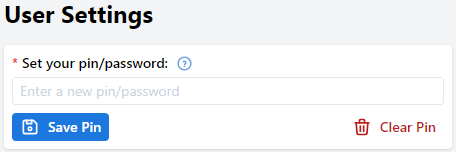
We recommend setting a PIN once you have logged in so that you may utilize offline ticketing if the need arises. Go to *User Settings* in the bottom left of the screen, and this will take you to the screen to set your pin.
User Settings screen/PIN setup
{% hint style="info" %}
Once your PIN has been set, you will utilize this PIN rather than your password to login.
{% endhint %}
### Device Setup
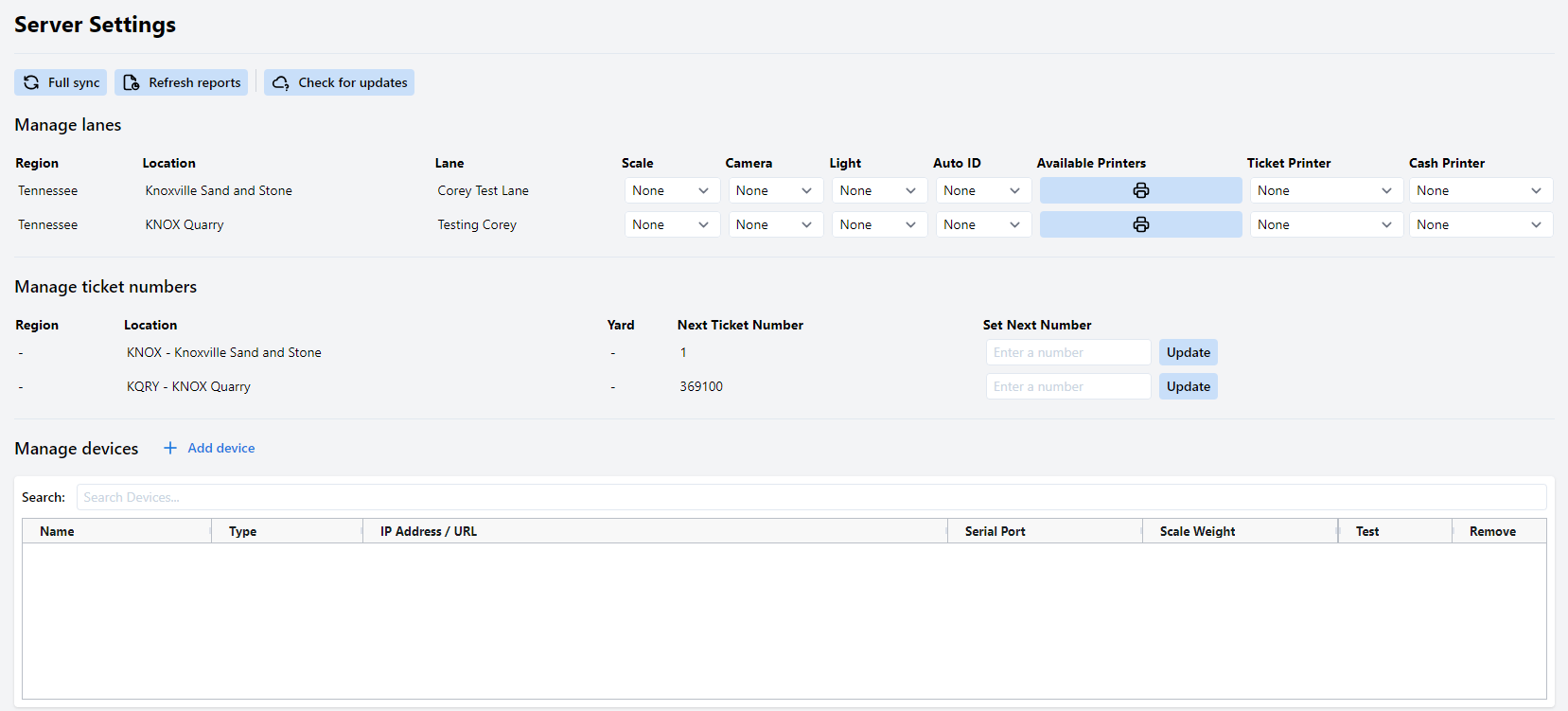
After logging in and setting your PIN, you'll want to setup all relevant devices that you will be using with Fast-Weigh. Navigate to the *Server Settings* tab to begin setting up your devices.
Server Settings screen/Manage devices
This page is the hub for all of your devices that you will use with Fast-Weigh. You can add any of the devices you used with the previous Fast-Weigh application at this screen such as cameras, scales, traffic lights, and printers.
To add a device click the "**+ Add device**" button next to *Manage devices*. This will open an *Add Device* pop-up window.
Add Device pop-up window
* **Device Type** - Select the type of device you would like to add. Can be *IP Camera, IP Scale, LPR Camera, Printer, Serial Scale,* or *Traffic Light*.
* **Name** - Give your device an appropriate name
The fields following *Name* will change depending on the *Device Type* that is selected. For this example we will setup a *Printer*.
Adding a printer to Fast-Weigh
Select *Printer* as the device type, and then select the desired printer from the *OS Printer*: dropdown menu. You may also set any number of copies to print depending on your company's needs.
Now that you have the printer added, you have to set the printer for your lane. On the *Server Settings* page at the top you will see *Manage Lanes,* here you will see your lane where you can attach your added devices.
Manage Lanes
To attach the previously added printer you will click the printer button below *Available Printers* and then select the printer you added. Then you can set this printer to be your *Ticket Printer* and *Cash Printer.*
Attaching printer to a lane
To see how to add other types of devices navigate to the [*Manage Devices*](/fast-weigh-knowledge-base/references/ticketing-app/application/server-settings/manage-devices.md) page of the Knowledge Base.
You have now successfully setup your new Fast-Weigh ticketing application. If you need any assistance with any part of this process feel free to contact us at *865-219-2980* or by email at [*support@tacinsight.com*](mailto:support@tacinsight.com)*.*