# Setup

{% hint style="warning" %}
We recommend contacting Support for assistance Installing and Configuring the Fast-Weigh Ticketing App
{% endhint %}

## Web Portal Setup

Web Portal > Admin Settings (Gear Icon) > Devices

<figure><img src="https://490131596-files.gitbook.io/~/files/v0/b/gitbook-x-prod.appspot.com/o/spaces%2F0LJDMCSYOqplCEgCo73X%2Fuploads%2FwNzCAonSydYFojUMjYGt%2Fimage.png?alt=media&#x26;token=08d8274f-bdd2-4b8d-bbff-41d4caea872b" alt=""><figcaption></figcaption></figure>

<figure><img src="https://490131596-files.gitbook.io/~/files/v0/b/gitbook-x-prod.appspot.com/o/spaces%2F0LJDMCSYOqplCEgCo73X%2Fuploads%2FHII2vZndTqVmNWQuceG5%2Fimage.png?alt=media&#x26;token=099b73ef-0c3b-41a7-8b61-39c56d591ef9" alt=""><figcaption></figcaption></figure>

<figure><img src="https://490131596-files.gitbook.io/~/files/v0/b/gitbook-x-prod.appspot.com/o/spaces%2F0LJDMCSYOqplCEgCo73X%2Fuploads%2FB8fGbDed50F2uw03s0wF%2Fimage.png?alt=media&#x26;token=8579750f-c82f-40e8-ae5a-9f9223c2dcbd" alt=""><figcaption></figcaption></figure>

<figure><img src="https://490131596-files.gitbook.io/~/files/v0/b/gitbook-x-prod.appspot.com/o/spaces%2F0LJDMCSYOqplCEgCo73X%2Fuploads%2F5U4jO6o8SuRZKYEgdaNo%2Fimage.png?alt=media&#x26;token=49ec8f54-a175-4767-994b-8d734ef078a5" alt=""><figcaption></figcaption></figure>

<figure><img src="https://490131596-files.gitbook.io/~/files/v0/b/gitbook-x-prod.appspot.com/o/spaces%2F0LJDMCSYOqplCEgCo73X%2Fuploads%2FNJtMs4C2iuae9tk4aohu%2Fimage.png?alt=media&#x26;token=c8d306f3-82e7-453a-9bde-9136b1ab65e0" alt=""><figcaption></figcaption></figure>

Device ID: Short Code for the Location

PIN: Short Numeric Code for the Location

Region/Location: Determines what location data will be used for this ticking app log-in

Barcode Formats: If you plan on using a Barcode Scanner or RFID Reader at this location, select the appropriate Format

Active: Toggle to enable or Disable this log-in&#x20;

&#x20;

## Ticketing App installation:

You can download the ticketing app directly from the Microsoft Store by searching for "Fast Weigh Ticketing" or by following this link:

{% embed url="<https://www.microsoft.com/store/productId/9PGBWRVNQGSV?ocid=pdpshare>" %}

After installing the application you should see this:

<figure><img src="https://490131596-files.gitbook.io/~/files/v0/b/gitbook-x-prod.appspot.com/o/spaces%2F0LJDMCSYOqplCEgCo73X%2Fuploads%2FeEfHupQvJBnJXmhavaIN%2Fimage.png?alt=media&#x26;token=8e312f8e-b827-4a13-9a41-a7d3b76c9d63" alt=""><figcaption></figcaption></figure>

Input the following IDs and PINs

Customer ID: This ID can be provided by Fast-Weigh Support

Customer PIN: This PIN can be provided by Fast-Weigh Support

Scalehouse ID: Can be found in the Web portal by going to Admin Settings > Devices

Scalehouse PIN: Can be found in the Web portal by going to Admin Settings > Devices

Click the Sync button in the top right of the ticketing app;

<figure><img src="https://490131596-files.gitbook.io/~/files/v0/b/gitbook-x-prod.appspot.com/o/spaces%2F0LJDMCSYOqplCEgCo73X%2Fuploads%2FCxRulbEQBfnNrtmXCfdO%2Fimage.png?alt=media&#x26;token=616e86ae-8219-4af5-aad3-4a12292411b2" alt=""><figcaption></figcaption></figure>

You should see the app cycle through various categories of Data being synced. If you receive an error message, you most likely entered the wrong ID/PIN.

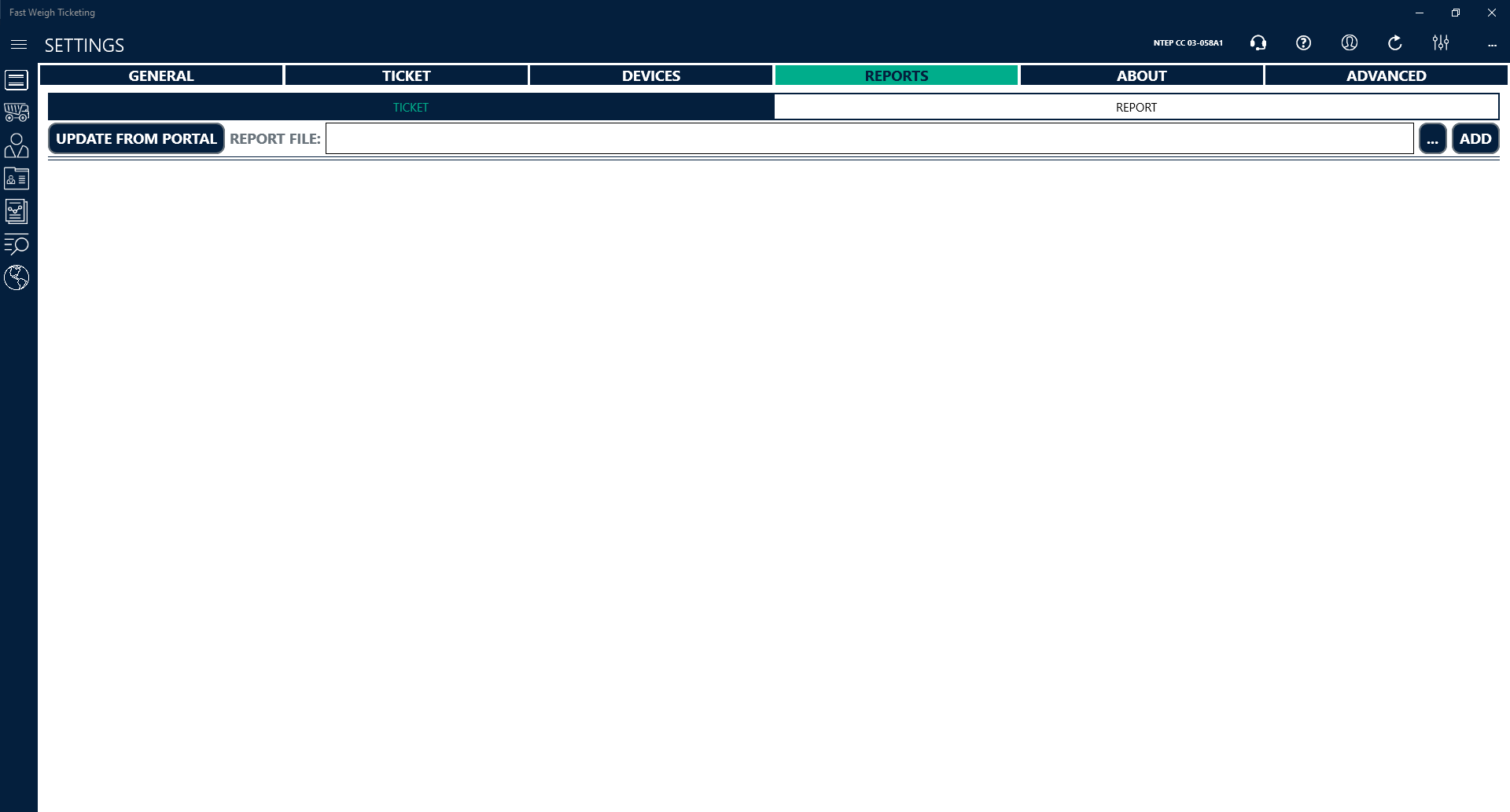
Go to the Reports Tab:

<figure><img src="https://490131596-files.gitbook.io/~/files/v0/b/gitbook-x-prod.appspot.com/o/spaces%2F0LJDMCSYOqplCEgCo73X%2Fuploads%2Ft7LCkElWO4Z0SpyDBD5D%2Fimage.png?alt=media&#x26;token=ca17ad27-98e0-48af-abf6-92a6d2ea7169" alt=""><figcaption><p>If you do not see this menu, go to the settings of the ticketing app</p></figcaption></figure>

Click Update from Portal:

<figure><img src="https://490131596-files.gitbook.io/~/files/v0/b/gitbook-x-prod.appspot.com/o/spaces%2F0LJDMCSYOqplCEgCo73X%2Fuploads%2Fy7uv4sXwIl5Ap1PsM2DR%2Fimage.png?alt=media&#x26;token=5010c828-e50f-4f96-94e9-95a7c603b75d" alt=""><figcaption></figcaption></figure>

You should receive this pop-up message, close it.

<figure><img src="https://490131596-files.gitbook.io/~/files/v0/b/gitbook-x-prod.appspot.com/o/spaces%2F0LJDMCSYOqplCEgCo73X%2Fuploads%2FyCeM9ZDKfE7cyKrHCf0D%2Fimage.png?alt=media&#x26;token=489f4c71-0f58-4583-8fd4-df4106a72be2" alt=""><figcaption></figcaption></figure>

Return to the General Tab

<figure><img src="https://490131596-files.gitbook.io/~/files/v0/b/gitbook-x-prod.appspot.com/o/spaces%2F0LJDMCSYOqplCEgCo73X%2Fuploads%2FloQM8KyrwgpDV8eNSbnH%2Fimage.png?alt=media&#x26;token=ea0c5f81-3e7b-4e0d-9faf-3bcf763ae4bb" alt=""><figcaption></figcaption></figure>

Enter the Display Name, Phone, and Address. These fields will be displayed on the ticket

<figure><img src="https://490131596-files.gitbook.io/~/files/v0/b/gitbook-x-prod.appspot.com/o/spaces%2F0LJDMCSYOqplCEgCo73X%2Fuploads%2FCdA2ocJHsawyVL5e7IUD%2Fimage.png?alt=media&#x26;token=9c86962d-23c2-415e-a947-bb19b087a147" alt=""><figcaption></figcaption></figure>

Go to the Ticket Tab:

<figure><img src="https://490131596-files.gitbook.io/~/files/v0/b/gitbook-x-prod.appspot.com/o/spaces%2F0LJDMCSYOqplCEgCo73X%2Fuploads%2FHokbj1IlcFUT2983dYCJ%2Fimage.png?alt=media&#x26;token=729bf517-f12e-4c5b-a166-ec8e53abdb27" alt=""><figcaption></figcaption></figure>

Set the First/Last Ticket Number. You will need to click Change first, be careful to not use ticket numbers that have already been ticketed with at this location

<figure><img src="https://490131596-files.gitbook.io/~/files/v0/b/gitbook-x-prod.appspot.com/o/spaces%2F0LJDMCSYOqplCEgCo73X%2Fuploads%2Fd0JYYTzHGBx4fMq5Unzg%2Fimage.png?alt=media&#x26;token=0617995c-d09e-4657-858d-320003c72f04" alt=""><figcaption></figcaption></figure>

Scroll to the bottom of the Ticket Tab and if desired set a message to be displayed on all tickets:

<figure><img src="https://490131596-files.gitbook.io/~/files/v0/b/gitbook-x-prod.appspot.com/o/spaces%2F0LJDMCSYOqplCEgCo73X%2Fuploads%2FhSwJHHRdqfCp6tuiK5bT%2Fimage.png?alt=media&#x26;token=3e547220-0432-46de-811a-753717c2bf73" alt=""><figcaption></figcaption></figure>

Select a Ticket Report:

<figure><img src="https://490131596-files.gitbook.io/~/files/v0/b/gitbook-x-prod.appspot.com/o/spaces%2F0LJDMCSYOqplCEgCo73X%2Fuploads%2F1ZhTKUrnfEqJUxsH5GNz%2Fimage.png?alt=media&#x26;token=26f8fd0c-c262-4987-89cf-53f4afa11a42" alt=""><figcaption></figcaption></figure>

Additional information about some of the available ticket formats:

1 Part: 8 1/2 x 11, 1 ticket per page

2 Part: 8 1/2 x 11, 2 tickets per page (intended for perforated paper)

3 Part: 8 1/2 x 11, 3 tickets per page (intended for perforated paper)

4 Part: 8 1/2 x 11, 3 tickets per page (intended for perforated paper)

3 Inch: 3 Inch Thermal Receipt Style, 1 ticket per page

4 x 6: 4 x 6 Thermal Label Style , 1 ticket per page