# Bluetooth Printer Setup (Android)

***

## Zebra ZQ620 and ZQ510 Bluetooth Printer Setup (Android)

### Connecting Printer To Zebra App

1. Download and install the Zebra Printer Setup Utility App:
   * Google Play Store URL: [*https://play.google.com/store/apps/details?id=com.zebra.printersetup\&hl=en-US*](https://play.google.com/store/apps/details?id=com.zebra.printersetup\&hl=en-US)
2. Launch the Zebra Setup Utility App.
3. Discover the Printer:
   * Tap **Discover Printers**.
     * If needed, enable Limited Pairing Mode: Hold down the paper feed button until the LED begins flashing.

<figure><img src="https://490131596-files.gitbook.io/~/files/v0/b/gitbook-x-prod.appspot.com/o/spaces%2F0LJDMCSYOqplCEgCo73X%2Fuploads%2FGCuC9NWj0XTtFY2LTOGP%2FMedia%20(3).jpg?alt=media&#x26;token=f34c59f1-103f-4ba3-8f20-e8eacf3cb7c4" alt="" width="188"><figcaption></figcaption></figure>

### Secondary Zebra Printer App Connection Option

* Open the hamburger menu (top left).
* Tap the desired printer in the Discovered Printers list to connect.
* Use the refresh icon if the printer does not appear initially.
  * An NFC connection is also available. The NFC contact point is located on the left bottom side of printer.

<figure><img src="https://490131596-files.gitbook.io/~/files/v0/b/gitbook-x-prod.appspot.com/o/spaces%2F0LJDMCSYOqplCEgCo73X%2Fuploads%2FYj7tbdqxpO6dq0DlgjkW%2FMedia%20(4).jpg?alt=media&#x26;token=12bc65de-7fe5-497c-bb15-336631f31ec2" alt="" width="375"><figcaption></figcaption></figure>

### Checking Zebra Programming Language

Zebra printers use their own programming language (called ZPL or Zebra Programming Language) in order to help apps send commands to the printer for functions such as printing and formatting. Most Zebra printers are set to ZPL by default, but you may have one that is set otherwise which will cause ticket printing to fail.

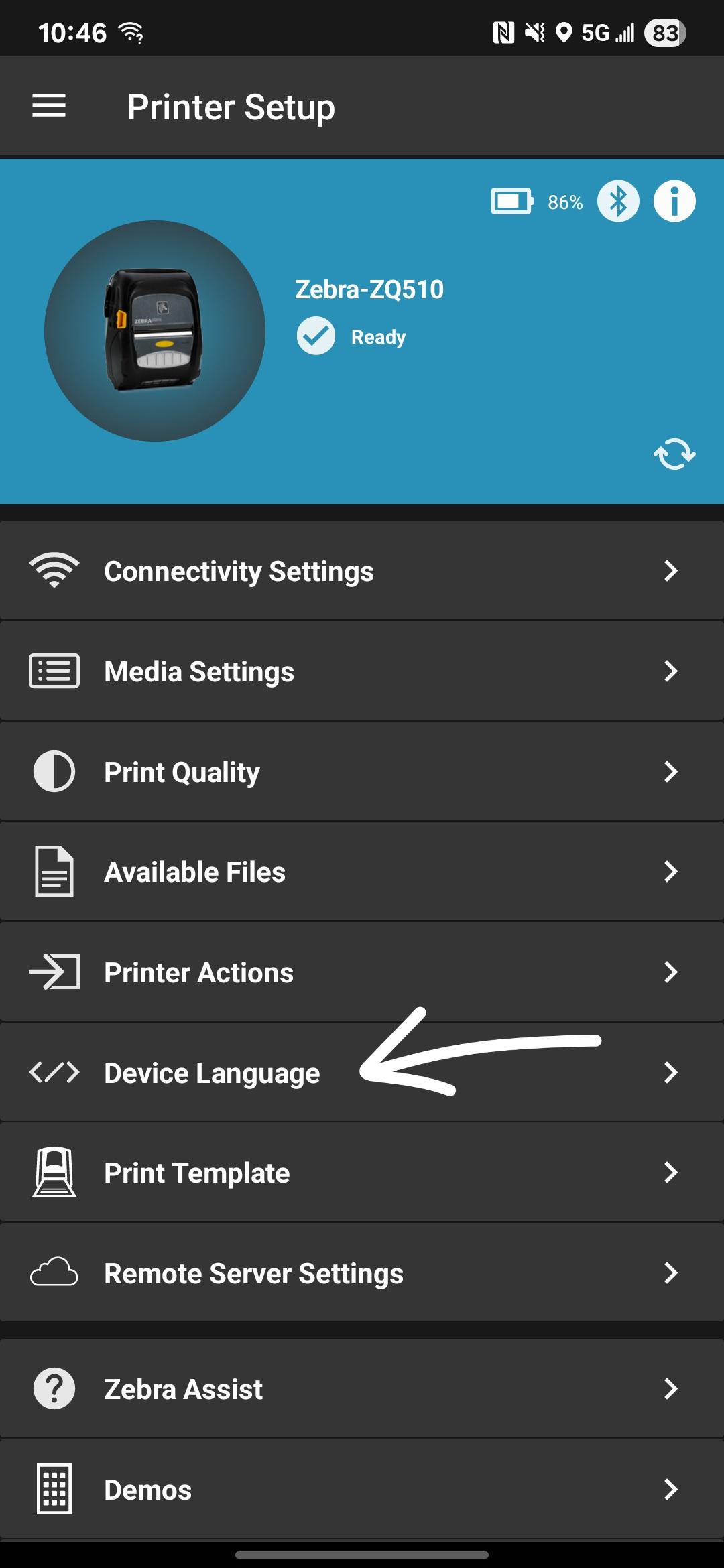
* Once the printer is connected to the Zebra Printer Setup app, select the **Device Language** option.
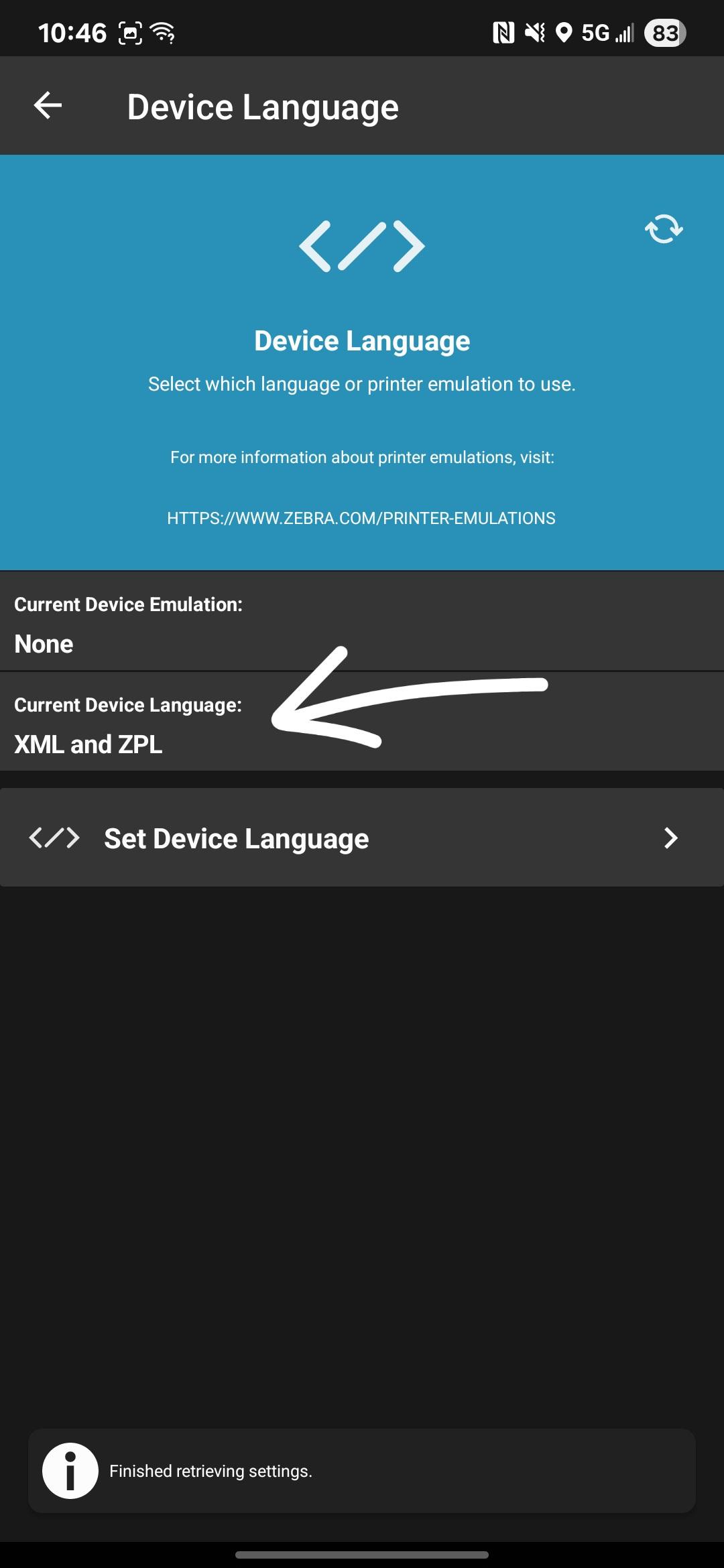
* You should be able to see the Current Device Language that the printer is set to.
  * **The language you want the printer assigned to is "XML and ZPL".**
* You can select "**Set Device Language**" to change it to the appropriate setting if it is not set to the expected **"XML and ZPL"** language.
  * Under the **Command Language** section, select **"XML and ZPL"** then select **Apply** to change the settings.

<div><figure><img src="https://490131596-files.gitbook.io/~/files/v0/b/gitbook-x-prod.appspot.com/o/spaces%2F0LJDMCSYOqplCEgCo73X%2Fuploads%2FAmQUYObopsmwgg2nPV6h%2FZebra%20Settings%20Check%20-%201.jpg?alt=media&#x26;token=9afb8ac6-5b29-4bb3-8075-c53435fbff3f" alt="" width="188"><figcaption><p>Device Language Settings</p></figcaption></figure> <figure><img src="https://490131596-files.gitbook.io/~/files/v0/b/gitbook-x-prod.appspot.com/o/spaces%2F0LJDMCSYOqplCEgCo73X%2Fuploads%2FxDqeXuk9vCehiqcNIQuF%2FZebra%20Settings%20Check%20-%202.jpg?alt=media&#x26;token=66065fd7-264f-4ccc-962c-dcb5e811950e" alt="" width="188"><figcaption><p>Current Device Language</p></figcaption></figure></div>

<figure><img src="https://490131596-files.gitbook.io/~/files/v0/b/gitbook-x-prod.appspot.com/o/spaces%2F0LJDMCSYOqplCEgCo73X%2Fuploads%2FSXCUIorMakWDxharJqrR%2FLanguage%20Set%20-%20Zebra%20Printer%20Setup.png?alt=media&#x26;token=defe7e48-5830-48da-8624-4b8398506df0" alt="" width="218"><figcaption><p>Setting the Printer Language</p></figcaption></figure>

### Configure the Zebra Bluetooth Settings

* Go to **Connectivity Settings > Bluetooth**.
* Set the following:
  1. Enable the toggle for Discoverable.
  2. (Optional) Set a recognizable **Friendly Name/Display Name** for the printer.
  3. Tap **Next**.
  4. Set **Minimum Bluetooth Security Mode** to **3**.
  5. Set **Bonding** to **Enable**.
  6. Set **Enable Reconnect** to **Off** (you may be able to be set this to **On** for some models).
  7. Set **Controller Mode** to **Classic**.
  8. Tap **Next**.

<div align="center"><figure><img src="https://490131596-files.gitbook.io/~/files/v0/b/gitbook-x-prod.appspot.com/o/spaces%2F0LJDMCSYOqplCEgCo73X%2Fuploads%2FIa7r941AdH6WrYWteQ7F%2FMedia%20(5).jpg?alt=media&#x26;token=8b67ca86-ce60-406a-8f54-5320bc3bba14" alt="" width="188"><figcaption><p>Click to Expand Image.</p></figcaption></figure></div>

<div><figure><img src="https://490131596-files.gitbook.io/~/files/v0/b/gitbook-x-prod.appspot.com/o/spaces%2F0LJDMCSYOqplCEgCo73X%2Fuploads%2FBYhVdwzzI7EwdYcGuLaW%2FMedia%20(1).jpg?alt=media&#x26;token=0047146c-686e-4f82-93a3-8f9c4329a86c" alt="" width="188"><figcaption><p>Click to Expand Image.</p></figcaption></figure> <figure><img src="https://490131596-files.gitbook.io/~/files/v0/b/gitbook-x-prod.appspot.com/o/spaces%2F0LJDMCSYOqplCEgCo73X%2Fuploads%2FlTmyQmun1CIsvP6dDGpy%2FMedia%20(6).jpg?alt=media&#x26;token=f724eca9-abf5-4c57-bbde-6b28efa5f3bf" alt="" width="188"><figcaption><p>Click to Expand Image.</p></figcaption></figure></div>

1. Apply printer settings and confirm printer restart.
   1. Once the printer restarts, return back to Step 3 to rediscover and reconnect the printer if neccessary to confirm the proper settings have been applied.

***

### **Accept the Bluetooth Pairing Request**

* When connecting to the Printer or attempting the first print job, you may receive a Bluetooth pairing request that will display on both the Android device and the printer itself.
* Confirm that the Bluetooth Pairing Code matches.
* To accept the pairing request:
  * On the printer itself, press the appropriate button to accept the Pairing request.
  * On the Android device, select/tap the Pair option on the prompt.

***

### **Configure the Fast-Weigh App to use Zebra printer**

1. Launch the Fast-Weigh App:
   1. If already open, close and relaunch the app.
2. Set Printing Options:
   * Press the Gear icon to access the App Settings area.
   * Navigate to **Printing Options.**
   * Configure the following:
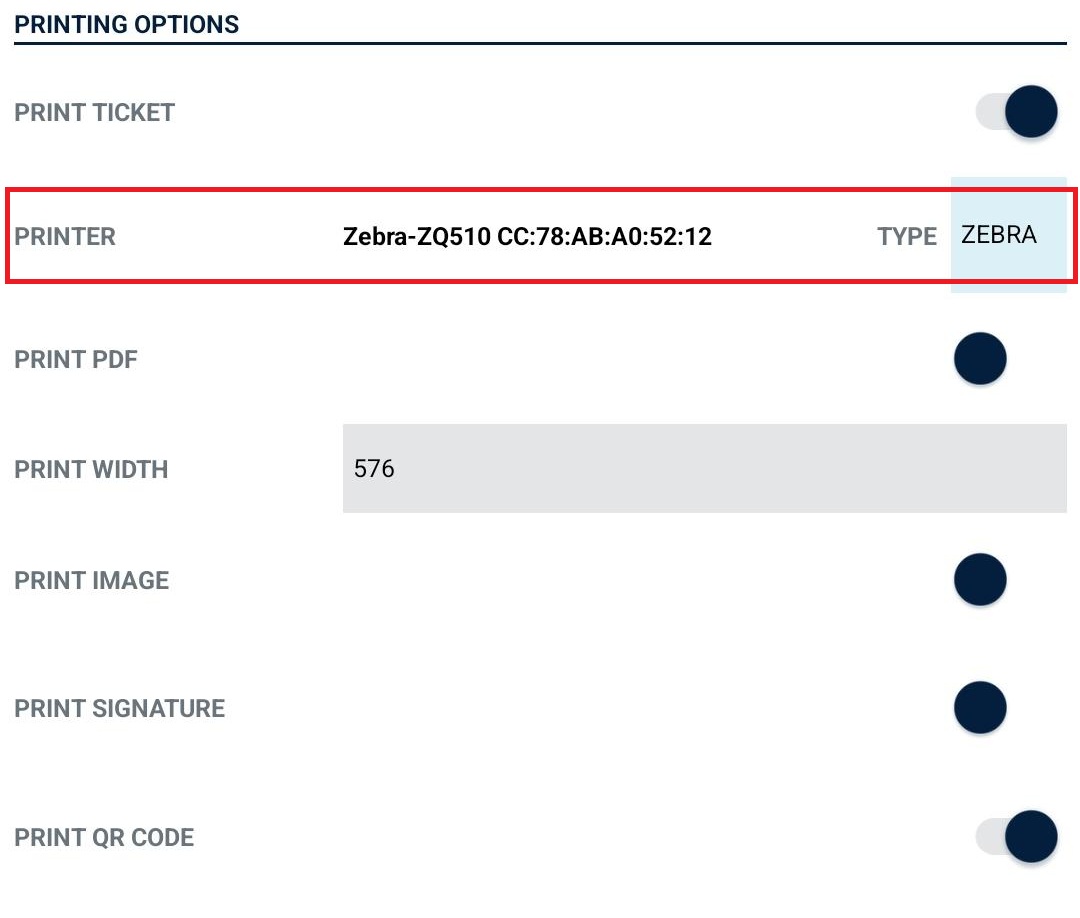
     * Set the Printer Type to **ZEBRA**.
     * Tap **Select Printer**:
       * Wait 3–5 seconds for the printer to appear in the list.
       * Select the printer (it will show the friendly name from the Bluetooth Configuration steps).
         * Confirm printer by checking the Bluetooth address in the Zebra Utility or the device itself, if needed.
       * *The Printer will turn yellow when selected from the list of devices.*
     * Press the **Save** icon to save the printer selection and return to the settings area.
     * Press the **Back** arrow to return to the ticketing area of the app.

<div><figure><img src="https://490131596-files.gitbook.io/~/files/v0/b/gitbook-x-prod.appspot.com/o/spaces%2F0LJDMCSYOqplCEgCo73X%2Fuploads%2FJsUqlM1gbi5NqJTavEsn%2FMedia%20(2).jpg?alt=media&#x26;token=69334a9e-2e0b-4a63-8102-5e091063fc33" alt="" width="375"><figcaption><p>Selecting Printer Type</p></figcaption></figure> <figure><img src="https://490131596-files.gitbook.io/~/files/v0/b/gitbook-x-prod.appspot.com/o/spaces%2F0LJDMCSYOqplCEgCo73X%2Fuploads%2FEA5qy1nT53aETsy7PKrg%2FMedia%20(3).jpg?alt=media&#x26;token=a1a2615e-8fa9-478f-b589-fd931de0ce54" alt="" width="375"><figcaption><p>Selecting the printer.</p></figcaption></figure></div>

<div><figure><img src="https://490131596-files.gitbook.io/~/files/v0/b/gitbook-x-prod.appspot.com/o/spaces%2F0LJDMCSYOqplCEgCo73X%2Fuploads%2Ff5q8sON0fF6EwvjXmzfR%2FMedia%20(1).jpg?alt=media&#x26;token=2e872da2-65b0-438c-9c08-423794f3f0ff" alt="" width="375"><figcaption><p>Devices list showing selected printer.</p></figcaption></figure> <figure><img src="https://490131596-files.gitbook.io/~/files/v0/b/gitbook-x-prod.appspot.com/o/spaces%2F0LJDMCSYOqplCEgCo73X%2Fuploads%2Fbldegzxx7rdu3axOujKG%2FMedia.jpg?alt=media&#x26;token=ee282ce0-6c77-4176-b577-c0eb3bc9599b" alt="" width="375"><figcaption><p>Printer has been selected and appears as the chosen device.</p></figcaption></figure></div>

* Test Printing A Ticket:
  * The printer should now be ready to print tickets directly from the Fast-Weigh app.

***

## Star SM-T300i Bluetooth Printer Setup (Android)

1. &#x20;Ensure Printer is set to **Emulation = ESC/POS**
   1. Print a Self-Test to check the Emulation Mode:
      1. With the power OFF, hold both the **POWER** and **FEED** buttons simultaneously until the **Self Test** prints out.
      2. The **Emulation Mode** will appear as either:
         * **ESC/POS**
         * **StarPRNT**

{% hint style="danger" %}

## **CRITICAL: Follow the next set of instructions to change the Emulation Mode to ESC/POS, if it's not already set. Attempting to use the printer while set to StarPRNT can cause printing to fail.**

{% endhint %}

***

### Changing Star Printer Emulation Mode

1. Turn the printer on and open the printer cover.
2. Press and hold **POWER + FEED** buttons at the same time.
3. When the **ERROR** light flashes five times, release the buttons.
   1. Be sure to hold the buttons until the fifth flash completes.
4. The emulation switchover will occur automatically.
5. Close the printer cover.&#x20;
6. The printer will print a slip showing the new emulation mode:
   1. **ESC/POS Mode: EMU = ESC/POS**
   2. **StarPRNT Mode: EMU = StarPRNT**
7. If the emulation did not switch, repeat steps 1–3.
8. Reboot the printer to apply the new setting.

***

### Note for Firmware Version 3.0 or Lower

If the firmware version of the printer is 3.0 or lower, the self-test will not display the emulation mode.

Alternate Self-Test Procedure:

1. With the power **OFF**, hold both the **POWER** and **FEED** buttons until the self-test begins.
2. Before the self-test finishes, press and hold the **FEED** and **POWER** buttons at the same time.
3. The printer will print:
   1. Bluetooth device name
   2. Bluetooth device address
   3. Memory switch settings (in StarLine mode)
4. After printing, the printer will be ready to receive data.

***

### Bluetooth Communication Mode Configuration (Android)

If using Android, the communication mode should be set to:

* **Bluetooth(Mac)**

Changing Bluetooth Communication Mode:

1. Press and hold **POWER + FEED** buttons for at least 5 seconds (until the **ERROR LED** flashes 5 times).
2. Continue holding both buttons until the buzzer sounds twice.
3. The Bluetooth communication mode will switch.

***

### Connection To Printer Via Bluetooth

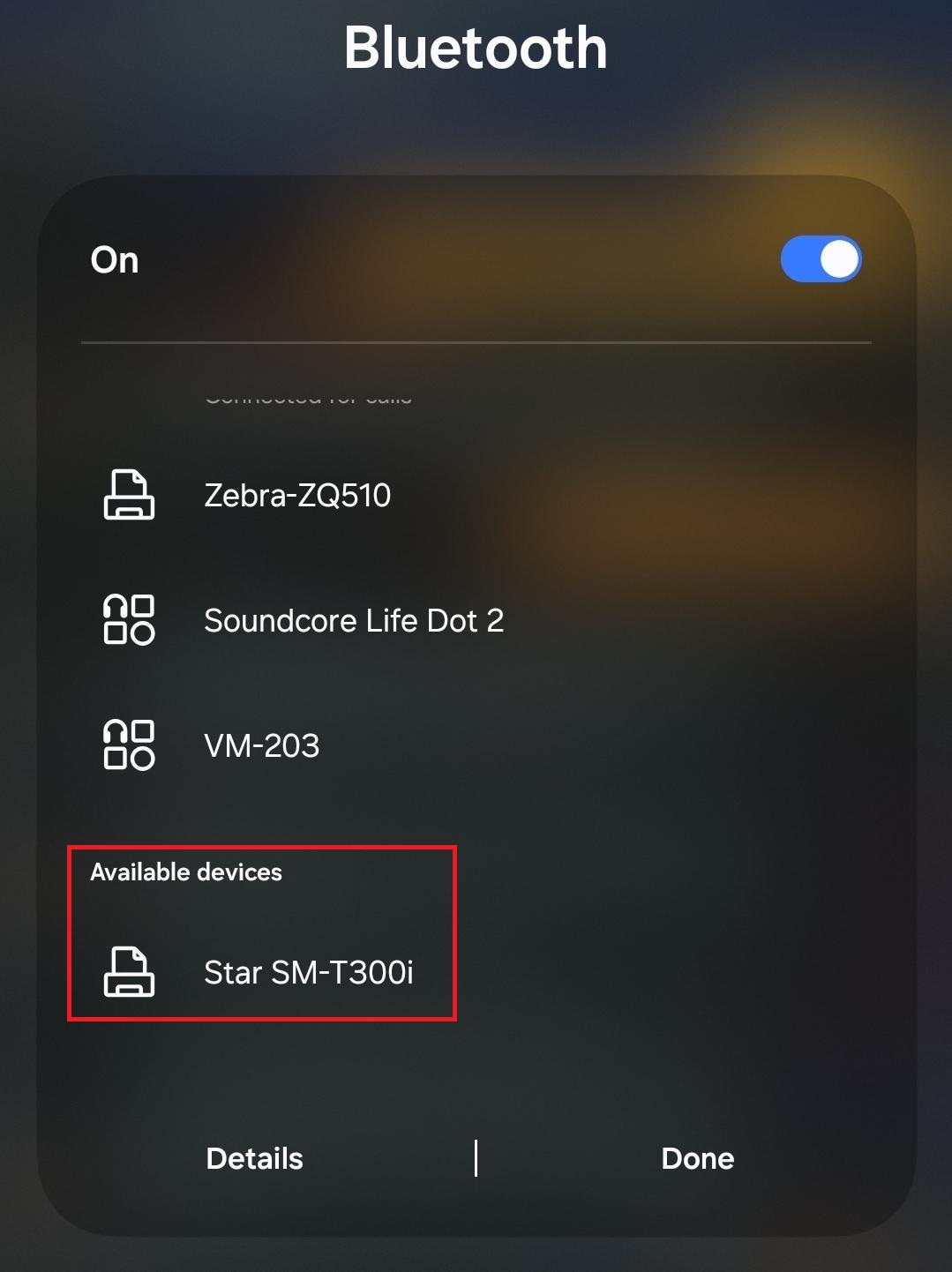
After following the previous steps to ensure the printer is set to **ESC/POS Mode** and **Bluetooth (MAC)**, the printer should appear as an available device when scanning for Bluetooth connections.

<figure><img src="https://490131596-files.gitbook.io/~/files/v0/b/gitbook-x-prod.appspot.com/o/spaces%2F0LJDMCSYOqplCEgCo73X%2Fuploads%2FCAZC0SeYZ86UCLc8eYIO%2FMedia.jpg?alt=media&#x26;token=a13ebf59-6cb5-41bb-b035-7105d5d5d050" alt="" width="375"><figcaption><p>Android Bluetooth connections scan example.</p></figcaption></figure>

***

### **Configure Fast-Weigh App to Use Star Printer**

1. Launch the Fast-Weigh App
   1. If already open, close and relaunch it.
2. Set Printing Options

* Press the Gear icon in the top right of the app.
* Navigate to **Printing Options.**
* Configure the following:
  * Set the Printer Type to **STAR**.
  * Tap **Select Printer**:
    * Wait 3–5 seconds for the printer to appear in the list.
    * Select the printer.
      * Confirm printer by checking the Bluetooth address on the device itself, if needed.
    * *The Printer will turn yellow when selected from the list of devices.*
  * Select the **Save** icon to save the selected printer and return to the settings area.
  * Make sure that the setting **PRINT PDF** is disabled, as it will negatively affect the appearance of the printed tickets.
  * Select the **Back** arrow to return to the main ticketing area of the app.

3\. Test Printing

The printer should now be ready to print tickets directly from the Fast-Weigh app.

***

***